Close Menu
onyxguides.comonyxguides.com

    Subscribe to Updates

    Get the latest creative news from FooBar about art, design and business.

    What's Hot

    BARCO QDX Rental Laser Projectors Instruction Manual

    March 13, 2026

    CHRISTIE D4K2560 High Frame 4K Projector Instruction Guide

    March 13, 2026

    How To Protect Electronic Devices From EMP

    March 12, 2026
    Facebook X (Twitter) Instagram
    onyxguides.comonyxguides.com
    Facebook X (Twitter) Instagram Pinterest
    • Home
    • About us
    • Terms & Conditions
    • Privacy Policy
    • FAQs
    • Contact us
    onyxguides.comonyxguides.com
    Home » CableCreation Type-C to 2.5 G Ethernet Adapter User Manual
    CableCreation

    CableCreation Type-C to 2.5 G Ethernet Adapter User Manual

    By Gabriel SmithOctober 16, 2025No Comments4 Mins Read
    Facebook Twitter Pinterest LinkedIn Tumblr WhatsApp Telegram Email
    CableCreation-Type-C-to-2-5-G-Ethernet-Adapter-FEATURED
    Share
    Facebook Twitter LinkedIn Pinterest Email

    CableCreation-logo

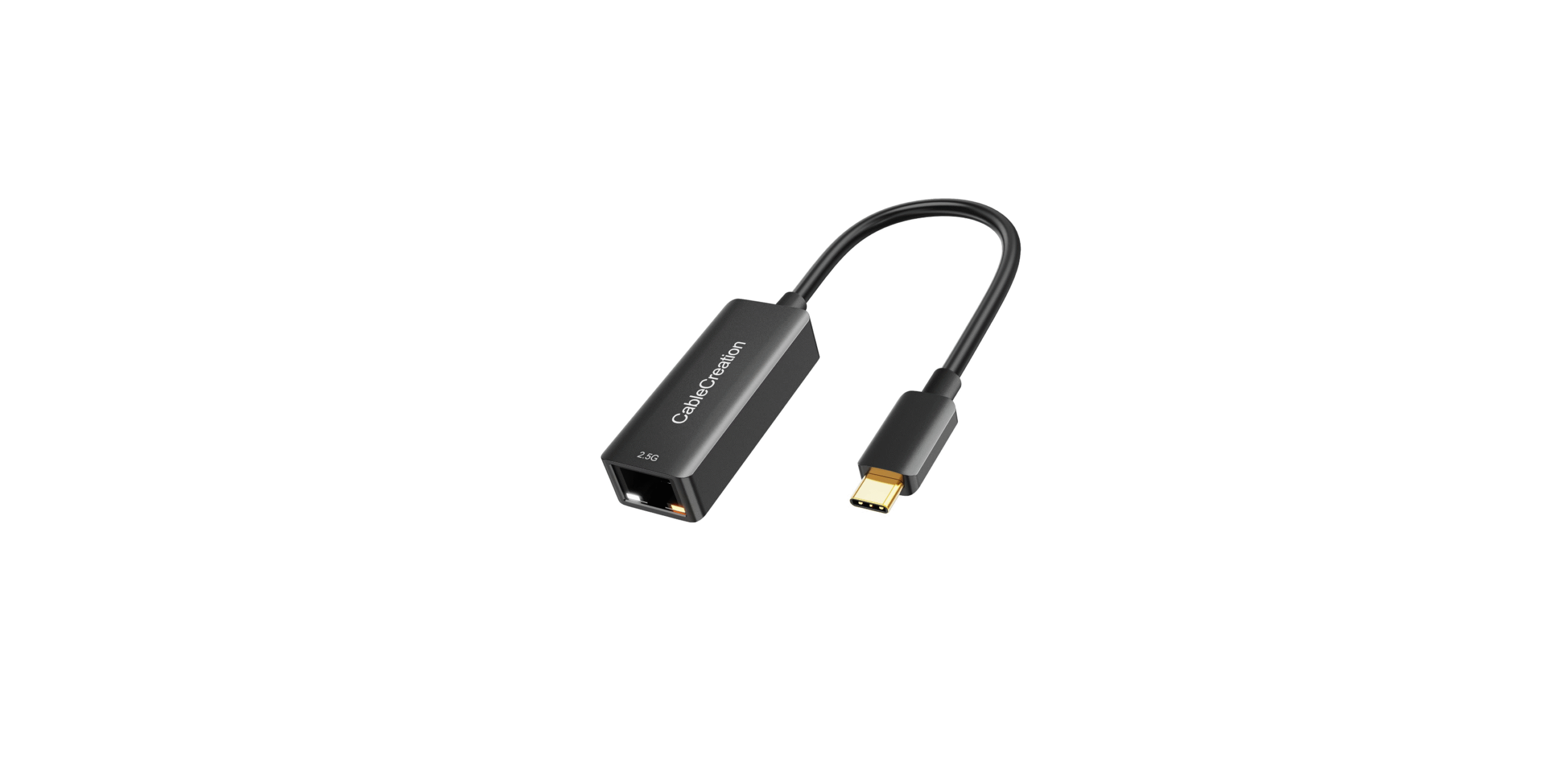
    CableCreation Type-C to 2.5 G Ethernet Adapter

    CableCreation-Type-C-to-2-5-G-Ethernet-Adapter-product

    Introduction

    This Type-C to 2.5Gbps Ethernet Adapter is a high and low-expenditure solution. It enables your new MacBook Pro, Chromebook, or other USB-C supported host PC to get access to a fast Ethernet network by connecting the RJ45 port.

    Features

    • Supports Type-C input and 2.5Gbps RJ45 output
    • Supports USB-C plug and play, hot swap
    • Supports 10M/100M/1G/2.5G bandwidth
    • Supports twisted pair crossover detection and auto-correction , USB bus power (no external power supply)
    • Support WOL(Wake-On-LAN), Full Duplex flow(10M/100M/1G/2.5G Rate), Auto-Negotiation
    • Supports the Operating system for computers: Windows: Windows 7 / Windows 8/Windows10/ Windows Vista/Windows XP (32/64-bit). Mac: Mac OS X 10.6 to 10.12.5

    Package Content

    Before attempting to use this unit, please check the packaging and make sure the following items are contained in the shipping carton:

    • Main unit x1
    • User Manual x1

    Operation

    1. Connect the Type-C host PC to the USB-C port of this product
    2. Connect the Gigabit Ethernet port of this product to the Ethernet Router with an Ethernet cable
    3. automatically or manually set the IP address of the computer

    Connection Diagram

    CableCreation-Type-C-to-2-5-G-Ethernet-Adapter-fig-1

    Driver Installation

    When this product is connected to a Windows OS PCthat can automatically start the “auto run” function for CD driver installation. The following tip will pop up on the screen if the PC has not been installed with the driver of this produc. Thenn we need to click “yes” to finish installation.

    The above tip will not pop up if the connected PC can’t automatically startthe  “auto run” function for CD driver installation. In this case,we needd to manually set it with the following steps. First, double clicthe k “This Picture” Icon on the desktop, we can see  the “CD-ROM” icon (seen below the left picture); second, double click this

    icon, we can seethe  “driver installation” icon (seen belowright picture). At last, double click the “driver installation” icon, the above installation tip CableCreation Type-C to 2.5 G Ethernet Adapter will pop up, and click “yes” to finish installation.

    Specifications

    Input/ Output Connector
    InputType-C Male ×1
    OutputRJ45 ×1
    RJ45 Basic Specifications
    Supported communication rate10Mbps/100Mbps/1Gbps/2.5Gbps
    Main features supportedWOL(Wake-On-LAN)

    Full Duplex flow(10M/100M/1G/2.5G

    Rate)

    Auto-Negotiation

    Size&Weight
    Sizemm(L*W*H)
    Weightg
    Warranty
    Limited Warranty1 Year
    Environmental
    Operating Temperature0 ℃ to +45℃
    Operating Humidity10% to 85 % RH (no condensation)
    Storage Temperature-10℃ to +70℃
    Storage Humidity5% to 90 % RH (no condensation)
    Power Consumption
    Voltage4.75V~5.25V
    Standby Power<60mA (When Ethernet cable is not connected)
    Normal Operating Power<250mA   10/100/1000/2500Mbps
    Regulatory Approvals
    CertificationsFCC, CE
    Accessories
    User ManualEnglish Version

    BRAND GUARANTEE

    • CableCreation focuses on the Ideal Design of all of Our Quality Cables.
    • CableCreation is a Creative Team with its Own Factory, manufacturing, using innovative design and high-quality materials.
    • CableCreation is Confident to Offer All Buyers items with 24 24-month warranty, lifetime technical support, and friendly customer service. If you have any problems with our product or service, kindly contact us at any time.

    Customer Support

    • Website: https://www.cablecreation.com/
    • Customers help: brandservice@cablecreation.com

    FAQs

    What is the CableCreation Type-C to 2.5G Ethernet Adapter?
    With the help of this adapter, you can connect your USB-C device to a 2.5 Gigabit Ethernet network for incredibly fast and reliable wired internet access. This is perfect for professional use, streaming, gaming, and high-speed data transfers.

    Why choose a 2.5G Ethernet adapter instead of a standard 1G adapter?
    Where enabled by your network infrastructure, the 2.5G adapter offers enhanced network performance with rates up to 2.5 Gbps, which is 2.5 times faster than ordinary Gigabit Ethernet.

    Is this adapter plug-and-play?
    Indeed, it requires no extra drivers for Windows 10/11 and macOS and is plug-and-play on the majority of operating systems. It may be necessary to manually install drivers for certain Linux systems.

    What network speeds does this adapter support?
    supports Ethernet speeds of 10Mbps, 100Mbps, 1Gbps, and 2.5Gbps; it automatically negotiates the fastest speed with your network.

    Can I use this adapter with my existing Ethernet cable?
    Yes, it can reach 2.5G speeds using regular Cat5e, Cat6, or higher-rated Ethernet lines. Use Cat6 or above for optimal results.

    How do I connect and use the adapter?
    Just connect an Ethernet cable to the adapter’s RJ45 connection and plug the adapter onto the USB-C port on your device. The connected connection ought to be instantly detected by your device.

    Does the adapter require external power?
    No, it doesn’t need an extra power source; it gets its power from the USB-C connector.

    Can this adapter be used with USB-C hubs or docking stations?
    Although hubs and docks that transmit full USB 3.1/3.2 data signals can be used with it, for optimal performance, a direct connection to your device’s USB-C port is advised.

    CableCreation 2.5G Adapter Installation Guide CableCreation 2.5G Ethernet Adapter User Guide CableCreation Type-C Ethernet Adapter Setup Instructions CableCreation Type-C to 2.5G Ethernet Adapter Manual OnyxGuides Manual User Manual
    Share. Facebook Twitter Pinterest LinkedIn Tumblr Email
    Gabriel Smith

      Related Posts

      Sony ILCE-6700 Interchangeable Lens Digital Camera User Guide

      December 7, 2025

      Bose MA12 Panaray Modular Line Array Loudspeaker User Manual

      December 4, 2025

      Bowers & Wilkins Px8 Wireless Headphones User Manual

      December 4, 2025

      Sonos Arc Black Voice Control Ultra Soundbar User Manual

      December 4, 2025

      JANAM GT1 Self Mobile Entry Head Unit Instruction Manual

      December 4, 2025

      Ronix 1250 Carpet Vacuum Cleaner Instruction Manual

      December 4, 2025
      Add A Comment

      Comments are closed.

      Don't Miss
      Other

      BARCO QDX Rental Laser Projectors Instruction Manual

      March 13, 2026

      BARCO QDX Rental Laser Projectors Quick Start Guide Environment conditions Main Power Requirements The projector…

      CHRISTIE D4K2560 High Frame 4K Projector Instruction Guide

      March 13, 2026

      How To Protect Electronic Devices From EMP

      March 12, 2026

      Hisense PX1 Triple Laser Ultra Throw Projector User Guide

      March 12, 2026
      Stay In Touch
      • Facebook
      • Twitter
      • Pinterest
      • Instagram
      • YouTube
      • Vimeo

      Subscribe to Updates

      Subscribe to Updates

      Follow us

      Facebook X-twitter Instagram Pinterest

      © 2025 All rights reserved Onyx Guide.