

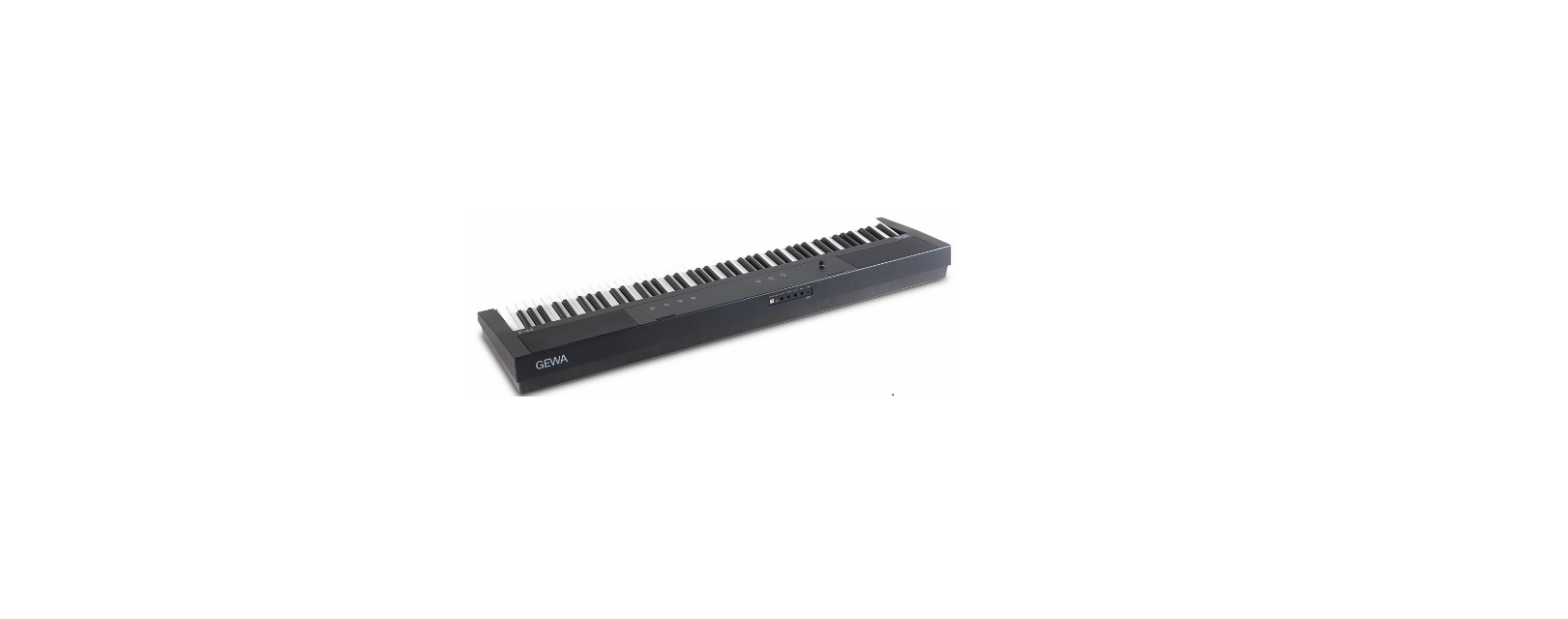

GEWA PP-3 Portable Digital Piano

KEY
The following symbols are used in this operating manual to identify hazards and notes:

Use
- Devices for audio playback (as input or output) or for data communication can be connected. However, the respective technical specifications must be complied with (see the section „Technical data“).
- The electrical connection may only be made to correctly installed power supplies, fulfilling the respective regulations. The mains voltage on the identification plate must correspond to the mains voltage of the country of use.
- The digital piano is to be used only in the original delivery condition described below. Conversions of any kind are not permitted and cause the immediate loss of the warranty claim.
- The digital piano must be placed on securely fastened and weight-suitable, stable, and level floors or platforms.
Improper Use
- Use outdoors or in the rain
- Use in damp rooms
- Connection to incorrect supply voltage or improperly installed electrical power supplies.
- Use near electrical or electronic equipment such as stereos, televisions, radios, or mobile phones.
- These devices may cause interference and affect the sound quality
- Electrical leads that are too long can also affect sound quality.
- Transport and installation in places or vehicles with strong vibration, dust, and strong he, at e,.g. direct sunlight.
- Disregard of the safety instructions
- Improper handling
- Use with devices that are not compatible with the technical data listed below.
Fatal electric shocks
- Even low electrical currents can lead to serious injuries and death
- Never open the digital piano’s casing
- Never use damaged power cables
- Lay the power cable in such a way that it can not be damaged
- Never place containers (vases, glasses, etc) filled with water or fluids on the piano
- Never pour water or liquid onto the digital piano or keyboard
- Never clean the digital piano with a wet cloth
- Never plug in or pull out the mains plug with wet hands. Never pull on the cable; it can cause damage.
- If liquid accidentally gets into the digital piano, immediately unplug the power.
- Then have your digital piano checked by your GEWA service representative.
Unusual circumstances
- Turn off the digital piano or unplug the power cable if:
- There is a sudden loss of sound while using the digital piano
- The digital piano generates an unusual smell or smoke
- Be sure to have the digital piano checked by your GEWA service representative
Protection against fire
- Open flame, such as candles or tealights, can tip over and cause a fire
- Never place objects with open flames on the digital piano!
Damage to the digital piano
- Inappropriate electrical voltages can damage the digital piano
- Only operate the digital piano in the permissible voltage range (as indicated on the respective identification plate).
- Only use the supplied power cable.
- Never place the power cable near sources of heat, such as radiators or freestanding heaters.
- Do not bend or kink the power cable, or damage it in any other way.
- Lay the power cable so that nobody can step on it, trip on it, or roll over it.
- Do not place objects on the power cable.
- Regularly check the power cable and remove any dust or dirt that may be present.
Damage to the digital piano from thunderstorms
- Thunderstorms can generate electrical surges that can damage electrical equipment.
- In the event of a thunderstorm or long periods of non-use (such as travel), unplug the appliance from the mains.
Description
Check that the contents of the package are complete before commencing with assembly


Assembly Instructions
This section tells you how to correctly set up your digital piano. For assembly, you will need:
- A sizPhillipslips screwdriver
- Another person
Do not tighten the Phillips screws until all parts of your digital piano have been pre-assembled and aligned.
How to assemble your new digital piano
- Screw the following assembly screws (10) in the pre-defined holes on the underside of the pedals.
- Connect the side panels (4 and 5) using the following Phillips screws (8B) with the Pedalboard / Subwoofer-housing (3).

- Use the Phillips screws (9A and 9B) to attach the rear panel at the desired angle as well as with the Pedalboard / Subwoofer-housing.
- Now place the keyboard (1) evenly above the housing base. The Keyboard must be perfectly aligned with the metal brackets on the sideboards so that they can slide into their groove. Once this is in place, the angle at which the side panel is set in the grooves on the keyboard (1). Then fasten.

- Fasten the keyboard with 2 M6 x 16 (8A) screws along with 2 M6 x 30 (8B) screws

- Connect the cables for the Pedal and Subwoofer (11 and 12) to their matching ports on both the pedalboard and keyboard. Now attach the Subwoofer cover (6). Move it past both the following front panels 4 and 5. No screws are needed for the Subwoofer cover. The cover is held in place by magnets.

- Screw the headphone holder with the supplied pPhillipsscrew (13) into the pre-defined hole at the bottom left of the keyboard (1).
- Plug the enclosed power cord (7) into the back of the piano and secure it with the supplied cable clips.
- Place your digital piano in the desired location and set the screw (10) under the pedalboard (3) so far out that it touches, and the weight can be supported by the ground.

- Set up the music desk (1a) as shown below

Keyboard Lid
Please always use both hands to open the keyboard lid. Open the keyboard cover as shown in the diagram. Proceed in reverse order to close it.

FIRST STEPS UP405
- In this section, we familiarise you with the controls on your digital piano.
- Your GEWA digital piano has the following controls:

Controls/Touch Display
Touch Display
- The touch display shows you all the settings and allows you to GEWA PP-3 Portable Digital Piano control the piano by tapping directly on the screen.
Favorite sounds
- Right after the startup, you have 4 Favourite Sounds at your disposal. To select one of them, just quickly tap on the respective button. By tapping and holding GEWA PP-3 Portable Digital Piano one of the buttons, you can reassign it to a different sound.

- Symbol bar
Provides access to all the functions of the piano. - Favorites
Provides a configurable selection of 4 frequently used sounds. - Sounds
Provides access to all the sounds of the piano. - Player / Recorder
Provides access to the player and recorder functions. - Metronome
Provides access to the metronome. - Settings
Shows all the settings options. - On/off Switch
With this switch, you turn your Piano on or off. Hold it down for about 3 seconds to turn the piano off.

- Volume fader
With the volume fade, you determine the overall volume of your piano.
Sustain Pedal (right side)
The Sustain- or Damper Pedal on an acoustic grand piano lifts all the dampers that sit on the strings. Thereby, all played notes continue to sustain after the keys are released. Furthermore, all the other strings can freely resonate, so their frequencies contribute to a richer sound. All this is simulated by the pedal of your Gewa piano. It is also possible to play with half pedal, which means the simulated dampers are only lifted slightly, so that the sustaining notes are decaying faster than with the pedal fully depressed.
Sostenuto Pedal (middle position)
The Sostenuto Pedal resembles the Sustain Pedal.
Keayboard Connections
General View
- A1 USB IN/OUT Connect a USB stick or another USB device here.
- A2 Headphone sockets: Connect one or two sets of headphones here..

- C1 LINE IN This port is for external sound source playback (e.g., MP3 players) through the speaker system via a 3.5mm jack socket.
- C2 LINE OUT L/R This connection is split into the stereo channels left) and right). Using 6.3mm jack cables, you can connect these outputs to a receiver, e,.g. an amplifier or a recorder.
- C3 MIDI IN/OUT Connect MIDI devices here..
- C4 USB-B Connection: Connect your digital piano with your PC via this connection.
- C5 Power Supply Connect your digital piano to the power supply here, using the power cable.

Bluetooth Audio/MiDi
Via the Bluetooth MIDI function, you can connect your GEWA digital piano with various learning apps or DAWs (Digital Audio Workstations, e.g., Logic Pro or Studio One). The Bluetooth MIDI interface is always active, and you can connect to your digital piano anytime. In the search for your mobile device, the MIDI interface is displayed as: GEWA Mid. Follow the instructions of your MIDI software to connect the piano.
Bluetooth Audio
In addition to the Bluetooth MIDI interface, your GEWA digital piano also has a Bluetooth Audio function. To activate Bluetooth Audio, please proceed as follows:
- Press the Settings button to enter the settings.
- Press the second function button to put the piano into pairing mode.
- Now the piano is in pairing mode and waits for external devices to connect. Devices. Bluetooth PIN: 4392
- After successful pairing, you can now play audio files from the device via the Bluetooth audio interface from the device to your piano.
Customer Service
- Eastern Time; Hours. Monday through Friday 9:30 – 6:00 PM
- Phone: 240-631-1955. 800-930-1955
- Fax: 240-631-1958. 800-689-1958
- Email: info@gewamusicusa.com.
1 Comment
Pingback: GEWA HC14 Electronic Hi-Hat Cymbals | Setup & User Guide