

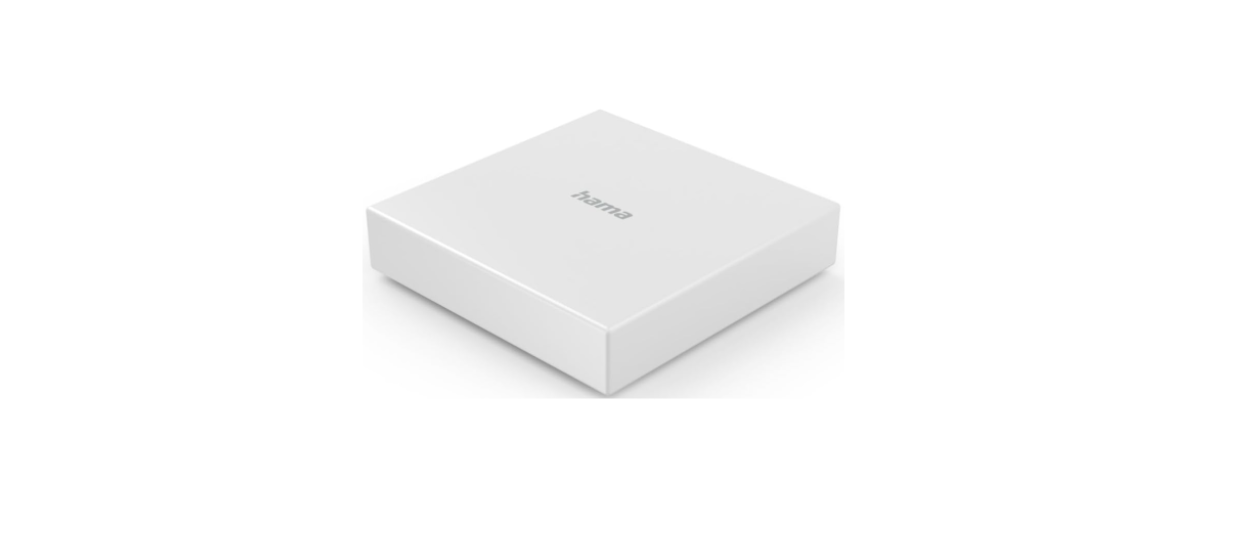

Hama 00176637 Wi-Fi Heating-Control Smart Hub
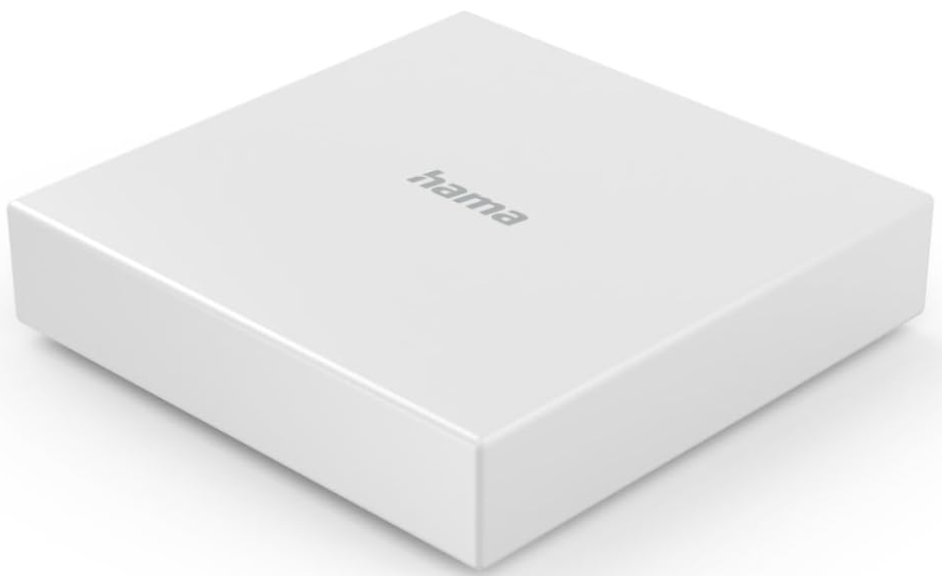
Introduction
Thank you for choosing the Hama 00176637 Wi-Fi Heating-Control Smart Hub! Take your time and read the following instructions and notes completely first. Keep these operating instructions in a safe place for future reference. If you sell the unit, pass these operating instructions on to the new owner.
Safety Instructions
- The Hama 00176637 Wi-Fi Heating-Control Smart Hub is intended for private, non-commercial use only.
- The product is intended for indoor use only.
- Use the product for its intended purpose only.
- Avoid splashing water and protect the product against dirt and overheating.
- Use the item only in moderate climatic conditions.
- Keep this product, as all electrical products, out of the reach of children!
- Do not operate the product outside the power limits given in the specifications.
- Do not use the product in areas where the use of electronic devices is not permitted.
- Do not drop the product, and do not expose it to any major shocks
- Do not modify the product in any way. Doing so voids the warranty.
- Keep the packaging material out of the reach of children due to the risk of suffocation.
- Dispose of packaging material immediately according to locally applicable regulations.
- Lay all cables so that they do not pose a tripping hazard.
- Do not bend or crush the cable.
- Always pull directly on the plug when disconnecting the cable, never on the cable itself.
Intended use
Any other use is considered improper. Unauthorised modifications or conversions are not permitted and will invalidate the warranty. Do not open your unit yourself under any circumstances, and do not attempt to repair it yourself.
Package Contents
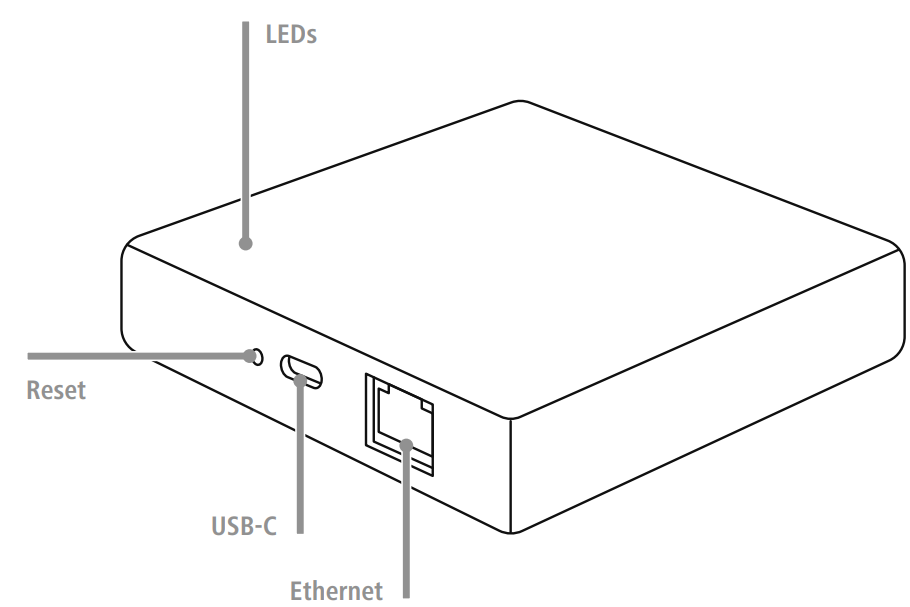
- 1x Smart Hub
- 1x USB-C Cable
- 1x Ethernet Cable
- 1x quick guide
- 1x warning and safety instructions
Commissioning
The following steps are required to put the unit into operation:
- Connect the unit to a properly installed and easily accessible mains socket.
- Set the unit to pairing mode by holding the button for about 5 seconds. The LED starts flashing quickly.
Installing the Hama Smart Home app
To use the unit’s functions, you need a smartphone/tablet and the Hama Smart Home app.
- iOS 16.3 or later
- Android 6.0 or later
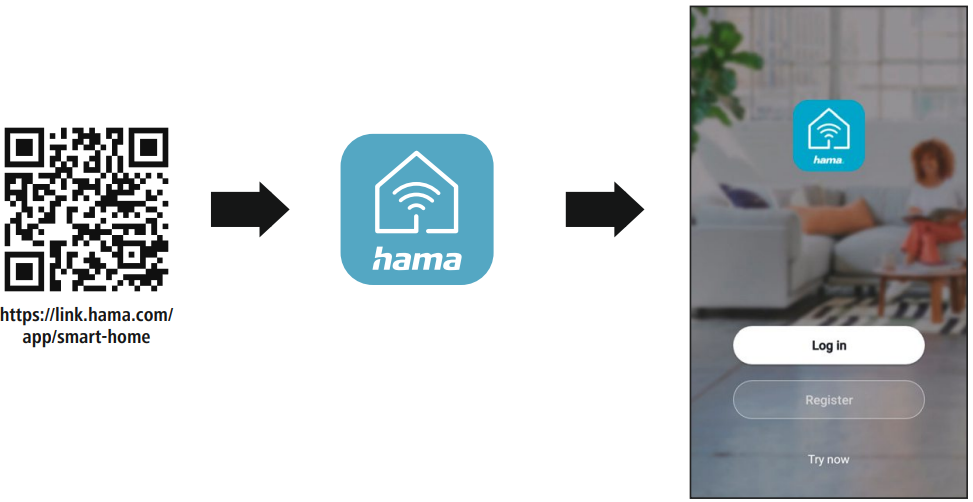
- Download the Hama Smart Home app from the App Store (iOS) or from Google Play (Android) to your smartphone/tablet.
- To install the app, follow the instructions on your smartphone/tablet.
- Open the app on your smartphone/tablet.
- Register to create a new account. Alternatively, log in with the access data of your existing account.
- Follow the instructions for setting up the app until you can add a new device, see Chapter 5.1
Integration into the Hama Smart Home app.
Installation
- Connect the product to a port on your WLAN router.
- Connect the smart hub to your router using the enclosed Ethernet cable.
- Then connect the smart hub using the enclosed USB-C cable.
- Connect the free plug on the USB-C cable to a suitable power supply unit.
- To do this, consult the operating instructions for the USB power supply unit you are using.
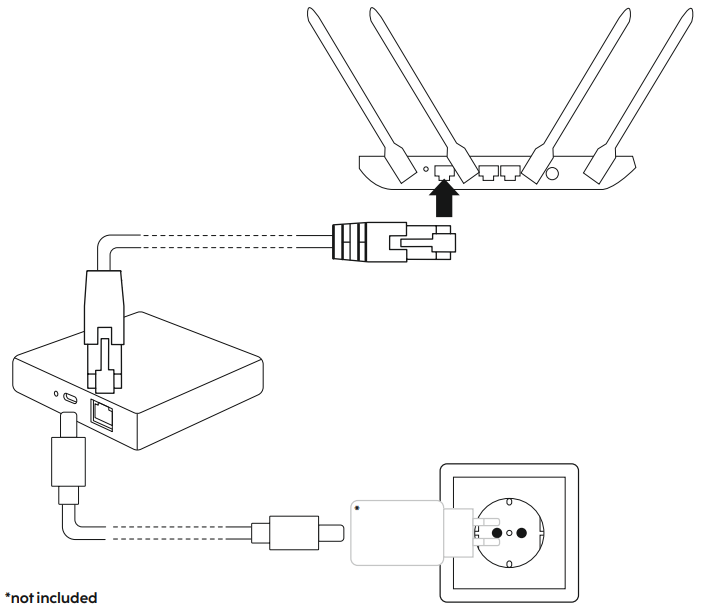
Integration into the Hama Smart Home App
After successful installation of the device and app, integrate the device into the app.
- Start the Hama Smart Home app on your smartphone/tablet.
- Tap the [Add Device] button. Or the plus (top right).
- Tap the Scan QR Code button (top right)
- Scan the QR code on your item:
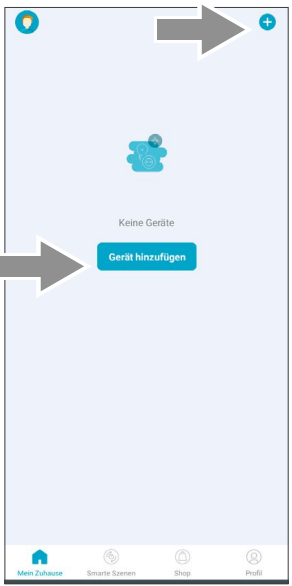
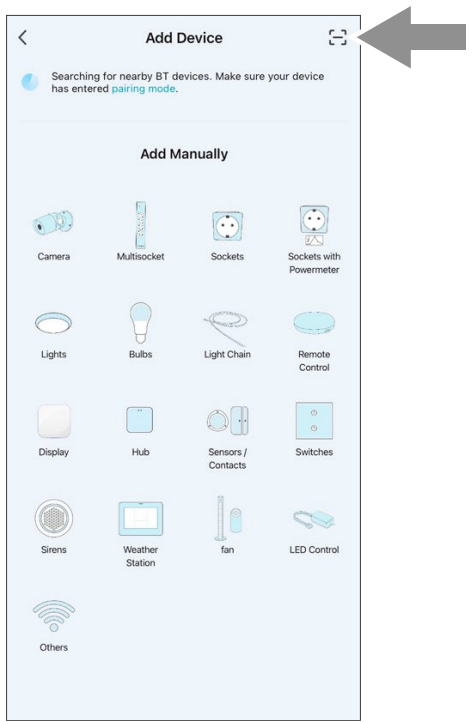
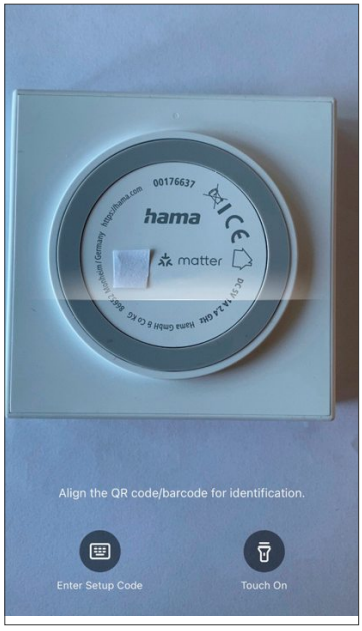
Once the QR code has been recognised, the setup of your item begins. For this, you must confirm the network data of your 2.4 GHz network. The setup process can take up to 3 minutes. Once setup is complete, you can customise the name of your item or finish the setup process.
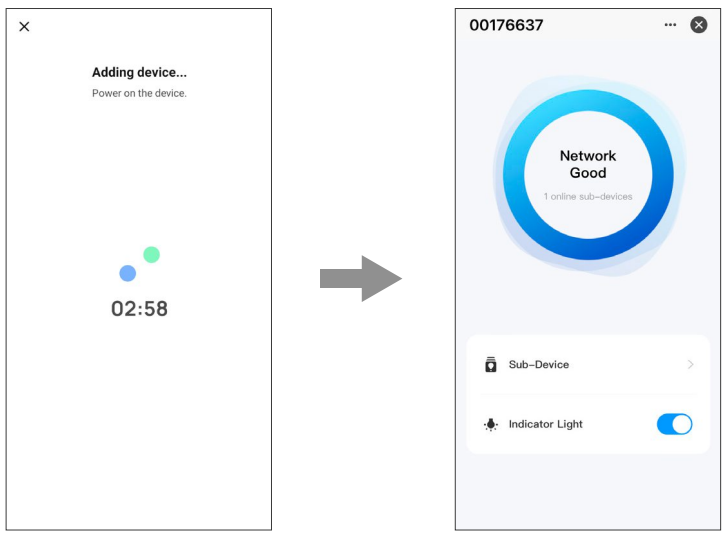
Pairing Restart
Press the Reset button, as described in Point 1.1, until the two lights on the front of the smart hub start to flash. You can now start a further pairing attempt.
Embedding via a third-party app
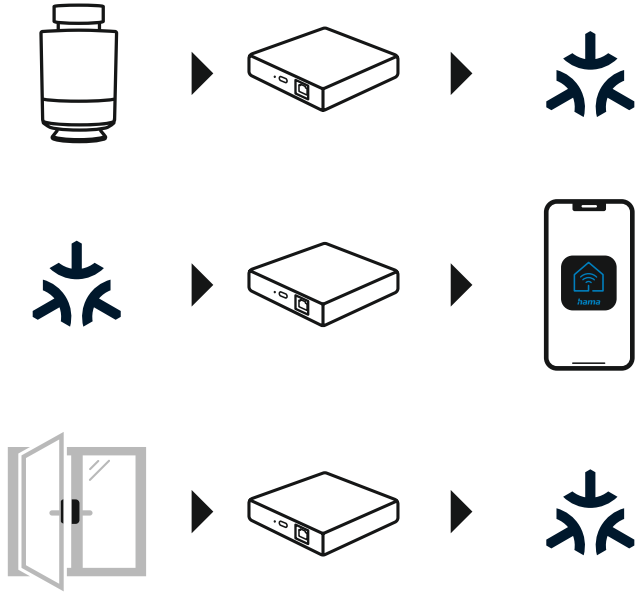
Via the Matter radio standard, it is possible for you to control our item in all compatible third-party apps in addition to our app. Please note, however, that the full range of functions is only available to you when using the Hama Smart Home app.
Share after initial integration in the Hama Smart Home app
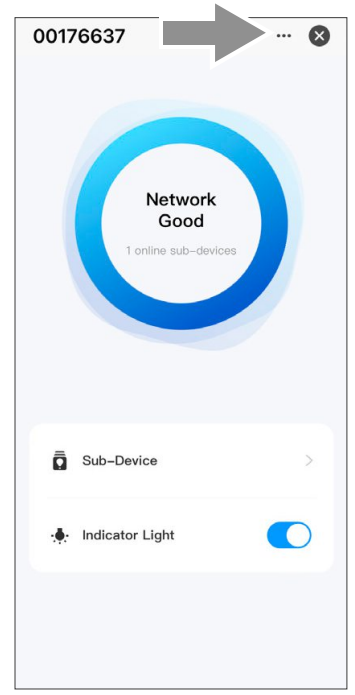
If you have already set up the item in the Hama Smart Home app, but want to share it with a third-party app for control, this is possible via the following steps: Open the item and navigate to the item settings via the (…) icon.
Then generate an individual QR code and numerical code via the point (share via Matter).
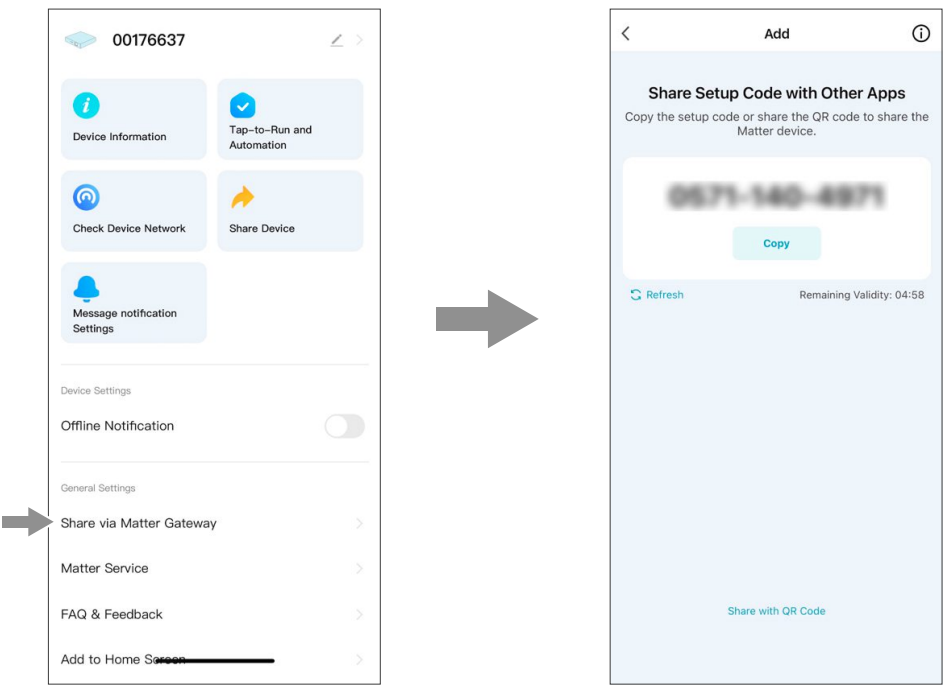
Now follow the steps in your chosen Matter-enabled app to set up the item using the generated number or QR code.
Initial Integration via a Third-Party App
You can also use our items without first connecting them to the Hama Smart Home app. Please follow the steps below to do so:
- Open your chosen Matter-compatible app and start the device integration process.
- Press and hold the Reset button on the smart hub for around 5 seconds until the LEDs flash green.
- Scan the QR code on the back of the smart hub using the appropriate app.
Setting Options in the Hama Smart Home app
The following settings can be made in the app: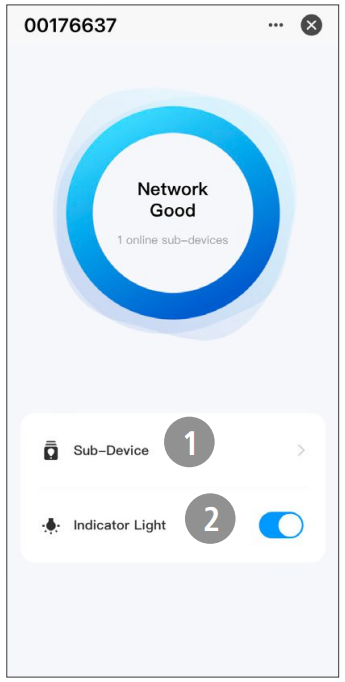
- Secondary devices: Add devices that support Matter (Zigbee)
- Display lamp: Switch the LED on/off
- Scenes can be created in the app for extended usage options.
Extended Usage Options
Through scenes and automations that can be created in the app, there are many possible combinations and uses of these products, depending on the Smart Home products already in your home. Programming is always done via the app (see chapter 4 of the App Guide) and is offered/suggested to you individually. You can also integrate other Hama accessories like the Hama 00004676 Bluetooth Remote Shutter with your Smart Home setup for more convenient control.
Technical Data
- Input voltage 220 – 240 V ~, 50 Hz
- Maximum connected load 16 A, 3680 W
- Frequency band 2.4 GHz
- Radiated max. transmitting power < 100 mW
Maintenance and care
- Disconnect the unit from the mains before cleaning and when not in use for a long time.
- Clean this product with a lint-free, slightly damp cloth, and do not use aggressive cleaners.
Warranty
Hama GmbH & Co KG assumes no liability and provides no warranty for damage resulting from improper installation, mounting, or improper use of the Hama 00176637 Wi-Fi Heating-Control Smart Hub, or from failure to observe the operating instructions and/or safety notes.
Disclaimer
Hama GmbH & Co KG accepts no liability or warranty for damage resulting from improper installation,
assembly, or improper use of the product or failure to observe the operating instructions and/or safety instructions.
Service and Support
Please contact the Hama product advisory service if you have any questions about the product.
Declaration of conformity
Hama GmbH & Co KG hereby declares that the radio equipment type[00176638]complies with Directive 2014/53/EU.
Customer Service
- Website: https://de.hama.com
- Ph: 49 9091 502-0
FAQs
Q: What is the Hama 00176637 Smart Hub used for?
Your Hama smart heating system’s central control unit is the Hama 00176637 Smart Hub. By connecting your room sensors, heating controls, and smart radiator thermostats to your Wi-Fi network, you can use voice assistants or the Hama Smart Home App to control and automate your heating.
Q: Does the Smart Hub work with Wi-Fi or Ethernet?
While the Hama 00176637 uses wireless RF signals to connect to your Hama heating equipment, it uses an Ethernet cable to connect to your network for reliable communication.
Q: Can I control my heating system remotely?
Indeed. The Hama Smart Home App allows you to monitor and control your heating from anywhere as long as your Smart Hub is online.
Q: How many devices can I connect to one Smart Hub?
Depending on the state of your network, a single Hama Smart Hub can normally link up to 50 suitable heating devices (radiator thermostats, sensors, or room controllers).
Q: Can I connect multiple Smart Hubs in one home?
Indeed. You can install many Hubs if your property is large or you need to control devices on several floors. The Hama Smart Home App allows for the independent management of each Hub.
Q: Does the Smart Hub work with voice assistants?
Yes. If you need to operate devices over multiple floors or have a large property, you can install multiple hubs.