
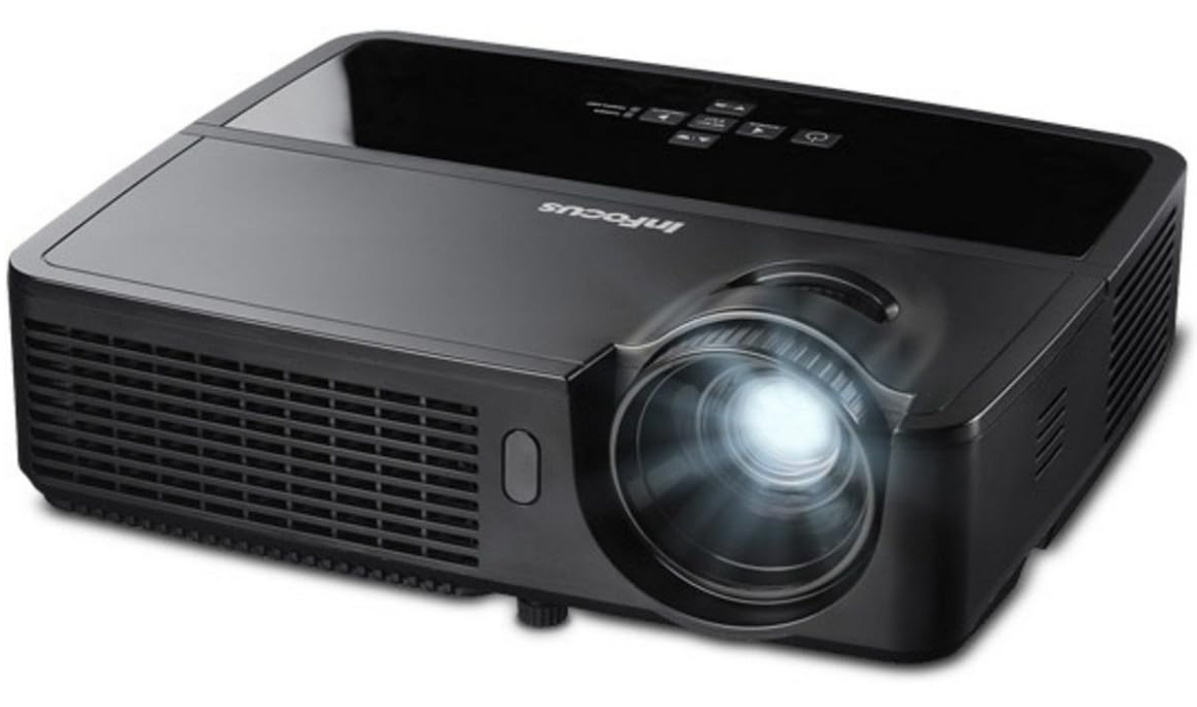
InFocus IN112a Corporation SVGA DLP Projector
Important Operating Considerations for Safety
- Refer to this guide for proper startup and shutdown procedures.
- Follow all warnings and cautions in this manual and on the projector.
- Place the projector in a horizontal position no greater than 15 degrees off-axis.
- Locate the projector at least 4′ (1.2m) away from any heating or cooling vents.
- Do not block ventilation openings. Locate the projector in a well-ventilated area without obstructions to intake or exhaust vents. Do not place the projector on a tablecloth or other soft covering that may block the vents.
- Do not place the projector in direct sunlight, humid, greasy, or dusty places,s or in places where the projector may come into contact with smoke or steam.
- Do not touch or block the projector lens with any objects, ts as this can damage the projector lens. Scratches, gouges,ges and other lens damage are not covered by the product warranty.
- Do not look directly into the lens while the projector is being used.
- Do not drop the projector.
- Do not spill liquid on the projector. Spilled liquid may damage the projector.
- Use the power cord provided. Connect the power cord to a receptacle with a protective safety (earth) ground terminal. A surge-protected power strip is recommended.
- Do not overload wall outlets.
- When disconnecting the power cord, hold the plug, not the cord.
- Wash your hands after handling the cables supplied with this product.
- The projector remote control uses batteries. Make sure the batteries’ polarity (+/-) is aligned correctly. Dispose of used batteries in accordance with local disposal laws.
- UsInFocus-approved ceiling mount kit for proper fitting, ventilation, and installation. The warranty does not cover any damage caused by the use of non-approved ceiling mount kits or by installing in an improper location.
- When the projector is ceiling-mounted, wear protective eyewear to prevent eye injury before opening the lamp door.
- Refer alservicesce to qualified service personnel. Servicing your own projector can be dangerous to you and will void the warranty.
- Only use replacement parts specified by InFocus. Unauthorized substitutions may result in fire, electrical shock, or injury, and may void the warranty. nty
- Only genuine InFocus lamps are tested for use in this projector. Use of non-InFocus lamps may cause electrical shock and fire, and may void the projector warranty.
- Hg – Lamp contains mercury. Manage in accordance with local disposal laws. See www.lamprecycle.org.
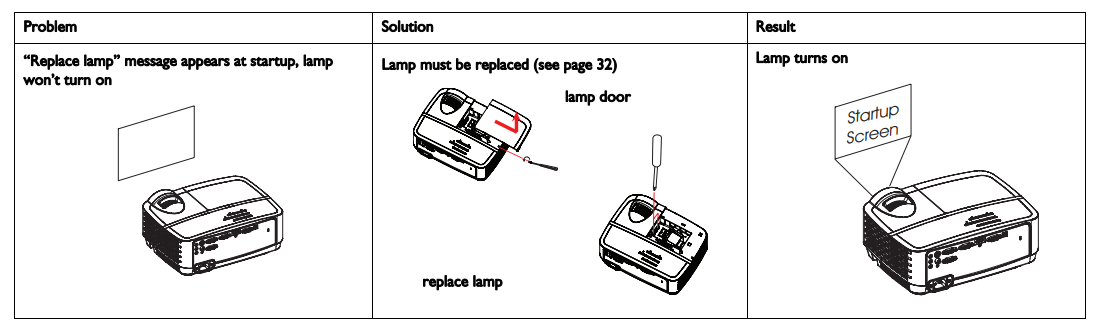
- The projector uses a high-pressure mercury glass lamp. The lamp may fail prematurely, or it may rupture with a popping sound if jolted, scratched, or handled while hot. The risk of lamp failure or rupture also increases as the lamp age increases; please replace the lamp when you see the “Replace Lamp” message.
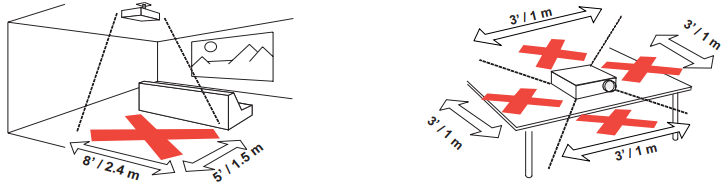
- In the unlikely event of a lamp rupture, particles may exit through the projector vents. Please keep people, food, and drinks at least 3’ (1m) away from all projector vents. For ceiling applications, keep people, food, and drinks out of the “keep out” area under and around the projector, as indicated by the illustration.
Follow these instructions to help ensure image quality and lamp life over the life of the projector. Failure to follow these instructions may affect the warranty. For complete details of the warranty, see the Warranty Booklet.
Introduction
Your new digital projector is simple to connect, easy to use, and straightforward to maintain. It is a versatile projector that is flexible enough for business presentations and home video viewi, ng too. IN112a/IN112aT has native SVGA 800 x 600 resolution, IN114a/IN114aT/IN114STa has native XGA 1024 x 768 resolution, IN116a has native WXGA 1280 x 800 resolution, and IN118HDa/ IN118HDSTa has native 1080p 1920 x 1080 resolution. It is compatible with a wide variety of computers and video devices.
Product specifications
To read the latest specifications on your multimedia projector, be sure to visit our website at www.infocus.com, as specifications are subject to change.
Accessories
The standard accessories that came with your projector are listed in the included Quick Start Guide. Optional accessories can be found on our website at www.infocus.com/support or at your retailer or dealer.
Online registration
Register your projector on our website at www.infocus.com/register to activate your warranty and receive product updates, announcements, and registration incentives.
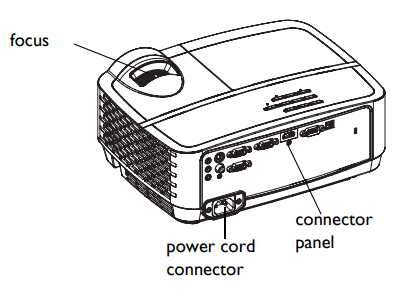
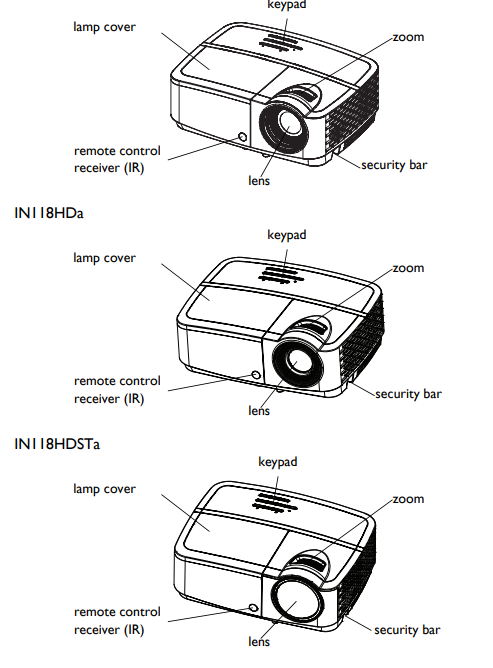
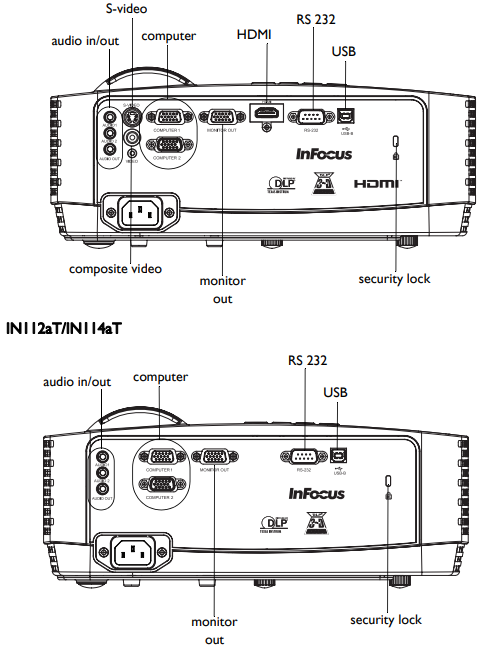
Connector panel
The projector provides both computer and video connection options, including:
- VGA computer (2)
- Composite video (model dependent)
- HDMI (model dependent)
- S-video (model dependent)
- USB connector for firmware upgrades, mouse control,rol, and Screen Save mode.
- Monitor out, forpass-throughrough to an external monitor.
- Audio inputs for video and computer.
- Audio output to external speakers.
- RS-232 serial control. Command control codes are on our support website at
- www.infocus.com/support.
Positioning the projector
To determine where to position the projector, consider the size and shape of your screen, the location of your power outlets, and the distance between the projector and the rest of your equipment. Here are some general guidelines:
- Position the projector on a flat surface at a right angle to the screen. IN112a/ IN112aT and IN114a/IN114aT must be at least 45.3” (1.2m) from the projection screen, IN116a must be at least 55.4” (1.4m) from the projection screen, IN114STa must be at least 15” (0.4m) from the projection screen, IN118HDa must be at least 37.5” (1.0m) from the projection screen, and IN118HDSTa must be at least 30.6” (0.78m) from the projection screen.
- If you are installing the projector on the ceiling, we strongly recommend using InFocus-approved ceiling mounts for proper fitting, ventilation, and installation. Refer to the installation guide that comes with the InFocus Ceiling Mount Kit (p/n PRJ-MNT-UNIV) for more information. The warranty does not cover any damage caused by the use of non-approved ceiling mount kits or by installing in an improper location. To turn the image upside down, see “Ceiling mount” on page 28. We recommend using an InFocus authorized ceiling mount.
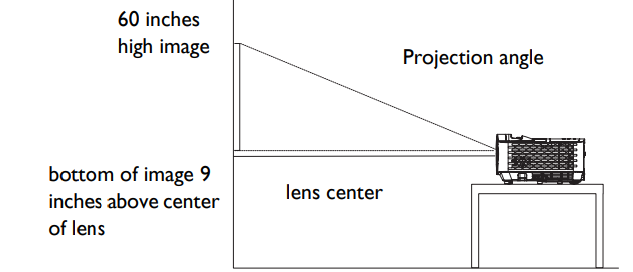
- Position the projector at the desired distance from the screen. The distance from the lens of the projector to the screen and the video format determine the size of the projected image.
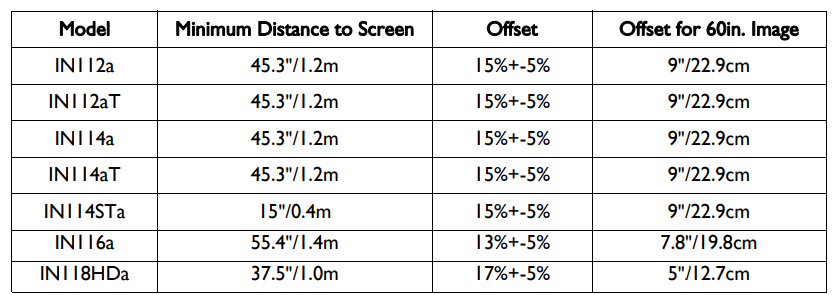
IN118HDST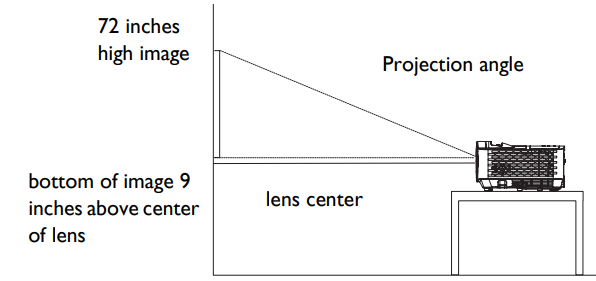
Table 1: IN112a/IN112aT (SVGA)/IN114a/IN114aT(XGA) Screen size Throw Ratio = 1.9 to 2.2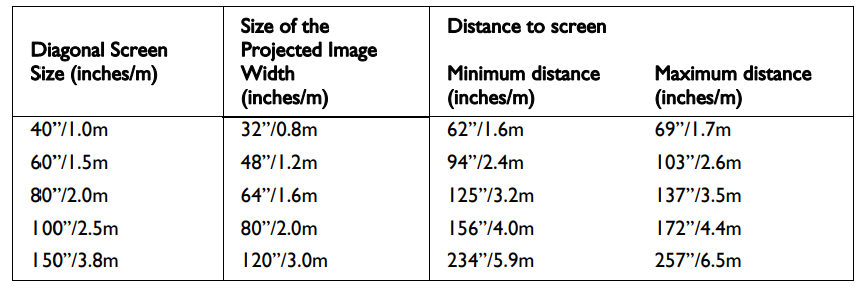
Table 2: IN114STa (XGA) Screen size Throw Ratio = 0.61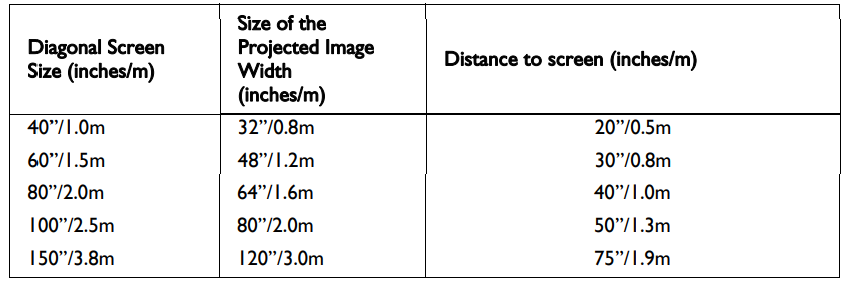
Table 3: IN116a (WXGA) Screen size Throw Ratio = 1.5 to 1.8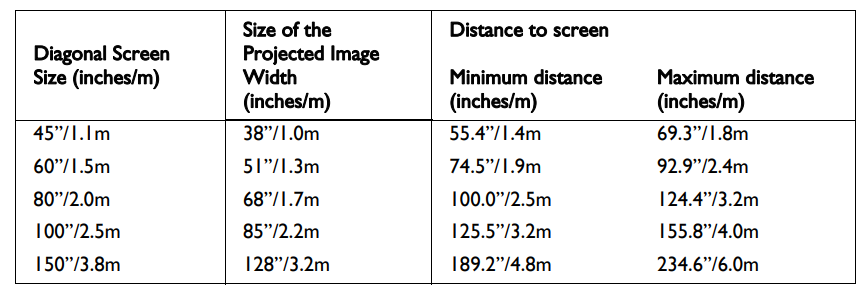
Table 4: IN118HDa (1080p) Screen size Throw Ratio = 1.5 to 1.8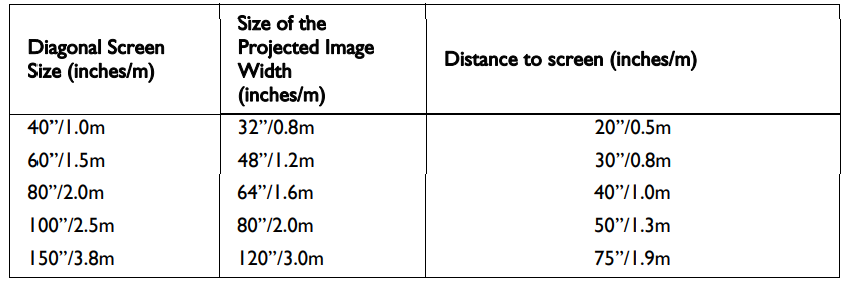
Table 5: IN118HDSTa (1080p) Screen size Throw Ratio = 0.52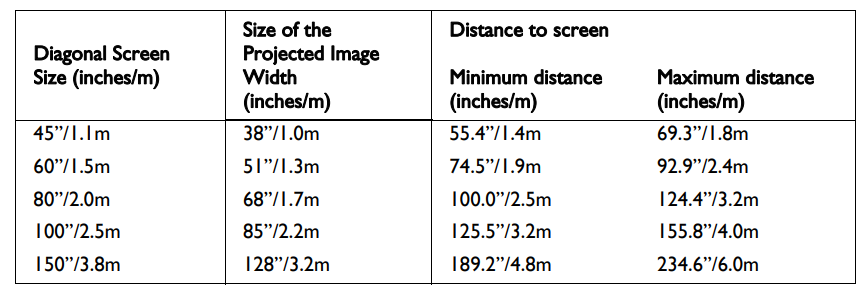
Connecting a computer source
VGA connection
Connect one end of the provided computer cable to the Computer 1/Computer 2
connector on the projector and the other to the VGA connector on your
computer. If you are using a desktop computer, you will need to disconnect the
Monitor cable from the computer’s video port first.
HDMI connection
HDMI is a standard, uncompressed, all-digital audio/video interface. HDMI
provides an interface between sources, such as set-top boxes, DVD players, and
receivers, and your projector. Plug an HDMI cable into the video-out connector on
the video device and into the HDMI connector on the projector.
NOTE: The IN112aT/IN114aT do not have an HDMI connector.
Connecting power
Connect the black power cord to the Power connector on the rear of the projector and to your electrical outlet. If the Power Saving Mode feature is off, the Power LED on the Status Indicator Panel (page 12) blinks blue. If the Power Saving Mode feature is on, the Power LED is steady blue. By default, this feature is off. You can change the setting, see page 29. NOTE: Always use the power cord that shipped with the projector.
Optional computer connections
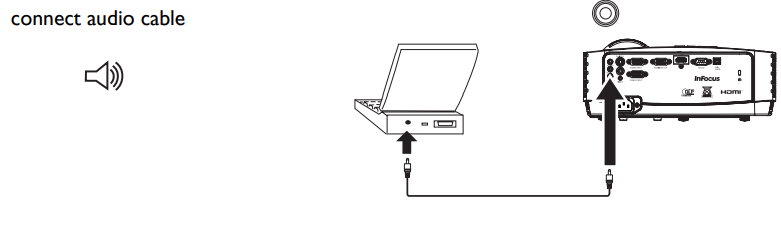
To get sound from the projector, connect an audio cable (optional cable, not included) to your computer and the Audio 1/Audio 2 connector on the projector. You may also need an adapter.
If you are using a desktop computer and want to see the image on your computer screen as well as on the projection screen, connect the desktop’s computer cable to Computer 1 and the desktop’s monitor cable to the Monitor Out connector on the projector.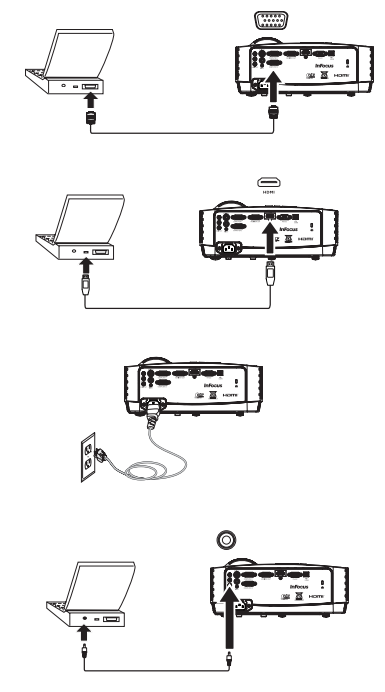
Displaying an image
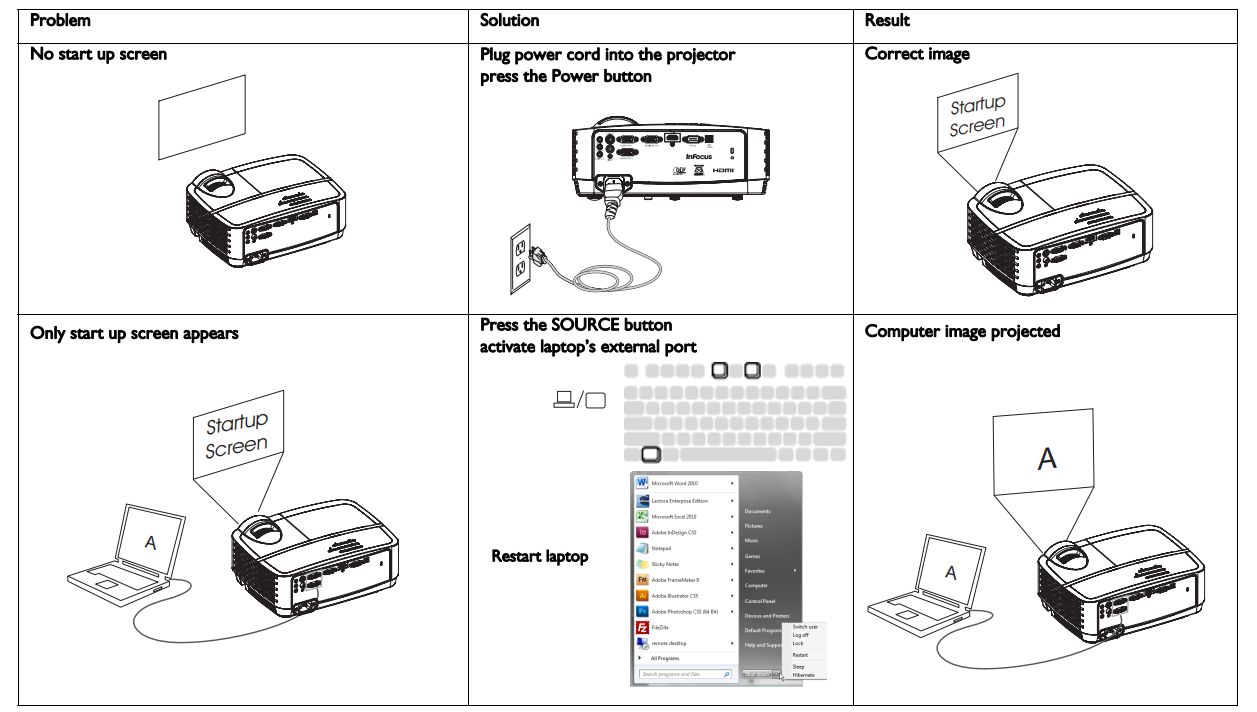
Press the Power button.
The Power LED lights blue, and the fans start to run. When the lamp comes on, the start-up screen displays. It can take up to a minute for the image to achieve full brightness. Note: When the feature, AC Power On, is enabled, the projector automatically turns on when power is connected. This allows control of ceiling-mounted projectors with a wall power switch.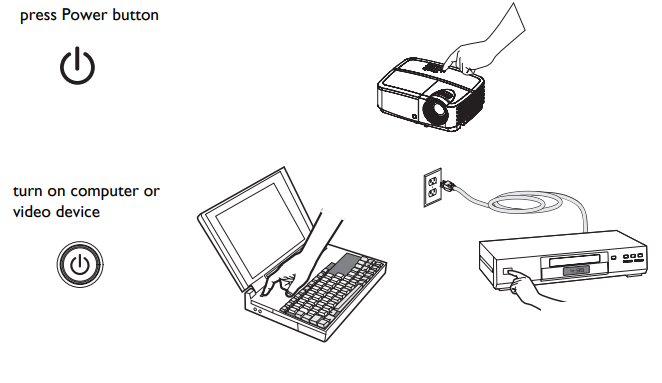
No start-up screen? Get help on page 13.
Turn on your computer or video device.
The image should appear on the projection screen. If it doesn’t, press the Source button on the projector’s keypad or remote.
If you are using a VGA cable to connect your computer to the projector:
If using a laptop, make sure its external video port is active.
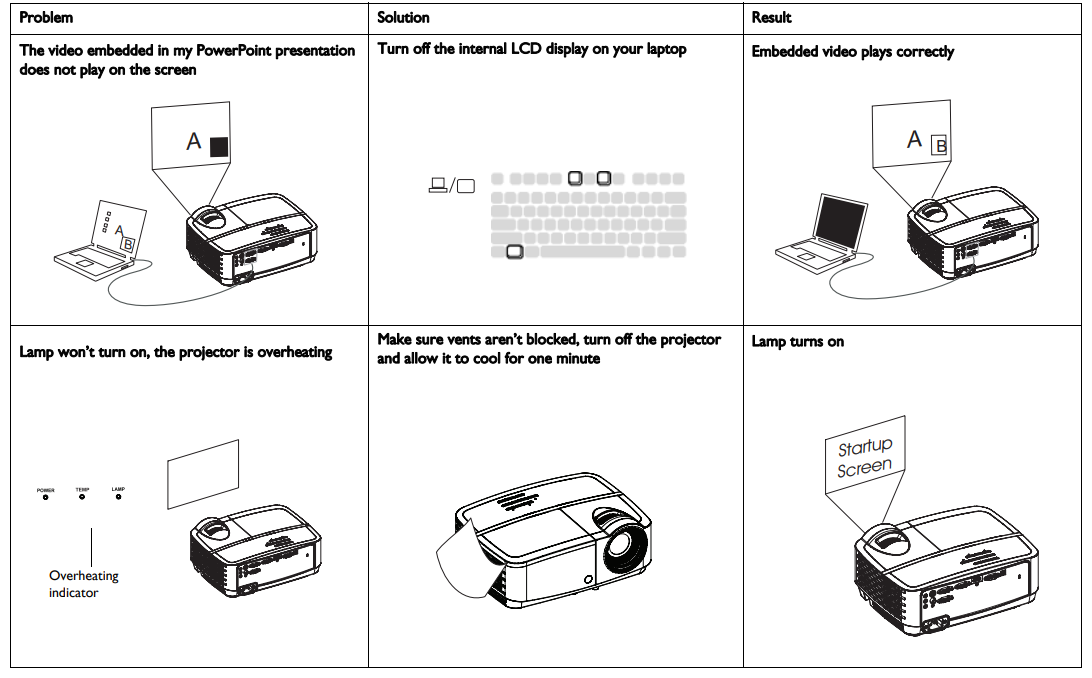
Many laptops do not automatically turn on their external video port when a projector is connected. Usually, a key combination like FN + F8 or CRT/LCD key turns the external display on and off. Locate a function key labeled CRT/LCD or a function key with a monitor symbol. Press FN and the labeled function key simultaneously.
Refer to your laptop’s documentation for more information about your laptop’s key combination.
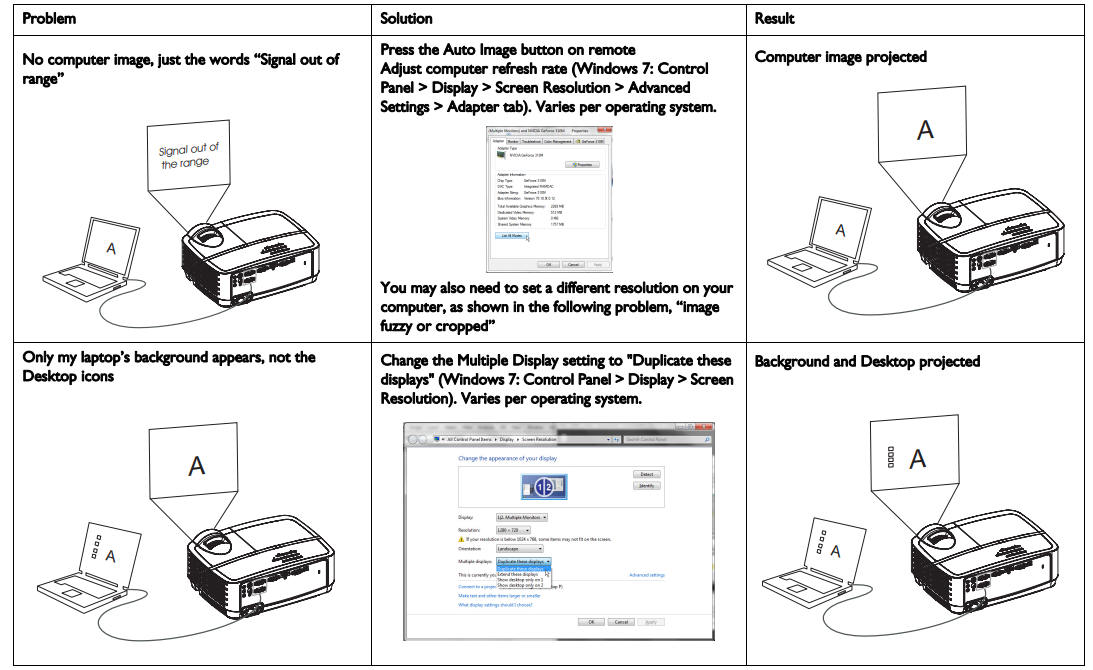
No laptop image? Try pressing the Auto Image button on the remote. Get help on page 13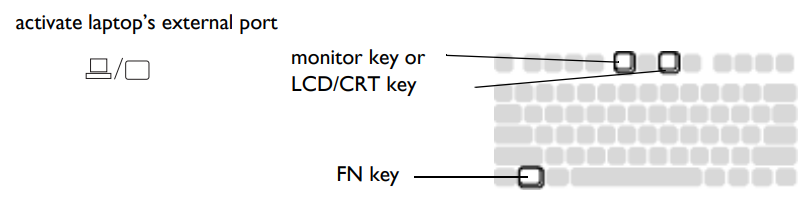
Adjusting the image
If necessary, adjust the height of the projector by rotating the elevator foot to extend it.
If necessary, rotate the leveling foot located at the rear of the projector.\ Avoid placing your hands near the hot exhaust vent at the front of the projector.
Position the projector the desired distance from the screen at a 90-degree angle to the screen.
See page 6 for a table listing screen sizes and distances.
Adjust the zoom or focus.
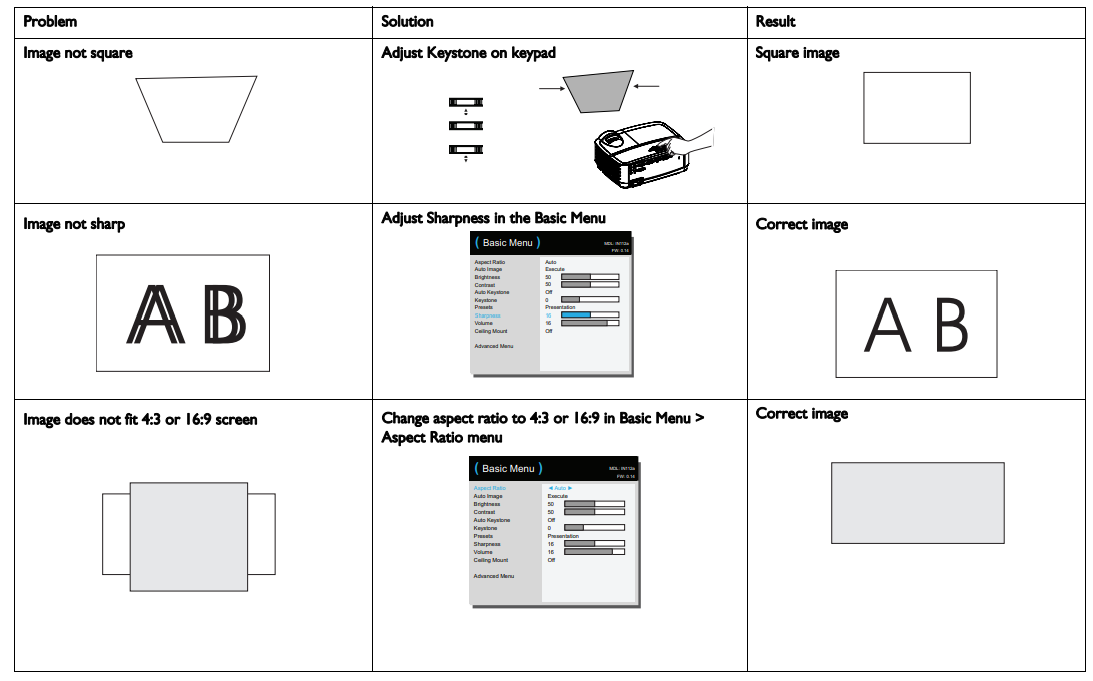
If the image is not square, first make sure that the projector is perpendicular to the screen. If the image is larger or smaller on the top or bottom edge of the screen, press the top Keystone button to reduce the upper part of the image, and press the bottom Keystone button to reduce the lower part.
If the left or right side of the screen is larger or smaller than the other, you can turn the projector to the left or to the right a few degrees to square the image.
Adjust the Contrast or Brightness in the Basic Menu. See page 26 for help with these menu adjustments.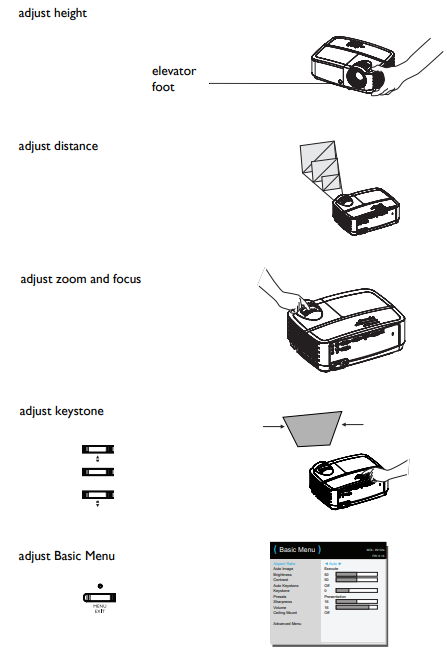
Connecting a video device
You can connect video devices such as VCRs, DVD players, camcorders, digital cameras, video game consoles, HDTV receivers, and TV tuners to the projector. You can connect the audio directly to the projector to get sound from the built-in speaker, or you can bypass the projector’s audio system and connect the audio directly from your source to a stereo or home theater system.
You can connect the projector to most video devices that can output video. You cannot directly connect the coaxial cable that enters your house from a cable or satellite company; the signal must pass through a tuner first. Examples of tuners include digital cable boxes, VCRs, digital video recorders, and satellite TV boxes. Basically, any device that can change channels is considered a tuner. Before connecting your projector, you should decide which aspect ratio you want to use. The projector’s Aspect Ratio setting is accessed through the Resize button on the remote or through the projector’s Basic Menu. See page 26 for more information.
Video device connections
No video cables are provided with the projector. You can order cables from InFocus or provide your own.
HDMI connection
HDMI is a standard, uncompressed, all-digital audio/video interface. HDMI provides an interface between sources, such as set-top boxes, DVD players, and receivers, nd your projector. Plug an HDMI cable into the video-out connector on the video device and into the HDMI connector on the projector.\ NOTE: The IN112aT/IN114aT do not have an HDMI connector.
Composite video connection
Plug the composite video cable’s yellow connector into the video-out connector on the video device. Plug the other yellow connector into the yellow Video connector on the projector.
VGA connection
If your video device has a 15-pin VGA output, plug one end of the included computer cable into the VGA connector on your video source. This connector may be labeled “To Monitor” on the video source. Plug the computer cable into either the Computer 1 or Computer 2 connector on the projector.
Component video connection
If your HD video device has component connectors, an optional Component to VGA adapter can be used. Plug the component cable into the video device. Plug the other end of the component cable into the adapter and plug the adapter into the Computer 1 or Computer 2 connector. S-video connection Plug the S-video cable’s connector into the video-out connector on the video device. Plug the other connector into the S-Video connector on the projector. NOTE: The IN112aT/IN114aT do not have an S-video connector.
Audio
For audio, connect a 3.5mm stereo cable to the Audio 1/Audio 2 connector on the projector and to your source. If your source uses RCA audio connectors, a Ycable or adapter may be used. (Note: A separate audio connection is not required\ for HDMI source inputs.)
Shutting down the projector
Auto Off Time
The projector also has an Auto Off Time feature that automatically turns the projector off after no active sources are detected and no user interaction with the projector is performed for 30 minutes. By default, this feature is off. You can change the length of time, see page 30.
Turning off the projector
To turn the projector off, press the Power button on the remote or keypad. The lamp turns off, and the Power LED blinks blue for 30 seconds while the fans continue to run to cool the lamp. If the Power Saving Mode feature is on and the lamp has cooled, the LED lights blue and the fans stop. If the Power Saving Mode feature is off and the lamp has cooled, the LED blinks blue, and the fans stop. Unplug the power cable to completely power off the projector.
Troubleshooting your setup
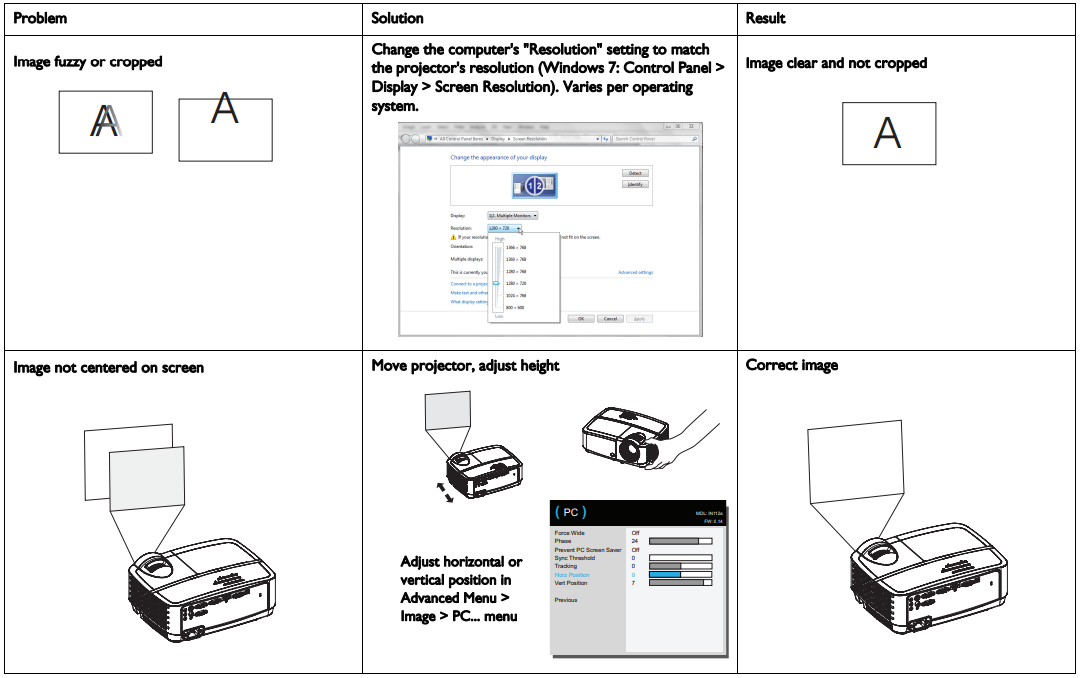
If your image appears correctly on the screen, skip to the next section. If it does not, troubleshoot the setup
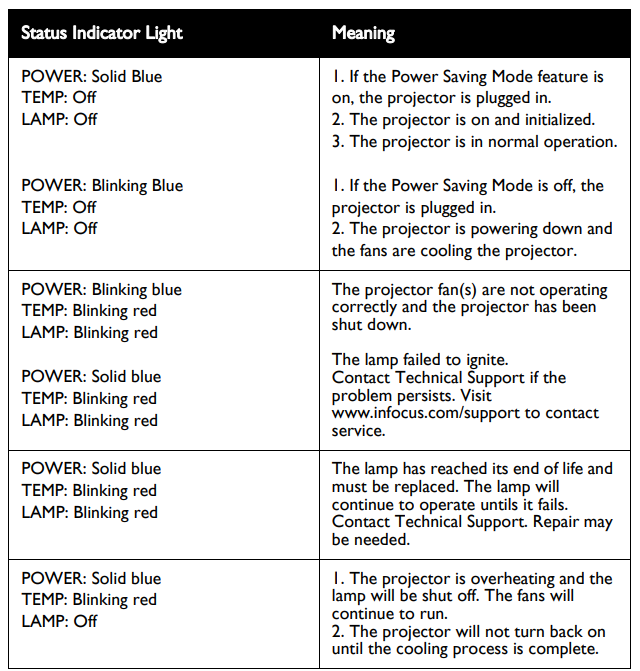
Still need assistance?
If you need assistance, visit our website at www.infocus.com/support or call us. See the Quick Start Guide for support contact information. This product is backed by a limited warranty. An extended warranty plan may be purchased from your dealer. When sending the projector in for repair, we recommend shipping the unit in its original packing materia, or having a professional packaging company pack the unit. Please ensure your shipment is for its full value.
Using the remote control
The remote uses two (2) AAA batteries (not provided). They are easily installed by removing the cover from the remote’s back, aligning the + and – ends of the batteries, sliding them into place, and then replacing the cover.
Caution
- When replacing the remote batteries, be aware that using batteries other than AAA batteries may risk severe damage to the remote. When disposing of the batteries, be sure to do so in an environmentallyproper manner.
- If the remote control gets wet, wipe it dry immediately.
- Avoid excessive heat and humidity.
- Ensure the batteries’ polarity (+/-) is aligned correctly.
- Do not mix new and old batteries together, or mix different types of batteries together.
- Replace the batteries as soon as they run out.
- Remove batteries from the remote control when storing or not in use for a prolonged period.
To operate, point the remote at the front of the projector (not at the computer). The range of optimum operation is about 15 feet (4.5m).
Press the remote’s Power button to turn the projector on and off (see page 11 for shutdown info).
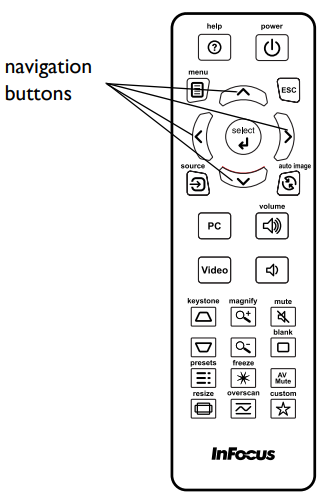
Press the remote’s Menu button to open the projector’s menu system. Use the arrow buttons to navigate, and the Select button to select features and adjust values in the menus. See page 25 for more info on the menus.
The remote also has
- Volume buttons adjust the sound.
- Custom button that can be assigned to a special function, like Blank Screen or Freeze (see page 28). The source button brings up a menu of all possible sources, allowing the user to switch the active source.
- Blank button to blank the screen.
- Presets button to select stored settings (see page 26).
- Mute button to silence the audio.
Auto Image button to resynch the projector to the source.
- Resize button to switch among aspect ratios (see page 26).
- Help button to get help with connecting sources and improving the picture.
- ESC button to go back to the previous OSD menu.
- PC button to cycle through the Computer sources.
- Video button to cycle through Composite/S-Video/HDMI input sources.
- Keystone buttons adjust the squareness of the image
- Magnify buttons magnify and reduce the projected picture size.
- Freeze button to pause the projected image.
- Overscan button removes noise around the video image.
- AV Mute button blanks the projected image and mutes audio.
Troubleshooting
- Make sure the batteries are installed in the proper orientation and are not dead.
- Make sure you’re pointing the remote at the projector or the screen, not the computer, and are within the remote range of 15 feet (4.5m). For best results, point the remote at the projector.
Using the audio
Using the projector’s speakers
Connect the audio source to the Audio 1/Audio 2 connectors to hear audio through the projector speakers. Amplified speakers may also be connected to the projector using the Audio Out connector. To adjust the volume, press the Volume buttons on the remote.
Troubleshooting Audio
If you aren’t hearing the audio, check the following:
- Make sure the audio cable is connected to the Audio 1/Audio 2 connector on the projector, and that the other end of the cable is connected to an Audio Out connector on the source (not a “line-in” or “microphone” connector).
- Make sure the volume is turned up enough. Press the Volume button on the remote.
- Make sure the correct source is active.
- Adjust the audio source.
- If playing a video, make sure the playback has not been paused. ed
Using the keypad buttons
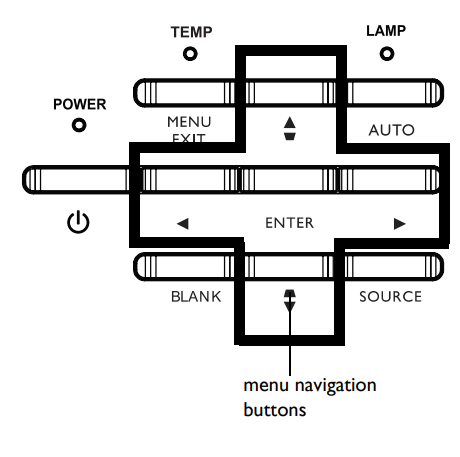
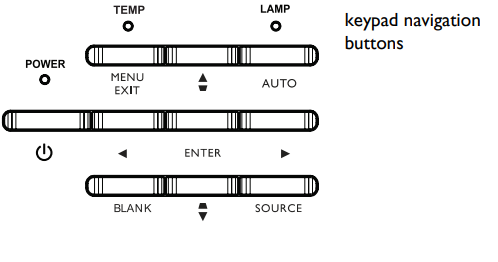
Most buttons are described in detail in other sections, but here is an overview of their functions:
- Power–turns the projector on and off (page 9).
- Right arrow – When the menu is displayed, the right arrow button navigates through the menu.
- Up arrow/Keystone – When the menu is displayed, the up arrow button navigates through the menu. When the menu is not displayed, this button adjusts the squareness of the image (page 10).
- Down arrow/Keystone – When the menu is displayed, the down arrow button navigates through the menu. When the menu is not displayed, this button adjusts the squareness of the image (page 10).
- Left arrow – When the menu is displayed, the left arrow button navigates through the menu.
- Enter – Activates the selected On-Screen Display (OSD) menu item.
- Menu/Exit – Turns on the On-Screen Display (OSD) menu. Goes back to the previous OSD menu, exits, and saves menu settings.
- Auto – Resynchronizes the projector to the source.
- Blank – Displays a solid color or factory logo screen.
- Source – Brings up a menu of available sources.
Optimizing computer images
After the projector is running and the image is on the screen, you can optimize the image using the onscreen menus. For general information on using the menus, see page 25.
- Select default image settings using a preset appropriate to your environment.
- Adjust the Keystone, Contrast, or Brightness (page 26).
- Change the Aspect Ratio. Choose the option that best fits your input source (page 26).
- Adjust the Color Temperature (page 27).
- Adjust the Phase, Tracking, or Horizontal or Vertical position (page 27).
- Once you have optimized the image for a particular source, you can save the settings using Presets. This allows you to quickly recall these settings later (page 26).
Presentation features
Several features are provided to make giving presentations easier. Here is an overview; details are found in the menu section.
- The Custom key allows you to assign various features to the button. The default effect is Source Info, which displays information about the projector and the current source. See page 28 for details.
- The Search Screen option lets you change the appearance of the blank screen and start-up screen (page 29).
- Auto Off Time is provided to automatically shut down the projector after several minutes. This helps preserve lamp life (page 29).
- When the projector is connected to the computer via USB Type B, the up and down arrows can be used as page up and page down controls.
- When the projector is connected to the computer via USB Type B, the projector will prevent the computer from going into screen saver mode during your presentation.
Optimizing video images
After your video device is connected properly and the image is on the screen, you can optimize the image using the onscreen menus. For general information on using the menus, see page 25.
- Adjust the Keystone, Contrast, Brightness, Color, or Tint (page 26).
- Change the Aspect Ratio. Choose the option that best fits your input source (page 26).
- Select a Sharpness setting (page 26).
- Adjust the Color Temperature. Select a listed warmth value (page 27).
- Turn on Overscan to remove noise on the edges of the image (page 27).
Customizing the projector
You can customize the projector for your specific setup and needs. See page 28for details on these features.
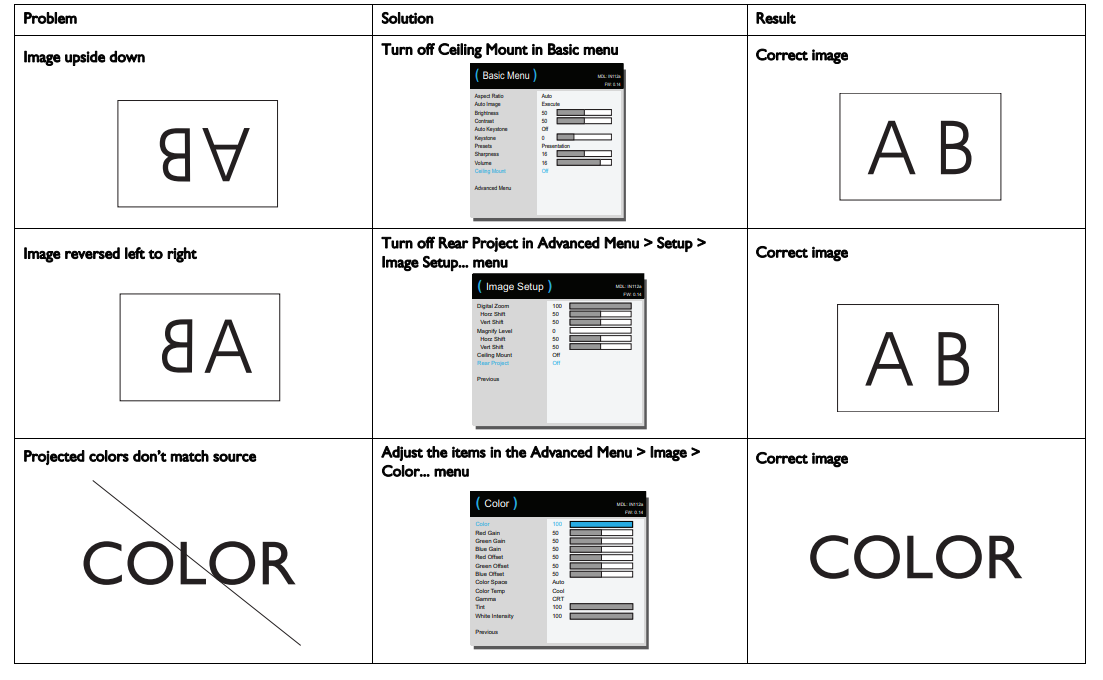
- For rear projection, turn Rear Project on in the Advanced Menu > Setup > Image Setup… menu.
- Focusing-mounted projection, turn Ceiling Mount on in the Basic menu.
- Specify which source the projector checks first for active video during power-up.
- Specify the function of the Custom key on the remote.
- Turn the projector’s display messages on and off.
- Turn on power saving features.
- Specify the appearance of the blank screen and the startup screen.
- Specify the language viewed on the menus.
- Save settings for the active source as a preset.
Using the menus
- To open the menus, press the Menu button on the keypad or remote. (The menus automatically close after 60 seconds if no buttons are pressed.) Use the arrow buttons to move up and down to review the menu options.
- To enter a submenu, highlight the desired submenu and press > on the keypad or Select on the remote.
- To adjust a menu setting, highlight the desired menu option and press < or > to scroll through the available adjustments.
- Press the Menu button to exit the menu system.
The menus are grouped by usage:
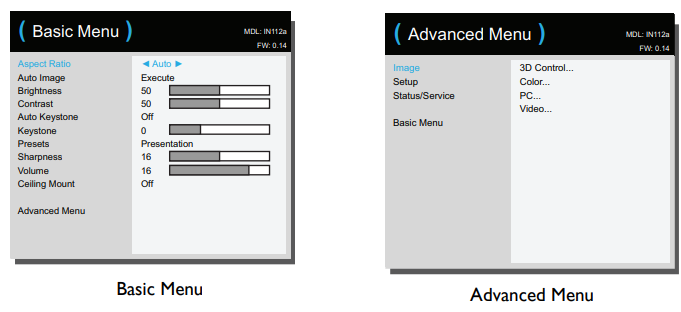
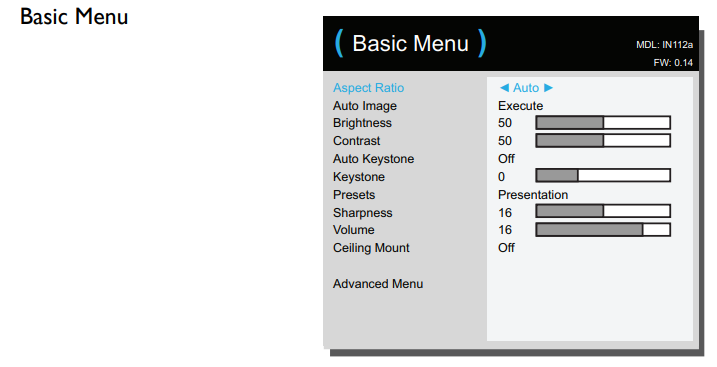
- The Basic Menu provides common adjustments.
- The Advanced Menu provides more complex adjustments
Basic Menu
To adjust the following settings, highlight the setting, use the right and left arrows to adjust the values.
- Aspect Ratio: Aspect ratio is the ratio of the image width to image height. TV screens are usually 4:3. HDTV and most DVDs are 16:9. Select Auto to have the projector choose the ratio. Choose Native to see the unmodified input with no resizing by the projector. Select 16:9 to watch enhanced widescreen DVDs.
- Auto Image: resets the projector to the source.
- Brightness: changes the intensity of the image.
- Contrast: controls the degree of difference between the lightest and darkest parts of the picture and changes the amount of black and white in the image.
- Auto Keystone: automatically corrects distorted images resulting from an angled projection.
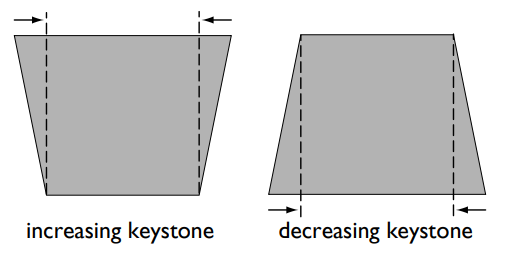
- Keystone: adjusts the image vertically and makes a square image. You can also adjust the ethene from the keypad.
- Presets: Presets are provided that optimize the projector for displaying computer presentations and video images under certain conditions. Note: Users can save their settings as a User Preset.
- Sharpness: Changes the clarity of the edges of a video image. Select a sharpness setting.
- Volume: increases or decreases the audio volume. Ceiling Mount: turns the image upside down for ceiling-mounted projection
Advanced Menu
Image:
3D Control:
3D: allows you to enjoy 3D (stereoscopic) content. Your projector supports Auto, Top-Bottom, Frame Sequential, Frame Packing, and Side-by-Side for controlling LCD shutter glasses. In addition to the projector, you will need a pair of 3D shutter glasses, 3D content, and a 3D compatible source (and emitter). Ensure the glasses you choose are consistent with the synchronization mode you will be using. 3D Sync Invert: If the image appears to flutter, look odd, or if the image depth looks off, or if you experience eye strain, turn this feature on to see if the image improves.
Color
Color: adjusts a video image from black and white to fully saturated color. The color setting applies to video sources only. Red/Green/Blue Gain: adjusts the gain of the red, green, or blue channel of the image. Red/Green/Blue Offset: adjusts the offset of the red, green,,n or blue channel of the image. Color Space: applies to computer and component video sources. It allows you to select a color space that has been specifically tuned for the input signal.
When Auto is selected, the projector automatically determines the standard. To choose a different setting, turn off Auto, then choose RGB for computer sources or choose either REC709 or REC601 for component video sources. Color Temperature: changes the intensity of the colors. Select a listed relative warmth value. Gamma: select the appropriate gamma from among Video, Film, Bright, and
CRT
Tint: adjusts the red-green color balance in the image of NTSC video images. The tint setting applies to NTSC video sources only.
White Intensity: increases the brightness of whites that are near 100%.
PC
Force Wide: When this is off, the analog locking algorithms choose the standard mode resolution (4:3) as the preferred default resolution. When this is on, the analog locking algorithms choose wide mode resolution (16:10) as the preferred default resolution. Phase: adjusts the horizontal phase of a computer source. Prevent PC Screen Saver: prevents your computer from going into Screen Savermode. The projector must be connected to the PC via a USB cable for this feature to work. Sync Threshold: (progressive signals only) If a hardware device, such as a DVD player, is not syncing properly with the projector, select this option to help it to sync when connected to the projector. Tracking: adjusts the vertical scan of a computer source. Horizontal/Vertical Position: adjusts the position of a computer source.
Video
Detect Film: determines whether the source of the input video was film (progressive) or video (interlaced). Overscan: removes noise around the video image. Set Black Level: analyzes the current input image and calculates an offset value, which is then added to theanalog-to-digitall converter black level value. This ensures optimum black level for each analog source.
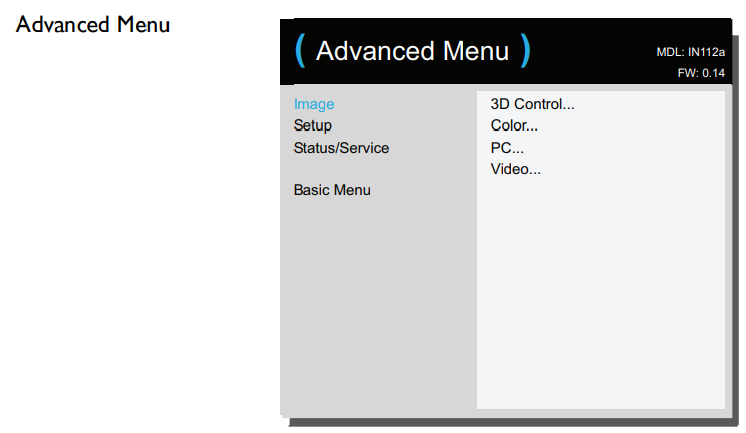
Setup:
Audio Setup
Internal Speaker: turns the internal speaker on or off. Computer 1: selects the audio input for the Computer 1 signal. Computer 2: selects the audio input for the Computer 2 signal. Video: selects the audio input for the video source. HDMI: select the audio input for the HDMI signal.
Closed Captioning
Closed Captions: controls closed captioning. If the source is NTSC and contains captions on the selected channel, then the projector will display caption text overlaid on the image. When Closed Captions is off and the volume is muted, closed captioning will appear. Options are: Off, CC1, and CC2.
Image Setup
Digital Zoom: reduces the size ofthe projector’s display area. If the display area has been resized by this setting, it can be moved by changing the Horz Shift and Vert Shift settings. Magnify Level: magnifies the image. If the image has been magnifiedby this setting, it can be moved by changing the Horz Shift and Vert Shift settings.
Ceiling Mount: turns the image upside down for ceiling-mounted projection.
Rear Project: reverses the image so you can project from behind a translucent screen.
Keypad/Remote Settings
Blank Key: select what to display when the blank key on the remote is pressed: a solid color screen (blue, black, or white), or the factory logo screen.
Custom Key: allows you to assign a different function to the Custom button, allowing you to quickly and easily use the effect. Highlight an effect and press ^ or v on the keypad or Select on the remote to choose a different one
- Blank Screen: displays a solid color or factory logo screen.
- Mute: turns off all sound.
- Source: brings up a menu of available sources.
- Auto Image: resets the projector to the source.
- Freeze Screen: pauses the projected image.
- Source Info: the default action. Shows the Source Info menu.
- Projector Info: shows the Projector Info menu.
- Overscan: removes noise around the image.
- AV Mute: enables or disables the AV Mute function.
- Closed Captions: enables or disables Closed Captions. Keypad: enables or locks the projector keypad.
Lamp
Programmed Dimming: When enabled, Programmed Dimming enhances contrast ratios in dark scenes and disables Lamp Low Power. Programmed Dimming will impact lamp life and system noise performance. Programmed Dimming works in conjunction with the lamp. If Lamp Low Power is enabled, Programmed Dimming is unavailable. Lamp Low Power: toggles between on and off. Turn it on to lower the light output of the lamp. This also lowers the fan speed, making the projector quieter.
OSD Setup
Language: allows you to select a language for the onscreen display. Menu Position: allows you to change the position of the On-Screen Display items. Menu Transparency: allows you to change how much of the projected image behind the menu you can see. As the value increases, more of the image behind the menu is visible. Show Messages: displays status messages (such as “Searching”) in the lower-left corner of the screen.
PIN Settings
PIN Protect: The PIN (personal identification number) feature allows you tpassword-protectct your projector. Once you enable the PIN feature, you must enter the PIN before you can project an image. Use the Up/Down/Left/Right arrow buttons on the remote or keypad to set a 4-button press sequence. If you enter an incorrect PIN 3 times in succession, the projector will automatically shut down. If you lose or forget your custom PIN, contact InFocus.
Technical Support.
To enter the PIN at projector startup: Power up the projector. The “Enter PIN” dialog box appears after the startup screen. Enter the PIN. Use the Up/Down/Left/Right arrowbuttons on the remote or keypad to enter the correct 4-button press sequence. See the description above for instructions.
To change the PIN:
Select “Change PIN…” in the Advanced Menu > Setup > PIN settings menu. Enter the existing PIN. Enter the new PIN.
Power
Power Saving Mode: When the Power Saving Mode is On, nd the projector is in standby (powered off but connected to AC power), external audio and the Monitor Out function will not work. AC Power On: When this feature is enabled, the projector automatically turns on when power is connected. This allows control of cceiling-mountedprojectors with a wall power switch.
Instant Power On: When this feature is enabled, and it has been less than 1 minute since the projector was powered down, you can turn the projector back on immediately. When this feature is disabled, you will need to wait for the projector lamp to completely cool before restarting the projector. Eco Blanking: When this feature is enabled, and no video source is sensed, 70% of lamp power is saved,d and no image is shown. When the video source is again applied, the image is shown immediately.
Source
Auto Source: When this feature is on, the projector automatically finds the active source, checking the selected Power-up Source first. When this feature is off, the projector defaults to the source selected in Power-up Source. To display another source,
you must manually select one by pressing the Source button on the remote or keypad and selecting one from the displayed Source menu. Power-up Source: determines which source the projector checks first for active video during power-up. Search Screen: allows you to display a blank screen instead of the default screen at startup and when no source is detected.
Timer
Auto Off Time: automatically turns the projector off after no signals are detected for a preset number of minutes. If an active signal is received before the projector powers down, the image will be displayed.
High Altitude Setting
High Altitude: We recommend you turn on the High Altitude Mode when your environment is between 5000′ (1500m) and 10,000′ (3000m) above sea level.
Status/Service:
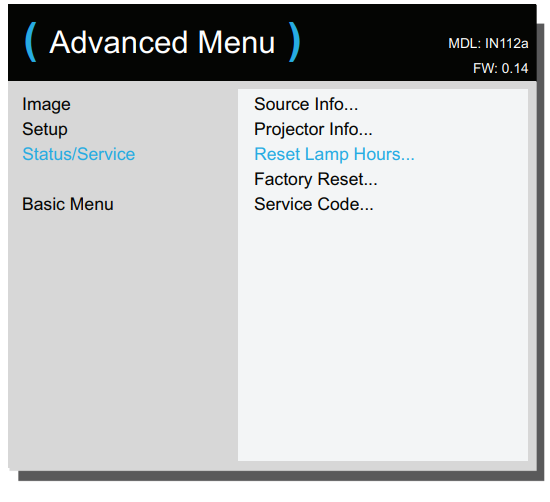
Source Info: a read-only display of current source settings. Projector Info: a read-only display of current projector settings and lamp hours. Reset Lamp Hours…: resets the lamp hours used counter in the Projector Info menu to zero. Do this only after changing the lamp. Factory Reset…: restores all settings to their default. Service Code…: only used by authorized service personnel.
Maintenance
Cleaning the lens
- Apply a non-abrasive camera lens cleaner to a soft, dry cloth.
- The projector must be off, and the lens must be at room temperature.
- Avoid using an excessive amount of cleaner, and don’t apply the cleaner directly to the lens. Abrasive cleaners, solvent,s, or other harsh chemicals might scratch the lens.
- Lightly wipe the cleaning cloth over the lens in a circular motion.
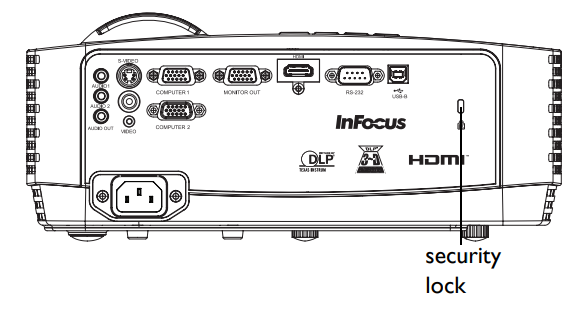
Using the security lock
The projector has a security lock for use with a Cable Lock System. Refer to the\ information that came with the lock for instructions on how to use it.
Replacing the projection lamp
The Lamp Hours timer in the Projector Info menu counts the number of hours the lamp has been in use.
Hg – Lamp contains mercury. Manage in accordance with local disposal laws. See www.lamprecycle.org.
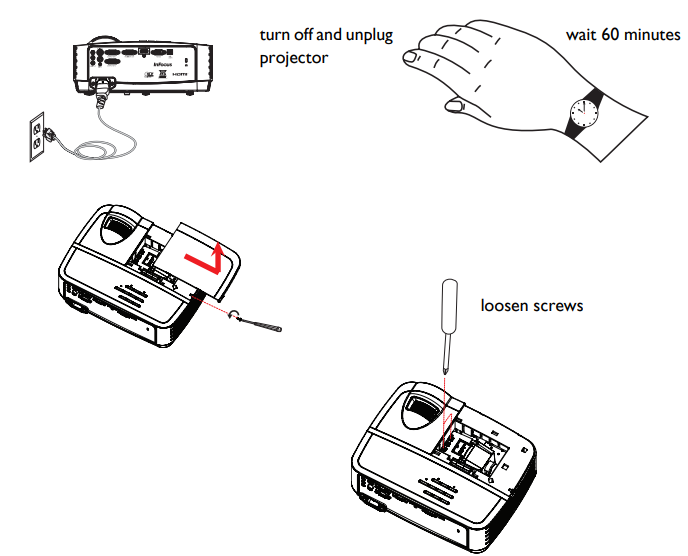
- Turn off the projector and unplug the power cord.
- Wait 60 minutes to allow the projector to cool thoroughly.
- Remove the lamp door, located on top of the projector, by removing the screw on the side of the lamp door, sliding the door right, and lifting the lamp door off.
- Loosen the captive screws that attach the lamp housing to the projector. NOTE: If the projector is installed on a ceiling mount, be careful not to drop the lamp module once the captive screws are loosened.
- Carefully lift the lamp straight up, off the alignment pins, being careful not to pinch the lamp connector. Dispose of the lamp in an environmentally proper manner.
- Install the new lamp module, aligning the pins properly. Be careful not to pinch the lamp connector.
- Tighten the screws. (NOTE: If the pins have not been aligned properly, the screws will not tighten securely.)
- Replace the lamp door by (a) putting the lamp door down and (b) sliding it until it locks.
- Replace the lamp door screw and tighten securely.
- Plug in the power cord and press the Power button to turn the projector back on.
- To reset the lamp hour timer, navigate to the Advanced Menu > Status/Service menu and select Reset Lamp Hours….