

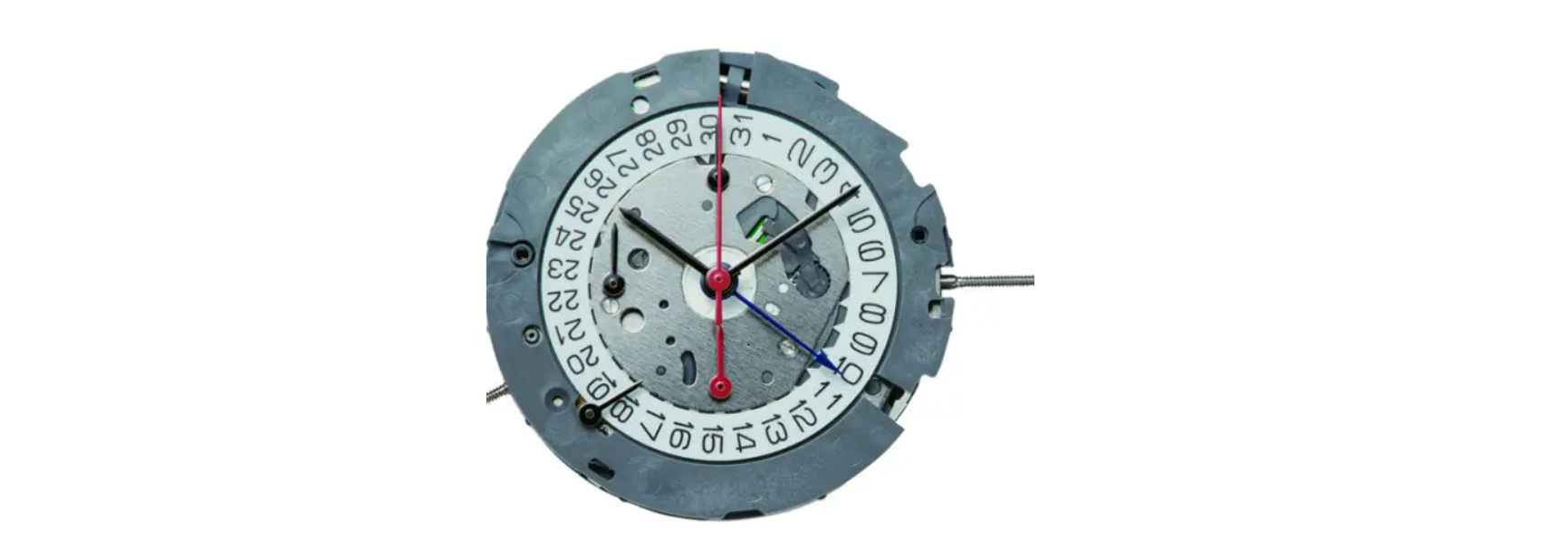

Miyota Cal. 0S80 Chronograph Watch Movement

Display & Buttons

Setting The Time
- Pull the crown out to the 2nd position.
- Turn the crown to set the hour and minute hands.
- When the crown is pushed back to the normal Miyota Cal. 0S80 Chronograph Watch Movement Miyota Cal. 0S80 Chronograph Watch Movement position, the small second hand begins to run.
Setting the Date
- Pull the crown out to the 1st position.
- Turn the crown counterclockwise to set the date. *If the date is set between the hours of around 9:00 PM and 1:00 AM, the date may not change on the following day.
- After the date has been set, push the crown back to the normal position.
Using the Alarm
- Pull button “C”. The Alarm sounds when the Miyota Cal. 0S80 Chronograph Watch Movement hour Miyota Cal. 0S80 Chronograph Watch Movement hand aligns with the alarm time indicator.
Setting the Alarm Time
- Pull the crown out to the 1st position.
- Turn the crown clockwise to set the alarm time indicator to the desired set time.
- Return the crown to its normal position.
- Pull out button “C” to turn the alarm on.
- The alarm will sound when the hour hand aligns with the alarm time indicator.
Using the Cronograph
- This chronograph can measure and display time in 1/20 second timing up to a maximum of 11 hours, 59 minutes, 59 seconds, 95.
Measuring time with the chronograph
- Press button “B” to change the watch to the chronograph mode.
- The small second hand stops at zero position, and changes to the chronograph 1/20 second hand.
- The chronograph 1/20 second hand stops at the zero position 30 seconds after starting.
- Pressing button “B” resets the chronograph, and Miyota Cal. 0S80 Chronograph Watch Movement all chronograph hands return to the zero position.t

Chronograph Reset
- Pull the crown out to the 2nd position.
- Press button “A” to set the chronograph second hand to zero position.
- Press button “B” to set the chronograph 1/20 second hand to zero position..
- Do not push the crown to the normal position while the chronograph second hand and the chronograph 1/20 second hand return to the zero position.
Customer Service
- Website: https://miyotamovement.com/
- Tel: +1 303-774-2221