

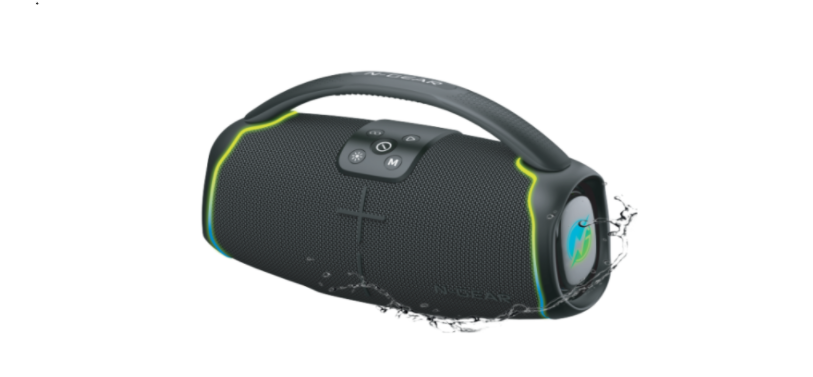

NGEAR NRG 200 Wireless Sound And Party System

Safety Instructions
- Do not use this apparatus near water.
- Clean only with a dry cloth.
- Do not block any ventilation openings.
- Install according to the manufacturer’s instructions.
- Do not install near any heat sources such as radiators, heat registers, stoves, or other apparatus (including amplifiers) that produce heat.
- Do not defeat the safety of the polarized or grounding-type plug.
- A polarized plug has two blades with one wider than the other.
- A grounding type plug has two blades and a third grounding prong.
- The wide blade or the third prong is provided for your safety. If
- The provided plug does not fit into your outlet. Consult an electrician for the replacement of the obsolete outlet.
- Protect the power cord from being walked on or pinched, particularly at plugs, convenience receptacles, and the point where they exit from the apparatus.
- Only use attachments/accessories specified by the manufacturer.
- Use only with the cart, stand, tripod, bracket, or table specified by the manufacturer, or sold with the apparatus.
- The apparatus shall not be exposed to dripping or splashing, and no objects filled with liquids, such as vases, shall be placed on the apparatus.
- The battery shall not be exposed to excessive heat, such as sunshine, fire, or the like.
- The MAINS plugs are used as the disconnect device, which shall remain readily operable.
Features
- Wireless connection
- Memory function, support resuming playing from the break point
- Support U disk/TF card/ AUX playback mode
- Rechargeable built-in lithium-ion battery
- Support MP3 music format decoding
- Using high-fidelity speakers, the sound is more natural and delicate
- Level 5 waterproof

- TWS function supports two speakers’ connection
- With RGB lights

Button Instruction
- Button “-Single Click: Back to previous song
- BASS BOOST” button Single Click: switch music mode (Bass Normal/Karaoke mode)
- Power on /Power off Long press: to power on /power off the device Single click: to pause /play music
- Knob (Control the volume): Rotate left to reduce the volume, rotate right to enlarge the volume
- Charging Indicator light: It will flash when the speaker is charged; the light will be on when the battery is fully charged. The light will always be on under normal working states to display the battery capacity.
- TWS button Single Click: Single click to enter /exit from TWS connection
- Prepare two speakers, single click this button for either of them, will hear a voice prompt. (PS: Please make sure the speaker is disconnected from any wireless device before using the TWS function )
- Then wait for a few seconds, will hear a voice prompt after the two speakers connect successfully. Search for the Bluetooth ID to connect with the Bluetooth device.
- After connecting with the Bluetooth device, operate either speaker, and the other one will be synced.
- A single click TWS button of either of them will exit TWS mode.
- Long Press: To switch the music playing mode
- Light button Single click: To switch the light mode Long press: To turn on/off the light Double click: Exit/Re-connect Bluetooth connection
- Button “+” Single click Enter into next song

- AUX jack Standard 3.5mm headphone jack
- USB jack. When you insert a U-disk, the default playing mode is the U-disk playing mode.
U-disk supports 32GB maximum.m - TF jack\ When inserting a TF card, the default playing is TF card playing mode. TF card supports 32GB maximum
- Type-C jack. Insert the Type-C charging cable to charge the speaker
Operation
Wireless pairing
- When the device is turned on, wireless mode is the default.
- Turn on the wireless device, search for HOPESTAR- Party Box to connect and pair Bluetooth
- Suitable for various mobile phone accessories, wireless technology, wireless adapters, and wireless players.
Voice prompt
- There is a voice prompt when turning on/off.
- When the volume is up to maximum, there will be a voice prompt; at the minimum
volume, there is no voice prompt. - There will be a voice prompt about three times, “di-di-di” after detecting the device is low power, then turn off.
Mode switching
- It defaults to the wireless mode when turning on the speaker
- Mode switching: When the TF car, U-disk, and AUX modes are all inserted into the speaker at the same time, long-press the TWS button to switch NGEAR NRG 200 Wireless Sound And Party System the playing mode.
- The device will select the mode preferentially that you insert last for the TF card, U-disk, or A UX mode.
TWS operation instruction
- Open any two speakers at the same time, click either TWS button, and when you hear the” beep” to enter the TWS searching; when the TWS connection is successful, when you hear the voice prompt, the host indicator flashes, and the other one will light up.
Play indicator
- White light flashes quickly, about 0.5 seconds/time under Bluetooth searching status; The white light is always on when Bluetooth is connected successfully with the Bluetooth device; the white light flashes slowly, about 1 second/time under playing status.
Charging indicator
- The three white lights are flashing orderly from left to right while charging.
- The other lights are flashing.
- The rest lights are flashing.
- The indicator will display the battery capacity under normal working status.
Charging and using
- This machine has a built-in overcharge protection circuit, which can be connected to a computer or charger for a long time, about four hours. Charging is complete.
- The play time of each battery will vary depending on the volume used, rather differently.
Volume
- The default volume is at 70% when the speaker turns on.
- If there is no operation, the device will shut down automatically after 15 minutes.
Technical Specifications
- Wireless standard: 5.0
- Transmission distance: 10 meters
- Output power:50W*1+15W*2+10W*2
- Playing time: 6 -8 hours
- Frequency effect 80Hz-20KHz
- Speaker unit size:: 4Ω 119mm 50W*1 ,4Ω 78mm15W*2, 4Ω 10W*2 Input power: 5V- 2A
- Maximum current consumption: 2A
- Battery type: 18650 lithium-ion battery 18000mAh
- Audio signal input interface: standard Φ3.5mm headphone jack (stereo)
Troubleshooting
- Automatic shutdown: When the battery power is low, the battery protection will be turned on automatically. Please charge it for 4 hours before use.
- Unable to play music: The music file storage path cannot be recognized by the player. Please store the music file in the root directory of the removable device.
- There is no sound when connected to the computer: the computer interface is connected incorrectly. Please select the correct audio output port.
- There is no response to the keys or the function is disordered: try again after shutting down.
- If the device is abnormal, please short-press the reset button to reboot the speaker.
Customer Support
- Website: https://ngearsafe.com/