

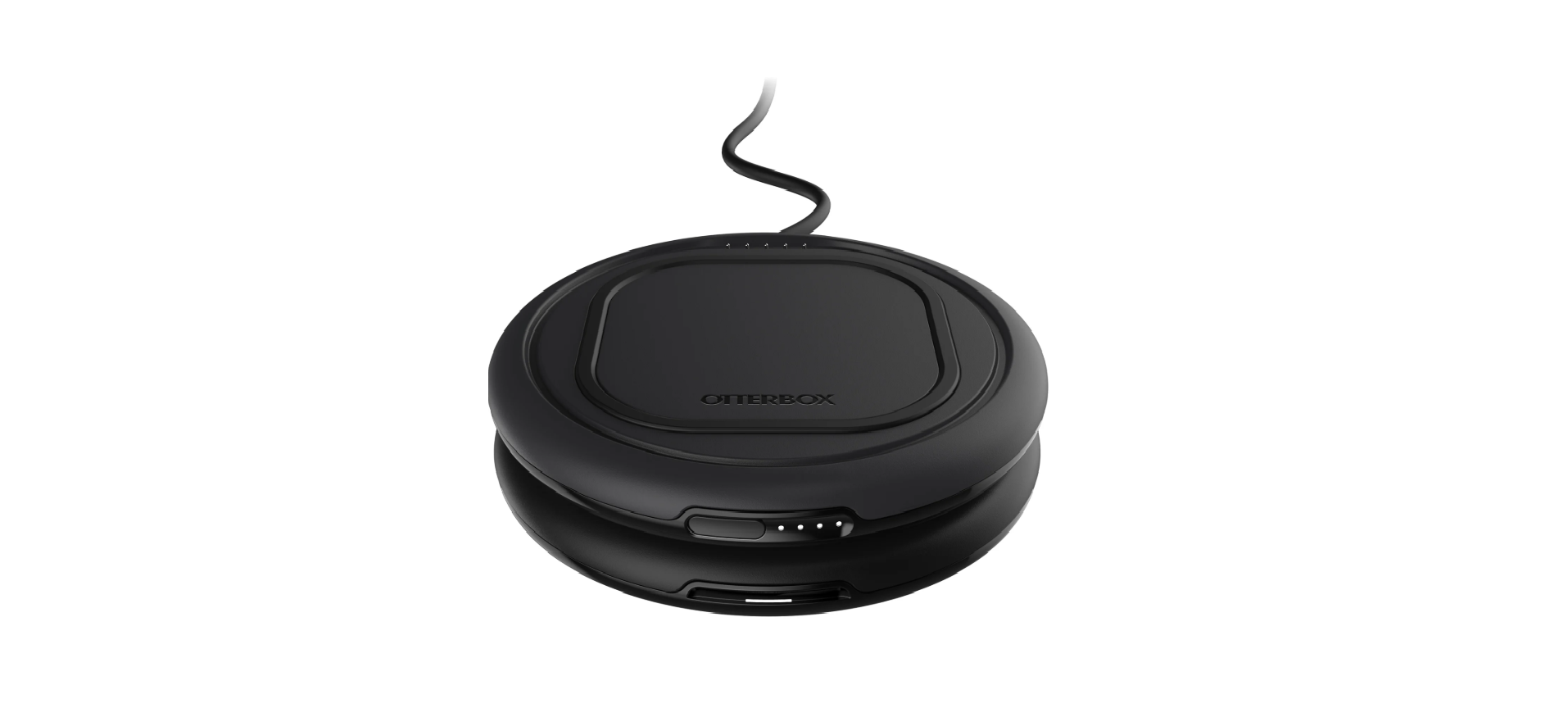

OtterBox OtterSpot Wireless Charging System

Introduction
Thank you for purchasing your OtterSpot Wireless Charging System the world’s first expandable, shareable, and portable wireless charging system by OtterBox. As the next innovative solution in phone charging, it eliminates the inherent hassles of cord and power outlet management to ensure you and those around you always have a healthy charge to stay connected wherever and whenever you need it.
Safety Instructions
- Do not expose the battery to moisture or submerge it in liquid.
- Use of a power supply or wall charger, not recommended or sold with the charging base and wireless battery, may result in the risk of fire or injury to persons.
- Do not expose this device to excessive heat or place it in a fire.
- The wireless battery may become warm during charging. In the event of excessive heat, swelling, or leaking, immediately discontinue use and contact the manufacturer.
- The device contains non-user-serviceable parts. Do not attempt to disassemble, modify, or repair this device.
- Do not expose this device to excessive shock or damage that may crush, deform, rupture, or tear the battery.
- Do not use the wireless battery if damaged or modified. Damaged or modified batteries may exhibit unpredictable behavior, resulting in fire, explosion, or risk of injury.
- Dispose of this product properlandndin accordance with local disposal requirements. Do not dispose of in trash or fire.
- Failure to follow the above warnings may result in damage to persons or property, so please follow all warnings!
Features
- Wireless batteries have a USB-C port to recharge without the base
- Works with Apple, Samsung, Google, and other certified Qi Wireless-enabled devices
- 10W fast charging base powers up multiple OtterSpot batteries and one device simultaneously
- Eliminates the tangled mess of wires on countertops and nightstands
- Limited lifetime warranty supported by hassle-free customer service.
Device And Case Compatibility
OtterSpot Wireless Charging System works with Apple, Samsung, Google, and other certified Qi Wireless-enabled devices. Since there are hundreds of Qi Wireless-enabled devices from a variety of device manufacturers in the market today, you can easily find out if yours is certified by searching for Qi-certified devices on the Wireless Power Consortium database webpage:
https://www. wirelesspowerconsortium.com/products. OtterSpot Wireless Charging System works with all OtterBox-branded phone cases, including Otter + Pop cases. It also works with most other phone cases.
How To Use
Using the OtterSpot Wireless Charging System is quick and easy. Just follow the key steps outlined below.
Charge The System
For the OtterSpot Charging Base and OtterSpot Battery combo, or the OtterSpot Battery-only product, you need to charge the battery as your first step. There are a couple of ways to do this, including:
- Stack the battery on the base and plug the base into your wall outlet with the wall charger.

- Or, connect the battery to the wall charger and plug the wall charger into your wall outlet.

Charge 2
- Plug the charging base into the wall.

- Stack batteries on the charging base, lining up pogo pins to trigger flashing LED.

- Center phone on battery, screen side up.

- Charge multiple batteries and a phone at once.

Cahrge A Device
- Grab a battery from the stack.

- Press the button to initiate wireless charging.

- Center phone on battery, screen side up.

- Acknowledge charging status.


Use
- Powered by 36 watts of USB-C power delivery, OtterSpot Charging Base delivers high-speed charging as the foundation of the system. Designed to blend in, the charging base becomes your central location for charging your phone and OtterSpot batteries.
- While the charging base charges a stack of batteries, it can also be used as a stand-alone Qi Wireless charging pad that holds your phone in place on its anti-slip surface
- Expand your OtterSpot Wireless Charging System with up to three OtterSpot batteries to keep everyone who needs it fully charged.
Use Battery
- . OtterSpot batteries deliver a fast charge wherever and whenever you need it, with a battery capacity of 5000 mAh — enough energy to charge most devices up to one full recharge.
- OtterSpot batteries cannot be charged wirelessly. You must either stack them on top of the charging base or charge them with a USB-C cable via their backside port (much like any other battery pack).
- Once you’ve charged your OtterSpot batteries — remember, you can stack up to three of them on the charging base (five on the commercial base) — simply place them on a flat surface in and around your home or on the go. Then place your phone on top of one to begin charging.
- OtterSpot batteries also hold your phone in place with their anti-slip surface.
Battery LED Function
In charging mode (i.e., battery is charging on a stack or from the wall charger), note the following:
- 0-25% charge – 1 LED pulsing
- 25-50% – 1 LED on, 1 LED pulsing
- 50-74% – 2 LEDs on, 1 LED pulsing
- 75-99% – 3 LEDs on, 1 LED pulsing
- 100% – 4 LEDs on
In discharging mode (i.e., battery is charging a device, wired or wirelessly), note the following:
- <10% charge – 1 LED pulsing
- 10-25% charge – 1 LED on
- 26-50% – 2 LEDs on
- 50-75% – 3 LEDs on
- 76-100% – 4 LEDs on
Troubleshooting And Technical Support
- The battery does not wirelessly charge a device
- Confirm the device is Qi-Wireless charge enabled.
- Does the device charge on the charging base but not on the battery?
- The battery does not charge a device (wired charge)
- Press the button or place it on the base, and confirm that the LEDs light up.
- Does the battery need to be recharged? Press the button or place it on the base to confirm the charge state is greater than two solid LEDs. Recharge if necessary.
- Battery LEDs do not turn on.
- Press the button. If no LEDs, charge battery on a base or by wired USB-C input charger (consumer only) for 30 minutes.
- Reset battery: double-click the button, then hold down for >5 seconds until all LEDs light up.
- The battery does not recharge..
- Ensure battery is stacked on a compatible base (using OtterSpot charger).
- Consumer battery MUST be used with consumer base; Commercial Battery MUST be used with commercial base.
- Do any LEDs light in any of the following conditions:
- Press the button.
- Battery LED(s) flash repeatedly
- Four flashing LEDs indicate one of the following conditions:
- Foreign Object Detection (FOD) — disables wireless charging if there are foreign metal objects in the
charging area.
Common Failure Modes
| Customer Failure Description | Failure Mode 1 | Failure Mode 2 | Failure Mode 3 |
| The battery does not recharge | Contact/connector damage | Battery not properly positioned on base contact pins
The base is not properly powered
|
|
| Battery LEDs do not turn on/off. | Battery depleted – needs recharge. | ||
| The battery does not charge a device (wireless charging) | Battery depleted – needs recharge | The device is not wireless charge-enabled, or is not positioned correctly | |
| Battery does not charge a device (wired charge – consumer only) | Battery depleted – needs recharge | Device connection not detected; press the button to enable charge | Faulty/defective cable |
| Battery LEDs display error mode (4 LEDs flashing) | Attempt reset
Double-click the button, then hold it down for >5 seconds until all LEDs light up |
Allow to cool down
Charging in a stack, in a thick case, or in a warm environment may trip the overtemperature protection. |
Reconnect the charging cable. |
Care & Maintenance
Avoid using the system in extreme hot or cold conditions. Note that its operating range is 0° – 40° C (32° – 104° F). Clean your system (surface and pogo contacts) with a lint-free, non-abrasive white cloth dampened with isopropyl alcohol. Do not submerge the system in liquid or spray it with liquid. This ensures you avoid liquid from getting inside the unit and into the electronics. Please also avoid contact with sunscreen, oils, and other harsh chemicals. If stored in an idle state, always recharge the battery on a base, in a stack, or from a wall adapter before use as a portable battery charger. For reference, a fully charged battery can remain idle for up to 12 months before needing to be recharged.
Warranty
While we‘re confident you will enjoy your product, the OtterSpot Wireless Charging System includes a limited lifetime warranty and will be replaced at no charge to you except for shipping, handling, and applicable taxes. Learn more about our warranty statement and customer service assistance at https://www.otterbox.com/en-us/warranty-full.html or call (855) 688-7269
FCC Statement
- This device complies with Part 15 of the FCC Rules. Operation OtterBox OtterSpot Wireless Charging System is subject to the following two
conditions: (1) this device may not cause harmful interference, and (2) this device must accept any interference received, including interference that may cause undesired operation. - NOTE: This equipment has been tested and found to comply with the limits for a Class B digital device, pursuant to Part 15 of the FCC Rules.
- These limits are designed to provide reasonable protection against harmful interference in a residential installation.
- This equipment generates and uses can radiate radio frequency energy and, if not installed and used in accordance with the instructions, may cause harmful interference to radio communications.
- However, there is no guarantee that interference will not occur in a particular installation. If this equipment does cause harmful interference to radio or television reception, which can be determined by turning the equipment off and on, the user is encouraged to try to correct the interference by one or more of the following measures: Reorient or relocate the receiving antenna.
ISED Canada Caution Statement
This device contains license-exempt transmitter(s)/receiver(s) that comply with Innovation, Science and Economic Development Canada’s license-exempt RSS(s). Operation is subject to the following two conditions:
- This device contains license-exempt transmitter(s)/receiver(s) that comply with Innovation, Science and Economic Development Canada’s license-exempt RSS(s). Operation is subject to the following two conditions:
Customer Service
USA + Canada
- Toll Free: 1-855-688-7269
- Website: otterbox.com/support