

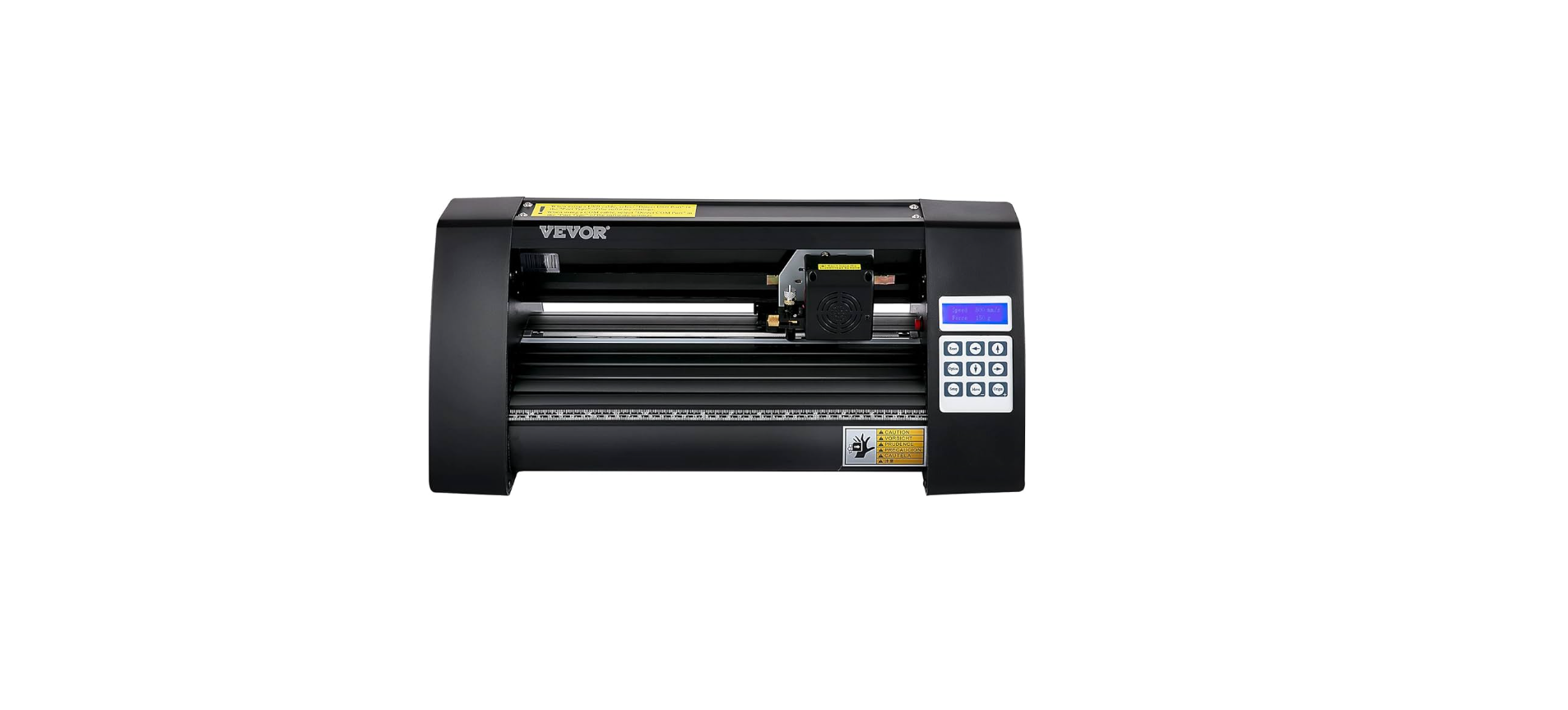

Vevor KH-375 Contour Cutting Plotter Machine

Safety Instructions
Read and understand all instructions before using this tile cutter. The operator must follow basic precautions to reduce the risk of personal injury and/or damage to the equipment. Please familiarise yourself with the hazard notices found in this manual.
- Operate in a safe work environment. Keep your work area clean, well-lit, and free of distractions.
- Keep anyone not wearing the appropriate safety equipment away from the work area.
- Store new tools properly in a safe and dry location to prevent rust or damage.
- Lock the tile cutter away and keep it out of the reach of children.
- Always place the tile cutting machine on a level and firm surface.
- Always wear impact safety goggles that provide front and side protection for the eyes.
- Do not operate any tile cutter when tired or under the influence of drugs, alcohol, or medications.
- Avoid wearing clothes or jewellery that can become entangled with a tool’s moving parts.
- The tile cutting machine is fitted with a replaceable circular blade.
- Keep the tile cutter and blade away from children.
- Use the correct tile cutter for the job. This tile cutter was designed for a specific function.
- Do not modify or alter this tile cutter or use it for an unintended purpose.
- After use, the machine must be stored in a safe and dry place.
Description
KH Model
- Cover for rail guide
- Pinch roller kit
- Roller for feeding paper
- Carriage
- Reset switch
- Screen
- Buttons
- The right cover
- Blade clamp
- The left cover

- Power connection
- Fuse holder
- Power switch

- USB port
- COM port

KI Model
- Cover for rail guide
- Pinch roller kit
- Roller for feeding paper
- Carriage
- Screen
- Buttons
- The right cover
- Reset switch
- Blade clamp
- The left cover

- Power connection
- Fuse holder
- Power switch

- USB port
- COMport

EH Model
- .Cover for rail guide
- Pinch roller kit
- Roller for feeding paper
- Carriage
- Reset switch
- Screen
- Buttons
- The right cover
- Blade clamp
- The left cover

- Power connection
- Fuse holder
- Power switch

- USB port
- COMport
- U-disk port

SK Model
- Cover for rail guide
- Pinch roller kit
- Roller for feeding paper
- Carriage
- Screen
- Buttons
- The right cover
- Reset switch
- Blade clamp
- The left cover

- Power connection
- Fuse holder
- Power switch

- USB port
- COMport

Technical Parameters

Accessory Box
| Item | Quantity | Unit |
| 1 | Cutting plotter | 1 | Set |
| 2 | Power supply cable | 1 | Pc |
| 3 | Blade | 1 | Box |
| 4 | Blade holder | 1 | Pc |
| 5 | Pen holder | 1 | Pc |
| 6 | Ball pen core | 1 | Pc |
| 7 | COM connection cable | 1 | Pc |
| 8 | USB cable | 1 | Pc |
| 9 | Spanner | 1 | Pc |
| 10 | USB driver | 1 | Pc |
| 11 | Bracket screws | 1 | Bag |
Bracket Assembly Diagram
Iron bracket assembly diagram
Al bracket assembly diagram
Sheet metal racket assembly diagram
AI bracket assembly diagram
Install the Machine on the Bracket

Blade Assembly
- Unscrew the cap from the Blade Carriage.

- Set Brass Ring on Blade Carriage to the fully down position.

- Remove the protective cover from a new blade.

- Insert the blade into the top of the BladeCarriage.

- Screw the cap back onto the Blade Carriage.

- Adjust the carriage cap until the blade is protruding approximately 1/64 of an inch.

- Adjust the Brass Ring until it fits snug against the Cap. This will help keep the cap in place during operation.

- Assemble the blade into the holder, see below:
- Appearance view

- Explodedview

- Appearance view
- Loosen the blade adjustment nut and rotate the shank to adjust the length of the exposed blade tip. Determine the tip of the thickness of the material.
- Correct

- The blade tip is too long

- Bladetipistooshort

- Correct
- Press the pressing rod when you want to change the blade when it is exposed.

Carriage Slot

Holds the blade carriage in place.
Locking Knob
Allows access to the blade/pen carriage slots for exchanging/replacing carriages.
- Loosen the locking knob on the carriage arm.
- Place the blade carriage into the carriage arm.
- Tighten the lockingknob on the carriage arm.

How to Use
- KI Model

- SK Model

- SK Model

- KHModel

Functions
The main screen of the cutter allows you to set the main settings of the cutter, including the cutting speed and cutting force options. It also allows you to cut a test pattern or check the amount of force that is currently set.
- Reset BUTTON
Resets by stopping the cutter, and setting the origin of the carriage arm to its most position.
- Offline/Leave/Option BUTTON
Accesses the Offline/Pause mode - SETUP BUTTON
Access the Setup mode - TEST/Move BUTTON
Will cut a small test shape so that the current force and speed settings of the cutter can be tested. You can use this to determine the proper cutting speed and force settings needed for different materials without wasting large amounts of material from cutting full designs. - ORIGIN BUTTON
Used to test z-axis functionality (by dropping the blade down if the carriage is functioning properly) or to set a new origin point when the machine is in its Offline mode - V+ / V- BUTTONS
Adjusts the cutting speed. - F+ / F- BUTTONS
Adjusts the cutting force. A cutting force of 100g is a good general starting place to work from when trying to determine the force needed for a specific material.
- KI Model

- SK Model

- EH Model

- KHModel

Controls
Offline mode is used to reposition the cutting material a new starting position can be set for the next design. Offline mode can be accessed while the cutter is in operation and will pause the current cutting process. Although changes can be made to the material and blade positions if Offline /Pause mode is accessed during cutting, making changes to either setting is not normally recommended.
- Reset BUTTON
Resets by stopping the cutter, and setting the origin of the carriage arm to its most position.
- Offline/Leave/Option BUTTON
Ignores any changes that have been made to the material or blade positions and exits Offline/Pause mode, returning the cutter to the mainscreen. Resumes any cutting that was taking place when Offline/Pause mode was entered. - SETUP BUTTON
Has no function in this mode. - TEST/Move BUTTON
Accepts any changes that have been made to the material or blade positions and exits Offline /Pause mode, returning the cutter to the main screen. Resumes any cutting that was taking place when Offline /Pause mode was entered from the new blade/material positions. - ORIGIN BUTTON
Accepts any changes that have been made to the material or blade positions and exits Offline /Pause mode, returning the cutter to the main screen. Resumes any cutting that was taking place when Offline/Pause mode was entered from the new blade/material
positions. - V+ / V- BUTTONS
Reposition the material by moving the feed rollers. After movements are made, you can confirm the changes by pressing the TEST or ORIGIN buttons, or cancel by pressing the OFFLINE/PAUSE button. - F+ / F- BUTTONS
Reposition the blade by moving the carriage arm. After movements are made, you can confirm the changes by pressing the TEST or ORIGIN buttons, or cancel by pressing the OFFLINE/PAUSE button.
Assembly
- Place the roll on top of the stand rollers. For heat press vinyl, please flip the roll.

- Release the pinch rollers and release the levers.

- Feed the vinyl underneath the pinch rollers (if working from a single sheet instead of a roll, the vinyl can also be fed from the front).

- Adjust the pinch rollers so there is one Vevor KH-375 Contour Cutting Plotter Machine roller located on each side of the vinyl (and, on models with 3 or more rollers, one roller near the centre). Avoid lowering a pinch roller to the gap between the two feed rollers.

- Leave a gap of between1/2”-1 1/2” from the edge of the roller and the edge of the vinyl on both sides.

- Engage the Pinch Rollers by pushing down on the Pinch Roller Release Levers. If the cutter is not already on, turn it on now.

If you would like to change the position of where the cut will be made
- Press the OFFLINE/PAUSE button to enter Vevor KH-375 Contour Cutting Plotter Machine offline mode.
- Adjust the vinyl to where you want to Vevor KH-375 Contour Cutting Plotter Machine make your cut. Start by using the Up and Down arrow keys on the control panel.

- Now, adjust the blade to where you want your cut to start by using the Left and Right arrow keys.

- No, we press the Origin button to tell the cutter that this is the location where we would like the cut to begin.

When choosing a starting location for your design, the process will start in the bottom right area of the design. Please leave enough room to the left of and behind the starting location to finish your cut.
How to connect to the Software
Attach the power cord to the cutter and then plug in the unit, and turn on the power.
- If you are using a Serial Cable to connect your cutter toacomputerthen no further setup is necessary.
- Simply connect one end of the cable to the cutter and the other end to a computer, and the setup is complete.
- If you have more than one serial connection on your computer or you are experiencing communication issues Vevor KH-375 Contour Cutting Plotter Machine between your cutter and computer, then you may wish to verify that the correct COM port is being used in your software setup, but for most users, the COM port will be COM1.

- If using the USB Cable to connect your cutter to a computer:

Installing Vinyl Master Software
Your comes bundled with SignMaster software, an easy-to-use software with the tools to help you take your projects from concept to a ready-to-cut computer image file. The driver is automatically installed during software installation. You do not need to install the driver separately.
Software and driver installation
- Open the software box (pic 1), take the disk and put it into the CD optical drive (pic 2)

- Open the computer, double-click or right-click the optical drive to install the software. (pic 3)

- After opening the optical drive, click Install Software(pic4)
- Click on the icon in the red box.

- Select the language

- Enter the PSN code
- Agree to click next

- Default installation path, click Next

- Select the unit

- Select machine model

- The installation is complete

- This activation window appears when you open the software

- Click activate and enter your email twice

- Activation successful, exit

- Click on the icon in the red box.
Connection of software and machine
Open the software, select cut content, and click send to the cutting plotter.
- Click the cutter icon in the red box

- Click properties

- Click connect

- Select machine model

- Select Direct USB Port

- Drop-down select driver

- Click finish

- Click cut

- Click cut now

- The output is completed, and the cutting plotter is cutting.

Note: Specific operation can refer to the USB flash drive operation video, including the following
- Ordinary cutting video
- Automatic contour video
- Automatic deviation correction video
- Software installation video
Troubleshooting
- The computer does not have a CD drive and cannot load installation software. How to do.
- Solution: The software installation package is included in the USB flash drive.
- The product cannot connect to the software.
- Solution: Software port Settings, as shown below:

- Paper deviation occurred during cutting.
- Solution: Because the tension of the paper press is inconsistent, rotate the two yellow copper nuts on each paper press to the same height, then the pressure is balanced, as shown below:


- The effect of small graphics cutting is not ideal.
- Solution: When the cutting height is 3-5 mm, the software compensation value is set to 0.45, and the speed is adjustedto400mm/s.

- Often repeated cutting, cutting before the automatic paper, and other problems.
- Solution: Cancel the automatic paper feeding function after cutting in the software, as shown below:

- The cutting process stops and does not return to the origin.
- Solution: Do not use any data conversion connector. Please plug the data directly into the computer interface.
Customer Service
- Website: https://www.vevor.com/
- Manufacturer: Cixi Jirui Electric Appliance Co., Ltd
- Add: 118# Nanxin Road, Zonghan Street, Cixi City, Zhejiang Province
- E-mail: CustomerService@vevor.com