



Levoit Vital 100S Smart True HEPA Air Purifier
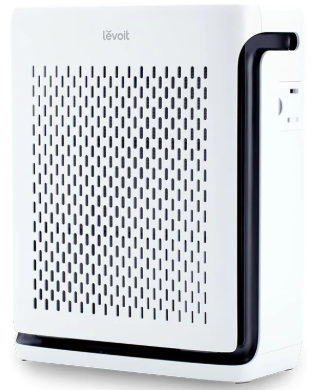
Package Contents
- 1 x Smart Air Purifier
- 1 x Washable Pre-Filter (Pre-Installed)
- 1 x True HEPA / Activated Carbon Filter (Pre-Installed)
- 1 x User Manual
- 1 x Quick Start Guide
- 1 x AC Power Adapter
Know Your Product
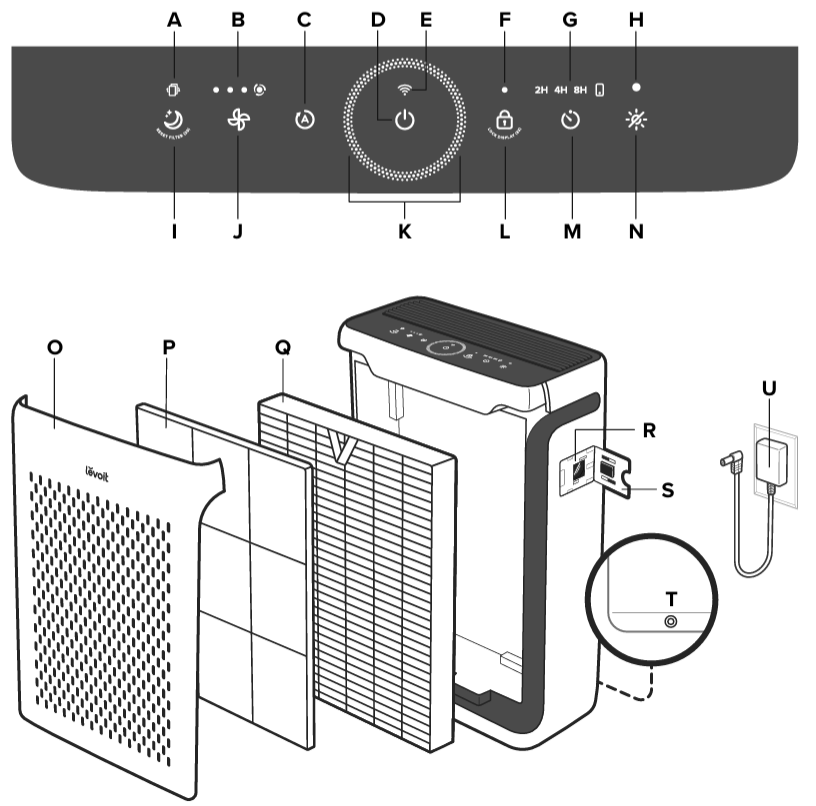
- Check Filter Indicator
- Fan Speed Indicators
- Auto Mode Button
- On/Off Button
- Wi-Fi® Indicator
- Display Lock Indicator
- Timer Indicators
- Light Sensor
- Sleep Mode Button
- Fan Speed Button
- Air Quality Indicator
- Display Lock Button
- Timer Button
- Display Off Button
- Front Cover
- Washable Pre-Filter
- True HEPA / Activated Carbon Filter
- AirSight™ Infrared Dust Sensor
- Dust Sensor Cover
- Power Adapter Input
- Power Adapter
Controls & Display
Auto Mode Button
- Turns Auto Mode on (see page 10).
Sleep Mode Button
- Turns Sleep Mode on (see page 10).
- Press and hold for 3 seconds to reset the Check
Check Filter Indicator
- Lights up red on your Levoit Vital 100S Smart True HEPA Air Purifier when the filter should be checked (see Check Filter Indicator, page).
- To reset the Check Filter Indicator, press and hold for 3 seconds. The indicator will flash 3 times and turn off.
Fan Speed Button & Indicators
- Cycles through fan speeds on your Levoit Vital 100S Smart True HEPA Air Purifier: low (1 indicator will light up), medium (2 indicators), high (3 indicators), and turbo (4 indicators).
- Tapping while the air purifier is in Auto Mode, Sleep Mode, or Pet Mode (when the display is lit up) will exit that mode.
Air Quality Indicator
- These indicator rings use an automatic infrared dust sensor to display the air quality: Blue (Very Good), Green (Good), Orange (Moderate), Red (Bad).
On/Off Button
- Turns the air purifier on/off. Press and hold for 3 seconds to connect the air purifier to the VeSync app.
- Press and hold for 3 seconds to reset the air purifier and disconnect from Wi-Fi® (see page 9).
Wi-Fi Indicator
Blinks when connecting to the VeSync app, lights up when connected to VeSync, and is off when disconnected from VeSync. See the VeSync in-app instructions for more information (see page 9).
Timer Button & Indicators
- Cycles through timer options: 2 hours, 4 hours, and 8 hours (see page 11).
- Lights up when the timer function is used through the VeSync app.
Display Lock Button & Indicator
- Prevents current settings from being changed (see page 12).
- Press and hold for 3 seconds to lock and unlock the display.
- The Display Lock Indicator will light up when the display is locked and blink when any other button is tapped to indicate the display is locked.
Display Off Button
- Turns the display off (see page 11).
- Tap any button to turn the display back on.
Light Sensor
- The Light Sensor detects the amount of light in the room to automatically adjust the air purifier settings (see Light Detection, page 11).
- Light Detection can be turned on/off in the VeSync app (see page 11).
Getting Started
- Place the air purifier on a flat, stable surface such as the floor.
- Pull both sides of the front cover to remove it.
- Push the pre-filter’s tabs inward and pull to remove the pre-filter from the air purifier. [Figure 1.2]
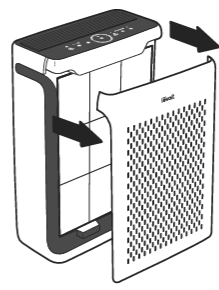
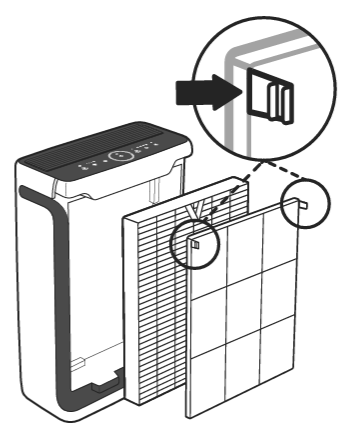
- Remove the True HEPA / Activated Carbon Filter from inside the air purifier.
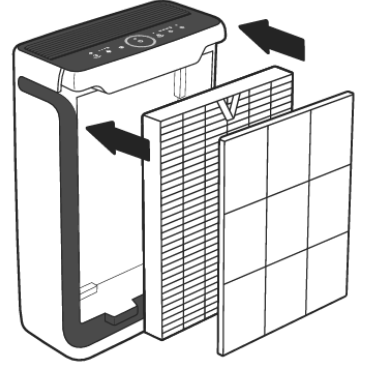
- Remove the plastic packaging from the filter and place the filter and the pre-filter back into the air purifier.
- Place the front cover on the air purifier. Ensure the tabs on the cover align with the slots on the bottom of the air purifier.
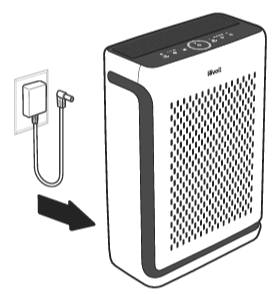
- Insert the power adapter plug into the back of the air purifier.
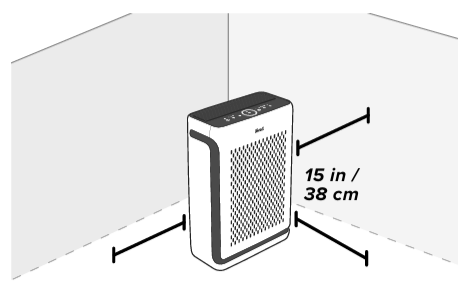
- When using the air purifier, allow at least 15 inches / 38 cm of clearance from the front of the air purifier. Keep away from anything that would block air flow, such as curtains.
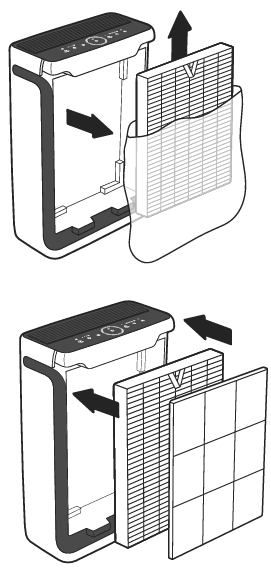 Place the front cover on the air purifier. Ensure the tabs on the cover align with the slots on the bottom of the air purifier.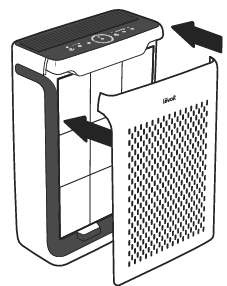
VeSync App Setup
- To download the VeSync app, scan the QR code or search “VeSync” in the Apple App Store® or Google Play Store.
- Open the VeSync app. Log In or Sign Up.
- Follow the in-app instructions to set up your smart air purifier.

Wi-Fi Connection
- To disconnect Wi-Fi, press and hold for 15 seconds until the Wi-Fi indicator turns off.
- This will restore the smart air purifier’s default settings and disconnect it from the VeSync app.
- To reconnect, please follow the instructions in the VeSync app for adding a device.
Connect with Amazon Alexa or Google Assistant
You can use the VeSync app to connect your smart air purifier to Amazon Alexa or Google Assistant. Please follow the in-app instructions to set up your voice assistant.
Use
- Plug in and tap to turn on the air purifier. The fan will start on low.
- Tap to change fan speed between low, medium, high, and turbo.
Sleep Mode
Sleep Mode operates quietly by using a fan speed lower than low speed.
- Tap to turn Sleep Mode on.
- Sleep Mode will turn off the display after 6 seconds if no other buttons are tapped.
- To switch from Sleep Mode, tap Auto Mode or select a fan speed on the air purifier’s display or in the VeSync app.
Auto Mode
Auto Mode on your Levoit Vital 100S Smart True HEPA Air Purifier uses AirSight™, an infrared dust sensor, to adjust the fan speed automatically based on air quality. For example, if the air quality is poor, the fan will automatically set to high speed.
- Tap to turn Auto Mode on.
- It will light up while Auto Mode is on.
- To switch from Auto Mode, tap Sleep Mode or select a fan speed on the air purifier’s display or in the VeSync app.
| Air Quality Indicator Chart | ||
| Indicator Color | Air Quality | Auto Mode Fan Speed |
| Blue | Very Good | Sleep Mode |
| Green | Good | Low |
| Orange | Moderate | Medium |
| Red | Bad | High |
Light Detection
You can turn on/off Light Detection in the VeSync app for your Levoit Vital 100S Smart True HEPA Air Purifier. When enabled, the light sensor automatically adjusts the air purifier settings based on the room’s lighting.
- The display will turn off when the room gets dark. If the Levoit Vital 100S Smart True HEPA Air Purifier is in Auto Mode or Pet Mode, it will not use high or turbo fan speeds, even if the air quality is poor, to minimize noise.
- When the room becomes bright again, the Levoit Vital 100S Smart True HEPA Air Purifier will return to its previous settings, and Auto Mode will resume normal operation.
Timer
You can manually set the timer for 2, 4, or 8 hours using the button. You can also set the timer for 1–24 hours through the VeSync app.
- Tap repeatedly to select a time. The timer will start automatically.
Display Off
This turns off the display lights on the air purifier, including button lights and indicator lights (except the Check Filter Indicator).
- Tap to turn off the display.
- Tap any button to temporarily turn the display back on. If you don’t tap another button, the display will turn back off after 6 seconds.
- Tap to turn the display back on. The display will stay on.
Display Lock
When the air purifier is on, you can lock the display to prevent settings from being accidentally changed. Buttons will not respond to being tapped.
- The Display Lock Indicator will blink when any other button is tapped to indicate that Display Lock is on.
- Press and hold again for 3 seconds to unlock the display. The Display Lock Indicator will turn off.
Stand by Mode
The air purifier is in Standby Mode when it is turned off, but plugged in.
Memory Function
When the air purifier is in standby or turned off and unplugged, it will remember its previous fan speed, Sleep Mode, Auto Mode, Pet Mode, and in-app Display and Light Detection settings.
VeSync App Functions
The VeSync app allows you to access additional smart air purifier functions, including those listed below. As the app develops, more features may become available.
Remote Control
- Change any air purifier settings through the app, even while Display Lock is on.
Air Quality Updates
- View real-time air quality updates in the app.
- See your air quality history for the previous 4 weeks.
About the Filter
The air purifier uses a 3-stage filtration system to purify the air.
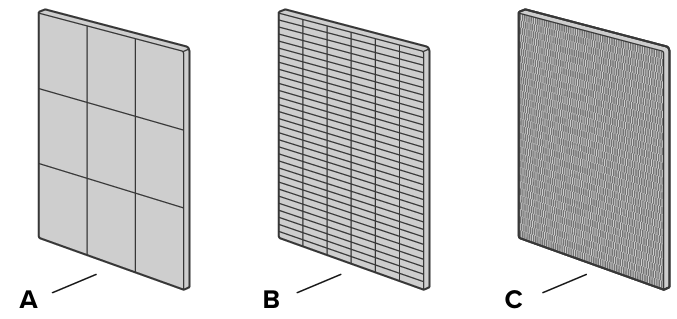
Washable Pre-Filter
- Captures large particles such as dust, lint, fibers, hair, and pet fur.
- Maximizes the filter’s life by protecting it.
- Removable and washable to increase filtering efficiency (see Cleaning the Pre-Filter, page 18).
H13 True HEPA Filter
- HEPASmart™ Technology uses statically charged fibers to capture viruses and bacteria with greater efficiency.
- Traps at least 99.97% of airborne particles 0.3 microns in size.
- Filters small particles such as fine dust, smoke particles, and allergens such as pollen and pet dander.
Humidity
Moisture may damage the filter. This air purifier should be used in an area with a humidity level of 85% RH or below. If you use the air purifier in excessively humid areas, the surface of the filter may become moldy.
Essential Oils
Do not add essential oils to the air purifier or filter. The filter will become damaged by the oil and will eventually release an unpleasant smell. Do not use diffusers near the air purifier.
Care & Maintainance
Cleaning the Smart Air Purifier
- Unplug before cleaning.
- Wipe the outside of the air purifier with a soft, dry cloth. If necessary, wipe the housing with a damp cloth, then immediately dry.
- Vacuum the inside of the air purifier.
- Do not clean with abrasive chemicals or flammable cleaning agents.
Check Filter Indicator
The Check Filter Indicator on your Levoit Vital 100S Smart True HEPA Air Purifier will light up as a reminder to check the filter. Depending on how often you use the air purifier, the indicator may turn on after about 9 months. You may not need to replace the filter immediately, but it’s recommended to check it when the light activates.
When your Levoit Vital 100S Smart True HEPA Air Purifier is connected to the VeSync app, you can also monitor the remaining filter life in the app. The app will notify you when it’s time to check the filter.
Resetting the Check Filter Indicator
Reset the Check Filter Indicator when
Lights up. This is the Check Filter Indicator light.
- Replace the filter (see page 19).
- Turn on the air purifier.
- To reset the Check Filter Indicator, press and hold for 3 seconds.
- The Check Filter Indicator light will flash and turn off when successfully reset. The filter life will show as 100% in the VeSync app.
The filter was changed before lighting it up.
- After replacing the filter, turn on the air purifier.
- To reset the Check Filter Indicator, press and hold for 3 seconds.
- The Check Filter Indicator will flash and turn off when successfully reset. The filter life will show as 100% in the VeSync app.
Cleaning the Pre-Filter
The Washable Pre-Filter of your Levoit Vital 100S Smart True HEPA Air Purifier should be cleaned every 2–4 weeks to maintain optimal efficiency and extend the filter’s lifespan. You can set a reminder in the VeSync app to clean the pre-filter every 2, 3, or 4 weeks.
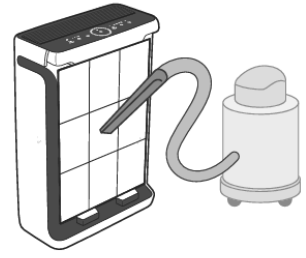
To clean, use a soft brush or vacuum hose to remove hair, dust, and large particles. Optionally, you can wash the pre-filter with water and a mild detergent to remove accumulated dirt and dust.
To wash the pre-filter
- Turn off the air purifier.
- Open the front cover.
- Push the pre-filter’s tabs inward and pull to remove the pre-filter.
- Clean the surface of the pre-filter with a vacuum. [Figure 2.1]
- Rinse the pre-filter with water under a faucet.
- Wash the pre-filter with mild detergent and a soft cloth. [Figure 2.2]
- Allow the pre-filter to air-dry. Once completely dry, place the pre-filter back into the air purifier. [Figure2.3]
 Rinse the pre-filter with water under a faucet.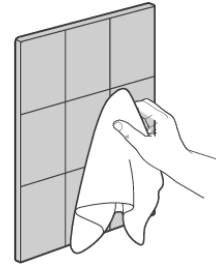
| Filter | When to Clean | How to Clean | When to Replace |
| Washable Pre-Filter | Every 2–4 weeks | Use a soft cloth or vacuum hose | Does not need to be replaced |
| Wash with water and mild detergent | |||
| True HEPA / Activated Carbon Filter | Do not clean | 9–12 months | |
Troubleshooting
| Problem | Possible Solution |
| The air purifier will not turn on or respond to button controls. | Plug in the air purifier. |
| Check to see if the power cord is damaged. If it is, stop using the air purifier and contact Customer Support (see page 26). | |
| Plug the air purifier into a different outlet. | |
| The air purifier may be malfunctioning. Contact Customer Support (see page 26). | |
| Airflow is significantly reduced. | Make sure the filter is removed from its packaging and properly in place (see page 7). |
| Tap to increase the fan speed. | |
| Leave 15 inches / 38 cm of clearance from the front of the air purifier. | |
| Clean the pre-filter (see page 18). | |
| Replace the filter (see page 19). | |
| The air purifier makes an unusual noise while the fan is on. | Make sure the filter is properly in place with plastic packaging removed (see page 7). |
| Make sure the air purifier is operating on a hard, flat, level surface. | |
| Replace the filter (see page 19). | |
| The air purifier may be damaged, or a foreign object may be inside. Stop using the air purifier and contact Customer Support (see page 26). Do not try to repair the air purifier. | |
| Poor air purification quality. | Tap to increase the fan speed. |
| Make sure no objects are blocking the front, sides, or top of the air purifier (the inlet or outlet). | |
| Make sure the filter is removed from its packaging and properly in place (see page 7). | |
| Close doors and windows while using the air purifier. | |
| If the room is larger than 219 ft² / 20 m², air purification will take longer. | |
| Replace the filter (see page 19). |
Warranty Information
| Product | Ultrasonic Top-Fill Cool Mist 2-in-1 Humidifier & Diffuser |
| Model | Dual 100 |
| For your own reference, we strongly recommend that you record your order ID and date of purchase. | |
| Order ID | |
| Date of Purchase | |
Terms & Policy
Arovast Corporation (“Arovast”) warrants this product to the original purchaser to be free from defects in material and workmanship, under normal use and conditions, for a period of one year from the date of original purchase. Arovast agrees, at our option during the warranty period, to repair any defect in material or workmanship or furnish an equal product in exchangefor the Levoit Dual 100 Ultrasonic Humidifier without charge, subject to verification of the defect or malfunction and proof of the date of purchase.
There is no other express warranty. This warranty does not apply:
- If the product has been modified from its original condition;
- If the product has not been used in accordance with directions and instructions in the user manual;
- To damages or defects caused by accident, abuse, misuse, or improper or inadequate maintenance;
- To damages or defects caused by service or repair of the product performed by an unauthorized service provider or by anyone other than Arovast;
- To damages or defects occurring during commercial use, rental use, or any use for which the product is not intended;
- To damages or defects exceeding the cost of the product.
Arovast will not be liable for indirect, incidental, or consequential damages in connection with the use of the product covered by this warranty. This warranty extends only to the original consumer purchaser of the product and is not transferable to any subsequent owner of the product, regardless of whether the product is transferred during the specified term of the warranty.
Customer Support
- Support Hours: Mon–Fri, 9:00 am–5:00 pm PST/PDT
- Email: support@levoit.com
- Toll-Free: (888) 726-8520
FAQs
Q: What makes the Vital 100S a “Smart” air purifier?
By connecting the Vital 100S to the VeSync app, you can use voice assistants, set run times, monitor air quality, manage the purifier remotely, and track filter life in real time.
Q: How often should I replace the filter?
Usually, every six to twelve months, depending on the environment, air quality, and usage. When it’s time for a replacement, the VeSync app and filter indicator will notify you.
Q: Can I wash or reuse the filters?
HEPA and carbon filters cannot be cleaned or reused, although the pre-filter can be gently vacuumed to prolong its life. Always swap out for Levoit filters that are compatible.
Q: How do I connect the purifier to the VeSync app?
After downloading the VeSync app, set up or connect to your account, and activate Wi-Fi, follow the in-app pairing instructions.
Q: Why isn’t my purifier connecting to Wi-Fi?
Make sure you’re using a 2.4 GHz network, put the router close by, disable VPNs, and, if necessary, reset the purifier’s Wi-Fi settings. Another option is to restart the router.
Q: What room size is the Vital 100S best for?
Generally speaking, it is advised for medium-sized spaces, including workplaces, living rooms, and bedrooms. (The precise coverage changes depending on the mode of operation.)