

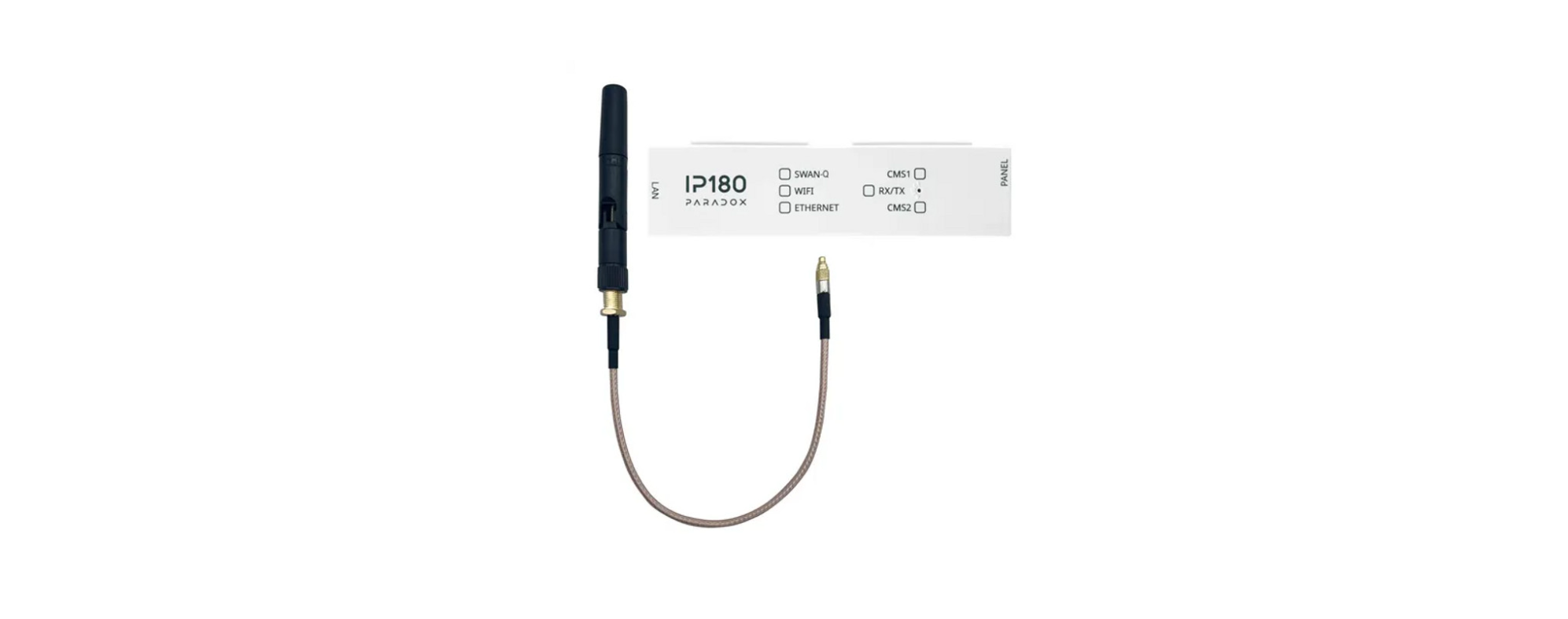

Paradox IP180 Internet Module Ethernet

Introduction
The Paradox IP180 Internet Module Ethernet uses an encrypted supervised connection with the IPC10 PC and BlueEye, based on MQTT technology, providing a stable, fast, and reliable link. For more details on the IPC10 setup, see the Paradox IPC10 IP to CMS Converter Instruction Guide. This module is remotely upgradable via InField and the BlueEye application and supports all Paradox + panels produced after 2012.
Before You Begin
Before configuring your Paradox IP180 Internet Module Ethernet, make sure you have the following items ready:
- Router
- 4-pin serial cable (included)
- CAT5 Ethernet cable (maximum 90m (295 ft.), not included)
- BlueEye app installed on a smartphone
- Connect IP150+MQ to the serial port on your panel and the Ethernet port of your router.
Installation
The Paradox IP180 Internet Module Ethernet (IP150+MQ) should be installed in the panel metal box enclosure to remain tamper-protected. Clip the module to the top of the metal box, as shown in Figure 1.
Serial to the Panel
Connect the serial output of the IP150+MQ to the Serial port of the Paradox panels. If it is Paradox + Series,
Connect it to Serial1, as it is the main reporting channel, as shown in Figure 4.
Ethernet
Connect the Ethernet cable to an active Ethernet socket and the left side of the IP150+MQ, as shown in Figure 4.
Metal Box

Attaching the IP150+MQ to the Panel
To connect the IP150+MQ, plug in the Serial cable to the panel, refer to Figure 4. After a few seconds, the
RX/TX LED starts flashing; this indicates that the IP150+MQ is powered and is communicating with the panel.
Open Network

Closed Network
Overview

LED Indicators
| LED | Description |
| User | Green – On when a user is connected via BlueEye/BabyWare/InField/ NEware. |
| Internet | ON – Connected to Internet and connected to Swan-Q.
Flashing every 1 second – connected to Internet, not connected to Swan-Q (no site token). OFF – no internet |
| Link | ON – Connected to Ethernet (GREEN 100 Mbps, Orange 10mbps) |
| RX/TX | ON – when connected to the panel, Flashes when data is transmitted or received through/from the panel. OFF when no connection to the panel. |
| I/O 1 | N/A |
| I/O 2 | N/A |
Connectivity – Port Settings
Should you have issues connecting, please make sure that the ISP, router/firewall is not blocking the following ports. They need to be permanently open (TCP/UDP, inbound, and outbound).
| Port | Description (used for) |
| UDP 53 | DNS |
| UDP 123 | NTP |
| UDP 5683 | COAP backupp) |
| TCP 8883 | MQTT port SWAN and IPC10 receiver |
| TCP 443 | OTA (firmware upgrade + certificate download) |
| TCP Port 465, 587 | Usually, for an email server, it may differ depending on the email server used. |
Creating a Site
- Open the BlueEye app.
- Select the Menu, and then select Installer Menu.
- Press on the 3-dot menu and select Create New Site.
- Enter the Panel SN, Site Name, and email address.
- Tap on Create New Site.
- Site is created.
Configuring the IP150+MQ Using BlueEye
Configuring IP150+MQ in a Connected Site
- Open the BlueEye app.
- Select the Menu and then Installer Menu; the Installer Site List screen will be displayed.
- Select the Site.
- Enter the Installer PC code of the panel (same as the PC Password in BabyWare, default 0000).
- Select the Modules Programming option from the Installer Services tab.
- Select Module Configuration.
- Select IP150+MQ.

Configuration
Reporting to the IPC10 Receiver in open networks (internet available)
To configure reporting for the Paradox IP180 Internet Module Ethernet, enter panel programming via keypad or BabyWare. Input the CMS account number, IP address(es) of the receiver(s), Port, and security profiles (2-digit number) that indicate supervision time. Up to two receivers can report through the IP150+MQ. If you previously reported to four receivers, upgrading to an IP150+MQ will limit reporting to two receivers.
Security Profiles
Security profiles cannot be modified.
| ID | Supervision |
| 01 | 1200 seconds |
| 02 | 600 seconds |
| 03 | 300 seconds |
| 04 | 90 seconds |
Setting Up IP Reporting at Keypad or BabyWare
NOTE: The IP150+MQ can only report CID format; make sure reporting is set to CID (Ademco contact ID).
- Ensure the panel’s report code format is set to Ademco Contact ID:
- MG/SP: section [810] Enter value 4 (default)
- EVO/EVOHD+: section [3070] Enter value 5
- Enter the IP reporting account numbers (one for each partition
- MG/SP: section [918] / [919]
- EVO: section [2976] to [2978]
- EVOHD+ section [2976] Receiver 1 Main
- Enter the monitoring station’s IP address(es), IP port(s), and security profile(s) (information must be obtained from the monitoring station).
| MG/SP Sending IP Credentials to Receiver |
|
EVO/EVOHD+ Sending IP Credentials to Receiver | ||||||
| IP Receiver | #1 | #2 | #3 | IP Receiver | Main | Parallel | Backup | |
| Save and Send/Status | [935] | [942] | [949] | Save and Send/Status | [2985] | [2987] | [2989] | |
Email Configuration (only with open networks)
- Configure the IP150+MQ’s email server settings.
- Please note that emails are not supported in a closed network configuration.
Email Addresses
| MG/SP Sections |
|
EVOHD+ | ||||||
| IP Receiver | #1 | #2 | #3 | IP Receiver | Main #1 | Backup #2 | Parallel #3 | |
| IP Address 1 | [929] | [936] | [943] | IP Address 1 | [2984] | [2986] | [2988]
|
|
| IP Port 1 | [930] | [937] | [944] | IP Port 1 | ||||
| IP Profile | [934] | [941] | [948] | IP Profile | The IP profile for this receiver is the same as the
Main receiver IP profile. |
|||
| EVO Sections | |||
| IP Receiver | #1 | #2 | #3 |
| IP Address 1 | [2984] | [2986] | [2988] |
| IP Port 1 | |||
| IP Profile |
You can configure your IP150+MQ to send email notifications to up to four email addresses to receive notification of system events.
To Configure an Email Address
- In the BlueEye app, Installer Menu, Module Configuration section, enable the Address toggle button.
- Enter the Email address. Use the test button to verify that the recipient’s address is correct.
- Select the Areas and Event groups that generate email notifications.

Reporting to the IPC10 Receiver in closed networks (no internet)
Reporting in a closed network requires IPC10 V1.01.000 (and up), and BabyWare V5.6.40 (and up) for
connection/configuration. The below will be valid only if the Internet is not available on the connected network.
With a PC connected to the same local network as the IPC10 and the devices, use BabyWare, select Static IP connection type, and use the scan feature to find the IP of the IP150+MQ modules.
A list of Paradox IP devices will appear (IP150+, IP150, and IP180 with supported versions) with their IP addresses and their serial numbers. Added the two pictures below.

Enter the IP address of the device you wish to configure in a web browser. Enter the Installer PC Code of the panel (same as the PC Password in BabyWare, default 0000). From the web interface, once connected to the web page, disable the Swan connection as shown below, and disable DHCP if needed.

To configure reporting, enter panel programming via keypad or BabyWare (serial port). Enter the CMS account number, IP address(es) of the receiver(s), Port, and security profiles (2-digit number), which indicates the supervision time. If you are currently reporting to four receivers, once you upgrade to an IP150+MQ, you will no longer be able to configure or report to four receivers.
Option 1
To connect with BabyWare, follow the steps below
- Open the Account page and select the IPC server option.
- Enter the label of the IPC10 receiver, the IP of the IPC10, and the port (8883 by default).
- Select the Scan Panel option and follow the messages on the screen.
- From the list of the IPC Server Group, you can now connect to the panel of your choice.

Option 2
- Open the Account page and add an account.
- Select the Connection option.
- Select the option MQTT Close Network Connection via IPC10.
- Enter the IPC10 IP address, port, and panel serial number.
- Select OK and add the panel ID, PC password, and connect to the panel.

NOTE: Configuring the reporting with BabyWare will require a serial port connection, with a 307USB.
Firmware Upgrade
- Firmware upgrading is available from the BlueEye app using the installer Menu (or Infield software).
- Select the site from the sites list.
- Enter the PC password in the field and press Connect.
- Select Modules Programming.
- Select Modules Updates.
- Select IP150+MQ.
- The list of firmware available will appear; select the firmware to use.
Reset IP150+MQ to Default Settings
Press down gently until you feel some resistance; hold it down for approximately five seconds. When the I/O and RX/TX LEDs start flashing, release it, and then press it again (Figure 4). The I/O and RX/TX LEDs will remain lit during the reset.
Firmware Version Fallback
To revert the IP150+MQ module to its previously installed firmware version, unplug the power cable from the
panel and insert a pin/straightened paper clip (or similar object) into the pinhole located between the two I/O LEDs. Press down gently until you feel some resistance; plug in the power cable while holding the pin down for approximately five seconds, and release it when the I/O 2 LED starts flashing (Figure 4). The I/O LED will turn solid and start blinking (resetting to the backup version). Once complete, the IP150+MQ will reboot automatically to the previously installed firmware version.
Technical Specifications
The following table provides the technical specifications for the IP150+MQ Internet Module.
| Specification | Description |
| Panel Compatibility | Compatible with EVOHD+, SP+, MG+, and most Paradox panels produced after 2012 |
| Upgrade | Remotely via InField or BlueEye app |
| IP Receiver | IPC10 up to two supervised receivers simultaneously direct supervised, encrypted independent connections |
| Encryption | AES 128-bit |
| IPC10 to CMS Output Format | MLR2-DG, Ademco 685, or Ademco CID-TCP |
| Current Consumption | 100 mA |
| Operating Temperature | -20 c to +50 c |
| Input Voltage | 10V to 16.5Vdc, supplied by the panel serial port |
| Enclosure Dimensions | 10.9 x 2.7 x 2.2 cm (4.3 x 1.1 x 0.9 in) |
| Approvals | CE, EN 50136-1, EN 50136-2 SP5, EN 50131-10 Grade 3, Class II |
Warranty
For complete warranty information on this product, please refer to the Limited Warranty Statement, which can be found on paradox.com/terms or contact your local distributor.
Customer Support
- Website: www.paradox.com
- Tel: (954) 933-2156
US, Canadian, and international patents may apply. Paradox IPC10 IP to CMS Converter is a trademark or registered trademark of Paradox Security Systems (Bahamas) Ltd. © 2024 Paradox Security Systems (Bahamas) Ltd. All rights reserved.