

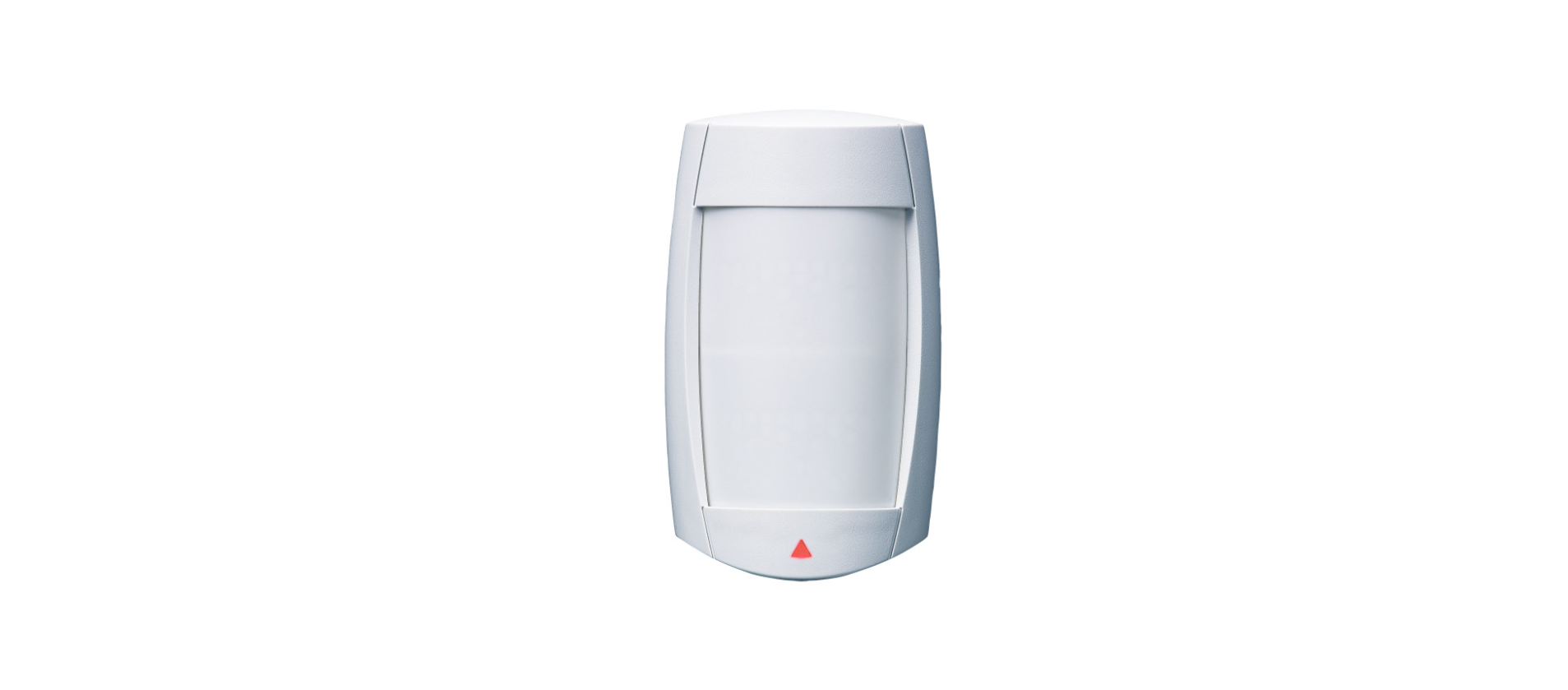

Paradox PMD75 Digital Wireless Motion Detector

Overview


PCB Height Adjustment
After you have installed the detector, ensure that the adjustable height markings on the right side of the PCB match the tab inside the back cover (see “H” in Figure 1).
Align the desired marking (height) with the back cover’s plastic tab. If another installation height is called for, readjust the PCB accordingly. Any PCB adjustments should be followed by a walk test of the protected area. Walk-testing verifies that the required coverage is in place.
LED Setting (J5)
This setting enables or disables the red LED (Table 1). The red LED will illuminate for a period of 4 seconds to indicate detected movement. The motion detector performs a battery test every 12 hours. If the battery voltage is too low, the red LED will flash at 5 5-second intervals and the motion detector will send a low battery signal to the receiver. A trouble will then be generated and transmitted to the central monitoring station. The red LED will flash rapidly when the motion detector transmits a signal to the receiver.
Powering the Detector
- Insert 3 “AAA” batteries into the battery holder while verifying polarity (Figure 4).
- Insert the battery holder into the back cover and affix the battery connector to the PCB (see “A1” and “A2” in Figure 4)
After connecting the battery connector, a power-up sequence will begin (lasting 10 to 30 seconds). During this time, the red LED will flash, and the detector will not detect an open zone or tamper.
Replacing Batteries
- Disconnect the battery connector from the PCB. Remove the battery holder and remove the old batteries.
- Press and release the anti-tamper switch to ensure that the unit has powered down.
- Follow the steps outlined in “Powering the Detector”.
Walk-testing
Open the cover in order to trigger the anti-tamper switch, then snap the cover back into position. This will activate the motion detector’s walk-test mode for 3 minutes. At 20°C (68°F), in Normal Shield (J4 = ON) mode and Single Edge Processing mode (J3 = ON), you should not be able to cross more than one complete zone (consisting of 2 beams, left and right sensor detecting elements) in the coverage area with any kind of movement, slow/fast walking, or running.
In High Shield mode, the amount of movement required to generate an alarm is doubled. The approximate width of a full beam at 11m (35 ft) from the detector is 1.8m (6 ft). When walk-testing, always move across the detection path and not toward the detector.
Signal Strength Test
To verify the receiver’s reception of the motion detector’s signal, perform a signal strength test before finalising the installation of the motion detector. For more information on signal strength tests and zone programming, refer to the appropriate receiver’s Reference and Installation Manual. If the transmission is weak, relocating the transmitter by a few inches can greatly improve the reception.
Alive Software
If the motion detector transmits 2 alarm signals (LED on for 4 sec.) within 5 minutes, the detector falls into Energy Save mode, where it won’t transmit any alarm signals for approximately 3 minutes. Due to the motion detector’s Alive Software, the red LED continues to flash to indicate a detection event when in Energy Save mode.
Table 1
| LED Indicator | |
| J5 | OFF = Disabled, ON = Enabled |
| Digital Shield (sensitivity) | |
| J4 | OFF =High Shield (low sensitivity), ON = Normal Shield (high sensitivity) |
| Processing Type | |
| J3 | OFF =Dual edge, ON = Single edge |
| Operating Mode | |
| J2 | OFF =N/A ON = Magellan r |
Specifications
| Sensor Type | Two dual-opposed infrared sensors |
| Coverage – 90° (standard) | 11m x 11m (35 ft x 35 ft) |
| Pet Immunity | Up to 40 kg (90 lbs) |
| Detector Speed | 0.2m to 3.5m/sec. (0.6 ft to 11.5 ft/sec.) |
| Installation Height | 2.1m to 2.7m (7 ft to 9 ft) |
| Operating Temperature | 0°C to +50°C (+32°F to +122°F) |
| RF Frequency | 433* or 868 MHz |
| Lens | 2nd generation Fresnel lens, LODIFF®, segments |
| Power | 3 x “AAA” alkaline batteries |
| Transmitter Range | 35m (115 ft) with MG6250, 70m (230 ft) with MG5000 / MG5050 / RTX3 |
| Anti-Tamper Switch | Yes |
| Battery Life† | Lowest check-in setting: 3 years, Highest check-in setting: 1.5 years |
| Certifications (i.e., UL and CE) | For updated information on certifications, go to paradox.com |
| Compatibility | MG5000, MG5050, MG6250, RTX3 |
Dimensions


Warranty
For complete warranty information on this product, please refer to the Limited Warranty Statement, which can be found on paradox.com/terms or contact your local distributor.
Customer Support
- Website: www.paradox.com
- Tel: (954) 933-2156
US, Canadian, and international patents may apply. Paradox IPC10 IP to CMS Converter is a trademark or registered trademark of Paradox Security Systems (Bahamas) Ltd. © 2024 Paradox Security Systems (Bahamas) Ltd. All rights reserved.