



Brother VC-500W Colour Label Maker
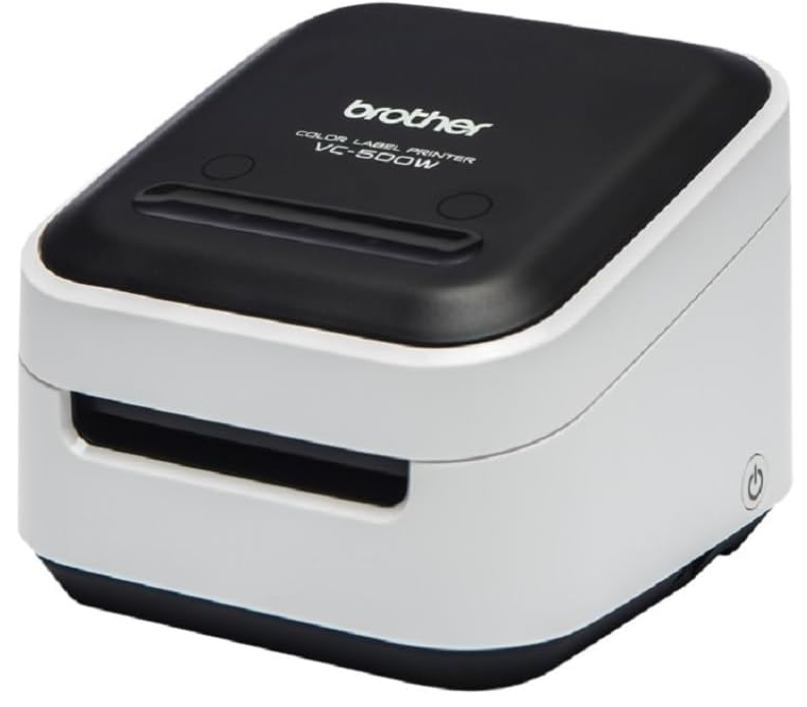
Saftay Introduction
- Depending on the location, material, and environmental conditions, the label may unpeel or become irremovable, or the Color of the label may change or be transferred onto other objects. Before applying the label, check the environmental conditions and the material.
- Do not use your Label Printer in any way or for any purpose not described in this guide. Doing so may result in accidents or damage to your Label Printer.
- Use a soft, lint-free dry cloth to clean your Label Printer; never use alcohol or other organic solvents.
- Do not place any foreign objects into the Roll Cassette slot, the print output slot, or the AC Adapter Port.
- Do not pull or apply pressure to the Roll Cassette to avoid damaging your Label Printer.
- The length of the printed label may differ from the displayed label length.
- Do not place the labels or product parts in your mouth.
- Do not attach labels to food or skin.
- Remove the protective film before using your Label Printer to avoid damaging the device.
- For information about your model’s electrical rating, see the label attached to the base of your Label Printer.
- The thermal head may become too hot if you print a large number of labels. The Label Printer will stop and resume printing once the print head has cooled down.
- Use genuine Brother accessories and supplies.
- Design and specifications are subject to change without notice.
- To check the specification of this product, see our website: support.brother.com.
Federal Communications Commission (FCC) Declaration of Conformity (For USA Only)
Responsible Party: Brother International Corporation
- Responsible Party: Brother International Corporation 200 Crossing Boulevard Bridgewater, NJ 08807-0911 USA
- TEL : (908) 704-1700 declares that the product Product Name: Brother COLOR LABEL PRINTER
- Model Number: VC-500W
complies with Part 15 of the FCC Rules. Operation is subject to the following two conditions: (1) this device may not cause harmful interference, and (2) this device must accept any interference received, including interference that may cause undesired operation.
This equipment has been tested and found to comply with the limits for a Class B digital device, pursuant to Part 15 of the FCC Rules. These limits are designed to provide reasonable protection against harmful interference in a residential installation.
This equipment generates, uses, and can radiate radio frequency energy and, if not installed and used in accordance with the instructions, may cause harmful interference to radio communications; however, there is no guarantee that interference will not occur in a particular installation. If this equipment does cause harmful interference to radio or television reception, which can be determined by turning off and on the equipment, the user is encouraged to try to correct the interference by one or more of the following measures:
- Reorient or relocate the receiving antenna.
- Increase the separation between the equipment and receiver.
- Connect the equipment into an outlet on a circuit different from that to which the receiver is connected.
- Consult the dealer or an experienced radio/TV technician for help.
- This transmitter must not be co-located or operated in conjunction with any other antenna or transmitter.
Important
- Changes or modifications not expressly approved by Brother Industries, Ltd. could void the user’s authority to operate the equipment. This device complies with Industry Canada’s license-exempt RSSs. Operation is subject to the following two conditions: (1) this device may not cause interference, and (2) this device must accept any interference, including interference that may cause undesired operation of the device. This equipment complies with FCC/IC radiation exposure limits set forth for an uncontrolled environment and meets the FCC radio frequency (RF) Exposure Guidelines and RSS102 of the IC radio frequency (RF) Exposure rules. This equipment should be installed and operated
- keeping the radiator at least 20cm or more away from a person’s body
Components

- Roll Cassette (1″)
- AC Adapter
- Micro USB Cable
- User’s Guide (this guide)
- Cleaning Cassette
The Cleaning Cassette is not intended for printing. When inserted, it will start a cleaning cycle. When the cleaning cycle is complete, and the Label Printer cuts the cleaning paper, remove and discard the paper. Use if streaks appear on your labels, or after every 20-30 prints,s for best performance.
Parts Description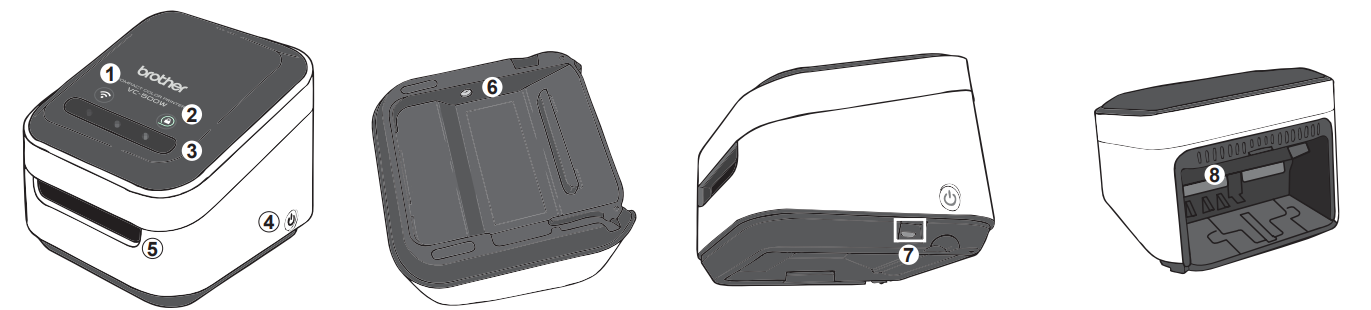
- Wi-Fi Button →(see page 15)
- Cassette Button →(see page 19)
- Swipe-to-Cut Panel →(see page 18)
- Power Button →(see page 9)
- Print Output Slot
- AC Adapter Port
- Micro USB Port
- Roll Cassette Slot
Connect the Power Cord and Power On
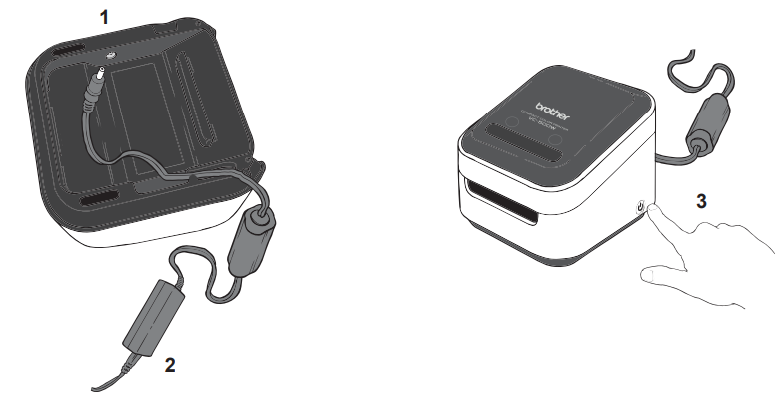
- Insert the AC Adapter into the AC Adapter Port on the base of the Label Printer.
- Connect the AC Adapter and the cord. Then, plug the AC Power Cord into an AC power outlet.
- Press and hold the Power ( ) Button. When the LED lights\ stop flashing, go to the next step.
Load the Roll Cassette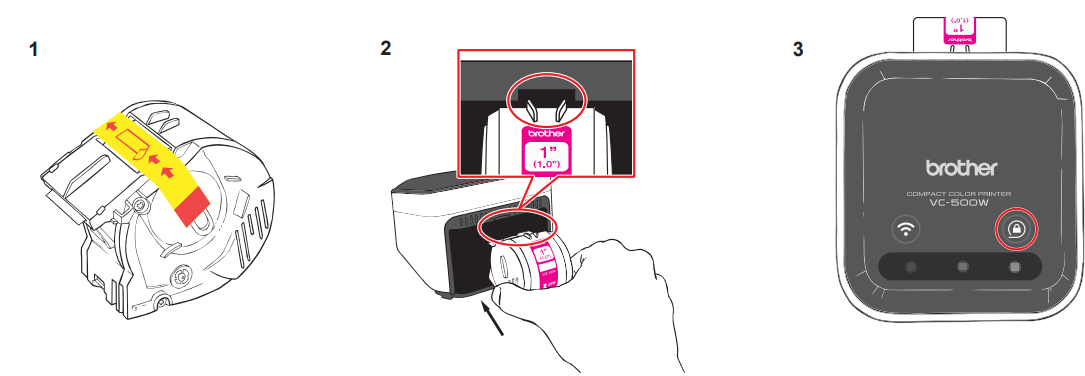
- Unpack the Roll Cassette and remove the pull-tab in the direction shown by the arrows.
- Insert the Roll Cassette into the slot at the back of your Label Printer until it locks into place. The Label Printer ejects a small piece of paper when each Roll Cassette is used for the first time, to complete the loading process.
- When loading is complete, the Cassette Button’s LED stops blinking and remains l.it
Download and install Brother Color Label Editor 2 to print from your mobile device.
Download Brother Color Label Editor 2
- Download and install our free Brother Color Label Editor 2 application from the App Store or Google Play™.
- For detailed information on the Brother Color Label Editor 2 application, please refer to the Help button.
Print Using P-touch Editor
For Windows
- To use your Label Printer with your computer via USB or Wi-Fi, install P-touch Editor and the Printer Driver. To download and install printer drivers and software, visit our website. install. brother
- Start P-touch Editor. For Windows 10: Click Start > Brother P-touch > P-touch Editor or double-click P- touch. Editor on the desktop. For Windows 8/Windows 8.1:From the Apps screen, click P-touch Editor or double-click P-touch Editor on the desktop. For Windows 7:Click Start > All Programs > Brother P-touch > P-touch Editor or double-click P-touch Editor on the desktop. Mac Users, please see the next page.
For Mac
- To use your Label Printer with your computer via USB or Wi-Fi, connect and add an AirPrint printer, and install P-touch Editor. To download and install software, visit your model’s Download page at support.brother.com.
- On your computer, double-click Macintosh HD > Applications, and then double-click the P-touch Editor icon.
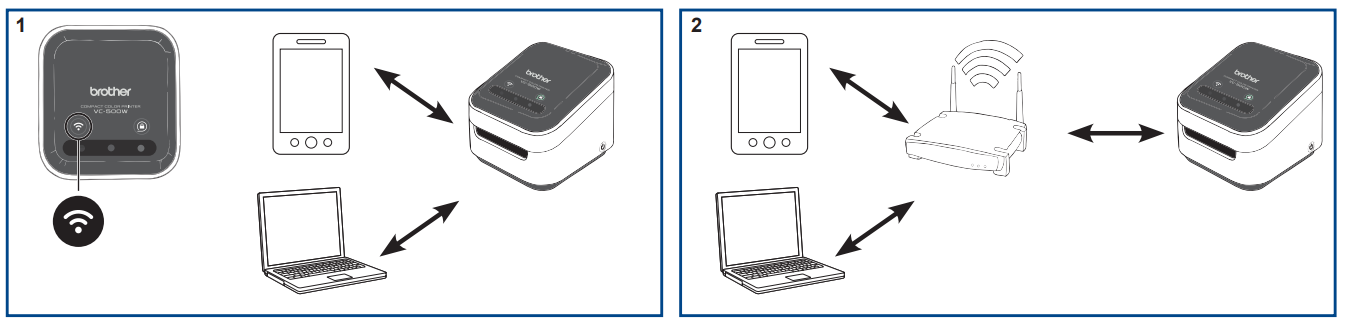
Connect Wirelessly
Press and hold the Wi-Fi ( ) Button on your Label Printer for two seconds to switch between Wireless
Direct, Off, and Infrastructure Modes.
- Wireless Direct Mode (LED=white) Wireless Direct Mode allows your device to connect directly with your Label Printer. Select the “Brother VC-500W ####” network in the Wi-Fi setup of your device (where #### is the last four digits of the machine’s serial number, located on its base). (NOTE: You will not have internet access in this mode.)
- Infrastructure Mode (LED=blue). Infrastructure Mode allows your Label Printer to print wirelessly through your Wi-Fi network. To start this mode, see the Infrastructure Mode Configuration in the Manuals section of our website: support.brother.com/manuals
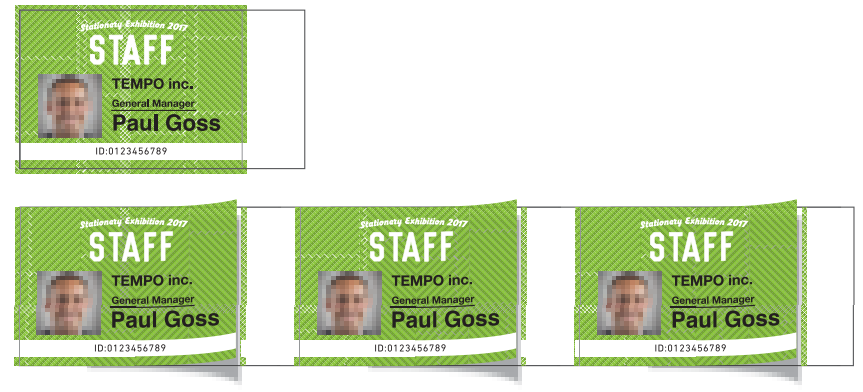
Cut Mode
There are two cutting methods available:
- Manual Full Cut – used to manually cut each printed design.
- Auto Full Cut – used to automatically cut each printed design. From the Brother Color Label Editor 2 App: Tap Settings > Select Cut Mode at Batch Print Cut Mode.
Manual Full Cut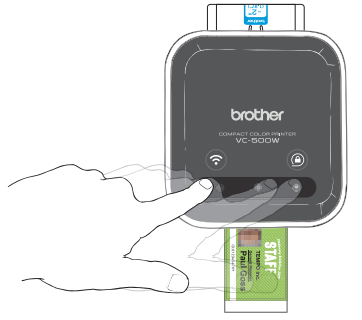
- When a label is printed, the swipe-to-cut panel lights will blink left to right.
- Swipe your finger across the panel to cut the printed label.
Manual Full Cut
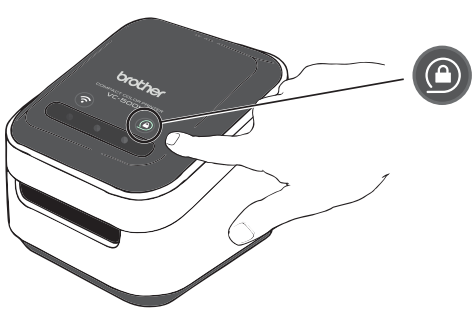
- When a label is printed, the swipe-to-cut panel lights will blink
left to right. - Swipe your finger across the panel to cut the printed label.
Remove the Roll Cassette
Press and hold the Cassette Button ( ). When the cassette button’s LED is off, remove your Roll Cassette by lifting it up and slightly away from your Label Printer. NOTE: Do not try to remove a Roll Cassette when the LED is blinking or remains lit. If the Roll Cassette is removed while the LED is blinking, some of the labels may advance.
- Wi-Fi Button/Botón Wi-Fi/ Bouton Wi-Fi
- Cassette Button/Botón de cassette/Bouton de cassette
- Swipe-to-Cut Panel/Panel de deslizar para cortar/Volet de glissement pour la découpe


LED Indications
| LED de estado | Estado | |
| 1 | Blanco | conectado directamente |
| Luz apagada | sin conexión | |
| Azul | conectado mediante enrutadorinalámbricoo | |
| 2 | Luz apagada | Desbloqueado o casete del rollo no detectado |
| Parpadeando en blanco | cargando o descargando | |
| Blanco | bloqueado y listo para imprimir | |
| 3 | Parpadeando de izquierda a derecha | Se ha completado la impresión |
Update Your Label Printer
For the latest updates and features, update your label printer’s firmware. From the Brother Color Label Editor 2 App: Once your application and printer are connected to the same Wi-Fi network, tap [Settings] > [Firmware update].
For Windows / Mac
To update the firmware manually, visit the Brother support website at support.brother.com. Select your region/ country > FAQs & Troubleshooting > Search by \Model Name / Search by Product Category
Customer Service
- Tel: 1-800-799-9911.
- Timings: 6 a.m. and 5 p.m. PST, Monday through Friday.
- Website: http: www.infs.com