



Cleer ENDURO ANC Noise Cancelling Headphones

Box Contents

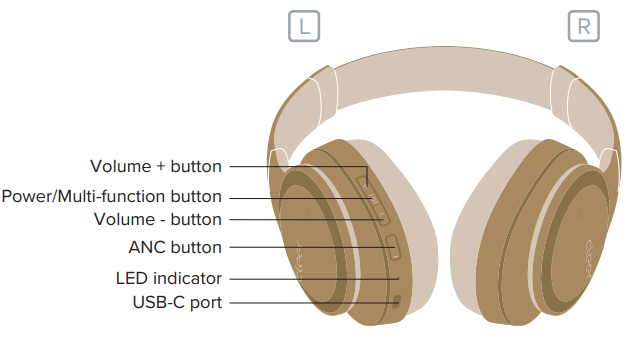
Overview
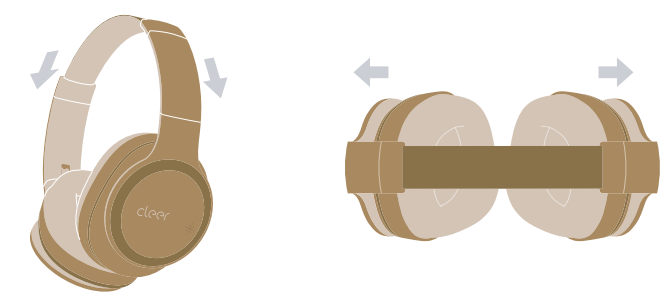
Fitting
Slide to adjust the headband to fit your head.
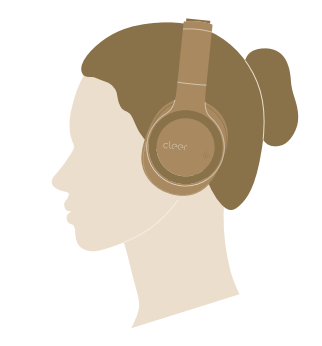
Correct wearing position
Quick Start
- Press and hold the power button for 2 seconds to turn on your ENDURO ANC. * ENDURO ANC will go into pairing mode automatically when powered ON for the first time (if you need to manually go into pairing mode, please follow the steps on page 6). ** ENDURO ANC will automatically connect to the last connected device if it is in range and available for pairing
- Find “Cleer ENDURO ANC” on the Bluetooth
- Enjoy your ENDURO ANC


Cleer+ App
The Cleer+ app gives you more customized control of your ENDURO ANC. Download the Cleer+ app from the App Store (for iOS devices) or the Google Play (for Android devices).
With the Cleer+ app, you can.
- Turn on and off the Ambient Noise Control
- Real-time tuning of the Ambient Noise Control level
- Customize the equalizer setting of your ENDURO ANC
- Choose preset music profiles to tune your ENDURO ANC to more accurately reproduce the style of music you listen to
- Change the Bluetooth name of your ENDURO ANC
- Receive software updates when new features and improvements are available
- Check the playback time and battery level of your ENDURO ANC
* Sound settings are saved in your ENDURO ANC, and can be enjoyed with any player you connect to your ENDURO ANC.
Bluetooth Pairing
Pairing Mode
- ENDURO ANC is OFF. Press and hold the power button until the LED blinks white & red.
- Find “Cleer ENDURO ANC” on the Bluetooth device list.
- ENDURO ANC is now paired.

Multi-function button

ANC Button

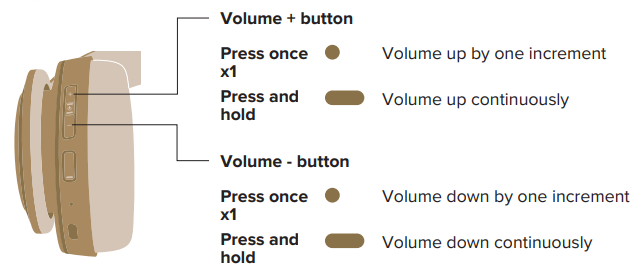
Volume control
 Line-in connection

Charging Connect ENDURO ANC to a power source with the provided USB-C cable. \ 10-minute charge will give hours of playtime. ENDURO ANC can be fully charged in 3 hours.
LED behavior

Specifications
- Driver: 40mm Ironless Driver™
- Audio CODEC support: SBC, AAC, aptX Adaptive
- Frequency response range: 20-40KHz (Line in)/ 20-20KHz (Bluetooth) charging
- Connections: USB-C to 3.5mm for audio, USB-C to USB-A for
- Support: BT 5.0, SPP v1.0, HFP v1.6, A2DP v1.3.1, AVRCP v1.6
- Charging: A 10-minute charge will give 2 hours of playtime.
- Bluetooth transmission ENDURO ANC can be fully charged in 3 hours
- Frequency range: 2.402-2.480GHz <4dBm
- Bluetooth transmission power: Rechargeable lithium-ion rectangular cell (3.7V)
- Playback time 60 hours
- Weight: (BT):280 g
Warranty
Labor: For a period of (1) year from the original date of purchase of the product (“Labor Warranty”), Cleer Limited will, at its option, repair or replace with a new or refurbished product, the product determined to be defective. If Cleer Limited elects to replace the product after this Labor Warranty has expired but while the parts warranty is still in effect, it will do so for the applicable labor charge.
Parts: For a period of (1) year from the original date of purchase of the product (“Parts Warranty”), Cleer Limited will supply new or refurbished replacement parts in exchange for parts determined to be defective.
Repair / Replacement Warranty: This Limited Warranty shall apply to any repair, replacement, part, or replacement product for the remainder of the original Limited Warranty period or for (90) days, whichever is longer. Any product replaced under this.
Customer Service
- Website: www.cleeraudio.com
- Ph: 1 888 672 5337 (67 CLEER)
6 Comments
Your point of view caught my eye and was very interesting. Thanks. I have a question for you.
Your article helped me a lot, is there any more related content? Thanks! https://www.binance.com/sl/register?ref=I3OM7SCZ
Thanks for sharing. I read many of your blog posts, cool, your blog is very good.
Can you be more specific about the content of your article? After reading it, I still have some doubts. Hope you can help me. https://accounts.binance.info/ES_la/register-person?ref=VDVEQ78S
Your article helped me a lot, is there any more related content? Thanks! https://www.binance.info/el/register?ref=DB40ITMB
Thanks for sharing. I read many of your blog posts, cool, your blog is very good.