

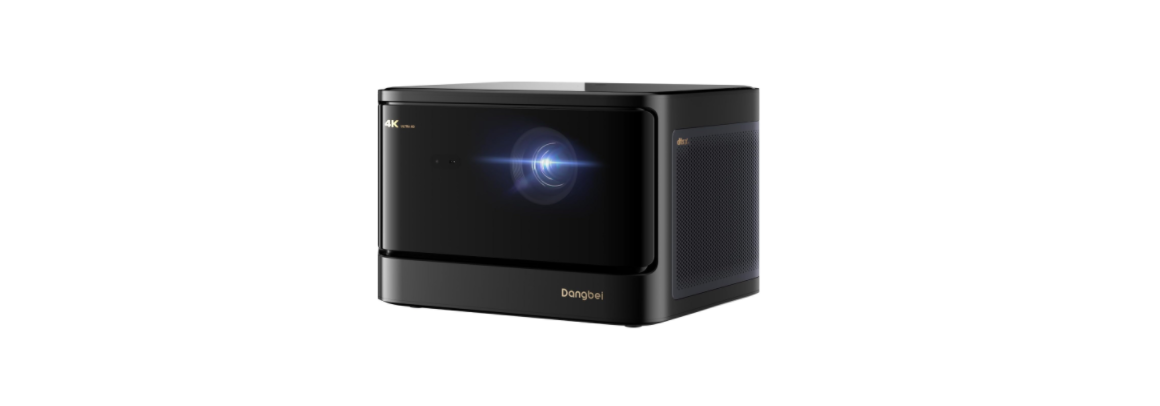

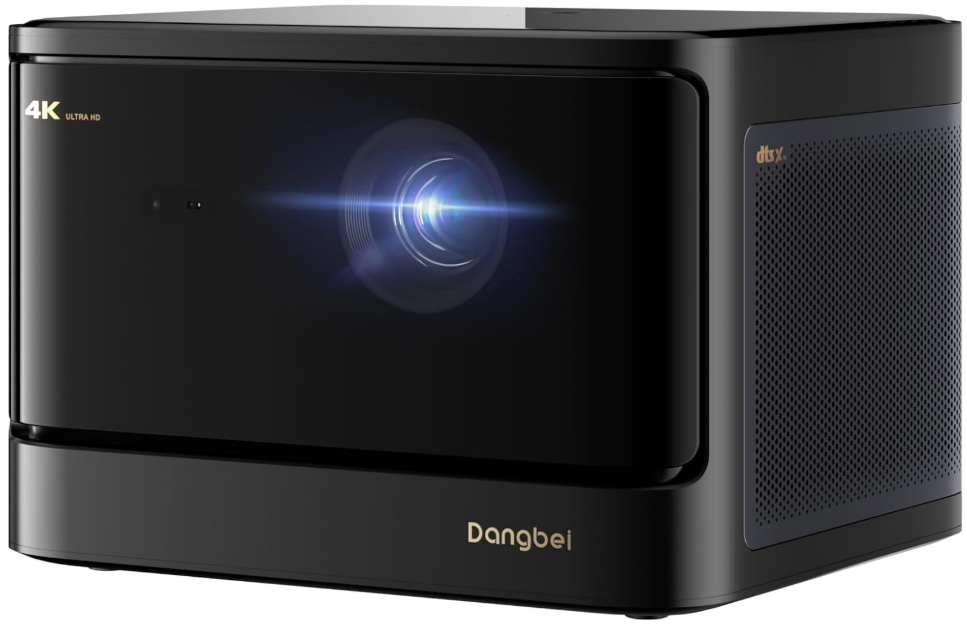
Dangbei DBOX02 Laser Projector 4K GTV
Safety Instructions
- As with any bright source, do not stare into the direct beam, RG2 IEC 62471-5:2015
- Do not allow children to handle the device without supervision.
- Do not place heavy or sharp objects on the device.
- Avoid extreme vibrations, because these may damage the internal components.
- Please use the correct type of battery for the remote control.
- The device should only be repaired by staff authorized by the manufacturer.
- Place and use the device in a 5-35°C environment.
- The metal casing is coated with insulating paint.
- The plug is considered a disconnected device from the adapter.
- The adapter should be installed near the equipment and should be easily accessible.
- Unplug this device if there are lightning storms or when unused for a long period of time.
- Never touch the power cable or power connector with wet hands.
- Risk of explosion if the battery is replaced with an incorrect type.
- Dispose of used batteries according to local regulations. Important Precautions.
Packing List
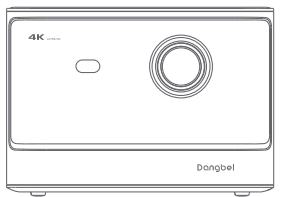
Before using this product, please check that all items are included in the box.
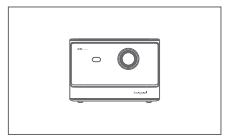
- Projector
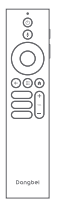
- Remote Control
- AAA Batteries

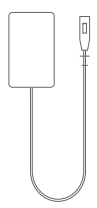
- Power Adapter
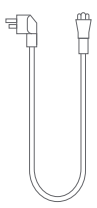
- Power Cable
- Wipe cloth

- User Manual
Overview
Overview and interface description.
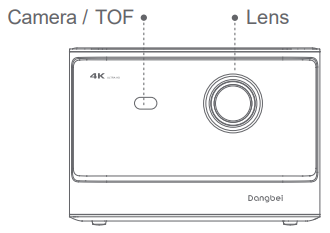
Front view
Rear view
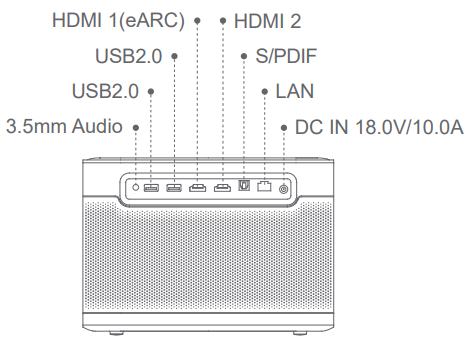
Right View
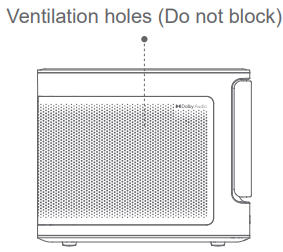
Left View
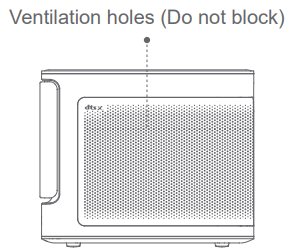
Top View
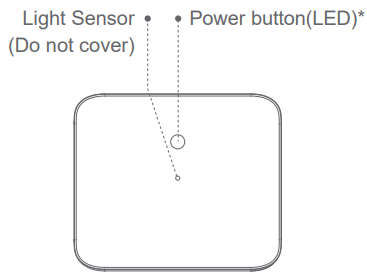
Bottom View
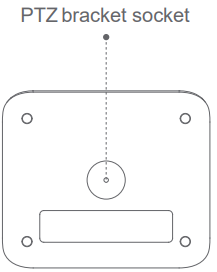
|
Power Button LED Indicator Guide |
||
| Button | LED Status | Description |
| Power button | Solid White | Power Off |
| Off | Power on | |
| Flashing White | Upgrading Firmware |
Remote Control Overview
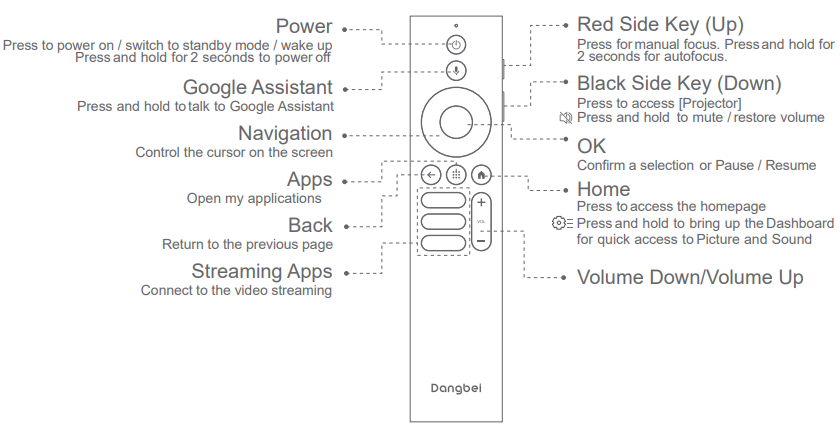
- Open the battery compartment cover of the remote control.
- Install 2 AAA batteries.
- Put back the battery compartment cover.
Getting Started
Placement
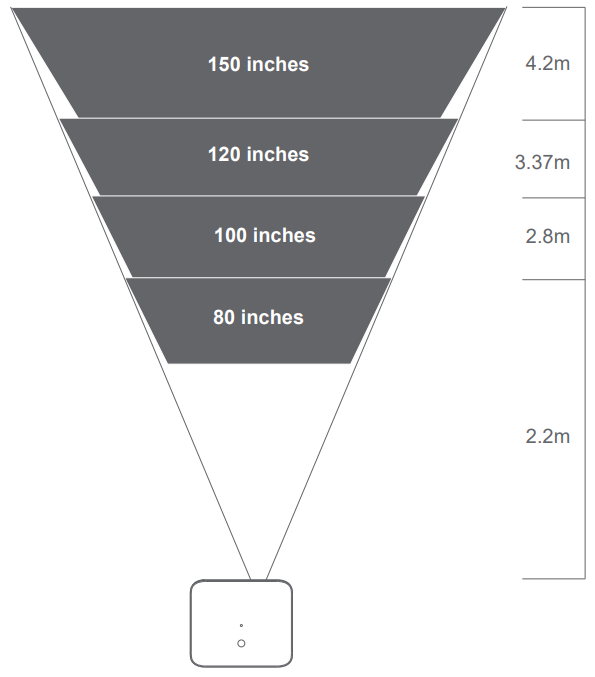 Position the projector on a stable, flat surface in front of the projection surface. A flat and white projection surface is recommended. Please follow the instructions below to determine the distance between the projector and the projection surface, and the corresponding projection size:
- The best recommended projection size is 100 inches.
| Size | Screen (Length × Width) |
| inches | x 100 cm
5.8x 3.28 ft |
| inches | x 124 cm
x 4.06 ft |
| inches | x 149 cm
x 4.88 ft |
| inches | x 187 cm
10.89x 6.14 ft |
Power on
- Connect the projector to the power outlet.
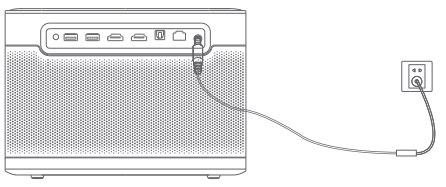
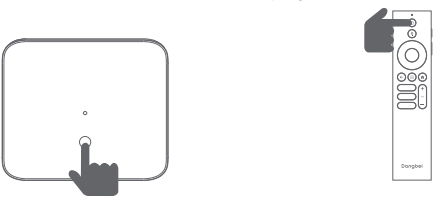
- Press the power button on the projector or remote control to turn on the projector.
Standby Mode / Power off
- Pressthe power button on the projector or remote control to enter standby mode.
- Pressand hold the power button on the projector or remote control for 2 secondsto turn off the projector.
Remote Control Pairing
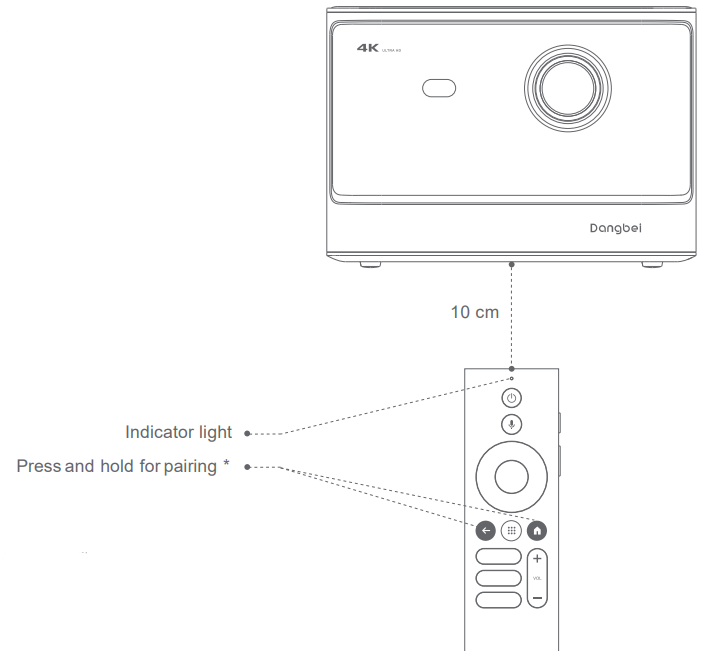
- Turn on the projector and wait for the Bluetooth pairing prompt on the screen.
- Bring the remotecontrol within10 cm / 0.33ft ofthe projector.
- Simultaneously press and hold the and keys.
- Release the keys after the indicator light starts flashing.
- Wait until you heartwo “beep” sound, indicating a successful pairing.
If the pairing is unsuccessful, repeat the above steps until the remote control indicator light stops flashing.
Network Settings
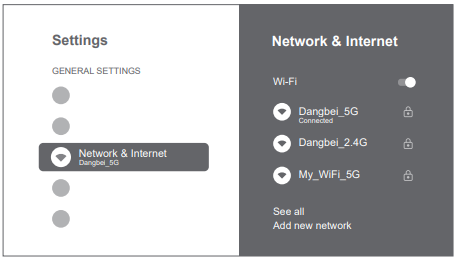
- Go to [Settings], select [Network & Internet], and turn on Wi-Fi.
- Choose your network and enterthe correct password.
Focus Settings
- Method 1: Press the red side key (up) for manual focus. Press and hold for 2 seconds for autofocus.
- Method 2: Go to [Projector], select [Focus], and choose either manual focus or autofocus.
Autofocus
Select [Auto Focus] to trigger the autofocus function. The image will automatically become clear.
Manual focus
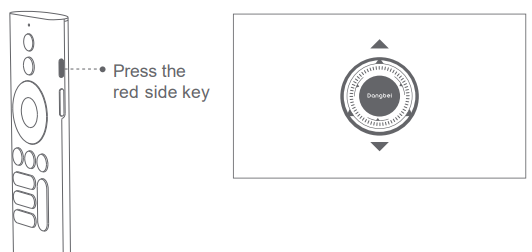
Select [Manual Focus] and use the navigation keys (up / down) on the remote control to adjust the focus distance and make the image clear.
Image Correction Settings
Keystone Correction
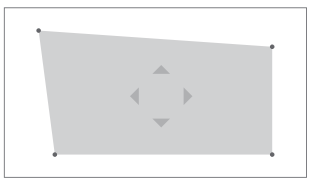
- Go to [ Projector] — [Image Correction].
- Select [Auto KeystoneCorrection], and the screen will automatically be corrected.
- Select [Manual Keystone Correction], and use navigation keys to adjust the four points and the image shape.
Intelligent Screen Fit
- Go to [Projector] — [Image Correction], and turn on [Fit to Screen].
- Follow the on-screen instructions to automatically adjust the projected image to fit the screen.
Intelligent Obstacle Avoidance
- Go to [Projector] — [Image Correction] — [Advanced], and turn on [Avoid Obstacles].
- Follow the on-screen instructions to automatically adjust the projected image to avoid any objects on the projection surface.
Bluetooth Speaker Mode
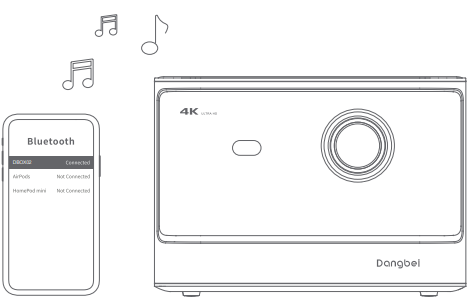
- Go to [Settings], select [Projector], and click on [Bluetooth speaker mode].
- Connect your phone to a device with the Bluetooth name containing “DBOX02”.Aftermodifying the device name, the Bluetooth name will also be synchronized accordingly.
- When you hear “Bluetooth connection successful”, the projector can play music from your phone. Press and hold the key on the remote control for 2 seconds to exit the [Bluetooth speaker mode].
Google Assistant
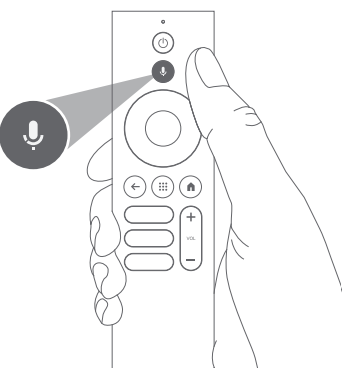
Your TVis is more helpful than ever. Use your voice to find movies, stream apps, play music, and control the TV. Ask Google Assistant to find a specific title, search by genre, or get personalized recommendations. Gett answers on screen, control smart home devices, and more. Press theGoogle Assistant button on the remote to get started.
Chromecast built-in
Easily cast movies, shows, photos, and more from your phone or tablet, right to your TV.
To cast in-app content
Simply tap the Cast button from apps you already know and love. No new logins or downloads required.
- Connect your device and the projector to the same wireless network.
- Open the streaming app on your device.
- Play a video and tap the Cast button on the video screen.
- Select “DBOX02” to connect. The projector will display the video from your device.e
Due to copyright restrictions, certain content cannot be cast to the projector. You can stream the content on the projector by installing the same application on it.
Screen Mirroring
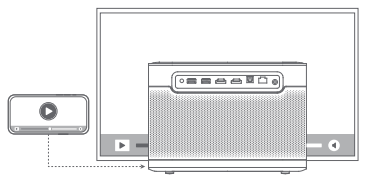
You can project the entire screen from your device to the projector.
To cast the device screen
- Ensurethat both your device and the projector are connected to the same wireless network.
- Install the AirScreen app on the projector.
- Open the AirScreen app and follow the on-screen instructions to complete the process.
Inputs
HDMI
Insert the HDMI device into the HDMI port. Go to [Input], select the HDMI option.
USB Drive
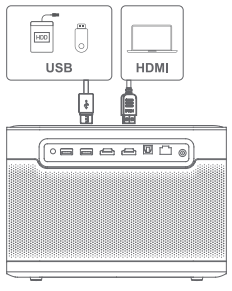
Download the FileExplorer app from Google Play. Insert a USB-A drive into the USBport. Open the app and find the USB drive, select the content that you want to play.
- USB format supported: FAT32, NTFS
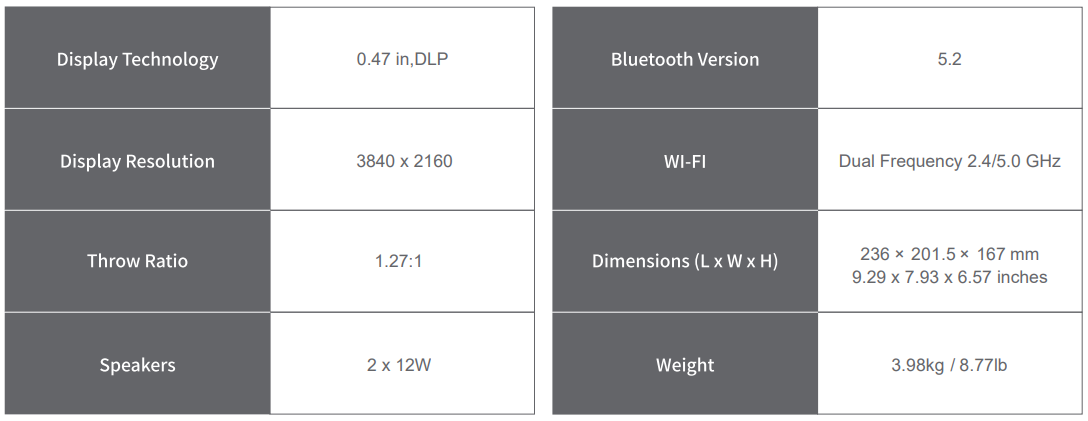
Specifications
More Settings
Projection Mode
- Go to [Settings] — [Projector]– [Advanced Settings] — [Projection Mode] to choose the placement method of the projector.
Zoom
- Go to [Settings] — [Projector] — [Image Correction] — [Image Adaption] to decrease the image size from 100% to 50%.
3D Mode
- After playing the video, press and hold the Home button and, and a dashboard appears in the upper right corner of the screen
- On the dashboard, go to [Picture] — [3D Mode], according to the format of the 3D video, select the corresponding 3D option.
System & Product Info
Go to [Settings] — [System] — [About] to check the System & Product information.
Troubleshooting
- No audio output
- Check if you have double-clicked the black side key on the remote control to put the projector in mute mode.
- Check if the projector interface “HDMI 1 (eARC)” or Bluetooth is connected to an external audio device.
- No image output
- Press the power button located on the rear of the projector.
- Ensure that the power adaptor has a power output.
- No network
- Enter settings, and check the network connection status in the network option.
- Ensure that the network cable is correctly inserted into the projector interface “LAN”.
- Ensure that the router is correctly configured.
- Blurry Image:
- Adjust the focus or keystone. Projector lens is not clean.
- Automatic keystone correction failed
- Ensure that the Camera/TOF on the front panel is not blocked or dirty.
- The best automatic keystone correction distance is 2.0-4.0m, horizontal ±30°.
- Autofocus failure
- a:. Ensure that the Camera/TOF on the front panel is not blocked or dirty.
- b. The best autofocus distance is 2.0-4.0m, horizontal ±20°.
- Smart Eye Protection failed.
- Ensure that the Camera/TOF on the front panel is not blocked or dirty.
- The optimal sensing range is centered on the image.
- The Remote Control is unresponsive.
- If the pairing is successful, the LED light will flash once when you press any button.
- If the pairing is unsuccessful, the LED light will flash three times when you press any button.
- How to connect other devices via Bluetooth
- Go to Settings, and select [Remotes & Accessories] to pair with other Bluetooth devices.
- Others
- Please feel free to contact us at support@dangbei.com
Statement
Google TV is the name of this device’s software experience and a trademark of Google LLC. Google, YouTube, and Google Cast are trademarks of Google LLC. This equipment generates uses and can radiate radio frequency energy and, if not installed and used in accordance with the instructions, may cause harmful interference to radio communications. However, there is no guarantee that interference will not occur in a particular installation.
-
- Consult the dealer or an experienced radio/TV technician for help.
- Reorient or relocate the receiving antenna.
- Increase the separation between the equipment and receiver.
Changes or modifications not expressly approved by the party responsible for compliance could void the user’s authority to operate the equipment.
Customer Support
- Email: support@dangbei.com
- Website: us.dangbei.com