


Hisense L5HE Ultra Short Throw Laser Projector
Important Safety Information
- ALWAYS use cabinets, stands, or mounting methods recommended by the manufacturer of the Laser TV.
- ALWAYS use furniture that can safely support the Laser TV.
- ALWAYS ensure the Laser TV is not overhanging the edge of the supporting furniture.
- ALWAYS educate children about the dangers of climbing on furniture to reach the Laser TV or its controls.
- ALWAYS route cords and cables connected to your Laser TV so they cannot be tripped over, pulled, or grabbed.
- NEVER place a Laser TV in an unstable location.
- NEVER place the Laser TV on tall furniture (for example, cupboards or bookcases) without anchoring both the furniture and the Laser TV to a suitable support.
- NEVER place the Laser TV on cloth or other materials that may be located between the Laser TV and supporting furniture.
- NEVER place items that might tempt children to climb, such as toys and remote controls, on the top of the Laser TV or furniture on which the l acer TV is placed.
Power plug and power cable
- Do not touch the power plug with wet hands.
- Do not place heavy objects on the power cable. Route the cable so that it is not kinked or laid over sharp edges, walked on, or exposed to chemicals. A power cable with damaged insulation can cause electric shock and fire.
- Pull the power plug, NOT on the cable, when disconnecting. The cable can become damaged and cause a short circuit if pulled on.
- Do not place the power cable near a high-temperature object.
- Do not move the device with the power cable plugged into a socket.
- Do not use a damaged or loose power cable or a damaged socket outlet.
- Do not use any power cords other than the one supplied with this unit. The
- The main plug on the power cord is used as the disconnect device; the disconnect device and the socket-outlet shall be easily accessible.
Service/Repair
Never remove the cover/back of the device; there are no user-serviceable parts inside. Refer all services to qualified service personnel.
Packaging
Keep the anti-moisture materials and plastic bags out of reach of children. Plastic bags can cause suffocation, and the anti-moisture material is harmful if swallowed. If swallowed by mistake, force the patient to vomit and visit the nearest hospital.
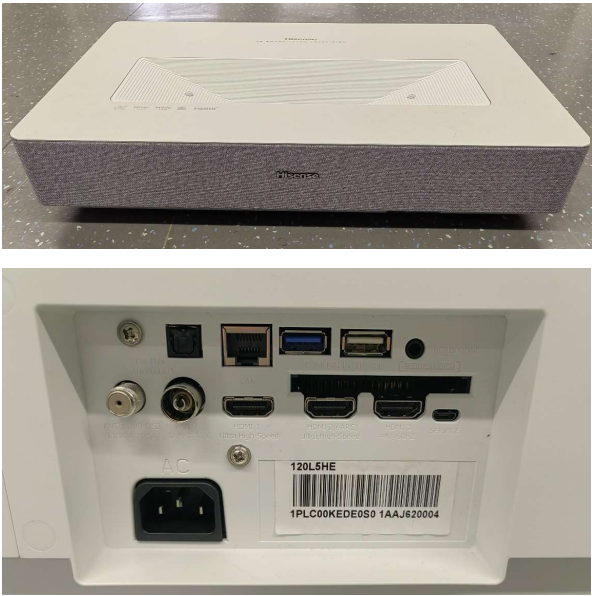
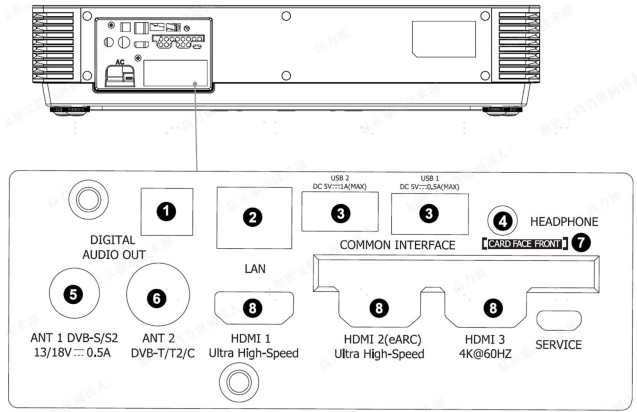
Unit and External Ports
List of circuit boards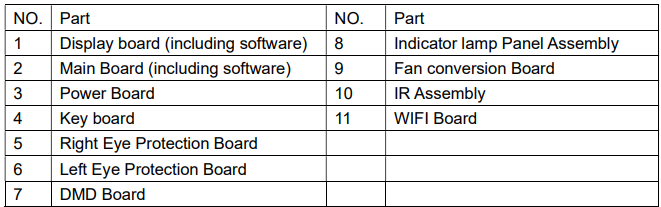
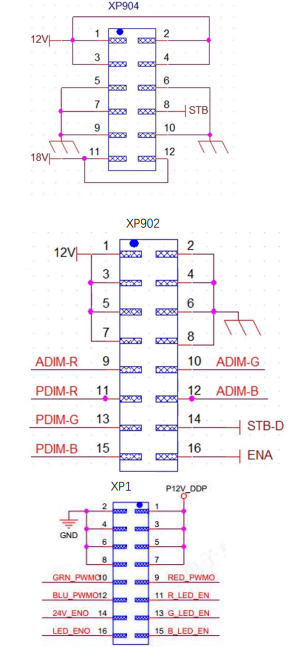
Power board PIN list
- Pin 1, 3, 5, and 7 are the 12V power supply pins for the display board
- Pins 9, 10, and 12 are the R, G, and B analog dimming pins (current adjustment pins) that the display board outputs to the power supply board, and the maximum is 5V.
- Pins 11, 13, and 15 are the R, G, and B digital dimming pins that the display board outputs to the power supply board, and are square waves with a duty cycle.
Factory/Service OSD Menu and Adjustment
- Power TV on
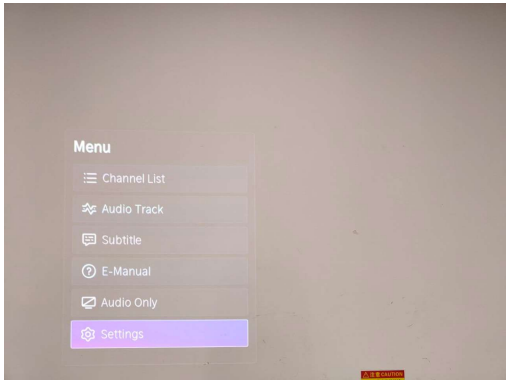
- Press the button on the RC, then call up the “Menu” option.

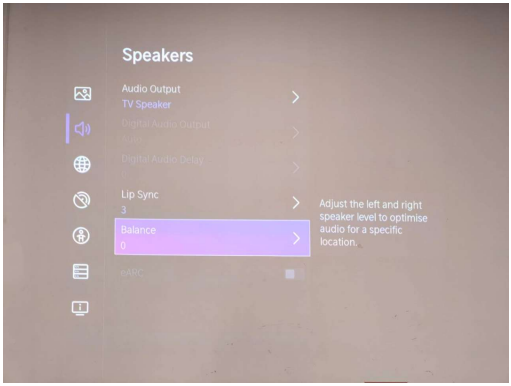
- Move and “ok “button on RC to select Setting-Sound-Speakers-Balance
- On the Balance, input figure 1->9->6->9 in sequence on RC. Note: It is important to remember that the hand fingers can’t shield the RC emitter diode.
- Call up a “M” on the left-top of the TV, then press the button again, the Factory menu appears, the.n
- DC power off and DC power on the TV, which can exit Factory OSD
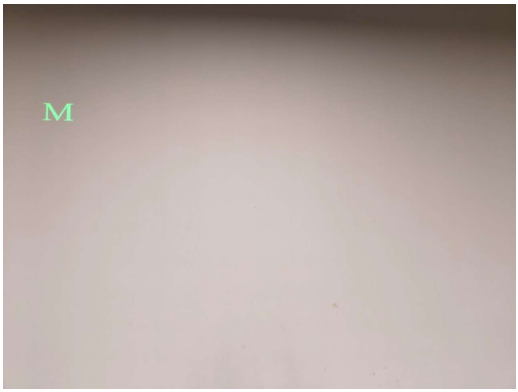
Factory OSD Menu
Factory OSD menu list: if you want to learn more about TV, you’d better read it, but do not adjust the value, please. The Factory menu may have differences for diverse markets and customers.
Factory Option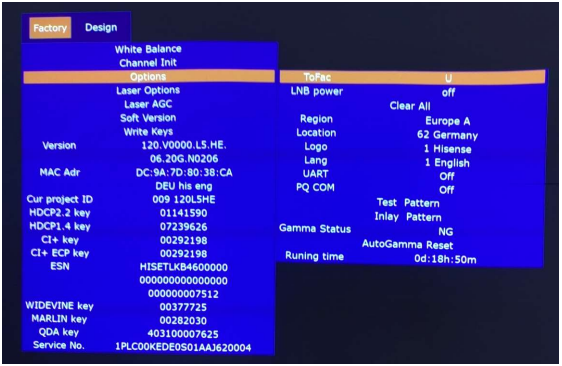
Laser Options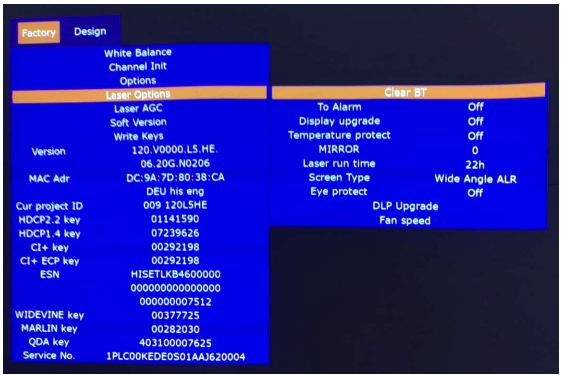
Soft Version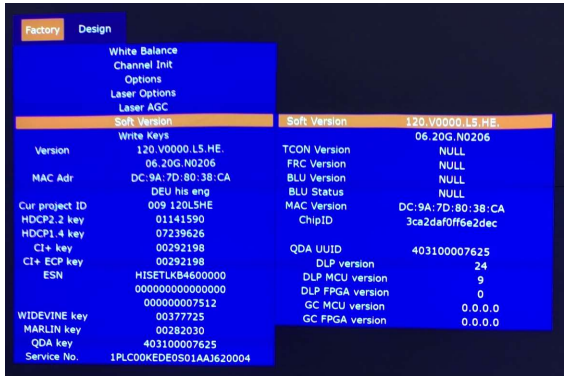
Write keys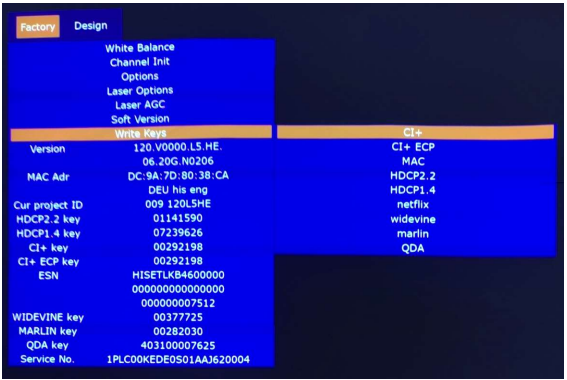
clean the EEPROM
- Select the item “Option”–“Clear all” in Factory mode
- Press the button to clear the EEPROM data
- Laser TV restarts automatically
Software Upgrade Method
Main software upgrade directly with USB
TV in user mode
The main software can be upgraded with a USB disk.
TV in factory mode
TV is in factory mode, only turn off the AC power to the T, V and insert the USB disk, next turn on the AC power, the TV can identify automatically to update, till call up “USB Update” . Once choose another TV mode, must turnoff the AC power and power on the TV to reboot.
Figure 1: Loading data
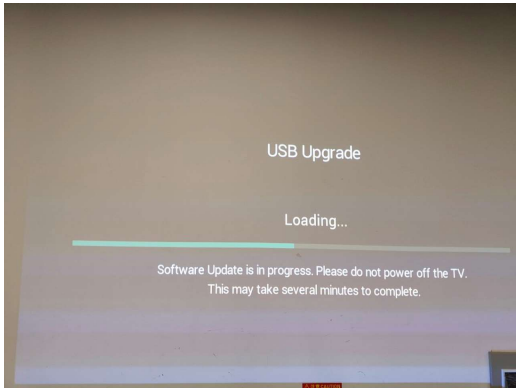
Figure 2: Checking data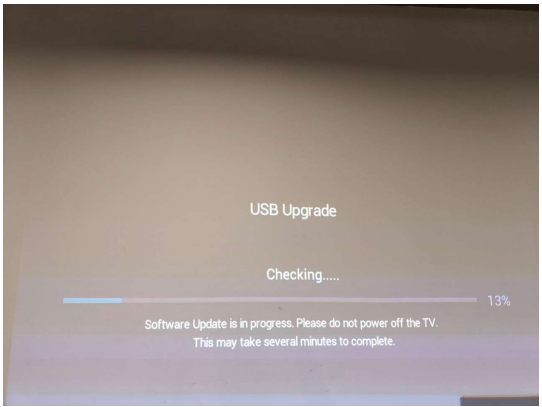
Firgure-3: Installing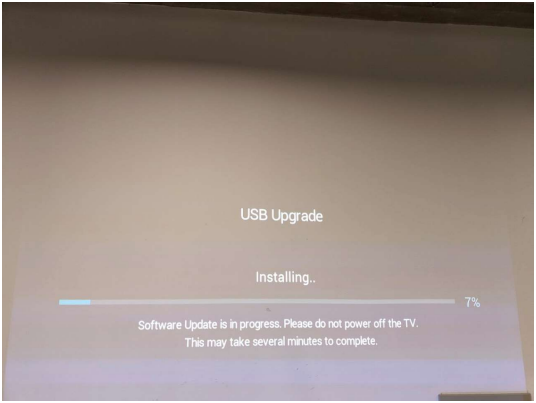
Figure 4: Software upgrade complete, TV automatically reboots.
Troubleshooting
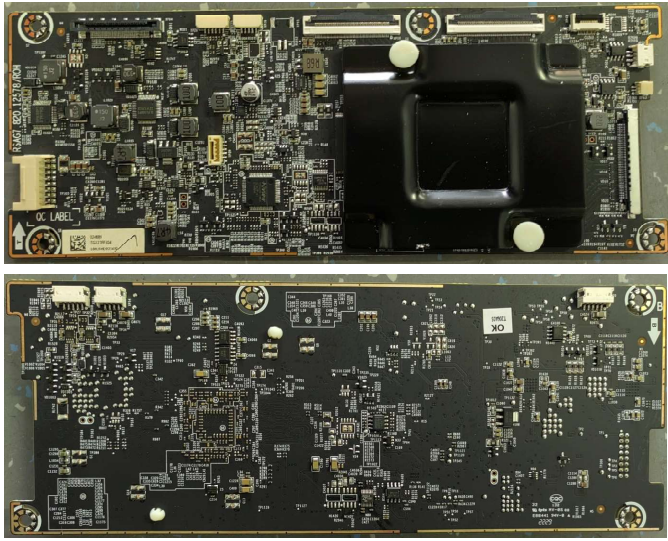
display board
EYE PROTECTION– Open by default, the user can close
- Function: When a person approaches, a prompt box will pop up (countdown 5S). If the human is far away within 5 seconds, the prompt box willdisappeara,r and the light machine will not be turnedon. The light machine will be turned off, and the light machine willbe turned on automatically when the human body is far away.
- Screen prompt: In order to protect your eyes, do not look into the lens. This projector is shutting down in 5 seconds.
- The path for turning off the eye protection function: Settings->system->console settings->Eye Protection
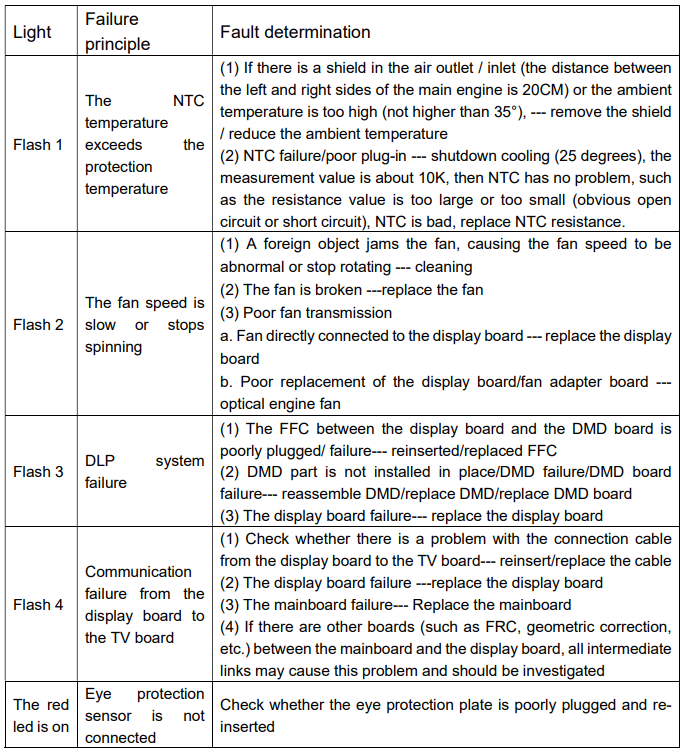
- Fault determination: If the Eye protection board fails, the eye protection function is not effective If the Eye protection board has a poor connection, the unit does not hit, the indicator flashes 7 times
Power Indicator
Function: When the Laser TV is turned on, the Power Indicator can be lit. When the Laser TV is in error, the Power Indicator flashes to report the error.
Automatic dust removal-users cannot close.
- Function: The machine will automatically trigger the automatic dust removal function every 500 hours of operation, and the fan of the whole machine will run at high speed for 3 minutes. There is a prompt at the bottom of the screen during dust removal.
- Is it normal to watch the dust removal process→yes
- Does the subtitle disappear during the dust removal process? → not disappear, keeps prompting
- What happens when the dust removal ends → the subtitle prompt disappears directly after the dust removal ends
Temperature reminder
- Function: When the ambient temperature reaches 42, the machine will automatically shut down. (The ambient temperature sensor is at the rear air inlet.)
- Screen prompt: When powered on again, it will prompt “The previous shutdown was due to the high temperature of the laser TV, and it was automatically turned off for protection.”
- Fault determination: If there is a warning of overheating, first check if there are any obstructions around the machine, which may cause poor heat dissipation. If so, remove obstructions.
Cleaning and Maintenance
- Keep dry, avoid long periods of inactivity.
- When using the HDMI interface to connect or disconnect multimedia devices, be sure to do it after “turning off the TV”.
- Regular cleaning
- Host: Use an air blower to clean the dust, not touch or wipe with your hands. For oil stains and fingerprints, wipe carefully with a microfiber cleaning cloth to avoid damage to the optical coating.
- Screen: Clean the screen with a brush or microfiber cleaning cloth. If there are dirt, fingerprints, etc. on the screen, try wiping it with clean water using a dust-free cloth first; if that doesn’t work, gently wipe it with a dust-free cloth dipped in alcohol.