

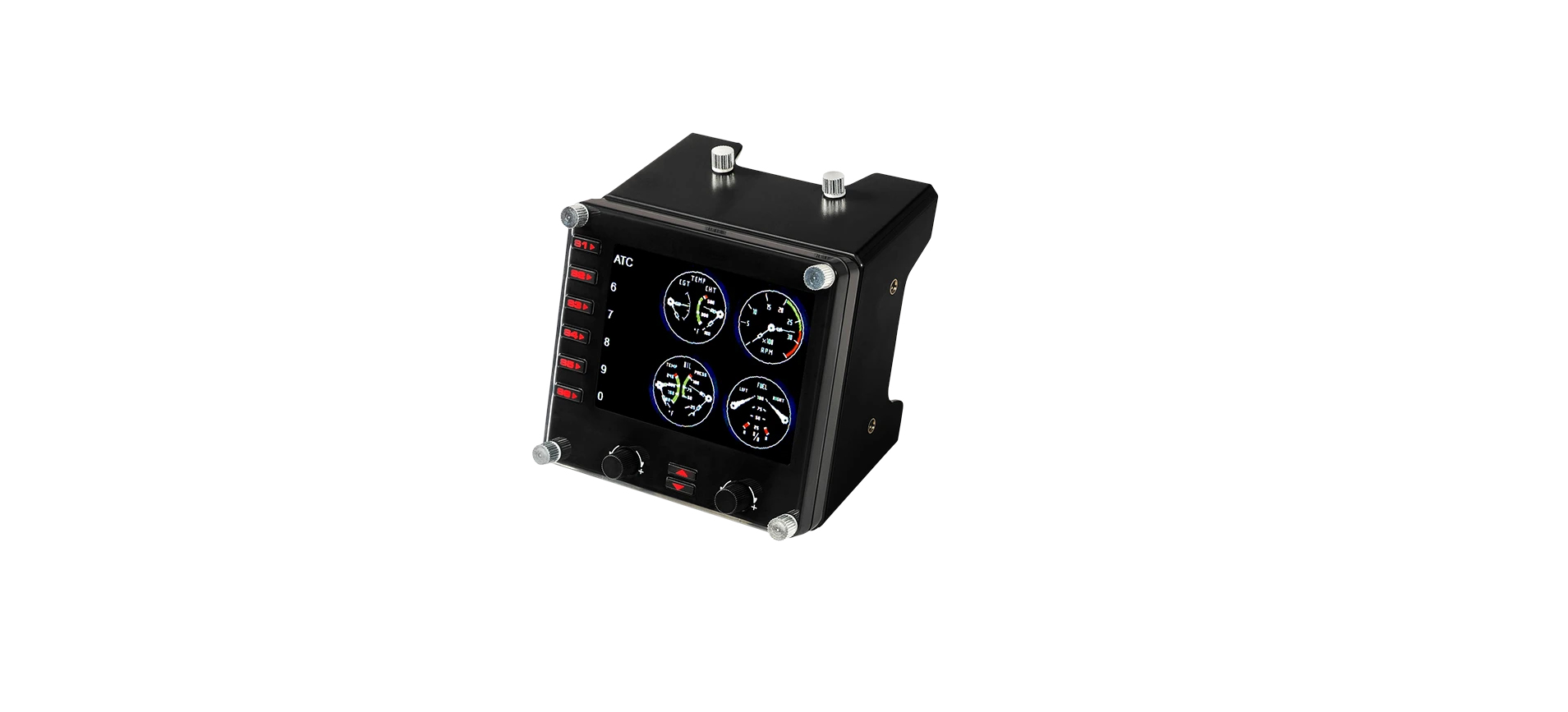

Logitech Flight Instrument Panel

Getting Started
Flight Instrument Panel
Congratulations on buying the Logitech G Flight Instrument Panel. The Instrument Panel interacts in real time with Microsoft Flight Simulator X to display a choice of cockpit screens, improving control and making your flying experiences more realistic.
Installing the Instrument Panel
To use the Instrument Panel as a standalone device, simply extend the support stand at the back of the unit as shown.

You can also fix the panel to the supplied mounting bracket. Insert the screws through the holes at the corners of the panel into the bracket behind and tighten. If you already own a Logitech Flight Yoke System, you can mount the panel and bracket on top of the yoke unit using the screws provided.
Driver Installation
- Visit logitech.com/support/FIP to download the latest drivers and software for your operating system.
- With the device disconnected, follow the onscreen instructions to complete the installation.
- At the Driver Setup screen, only when prompted, insert the USB cable into one of your computer’s USB ports, then click Next.
- Screen displays

How to assign Flight Simulator X instrument displays to the Pro Flight Instrument Panel
Once you have installed the appropriate plug-in for Flight Simulator X (FSX), the next time you run FSX, it will prompt you that it is attempting to load the Logitech G Panel(s) Plug-in for FSX – click Yes on this screen. After that, you should see a Windows security warning asking you if you want to run LogiFlightSimX.exe – click Yes on that screen. Finally, FSX will prompt you if you wish to make LogiFlightSimX.exe a trusted piece
of software – click Yes.
If your FSX software does not recognise the Panel, unplug the USB cable and plug it back in. For further help with other sims or any other questions, check the support page at logitech.com/support/FIP. You can select one of the above six screens to be displayed on the Flight Instrument Panel. Press the cursor up or down buttons at the bottom centre of the panel to scroll
through the screen displays.
Additional buttons
The six buttons on the left of the Instrument Panel open additional cockpit screens or displays when flying in FSX. Each button is labelled with the corresponding display to the right of it. The Map, Main Panel, Radio, and GPS buttons will open those screens or cockpit panels when flying most aircraft. The panel 4 and 5 buttons will open different screens or panels depending on the aircraft being flown. Press the button once to open the panel or screen and again to close it (except the map, where you must click on OK or press return to close the map screen).
Note
Pressing any of the six buttons when FSX is not loaded will switch the panel display off and on. You can connect multiple Instrument Panels to your PC to show different cockpit displays simultaneously. Each panel uses system resources – see Advanced options below to connect multiple panels with maximum system performance.
Advanced options
If you have more than one PC connected to an LA, you can connect multiple instrument panels to a secondary PC, which will display flight information from Microsoft FSX running on your primary PC. This can be useful to free up system resources for FSX.
Definitions

- Server = The PC that will be running FSX and the main
- Flight controllers attached.
- Client = The PC that will be linked to the Server via the LAN.
The instrument panels will be connected to this PC to alleviate the processing stress of having multiple screens connected to one PC.
On the Server PC
- Ensure FSX and the FIP drivers are installed and running.
- Original retail DVD1: FSX Deluxe edition; Navigate to the SDK folder and run setup.exe.
- Show hidden files. In Windows Explorer (if running Vista, press the Alt key), navigate to Tools > Folder Options. Select the View tab. In the Advanced Settings > Hidden Files and Folders section, Select Show Hidden Files and Folders.
- Locate SimConnect.xml
-
- On Vista: C:\Users\username\AppData\Roaming\Microsoft\FSX\
- On XP: C:\Documents and Settings\Application Data\Microsoft\FSX\
- Add a section within the section n <SimBase.Document…>
On the Client PC
- Ensure that the Flight Instrument Logitech Flight Instrument Panel Panel drivers are installed and working correctly.
- Download and install Microsoft Visual C++ 2005 Redistributable Package (x86). NOT the SP1 variant!
- Copy SimConnect.msi from the server machine and install it. On the server machine, default location: C:\Program Files\Microsoft Games\Microsoft Flight Simulator X SDK\SDK\Core Utilities Kit\SimConnect\SDK\lib\
- Create a file in My Documents, a text document, and rename it to SimConnect.cfg This contains:
Note
Fill in the Server machine IP address and the port number selected from Step 4.
- To start the instrument panel, start FSX on the server. You may need to allow FSX to act as a server in the Firewall settings. If you have trouble connecting to this machine, temporarily disable the Firewall to see if a connection can be made.
- On the client PC, start LogiFlightSimX.exe. Locateit at: C:\Program Files\Logitech\FSX Plugin\
Customer Support
- Online Support: support.logitech.com