

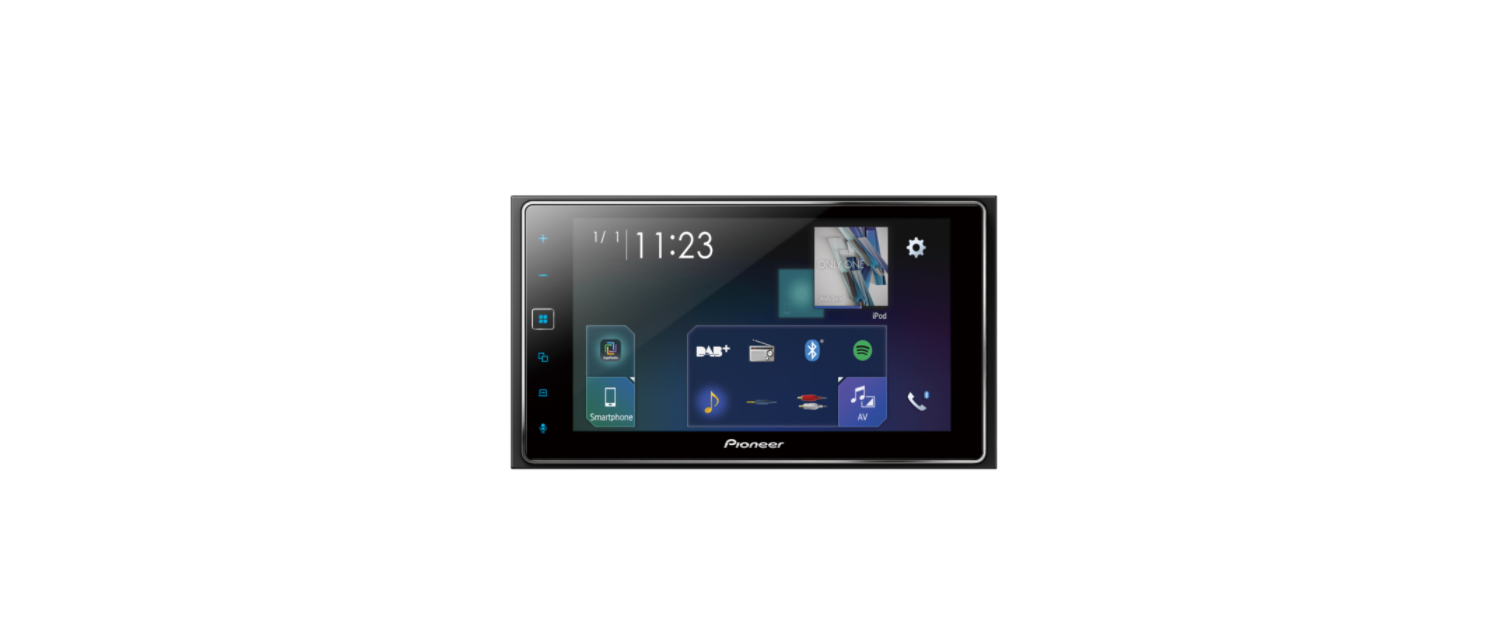

Pioneer SPH-DA77DAB System Firmware Update

Update Instructions
- Once upgraded to this version, it is not possible to downgrade to a lower version.
- Pioneer SPH-DA77DAB
- A USB storage device with the following requirements.
- 2 GB or larger in capacity, formatted to FAT32
- Blank (should not contain any files)
Display
- Touch the settings icon, next touch [System Settings]

- Scroll down the list and touch [System Information], next check the current firmware version (last 4 digits of the SOC version).

- If the SOC firmware version is 1.0.08 or higher, it is not necessary to update the firmware. If the SOC version number is lower than 1.0.08, it is necessary to update the firmware. Please continue to Step B.
Downloading the Files from Pioneer’s website
- Download the file “SPH-DA77DAB_FW_Ver1008.zip” from the website to a folder on your computer.
- Double-click the ZIP file to open it.
- Extract and save the folder “update” (which contains the 2 files: CUST_PIO.BIN and CUST_PIO.md5) to the blank USB storage device.
- Connect the USB storage device to the USB port of the SPH-DA77DAB
- Touch the settings icon, next touch [System Settings]

- Scroll down the list and touch [Firmware Update]

- The update file is checked, and the new firmware version on the USB device is displayed.

- Touch [Update]. During the update, the following screen will be displayed. DO NOT turn your unit off or eject the USB storage device while the firmware is being updated.

- Please disconnect the USB storage device. After rebooting, the screen will return to the normal home menu screen. Your Pioneer AV Receiver is now ready for use.

- Check the firmware version as described in Pioneer SPH-DA77DAB System Firmware Update Step A “Displaying the firmware version” to confirm that the update was successful; the SOC firmware should be updated to version “PIO_WS02_1.0.08”

Customer Support
- Address: Parker Davis HVAC International 7290 NW 77 Court, Miami, FL 33166 – USA
- Tel : (305) 513-4488
- Fax : (305) 513-4499
- E-mail: @pdhvac.com
- Website: www.pdhvac.com
- Pioneer product line, parts, and supplies are available online for convenient ordering at: www.highseer.com www.pioneerminisplit.com
- Scan the code below to visit our support page, where you can find more installation materials:

FAQs
Why should I update the firmware on my Pioneer SPH-DA77DAB?
Firmware upgrades increase system performance, address known faults, improve smartphone and app compatibility, and occasionally include new features or enhance current ones.
How do I check the current firmware version on my SPH-DA77DAB?
Using the touchscreen on your device, select Settings > System Information.
How long does the firmware update process take?
Depending on the size of the file, the update often takes five to ten minutes.
Can I roll back to a previous firmware version?
For optimum performance and security, it is important to keep the system updated to the most recent version.
How often does Pioneer release firmware updates for the SPH-DA77DAB?
For the most recent editions, visit the Pioneer website every few months.
Will the update improve smartphone connectivity?
Indeed. Updates to the firmware frequently improve compatibility with different Bluetooth profiles, Apple CarPlay, and Android Auto, resulting in more seamless connections and improved app integration.