

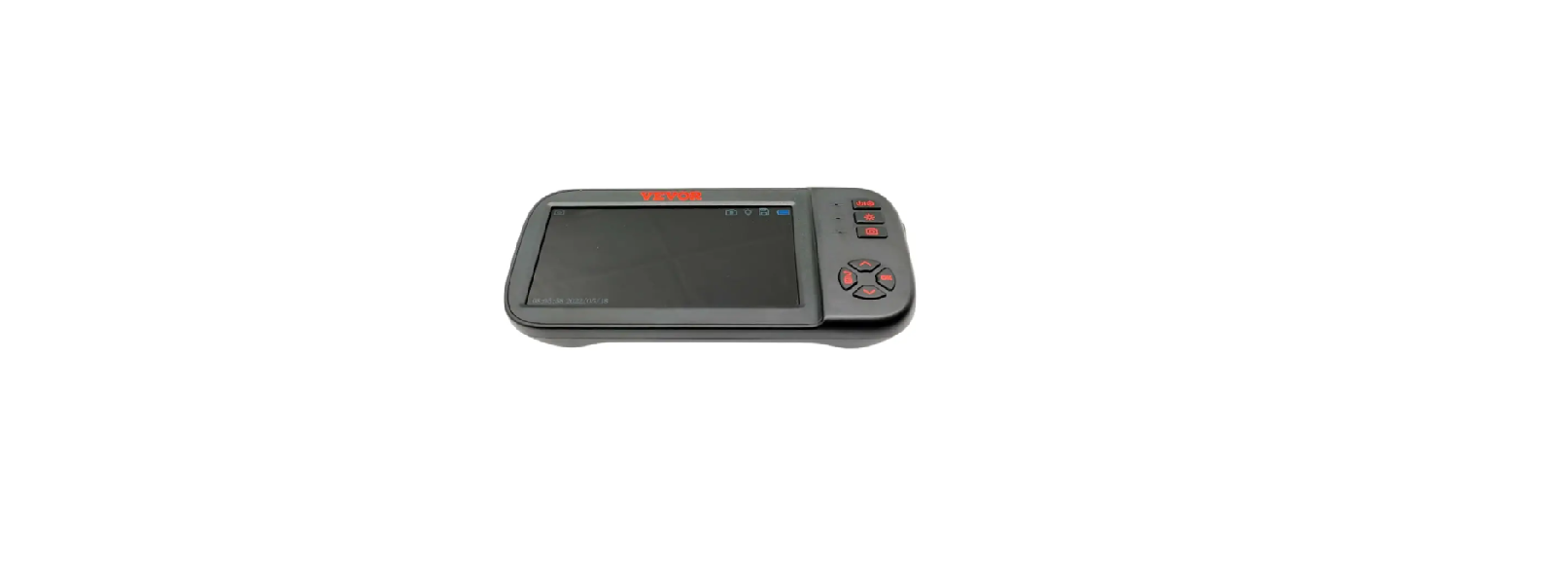

Vevor 451P Handheld Digital Endoscope

Features
- 5-inch color high-definition IPS screen
- 1080P HD image
- 360° image rotation
- The TF card can be installed to achieve a file storage function. Maximum support 32GB.
- 8mm HD camera
- Front lens clear viewing range from 3cm to 10cm
- Type-C plug-in, easy to replace different lenses
- 8 adjustable LED lights
- IP67 waterproof
Application
It is widely used in aviation, automobiles, ships, electrical, chemical, electric power, natural gas, atomic energy, civil engineering, and construction. Industrial endoscopes can also monitor, record, store, and analyze targets.
Accessories
- Digital endoscope
- Manual
- USB data cable
- Accessories – Hook, magnet, protective cap
Parts List

- Camera
- Cable
- Settings button
- Light adjustment
- Reset the button hole
- Micro TF card slot
- Charging indicator
- DC 5V/1A charging port
- Take pictures
- Up and rotate
- OK
- Down
- Back button
- 4.5-inch IPS screen
- Unlock switch
Function
- Micro TF card slot: Supports up to 32GB Micro TF card. Only supports TF cards with a class 10 or higher FAT32 format( equipped with this product ).
- Micro port: 5V/1A power supply.
- Power button: Long-press for 3 seconds to turn on or off the device.
- Photo button: Short-press to take a photo.
- Video button: Long-press to start recording, press again to stop recording.
- Setting button: Short press to enter the menu page, where you can set the Resolution / Language settings / Date&time / Date label / Brightness / Screen protector / Automatic shut-down / Format / Default settings / Version.
- Up button: Image mode is a rotation function. Other modes are left or up movement.
- OK button: Short press to confirm.
- Back button: Short press to return to the previous menu.
- LED brightness adjustment button: Camera brightness is divided into three levels.
- Indicator light: The charging indicator light is always on, and the light becomes green when fully charged.
Installation
Hose
Insert the Type-C interface into the display screen
How to install the three accessories?
The protective cap, hook, and magnet can be installed similarly.


Usage Instructions
Operation
Insert the Micro TF card (not equipped with this unit) into the Micro TF card slot; Press gently until the card is locked. To prevent data loss or damage, power off the device before inserting or removing the memory card
When turning it on, press the LED brightness adjustment button to adjust the brightness of the camera. Short-press the camera button to take a photo, long-press the video button to record.
When the battery is low, insert the miniature end of the data cable into the charging port at the bottom of the fuselage, and then plug the other end of the power adapter into the standard AC outlet.
The charging indicator light is always red when charging, and it lights up green when fully charged. The charging time is 4 to 5 hours.
Specifications
| Product name | Industrial endoscope |
| Monitor | 4.5-inch IPS screen, Screen Resolution: 854 x 480 |
| Lens Resolution | 1920 x 1080 |
| Lens Angle | Each of the three lenses is 70° |
| Language | English, German, Simplified Spanish, French, Russian, and Japanese |
| Line length | 5m |
| Focal Length of Three Lenses | Front: 3-10cm, Side B: 2-6cm, Side C: 2-6cm |
| Waterproof level | IP67 (only for lens/line) |
| Lens diameter | 8mm |
| Battery capacity | 2860mAh |
| Battery endurance | About 3.5 H |
TROUBLE SHOOTING
| Problem | Solution |
| The device cannot be turned on. | The battery is low, charge the machine for about 4-5 hours, hours restart. |
| TF card reading failed. | TF card format is incorrect? (This device only supports the FAT32 file format.) Reinsert after removing the TF card. |
| Problem | Solution |
| After the device is connected to the PC, the TF card cannot be read. | Reconnect the device and PC. Confirm whether to enter the Mass storage mode. |
| Device crash. | First, insert the USB data cable to charge the product. It will automatically shut down. Then, press the power button to reset. It can be reset by lightly pressing the reset hole with a fine needle. |
| Smudges or smears are present on the screen. | Wipe the screen and lens gently with a clean cloth dipped in alcohol. |
| Cannot charge, or the charging indicator does not light up. | Please replace the charging cable. |
Customer Service
- Website: https://www.vevor.com/
- Manufacturer: Cixi Jirui Electric Appliance Co., Ltd
- Add: 118# Nanxin Road, Zonghan Street, Cixi City, Zhejiang Province
- E-mail: CustomerService@vevor.com