

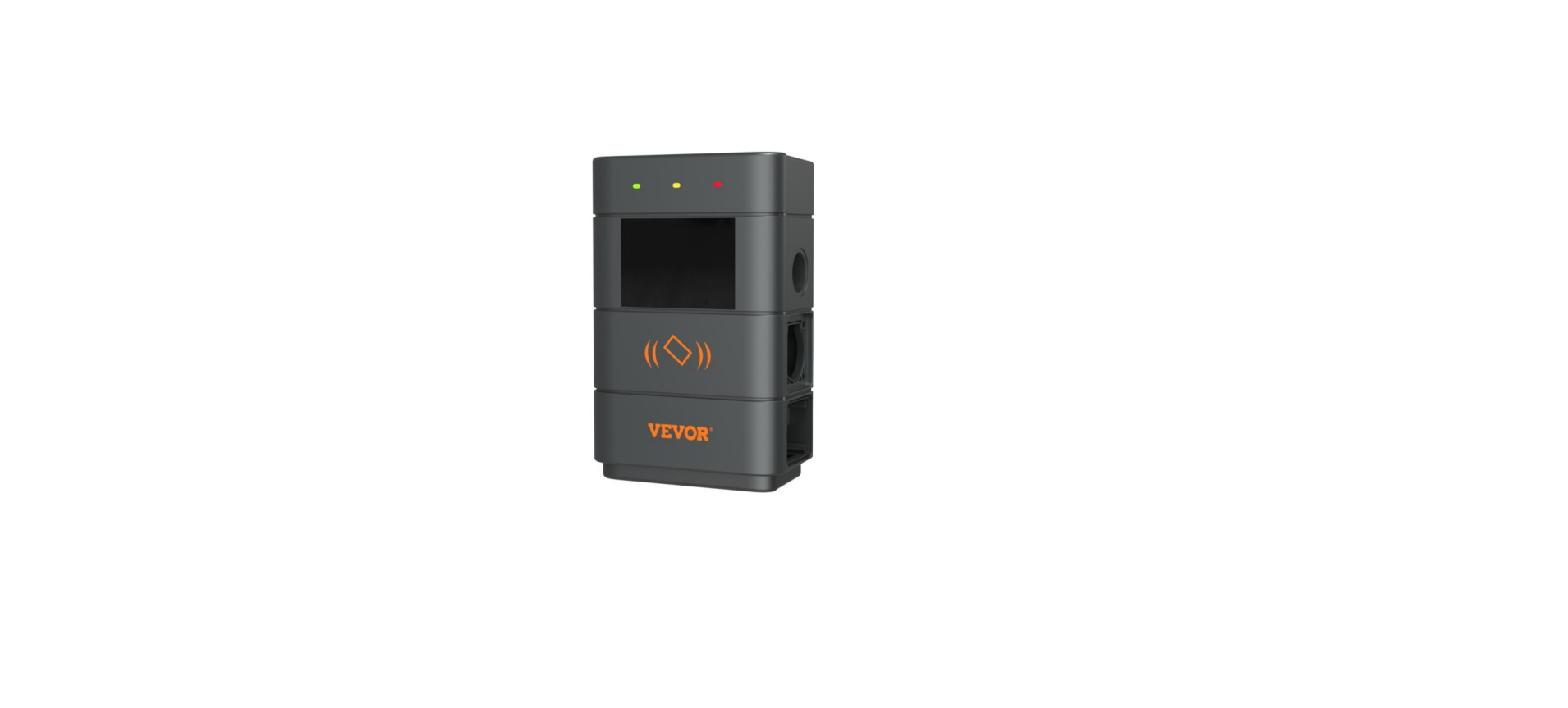

Vevor EV-A01-US011B EV Charging Station

Introduction
The EV-A01-US series AC charging pile is designed for the pain points of the charging pile industry. It has the characteristics of convenient installation and debugging, simple operation and maintenance, accurate measurement, perfect protection function, etc., with good compatibility, and meets the charging requirements of the SAE J1772 standard. EV-A01-US series AC pile protection grade IP66, with good dust-proof, waterproof functions, can ensure safe indoor and outdoor operation.
Safety Instructions
- Before installation, please check the grid for the Level II 240v~+/ -10%(60 Hz).
- The detection of the charging device has the function of user network circuit load capacity.
- At the same time, it can reduce the safety problems caused by the user’s circuit problems.
- If the charging power is reduced in use, it is a normal phenomenon.
- This equipment has overvoltage and under-voltage protection.
- It also has an overload protection function.
- Install the equipment. The total input of the front-end must be installed with circuit breakers.
- Keep dry and clean at the charging point.
- If there is any dirt, please use a clean, dry cloth to wipe it. It is forbidden to touch the point pin.
- Hybrid car, please recharge again after flameout.
- In the process of charging, vehicle driving is prohibited.
- Children do not get close to the process of charging so as not to cause harm.
- In case of rain, thunder, or inclement weather, be cautious charge, please.
- Please do not try to remove, maintain, or modify the charging pile.
- Improper use may cause damage, leakage, and so on and so forth.
Installation
List of Parts
| General-purpose accessories | ||
| Product specification | AC pile instruction manual | 1 copy |
| Certificate of conformity | Certificate of delivery | 1 piece |
| RFID card | M1 card | 2 pcs |
| Wall mount installation | ||
| Expansion screw | M8*60 expansion screw | 6pcs |
| Charging cable hook | Iron hook | 1 pcs |
| Wall hanging fixed plate | Mounting the chassis | 1 pcs |
Method of Installation
- Take out the mounting plate of the charging pile from the device, and carefully check the mounting size of the screwholes.

- Select the parking space where the charging pile is to be installed. The lowest position of the fixing plate of the charging pile shouldbe120cmabove the ground.

- Drill four M8 Vevor EV-A01-US011B EV Charging Station diameter holes according to the positions of thescrewholes in the fixing disk, knock in the expansion rubber plugs, the mounting disk with nuts on the fixing chassis.

- Fix the bottom plate on the wall or support (follow the installation direction).
- Hang the bottom plate and install the bottom plate with a screwlock.
Charging
Instructions for Charging Devices without Touch display(EV-A01-US009A/EV-A01-US009B Without touch display, no plug and charge function. Charging state: The LED with three different colors is used as the charging state indicator. After powering on, the RFID card stops charging. You can also use the mobile phone app for charging operations. The RFID card randomly equipped can only open the pile for charging. Please contact the after-sales staff to deal with the loss of the RFID card.
- Touch screen Charging Instructions (EV-A01-US011A/EV-A01-US011B only)
- After powering on the device, the device enters the standby state.
- The standby screen is shown as follows:

- Click the lower left icon to enter the password input interface

- Click the password input box to pop up the keyboard.

- Enter the six-digit password on the keyboard (factory password is 123456) and press ok to enter the confirmation interface

- Click the icon to enter the main interface of the function setting, as shown below

Function Setting Description
- Current setting: Click to set the charging current (the maximum current is 48A, the overlimit setting is invalid)
- Reservation function: Click to enter, you can set the reservation charging time; The reservation time is between 0 and 12 hours. Set (integer), automatically start charging after reaching the set time.
- Password charging: You can directly start charging or end charging by clicking on it.
- Charging mode setting: Click to enter to modify the charging mode: plug and charge or RFID card charging
- Modify device password: Click to enter to change the password of the main interface of the device function setting.
- Charging status interface: Click to enter to view the current charging status.
Setting of Charging Current
- Click the icon in the main interface of the function settingtoentercharging current setting

- Click the icon to increase the charging current; click the icon to reduce the charging current

- Minimum current 8A, maximum current 48A, step 8A; After selecting the appropriate current, click the icon. If the charging current is successfully set, enter the setting success interface

- Click back to the main screen of the function Settings
Charging Schedule
- Click the icon in the main interface of the function setting to enter the settings of the reservation charging function, as shown in the picture:

- Click to increase the reservation time, and click to decrease the reservation time. You can choose between 0 and 12H.

- After selecting the appropriate charging time, click the icon to enter the countdown interface. After the appointment time, it will automatically enter the charging state

Password Settings
- Click the icon in the function setting interface to enter the password-protected charging start/stop interface

- Click the icon, and the device will re-recognize whether communication with the EV vehicle is normal. If the communication is normal, the device will start charging and enter the charging state display interface.

- If the communication is abnormal, the device automatically returns to the standby screen after 60 seconds.
- During password charging, if you want to end charging, click the icon in the charging interface to return to the standby interface.

- Click Re-enter the main interface of the function setting.

- Click to enter the interface of the charging start and stop function.

- Tap the icon to disable charging. The charged information screen is displayed, showing the charging duration and the charged power.

- Click the icon again to return to the main screen of the function setting

Charging Mode
- Tap the icon on the main screen of the function settings to enter the screen of charging mode selection.

- Click the icon to enter the plug and charge function(plug the gun to charge, draw the gun to stop charging).

- Tap the icon again to return to the main screen of the function settings.
- Click the icon on the charging mode selection interface to enter the RFID card charging mode.

Device Password Change Settings
- On the function setting main screen, tap the icon to enter the password change screen.

- Tap and enter a new six-digit password
- Tap and enter the six-digit password
- Click OK. The password has been changed successfully.

- Tap the icon again to return to the main screen of the function settings.

Charging Status Display interface
- On the main screen of the function setting, tap the icon to enter the charging status display screen; Display real-time charging voltage/current/power/quantity.
 (voltageA/voltageB/voltageC with CurrentA/CurrentB/CurrentC, for three-phase power value, when the single-phase power supply only has voltageA and CurrentA, a numerical display)
 - Tap again to return to the standby screen.

Operation
Binding and Using Devices
- Open the installed APP, click Agree Privacy Statement, you can register with your mobile phone number, social software binding registration,, log in to the APP after a successful registration. b. Open the Location, Bluetooth, and Wifi of the mobile phone.
- Click Add to add the device, enter the WIFI pairing interface, and automatically identify the WIFI name of the phone.

- You can also click “+” in the upper right corner of the APP to manually add the device, select the category of “Energy saving” in the left column, pull up the device type, find the device “Car charging pile(Bluetooth+WIFI)”, click to enter, and then click “Confirm indicator flashing” and”Fast flashing” as prompted. Enter the WIFI password (Wi-Fi password connected to the mobile phone) and click Next to match the password, and always set the bound device as prompted. After binding the device, charge it according to the APP interface.
Charging Indicator, LED Indicator, Status Table
| Device Status | Three-color indicator status (green light: standby, yellow light: charging, red light: failure) |
| Standby mode | Green light steady on |
| The gun has been fired. | Steady yellow light |
| The gun is charging | Yellow light flashing |
| CP fault | The red light is on |
Product Parameters
| Type no. | EV-A01-US00
9A |
EV-A01-US00
9B |
EV-A01-US01
1A |
EV-A01-US01
1B |
| Input voltage | Level II 240V~±15%(60Hz) | |||
| Output voltage | Level II 240V~±15%(60Hz) | |||
| Power output | 9.6KW | 11.5KW | ||
| Maximum output
current |
40A | 48A | ||
| Class of protection | IP66 | |||
| Protection
Function |
Over voltage, under voltage, over charge, over current protection, lightning protection, emergency stop protection, etc | |||
| Indicator light | Standby – Green on; Charging – Yellow blinking; Alarm – red on | |||
| Indication of status | 3*LED light indicator | 3*LED light indicator | 3*LED light indicator
4.3-inch touchscreen |
3*LED light indicator
4.3-inch touchscreen |
| Mode of
charging |
Swipe card charging /APP charging | Swipe card charging /APP charging/Password charging/Appointment charging | ||
| Charging interface | SAE J1772 | |||
| Input plug | NEME6-50P | NEME14-50P | NEME6-50P | NEME14-50P |
| Material of the case | PC+ABS | |||
| Operating temperature | -30℃~50℃ | |||
| Relative humidity | 5% to 95% no condensation | |||
| Overall dimensions | 333*213*92mm(H*W*D) | |||
| Standard of reference | CCS1 (combo/Type 1) AC Level 2 charging | |||
Troubleshooting
- Cause: The AC inlet switch is not Vevor EV-A01-US011B EV Charging Station closed, and the AC inlet switch is tripping.
- Solution: Close the AC incoming wire switch again. If it trips all the time, please check whether the wiring of the equipment is correct andtheLorNwire is connected to the PE terminal.
- System failure: System delay or crash.
- Solution: Press the emergency stop button of the device, and turn the emergency stop button clockwise after about 5 seconds. If the display still does not respond, open the front door of the electrical cabinet, disconnect the air switch, and then close the air.
- Cause of the problem: The gun is not inserted properly; during the charging process, someone pressed a button on the charging handle.
- Solution: Put the gun back in place; Strengthen supervision after normal charging to prevent someone from pressing the handle button during charging.
- Cause: The WIFI signal network is unstable, and unlocking failed. Vehicle communication problem.
- Solution: Turn off the car Vevor EV-A01-US011B EV Charging Station starting key, turn off the engineandlockthecar, and then restart the car. If the problem cannot be solved, the car dealers will be.
FCC Informaton
This product is subject to the provisions of European Directive 2012/19/EC. The symbol showing a wheelie bin crossed through indicates that the product requires separate refuse collection in the European Union. This applies to the product and all accessories marked with this symbol.
This device complies with Vevor EV-A01-US011B EV Charging Station with Part 15 of the FCC Rules. Operation is subject to the following two conditions:
- This device may not cause harmful interference, and
- This device must accept any interference received, including interference that may cause undesired operation.RF Exposure:
This equipment complies with FCC radiation exposure limits set forth for an uncontrolled environment. Odyy.
Radiation Exposure Statement
This equipment complies with RSS-102 – Radio Frequency(RF)Exposure Compliance radiation exposure limits set forth for an uncontrolled environment.
FCC Statements
Digital device, under Part 15 of the FCC Rules. This equipment generates, usesandcanradiate radio frequency energy and, if not installedandusedinaccordance with the instructions, may cause harmful interference to communications. However, there is no guarantee that interference will not occur in a particular installation.
- Reorient or relocate the receiving antenna.
- Increase the separation between the equipment and receiver.
- Consult the dealer or an experienced radiTV technician for help.
Customer Service
- Website: https://www.vevor.com/
- Manufacturer: Cixi Jirui Electric Appliance Co., Ltd
- Add: 118# Nanxin Road, Zonghan Street, Cixi City, Zhejiang Province
- E-mail: CustomerService@vevor.com