

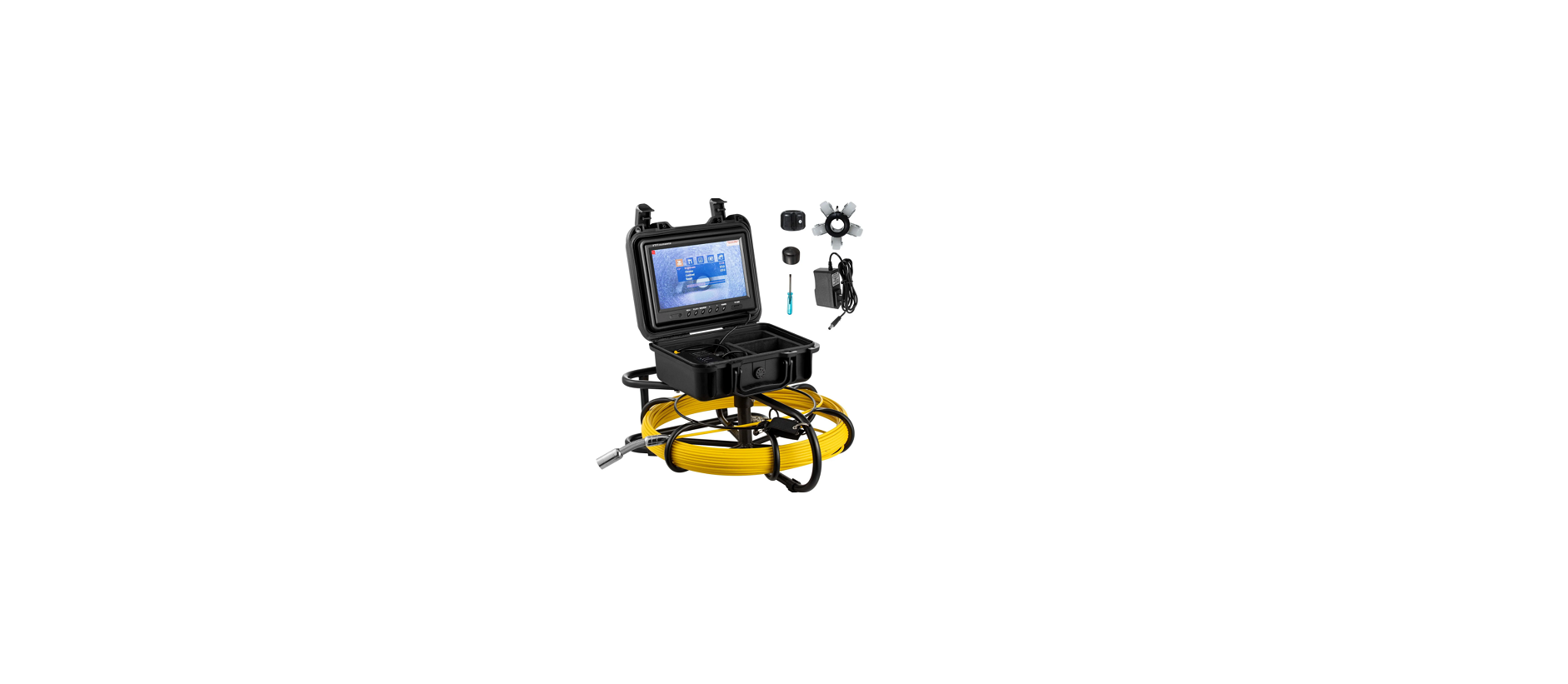

Vevor WP9600A Pipe Inspection System
Description
- Colourful TFT LCD Screen.
- A high-resolution camera and a clear picture.
- Night vision.
- High-quality special cable, waterproof and anti-corrosion/cold/tensile.
- 12V 4500MA lithium battery.
- With a sun-visor for a bright environment outside.
- Range of Application: Water-supply pipe, Air-conditioner pipe, Cable pipe, Pipeline vacuum system, PLUNBIN pipe, Buildings, Sunken pipe.
- Operating Temp: -10°C to 60°C
Know Your Product
Camera
- Metal Contact Chip
- Spring
- Highlight White LED
- Camera Lens
Features
- Item: Parameter
- Camera diameter: 23 mm
- With the tube diameter: >25mm
- Camera light source: 12 LED with high white light(adjustable)
- Camera working voltage: 5V
- Lights’ working voltage: 12V
- Waterproof: IP68
- Camera material: stainless steel
- Camera size: 143 mm* 23 mm
- Camera protective cover parts material: plastic-steel
- Camera protective cover parts size 1: 29mm* 40mm
- Camera protective cover parts size 2:40mm* 90mm
Coil
Cable Length Scale: The scaled cable can show the cable length The Fixed Buckle: The cable wheel
Cable Fixer
Cell Box
- Monitor Video
- Power of Monitor
- Adjacent Coil Plug
- AV Output
- Battery Indicator
- Power Input for Charger
- Light-Degree Adjustment for White Light LED
- Power Switch
- Power Light
System Installation
- Vital: turn off the power switch, connect the video camera and the monitor, or the video camera and the monitor may be damaged.
- Connect the camera Vevor WP9600A Pipe Inspection System to the 3-coil plug, the 2-cell box, and the 1-monitor. (Pic 1)
- Turn on the power switch in the power box.
- The indicator light of the monitor is on, and the switchboard starts.
- Install the video camera with the protective cover slightly and put it into the pipe, rotate the coil to the proper depth.
- Adjust the LED light degree adjuster to the proper light degree.
- For videotape, refer to the DVR operation details (display operation: Recording Type )
- Switch video to another large screen through the video line.
- After utilisation, move the camera from the pipe carefully, take a clean, soft, and dry cloth to clean it, and put it back.

Charging
When the battery power is low, it needs to be charged, and the method is as below:
- Take out the battery and charger from the box.
- Connect the charger to the battery.
- Connect the charger to the alternating current of 100-240V. The red indicator means charging.
- The green indicator means finishing charging.
Operating Instructions for HD DVR
- REC/-: To start/stop recording.
- Play/+: To switch between recording and photographing. (Please refer to the icon in the top left corner.)
- MENU: To access and loop the settings main menu / long-press to rotate the screen 0, 90, 180, or 270 degrees.
- >: To zoom out.
- <: To zoom in the image 0-36X.
Main Menu Settings
- Press the MENU button to enter the setup menu: PICTURE, OPTION, TIME, PHOTO, VIDEO.
- Press the </> button to the option sub-menu
- Press the REC button to adjust the setting’s value, OR press the REC button to enter/confirm
- Press the PLAY button to exit.
Recording and Photographing
- Press the PLAY button to switch between Recording and photographing. (Please refer to the icon in the
top left corner) - Press the REC button to start recording/photographing, then press the REC button again to stop recording.
Photo playback on the monitor
- Loop the press MENU button to find PHOTO.
- Press <the /> button to find Playback.
- Press the REC button to enter, then press </> to choose one and press the REC button to playback.
- Press the PLAY button to exit.
Video playback on the monitor
- Press the MENU button to find RECORD.
- Press the </> button to find Playback.
- Press the REC button to enter, then press </> to choose one and press the REC button to enter.
- Press the EC button to play back.
- Press the PLAY button to exit.
PRODUCT SPECIFICATION
- Item: Parameter
- Charger: AC100-240V DC12.6V 1000MA
- Battery: Lithium battery 12V4500MA
- Continuous use time for battery: Approximate 6h
- Investigation depth: 50m, 70m, 91.5m, 120m (selectable line length)
- Material: Fibre tube with high intensity
- Camera light source: With high white light
- Camera material: Stainless steel
- Menu languages: Multi-language
- Camera picture: Colourful
Troubleshooting

FCC Information
This device complies with Part 15 of the FCC Rules. Operation is subject to the following two conditions:
- This device may not cause harmful interference, and
- This device must accept any interference received, including
Environmental Protection
This product is subject to the provisions of European Directive 2012/19/EC. The symbol showing a wheelie bin crossed through indicates that the product requires separate refuse collection in the European Union. This applies to the product and all accessories marked with this symbol. There may be minor changes to the numbers included in the user manual without prior notice. EUREP GmbH Unterlettenweg 1a, 85051 Ingolstadt, Germany Eurep UK Ltd Unit 2264, 100 Ock Street, Abingdon, Oxfordshire, England, OX14 5dh
Customer Service
- Website: https://www.vevor.com/
- Manufacturer: Cixi Jirui Electric Appliance Co., Ltd
- Add: 118# Nanxin Road, Zonghan Street, Cixi City, Zhejiang Province
- E-mail: CustomerService@vevor.com