



VISULAPEX S3 Portable Video Projector
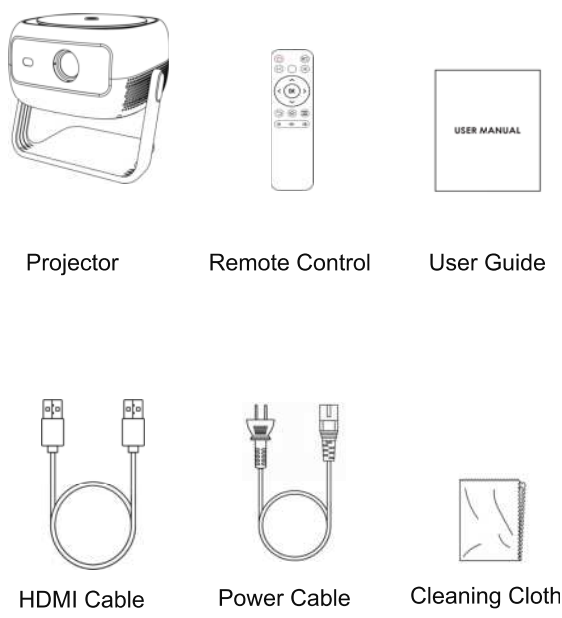
Accessories
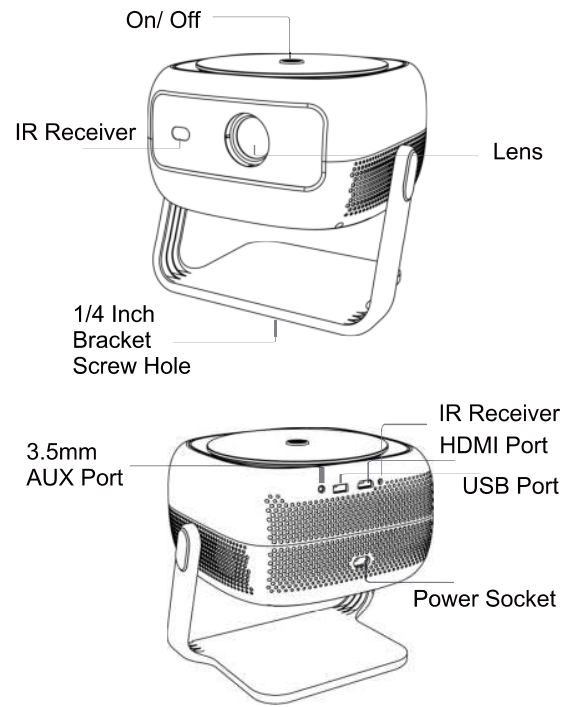
Product
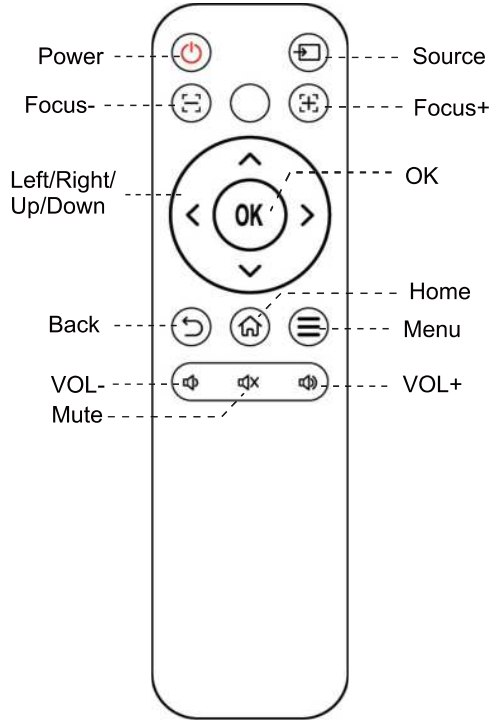
Remote control
Get started
Prepare the Remote Control
- Open the battery holder cover of the remote control. Install two AAA batteries. Make sure to match the polarity (+/-).
- Put back the cover as indicated in the picture.
- The distance between the remote and the projector should not exceed 5 m /16.4 ft.
Power On/Off
- Insert the power cord into the projector and plug it into a power outlet.
- Press the power button or the remote control power button once to power on.
- Press the power button or the remote control power button twice to power off.
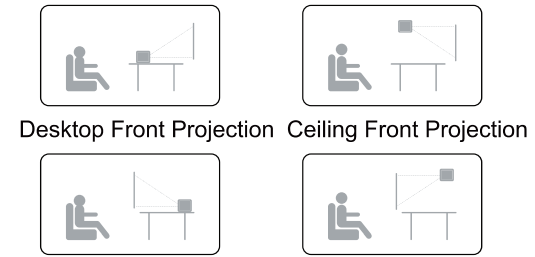
- Place the projector on a stable, flat surface in front of the projection screen.
- Please adjust the distance between the projector and the projection screen to get the desired projection image.
Projection Distance and Projection Image Size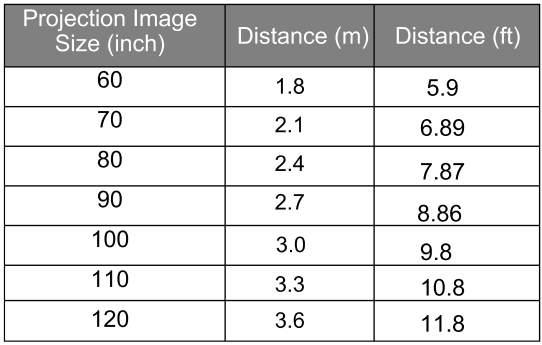
Focus Manual
Press Focus+ or Focus- on the remote control to manually adjust the focus. Please carefully observe the focus icon until you get a clear image.
Keystone Correction
When positioning your projector in a fixed location, use digital keystone correction. Press the Menu button to enter the Projection Image Setting adjust menu and make vertical adjustments.
Keystone Correction Reset
To restore the default settings, press the Menu button to enter the Projection Image Setting adjust menu, select [Trapezoidal Reset], and confirm.
Zoom in/out
Press the Menu button to enter the Projection Image Setting adjust menu, select [Window Zoom] from the option menu to adjust the image size.
Projection settings
Wireless Screen Mirroring
- Make sure your device and the projector are connecting with the same network.
- Open the Wireless Screen to enter the interface.

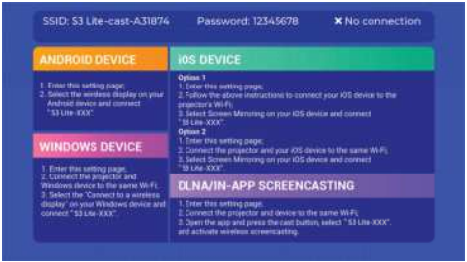
ANDROID DEVICE
- Turn on the wireless projection function of your Android phone.
- Search for and connect the projector to start the screen mirroring.
IOS DEVICE
- Turn on the AirPlay of your iPhone/iPad
- Search for and choose the projector device name to share the screen.
Wired connections
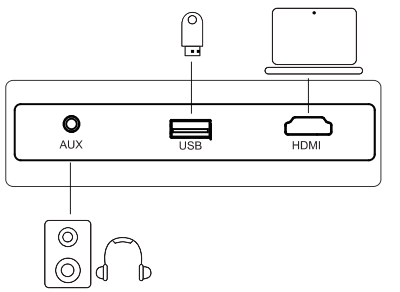
Play from an HDMI Playback Device
This projector supports connections with various HDMI playback devices such as PC, TV stick, TV box, DVD player, set-top box (STB), game console, or other devices.
- Connect this projector to an HDMI playback device with an HDMI cable.
- Press the Source button on the remote control, select [HDMI], and confirm.
Play from USB Storage Device
With this projector, you can enjoy music, video, and pictures that are stored on a USB storage device. Insert the USB storage device, select the file type you want to play on the home page, select and confirm the file you want to play.
Play Through External Sound Devices Via AUX Cable
- Connect one end of the 3.5mm AUX cable to the AUX port on this projector.
- Connect the other end of the 3.5mm AUX cable to the AUX port on headphones or external speakers.
- Playback on the projector.