



VISULAPEX S3 Portable Video Projector
Get started
Prepare the Remote Control
- Open the battery holder cover of the remote control. Install two AAA batteries. Make sure to match the polarity (+/-).
- Put back the cover as indicated in the picture.
- The distance between the remote and the projector should not exceed 5 m /16.4 ft.
Power On/Off
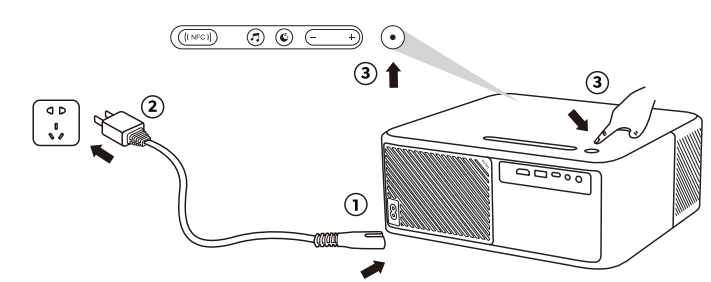
- Insert the power cord into the projector and plug it into a power outlet.
- Press the power button or the remote control power button once to power on.
- Press the power button or the remote control power button twice to power off.
- Place the projector on a stable, flat surface in front of the projection screen.
- Please adjust the distance between the projector and the projection screen to get the desired projection image.
Projection Distance and Projection Image Size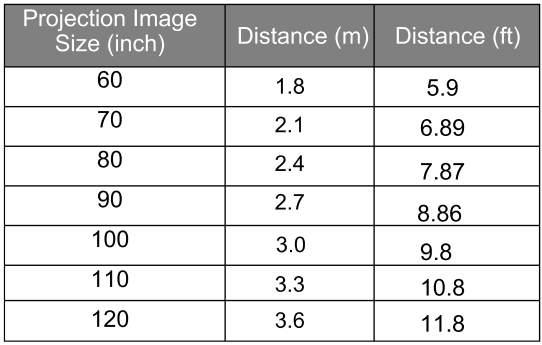
Focus Manual
Press Focus+ or Focus- on the remote control to manually adjust the focus. Please carefully observe the focus icon until you get a clear image.
Keystone Correction
When positioning your projector in a fixed location, use digital keystone correction. Press the Menu button to enter the Projection Image Setting adjust menu and make vertical adjustments.
Keystone Correction Reset
To restore the default settings, press the Menu button to enter the Projection Image Setting adjust menu, select [Trapezoidal Reset], and confirm.
Zoom in/out
Press the Menu button to enter the Projection Image Setting adjust menu, select [Window Zoom] from the option menu to adjust the image size.
Projection Settings
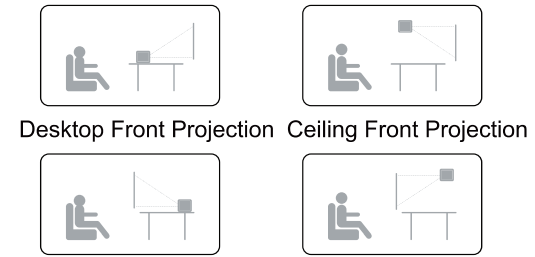
Wireless Screen Mirroring
- Make sure your device and the projector are connected to the same network.
- Open the Wireless Screen to enter the interface.

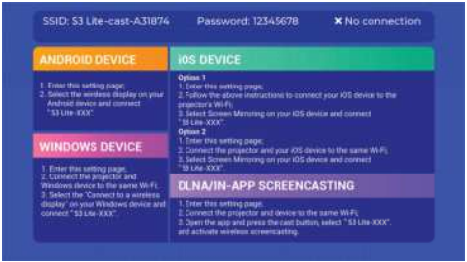
ANDROID DEVICE
- Turn on the wireless projection function of your Android phone.
- Search for and connect the projector to start the screen mirroring.
IOS DEVICE
- Turn on the AirPlay of your iPhone/iPad
- Search for and choose the projector device name to share the screen.
Wired Connections
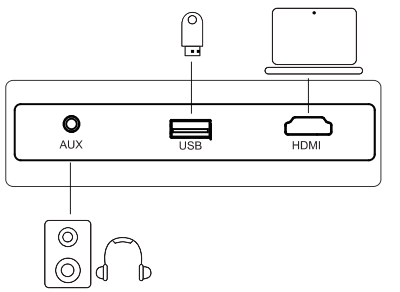
Play from an HDMI Playback Device
This projector supports connections with various HDMI playback devices such as PC, TV stick, TV box, DVD player, set-top box (STB), game console, or other devices.
- Connect this projector to an HDMI playback device with an HDMI cable.
- Press the Source button on the remote control, select [HDMI], and confirm.
Play from USB Storage Device
With this projector, you can enjoy music, video, and pictures that are stored on a USB storage device. Insert the USB storage device, select the file type you want to play on the home page, select and confirm the file you want to play.
Play Through External Sound Devices Via AUX Cable
- Connect one end of the 3.5mm AUX cable to the AUX port on this projector.
- Connect the other end of the 3.5mm AUX cable to the AUX port on headphones or external speakers.
- Playback on the projector.
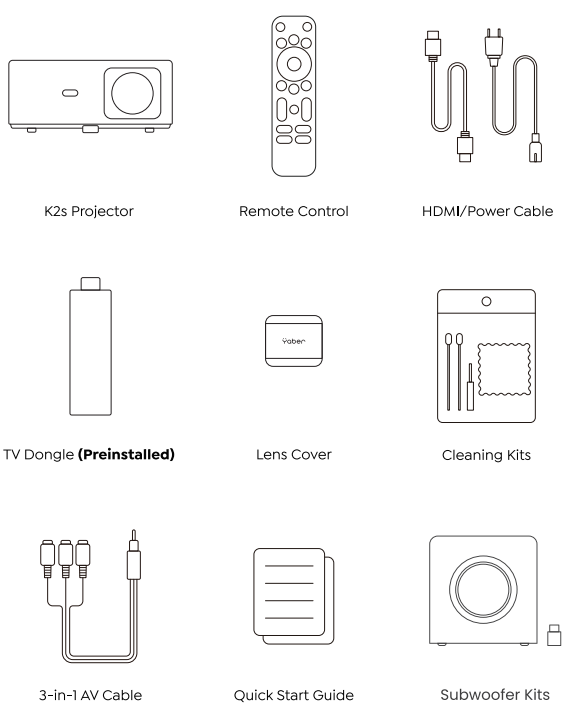
Package Contents
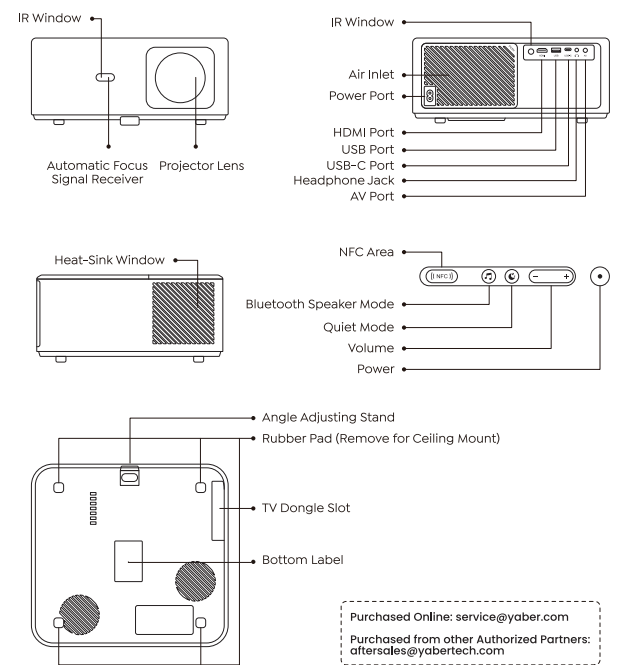
Product Overview
Install the TV Dongle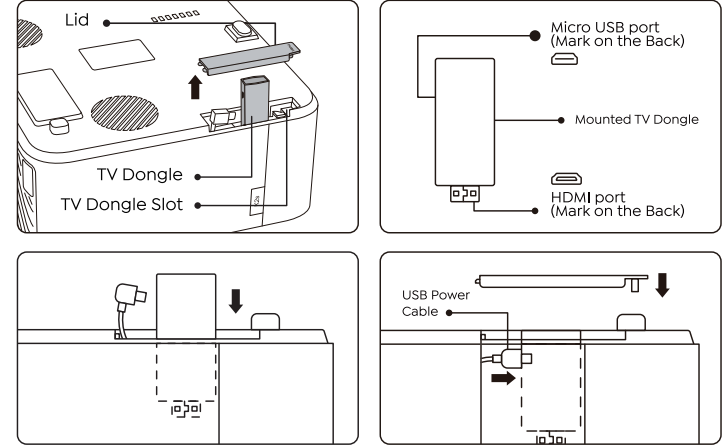
- Push once to open the lid and take out the dongle.
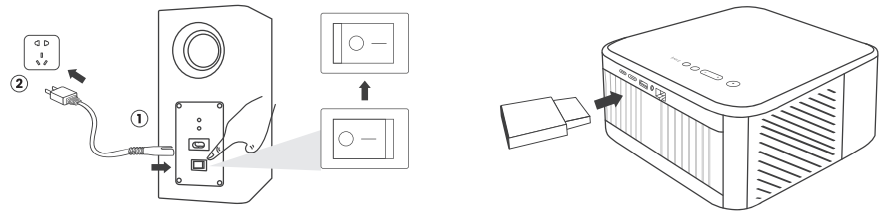
- Insert the TV Dongle. (Note the front and back)
- Press the “Push” to close the lid.
Turn on the Yaber Projector
- Connect the projector and subwoofer to the power supply and turn on the switch.

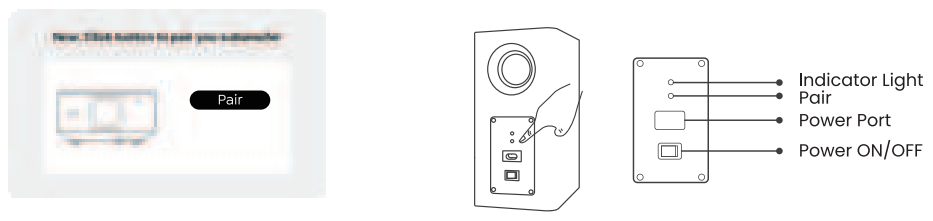
- Click the pairing button that shows on the projector screen.
- Click the pairing button on the subwoofer.
- Click the pairing button on the subwoofer

- When the subwoofer indicator light is always on, it means the pairing is successful.

Smart Voice Control Setup
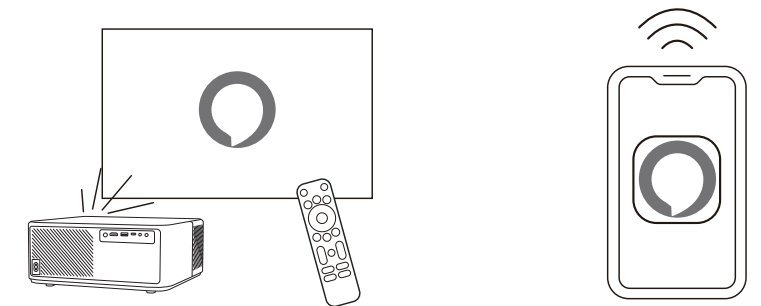
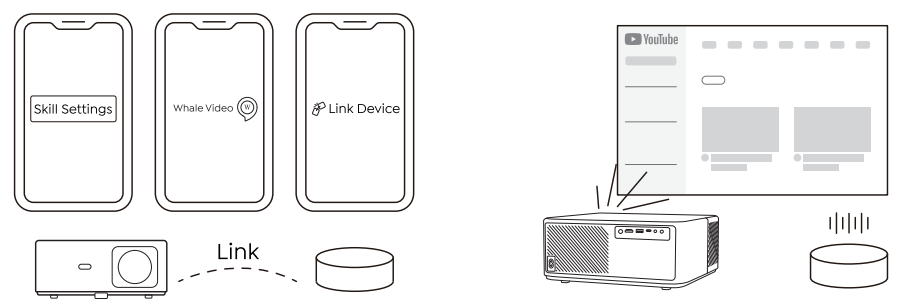
- Connect K2s to the Wi-Fi network and start Alexa Setup from the projector home screen and log in.
- Log in and open the Alexa app on your phone.
- Advanced Settings page, pair your projector with your smart speakers to complete your setup.
- Now try this: “Alexa, open YouTube on the projector.”

NFC Settings
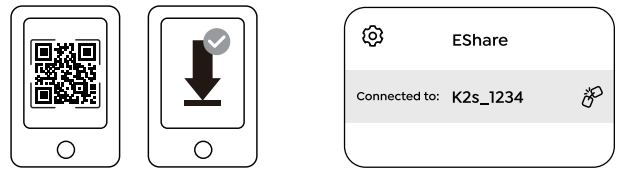
- Download and install the E-share App by scanning the QR code or visit http:/h.eshare.app
- Make sure your phone and projector are connected to the same network, and connect.
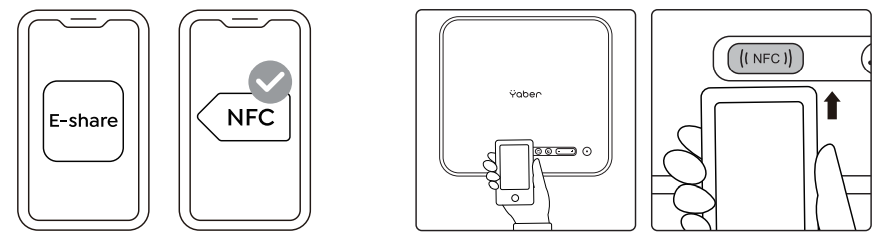
- Please enable the NFC function on your phone and lightly tap the top of your phone on the NFC sensor area marked on the projector

- Now you can tap your phone closely on the NFC area to Screencast while the projector is powered on and on the same Wi-Fi network as your phone.

Bluetooth Speaker Mode

- Click the Bluetooth Speaker Mode button on the projector.
- Pair the mobile device with the projector to play music. Quiet Mode
Click the Quiet Mode button on the projector to enter the Quiet Mode, and click again to exit.
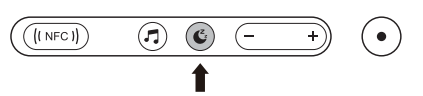
Image Adjustment
When you turn on the projector, please wait patiently for 2-3 seconds. The projector will auto focus and auto keystone correct.
Focus Adjustment
If the image is not clear, you can use the manual focus function and press the focus buttons “F+” and “F-” on the remote control to adjust the focus of the lens until the image is clear.
Customer Service
- Website: www.soomfon.com
- Ph: +86-755-2357 1211