

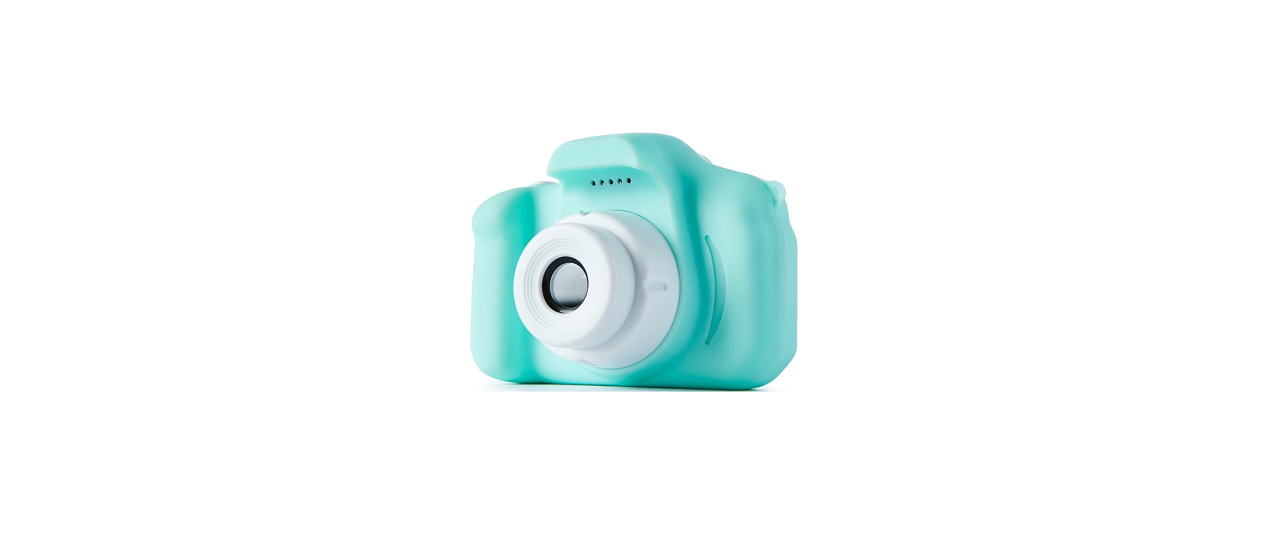

Anko ZB2025011305 Mini Digital Camera
Overview
Operating Instructions
Charging
Before using this device for the first time, please charge it. The device can be charged in the following ways.
- Connect to a charger
- Connect to a computer
- Connect to a mobile power supply
The red charging LED will be illuminated whilst charging the Anko ZB2025011305 Mini Digital Camera is in progress; It will turn off when charging is complete.
Power On/Off
Press and hold the on/o button for 3 seconds. Power on : Press and hold the on/o button for 2 seconds.
Photo Shoot
After inserting the memory card, the camera will enter Photo Shoot Standby mode directly after powering on, and the camera icon will appear in the upper left corner of the screen.
Press the camera button ( ), the flashlight will light up, and the speaker will make a clicking sound to indicate that the photo has been taken. The number of Anko ZB2025011305 Mini Digital Camera remaining photos that can be taken is displayed in the upper right corner of the screen.
Video Recording
In photo shoot standby mode, press the on/off button. The video icon ( ) will appear in the upper left corner of the screen, and the device will enter video mode.
Press the camera button ( ) to start recording. The video time counter will appear in the upper-right corner of the screen. Press the camera button ( ) again to stop recording. The video file will be automatically saved to the memory card, and the device will return to video standby mode.
Mute photo shoot/video recording mode
In standby mode, short-press the Up button, and the microphone icon ( ) will appear in the upper left corner of the screen. At this time, both the photo shoot and video recording modes are in mute mode, and the flashlight will turn off.
Sound Recording Mode
In standby mode, press and hold the camera button ( ) to enter sound recording mode and start sound recording automatically. Short-press the camera button ( ) to stop sound recording and enter sound recording standby mode.
Press the camera button again to start a new sound recording. Press the on/o button ( ) or press and hold the camera button to exit sound recording mode.
Turn on flash light
Press and hold the Up button ( ) for 3 seconds in standby mode to turn the flashlight on; press and hold it for another 3 seconds to turn it off .
Filter
Press the down button ( ) in standby mode to select from a variety of filter effects. There are 6 filter effects to choose from.
Computer Camera
If the device has the memory card removed, it can be used as a computer camera by connecting it to the computer with the data cable (included). For computers without a built-in camera, simply connect to use. For computers with a built-in camera, simply switch to this camera to set the settings (camera name: UVC).
Time Display Setting
- Insert the memory card into the device, turn it on, connect it to the computer, open the root directory, and find the text document named time.txt.
- Open the time.txt file and write the time you want to synchronise in strict accordance with the format of the file (you only need to change the text inside). After saving, restart your computer to synchronise the time in the file.

Automatic Switch Off
The device will switch off automatically in the following cases:
- If the battery is low while recording, the system will automatically save the video content and then automatically switch off.
- In standby mode, the system will automatically switch off if there is no operation for 3 minutes.
Reset
If the device freezes or gets stuck for unknown reasons, you can insert a reset pin into the reset hole, short-press it to complete the reset, and then turn it on to use it normally.
Accessories
- 1 x Camera
- 1 x Charge & data cable
- 1 x Keychain
- 1 x Lanyard
- 1 x Memory Card (32GB included)
- 1 x User manual

Product Specifications
- Product dimensions: 42.4* 28.5* 29.2mm(L*W*H)
- Display size: 0.96 inches
- Input: DC 5V 1A(Max)
- Battery capacity: 200mAh
- Optimal shooting distance: 50-130cm
Disposal
Do not dispose of this product with normal household waste collection. If unsure, contact the local council waste management service for proper disposal facilities available for your area. a
Warranty
This warranty is in addition to your rights under the Australian Consumer Law. For New Zealand customers, this warranty is in addition to statutory rights observed under New Zealand legislation.
We will provide you with your choice of a refund, repair (where possible) or exchange (availability dependent) for this product if it becomes defective within the warranty period. The business will bear the reasonable expense of claiming the warranty. This warranty will no longer apply where the defect is a result of alteration, accident, misuse, abuse or neglect.
Please retain your receipt as proof of purchase and contact our Customer Service Centre as listed below, for the entity you purchased this product from, for any difficulties with your product.
Customer Service
- Website: https://ankoglobal.com/
- Ph: +1 800-446-2656