

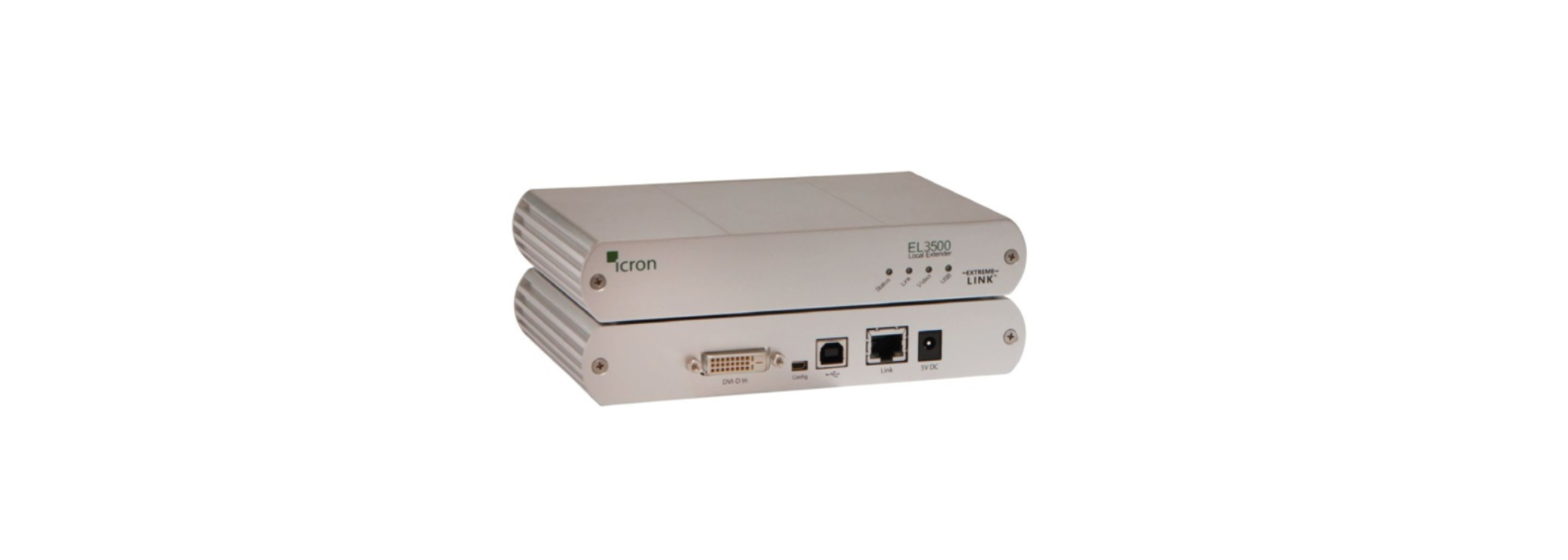

Icron EL3500 USB 2.0, Cat 5 Extender

Introduction
The instructions in this guide assume a general knowledge of computer installation procedures, familiarity
with cabling requirements, and some understanding of USB devices.
Product Contents
- Local Extender
- Remote Extender
- 5V DC power adapter
- 24V DC power adapter
- USB Cable (6 ft)
- DVI Cable (5 ft)
- Quick Start Guide and Warranty Information
Requirements
- A computer with a DVI-D/DVI-I output
- USB 1.1 or 2.0 compatible computer (host computer) with a USB-compliant operating system
- USB 1.1 or 2.0 compatible device(s)
- Cat 5 Unshielded Twisted Pair (UTP) cable with two RJ45 connectors (if using surface cabling),
- OR, Cat 5 cabling with two information outlets and two Cat 5 patch cords with RJ45 connectors (if
using premise cabling)
About the KVM – DVI, Audio, USB 2.0, Cat 5 Extender
The product incorporates ExtremeLink™ technology, enabling users to extend their video and USB up to 500 feet.
Compatibility and Recommended Setup
The product is compatible with many graphics cards, Operating Systems, and monitors supporting up to a 1900 x 1200 resolution. However, there is no guarantee that all devices will be compatible with the product, as there are a number of different factors that may impact the operation of this KVM Extender.
This product supports both USB 1.1 and USB 2.0 devices. These devices include: keyboards, mice, flash drives, printers, and USB 1.1 web cameras.
DVI Cables
Ensure high-quality, undamaged DVI cables are used with this product. Low-quality or damaged cables may impact product performance and/or result in damage to units.
Cabling
Solid core Category 6 STP cable with Category 6 RJ45 connectors is recommended for best performance. Using Cat 5e or unshielded Cat 6 cabling may leave your signal more susceptible to interference and noise, which may result in poor video performance or reduced extension distance.
| Cable Type | Maximum Distance | Notes | |
| Uncoiled | Coiled | ||
| Solid Core Cat 5e UTP | 100m (330 ft) | 70m (229 ft) | High susceptibility to electrical interference |
| Solid Core Cat 5e STP | 100m (330 ft) | 80m (262 ft) | Moderate susceptibility to electrical interference |
| Solid Core Cat 6 UTP | 100m (330 ft) | 100m (330 ft) | High susceptibility to electrical interference |
| Solid Core Cat 6 STP | 100m (330 ft) | 100m (330 ft) | Recommended |
| Solid Core Cat 7 STP | 100m (330 ft) | 100m (330 ft) | Recommended |
Host Operating Systems
- Windows®
- Mac OS X®
- Linux®
USB Peripherals
- Keyboards & Mice
- Mass Storage Devices
- USB 1.1 Web Cameras
- Printer’s
Local Extender Description and Markings
The local extender connects to the computer using the supplied DVI and USB cable. It’s important to use the DVI cable supplied with the product when connecting the local extender to the host computer to ensure proper operation.

| ITEM | TYPE | DESCRIPTION |
| 1 | Power LED (Green) | Green Light: The system is powered and ready to use. No Light: The system does not have power. |
| 2 | Link LED (Green) | Green Light: The local and remote extenders can communicate with each other across the link. No Light: There is no communication between the local and remote extenders. |
| 3 | USB LED (Green) | Green Light: The local extender and the host computer are communicating with each other and working. Blinking Green Light: The host has suspended communication with the local extender. No Light: The host and the local extender are not communicating or are not connected. |
| 4 | Video LED (Green) | Solid Green Light: HDCP (digital rights management) content is being transmitted. Blinking Green Light: Video (non-HDCP) content is being transmitted. No Light: There is no video being transmitted. |
| 5 | Config | Reserved. |
| 6 | Link Port (RJ45) | Accepts RJ45 connector for Cat 5e cabling (or better). |
| 7 | DVI-D In | Accepts DVI-D connector for video input from the host computer. |
| 8 | Device Port (USB Type B) | Used to connect the LEX unit to the host computer. |
| 9 | Power Port | Connects to the 5V, 3A power adapter. |
Remote Extender Description and Markings
The remote extender provides DVI output to a monitor and three USB Type A ports for standard USB devices. Additional devices may be connected by attaching USB hubs.

| ITEM | TYPE | DESCRIPTION |
| 1 | Power LED (Green) | Green Light: The system is powered and ready to use. No Light: The system does not have power. |
| 2 | Link LED (Green) | Green Light: The local and remote extenders can communicate with each other across the link. No Light: There is no communication between the local and remote extenders. |
| 3 | USB LED (Green) | Green Light: The local extender and the host computer are communicating with each other and working. Blinking Green Light: The host has suspended communication with the local extender. |
| 4 | Video LED (Green) | Solid Green Light: HDCP (digital rights management) content is being transmitted. Blinking Green Light: Video (non-HDCP) content is being transmitted. No Light: There is no video being transmitted. |
| 5 | Config | Reserved. |
| 6 | Link Port (RJ45) | Accepts RJ45 connector for Cat 5e cabling (or better). |
| 7 | DVI-D Out | Accepts a DVI-D connector to the remote monitor. |
| 8 | Device Port (USB Type A) | Accepts USB device(s). |
| 9 | Power Port | Connects to the 5V, 3A power adapter. |
Installation
Before you can install the product, you need to prepare your site
- Determine where the computer is to be located and set up the computer.
- If you are using surface cabling, the product supports a maximum distance of 100m (330 ft).
Local Extender Unit
- Place the local extender unit near the computer.
- Install the supplied USB cable in the USB port on the local extender, and an available USB 2.0/1.1 Type A Port on the computer.
- Install the supplied DVI cable to the local extender (DVI-D In) and an available DVI Port on the computer.
Remote Extender Unit
- Place the remote extender unit near the monitor and USB device(s) in the desired remote location.
- Connect the remote extender DVI-D Out to the monitor with a high-quality DVI cable.
- Plug in your USB device(s) into the USB ports on the remote extender.
Connecting the Local Extender to the Remote Extender
Surface Cabling
- Plug one end of the Cat 5e (or better) cabling (not included) into the Link port (RJ45) on the local.
- Plug the other end of the Cat 5e cabling into the Link port (RJ45) on the remote extender.
Premise Cabling
- Plug one end of a Cat 5e patch cord (not included) into the Link port (RJ45) on the local extender.
- Plug the other end of the patch cord into the Cat 5e information outlet near the host computer.
- Plug one end of the second Cat 5e patch cord (not included) into the Link port (RJ45) on the remote extender.
- Plug the other end of the second patch cord into the Cat 5e information outlet near the USB device(s).
Power to the Local and Remote Extenders
- Plug the 5V, 3A power adapter into a suitable AC outlet near the local extender.
- Connect the power adapter to the local extender.
- Plug the 5V, 3A power adapter into a suitable AC outlet near the remote extender.
- Connect the power adapter to the remote extender.
Use only the power adapters supplied with the product. Use of substitute adapters may cause permanent damage to the system and will void the warranty.
Checking the Installation
- On the local and remote extender units, check that the Power, Link, USB, and Video LEDs are on.
- Check to see if the USB LED is on and the Video LED is blinking or on; if they are not, this indicates there is no USB data or video data.
- Check the DVI and USB connections to the host computer, and the DVI connection to the monitor.
Connecting a USB Device
- Install any software required to operate the USB device(s).
- Refer to the documentation for the USB device(s), as required.
- Connect the USB device to the device port on the remote extender.
Specifications
| Range | 330 feet (100 meters) over solid core Cat 5e STP (or better) cable. Solid core Cat 6 STP recommended for best performance. |
| Video Resolution & Depth | 1900 x 1200, 24-bit colour depth |
| Latency | Less than 1ms |
| USB Device Support & Throughputs | High-Speed devices (USB 2.0) – up to 30Mbps Full-Speed devices (USB 2.0 & 1.1) – up to 12Mbps Low-Speed devices (USB 2.0 & 1.1) – up to 1.5Mbps |
| USB Hub Support | Any single chain can include up to 4 USB hubs |
| USB Host Support | EHCI (USB 2.0) and OHCI/UHCI (USB 1.1) |
| AC Adapters | Input: 100-240 V AC, 50 – 60 Hz | Output: 5V DC, 3A (15 W) |
| Power Available to USB Device at REX | 500 mA each port |
| Maximum USB Devices Supported | 13 USB devices |
| Enclosure Material | Black anodised aluminium |
| Enclosure Dimensions | 112 mm x 175 mm x 30 mm (4.4” x 6.9” x 1.18”) |
| LOCAL EXTENDER | |
| Video Connector | 1 x DVI-D In (24-pin connector) |
| USB Connector | 1 x USB Type B Receptacle |
| Link Connector | 1 x RJ45 |
| REMOTE EXTENDER | |
| Video Connector | 1 x DVI-D Out (24-pin connector) |
| Link Connector | 1 x RJ45 |
| USB Connector | 3 x USB Type A Receptacles |
| ENVIRONMENTAL | |
| Operating Temperature Range | 0°C to 40°C (32°F to 104°F) |
| Storage Temperature Range | -20°C to 70°C (-4°F to 158°F) |
| Operating Humidity | 20% to 80% relative humidity, non-condensing |
| Storage Humidity | 10% to 90% relative humidity, non-condensing |
| COMPLIANCE | |
| Emissions | FCC Part 15 Class A, CE Class A, ICES-003 Class A |
| Immunity | CE EN 55024 |
| Environmental | RoHS2 (CE) |
USB Cables
USB cables have two distinct connectors.

RJ45
The Registered Jack (RJ) physical interface is what the Icron VU5100 DVI + USB 2.0 Extender System connects the network cabling (Cat 5) to the Local Extender Unit and Remote Extender Unit. You may Icron VU5100 DVI + USB 2.0 Extender System use either the T568A scheme (Table 1) or the T568B scheme (Table 2) for cable termination, as the extender uses all four pairs of the cable.
RJ45 Pin Positioning


Troubleshooting
| PROBLEM | CAUSE | SOLUTION |
| All LEDs on the local extender are off. | The local extender is not receiving power from the power adapter. | Ensure that the power adapter is properly connected to the local extender.
|
| All LEDs on the remote extender are off. | The remote extender is not receiving power from the power adapter. | Ensure that the power adapter is properly connected to the remote extender. |
| Link LEDs on the local extender and the remote extender are off. | There is no connection between the local and remote extenders. | Connect a short Cat 5e patch cord between the local and remote extenders to determine if the original Cat 5e cable is defective.
Ensure the Cat 5e cable is as straight as possible (i.e. not coiled). |
Warranty Information
Limited Hardware Warranty
Icron, an Analog Devices brand, warrants that any hardware Icron Raven 3301-ECO Extender System products accompanying this documentation shall be free from significant defects in material and workmanship for a period of two years from the date of purchase. Icron’s hardware warranty extends to Licensee, its customers, and end users. The Warranty does not include repair of failures caused by misuse, neglect, accident, modification, operation outside a normal operating environment, failure caused by service of the device by non-authorised servicers, or a product for which Icron is not responsible. Opening the enclosures will Icron Raven 3301-ECO Extender Systemvoid the warranty.
Limitation of Liability
The hardware warranty outlined in this agreement replaces all other warranties. Icron expressly disclaims all other merchantability and fitness for a particular purpose and noninfringement of third-party rights with respect to the hardware. In no case shall Icron, its suppliers, or licensors’ liability exceed the actual money paid for the products at issue.
Since some jurisdictions do not allow the limitation of implied warranties of liability for incidental, consequential, special, or indirect damages, the above limitation may not always apply. The above limitations will not apply in case of personal injury, where and to the extent that applicable law requires such liability.
Contacting Technical Support
- Description of the problem
- Part number and serial numbers for both LEX and REX units
- Host computer(s) make and model
- Type of Operating System installed (e.g., Windows 10, macOS 11.1, etc.)
- Make and model of any USB device(s) attached to this extension system
- Description of the installation, such as host computer model, transmission media used, and information about the USB device(s)
Product Return Shipping Instructions
Package your product appropriately for safe shipment and mark the RMA number on the outside of the package. We recommend that you ensure your shipment or your shipping method provides package tracking.
Address to Return Product
RMA Coordinator Icron | An Analog Devices Brand 4664 Lougheed Hwy., Suite 221 Burnaby, BC, V5C 5T5, Canada
Technical Glossary
Category 5e (CAT 5e) Network Cabling
This cabling is available in either solid or stranded twisted pair copper wire variants and as UTP (Unshielded Twisted Pair) or STP (Shielded Twisted Pair). STP cables include shielding of the copper wires and provide better protection against EMI
Customer Service
- Address: Icron | An Analog Devices Brand 4664 Lougheed Hwy., Suite 221 Burnaby, BC, V5C 5T5, Canada
- Ph: +1 604 638 3920
- Website: icron.com