



HAPPRUN Gizmochina H1 200 Inch Theater Projector
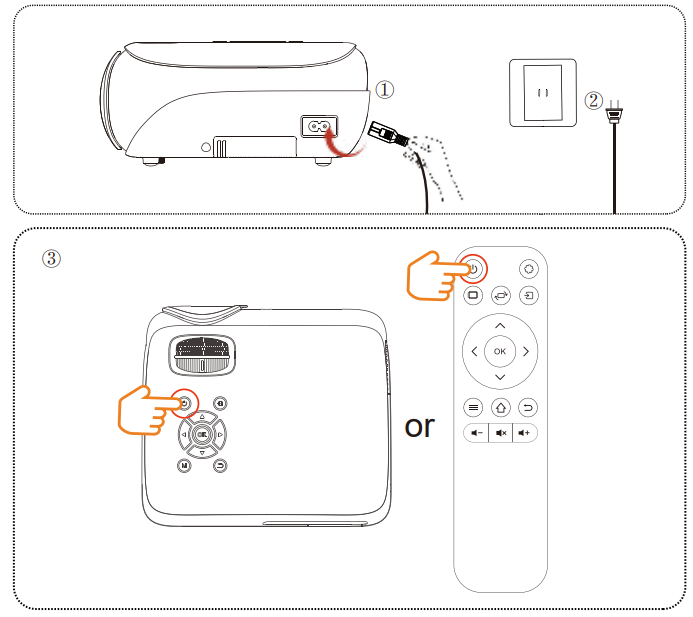
Power On
- Connect the power cord to the projector and press the button
- Plug the cable into the outlet
- To power on the projector, press the button on the remote control or the button on the projector.
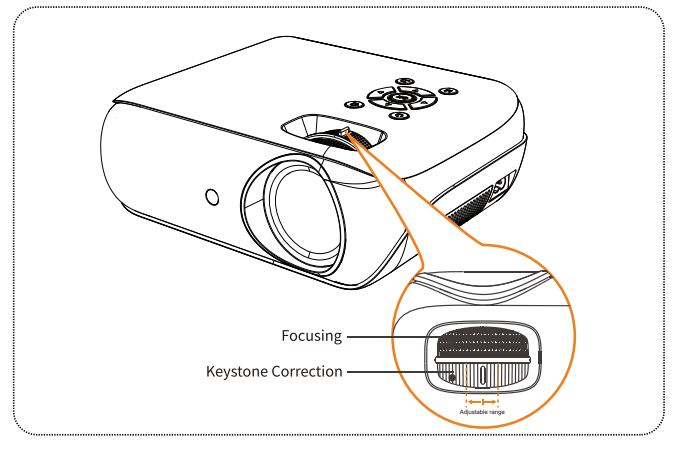
Adjusting the Picture Clarity
- Slowly adjust the two knobs to the left or right to the best picture quality.
- To adjust the keystone correction, simply rotate the dial to the left or right until the projected image is
- level and vertical.
- To achieve optimal image clarity, kindly rotate the focusing dial to the left or right.
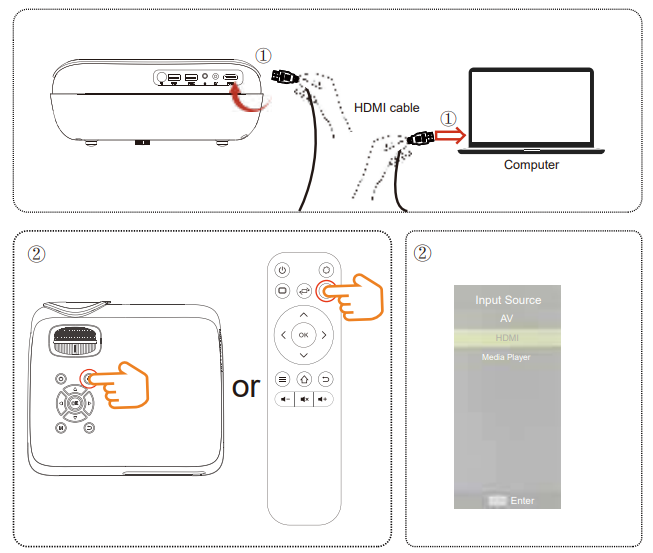
Connecting to a Laptop/ Computer
- Connect your HDMI cable to the projector and the computer.
- Press the button and choose ‘HDMI’.
Connecting to a Laptop/ Computer
Use the appropriate shortcut key on the computer. As shown in the picture, select “Duplicate.”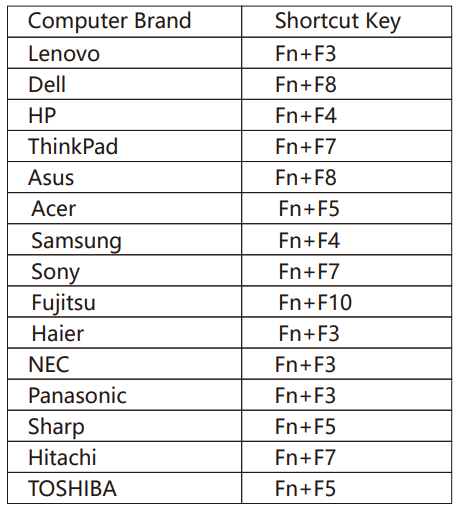
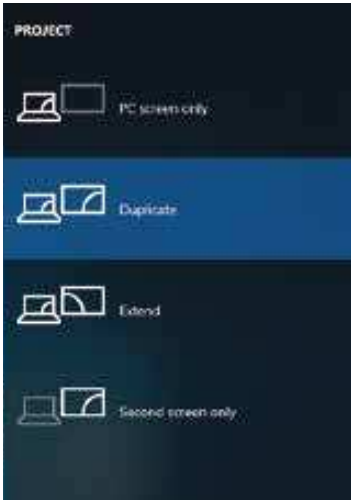
The user of Windows 7 or over Windows 7. Simply press the +P, select “copy” to connect. If the operation above is invalid, please update the computer graphics driver.
Using a USB Drive
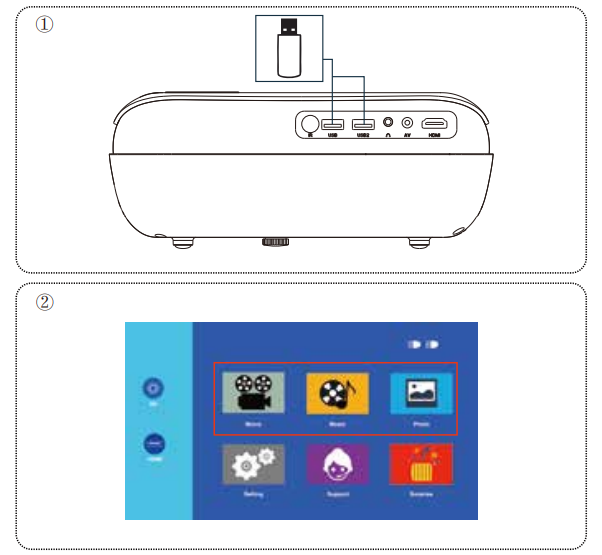
- Plug the USB drive into any USB port.
- Select ‘Movies’, ‘Music’, and ‘Photos’ to play.
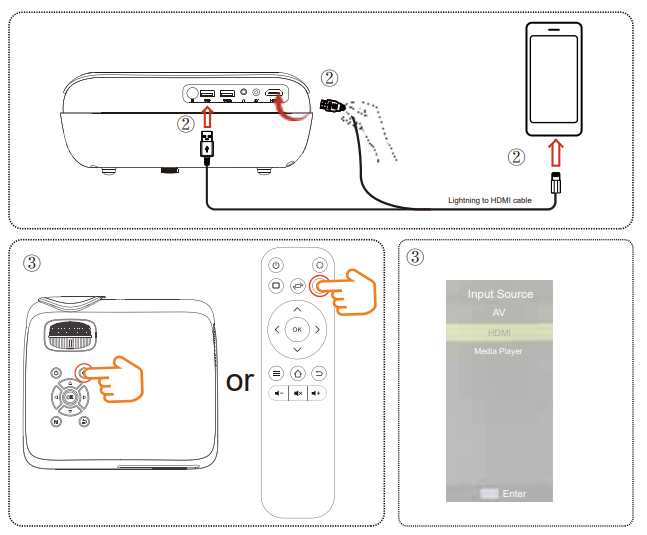
Screen Mirroring with an iPhone (HDMI ADAPTER NOT INCLUDED)
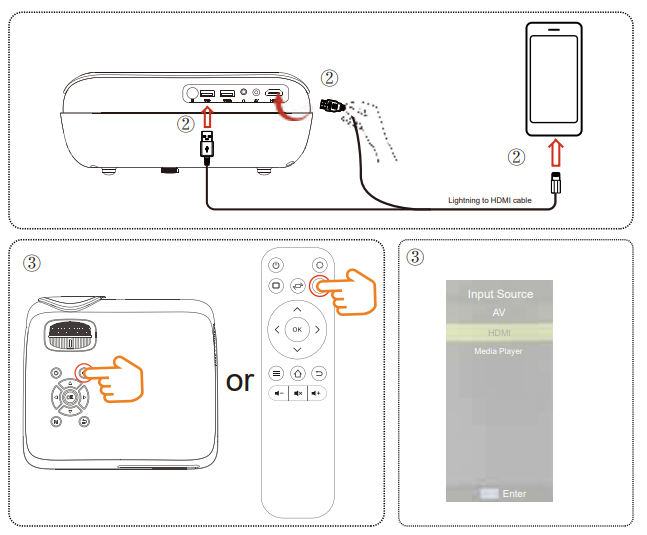
- Use the HDMI Screen Adapter.
- Plug the ‘HDMI’ and ‘USB’inton the projector and plug the Lightning connector into the iPhone.
- Press the button and choose ‘HDMI’.

- If the alert message is shown on your iPhone, click ‘Trust’ and enter your password.

- Use the HDMI Screen Adapter.
- Plug the ‘HDMI’ and ‘USB’ into the projector and plug the ‘Type-C’ into the iPhone.
- Press the button and choose ‘HDMI’.
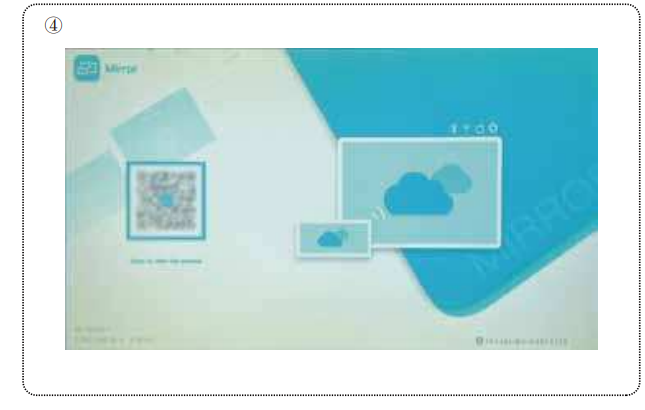
- Scan the QR code and download the APP.
- Install the APP and grant all permissions(Notice: ensure all permissions are allowed to avoid errors).
- Install the APP on your phone and grant all permissions.
- Open the downloaded APP, allow all permissions displayed on the APP
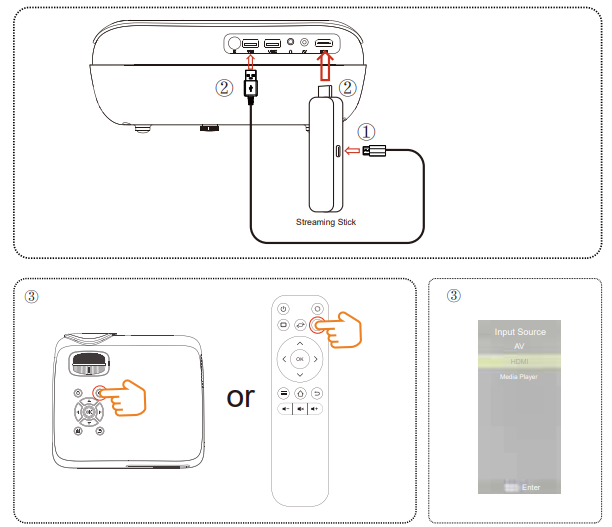
Connecting to a Streaming Stick
- Plug the power cord into the TV stick.
- Plug the ‘USB’ and ‘HDMI’ from the TV stick into the projector.
- Press the button and choose ‘HDMI’.

Bluetooth Settings
- Pairing your Bluetooth stereo with this projector
- Press / on your projector or remote.
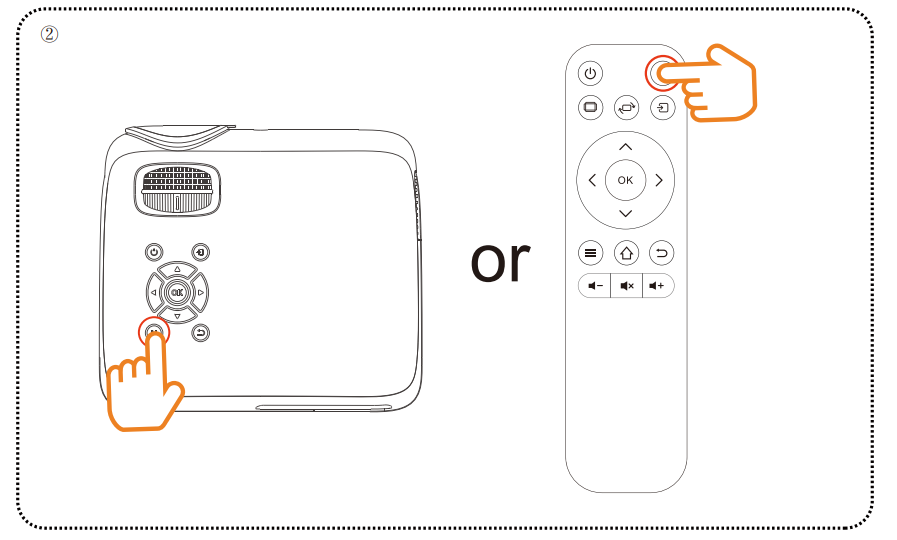
Bluetooth Settings
Use the “ ” or “ ” button on your projector or remote to select “Option”. Use the “ ” or “ ” to select “On”.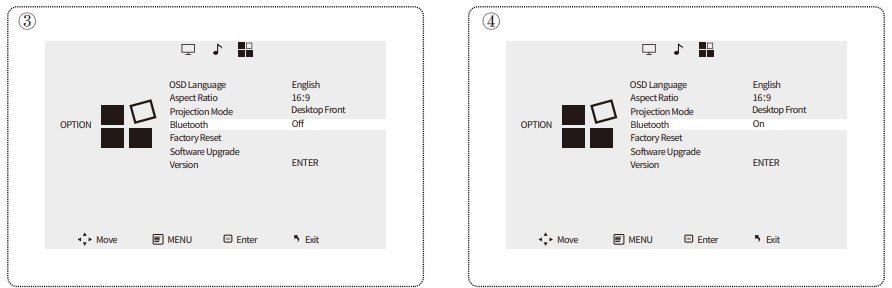
Select “Bluetooth” and enter. Select “Search”.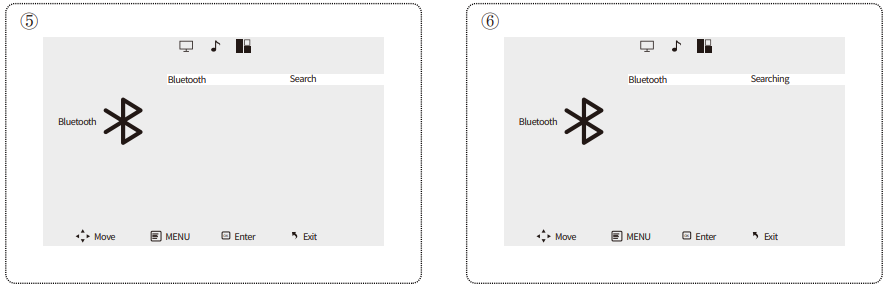 Bluetooth Settings
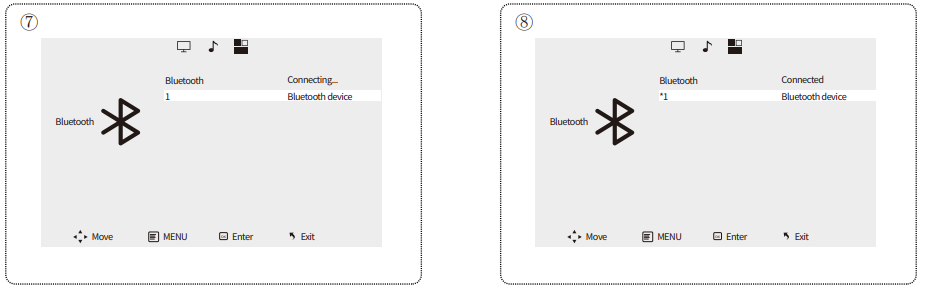
Choose the name of your device to pair.
Bluetooth is connected.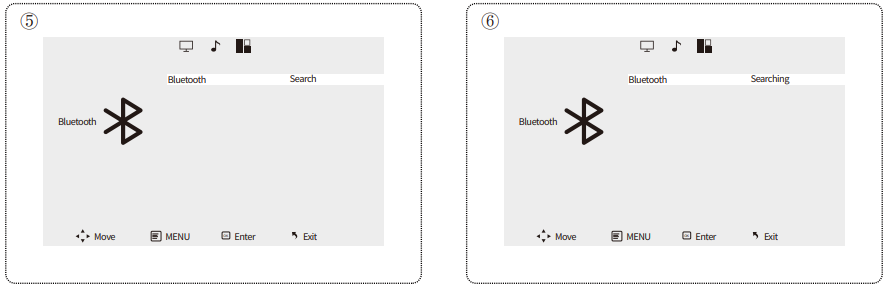
If you need further assistance, please call us or send us emails. We will be pleased to answer any questions you may have. Thank you for choosing HAPPRUN projectors.
- Call: US: 1-888-986-2646
- JP: 81-345400908
- * US: service@happrunlife.com
1 Comment
Normally I do not read article on blogs,
but I would like to say that this write-up very forced me to take a look at and do so!
Your writing style has been surprised me. Thank
you, quite nice article. http://seosecretservice.top