

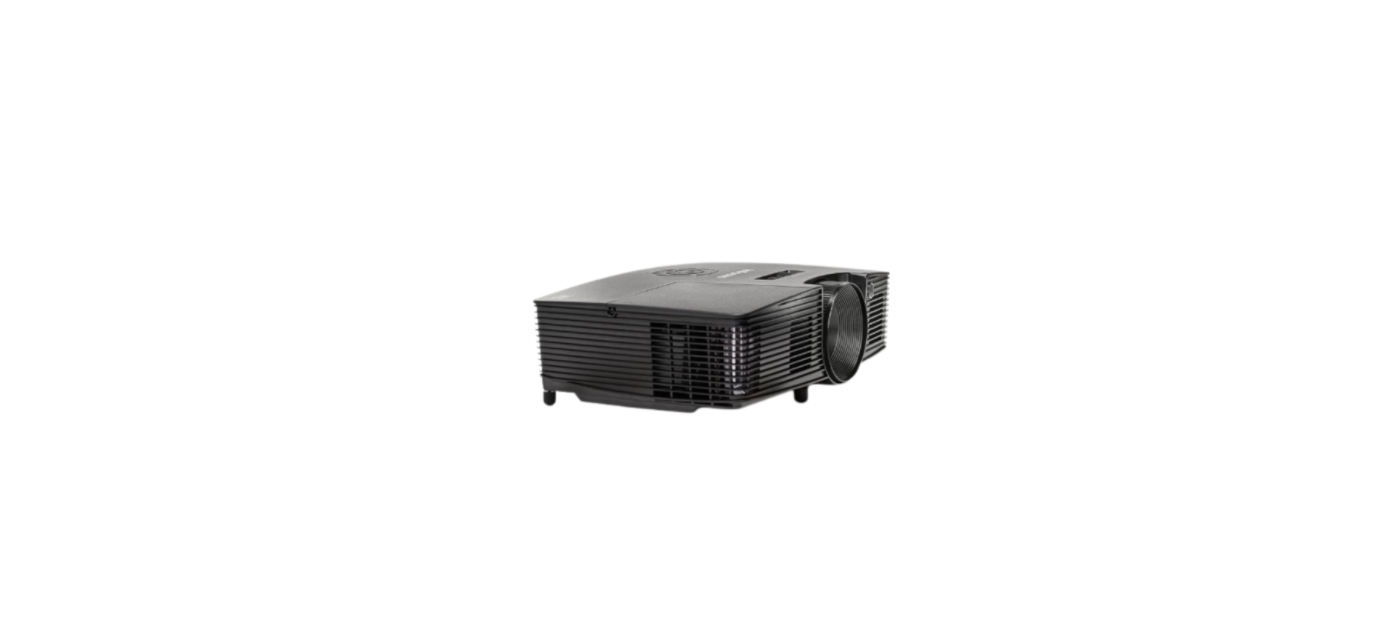

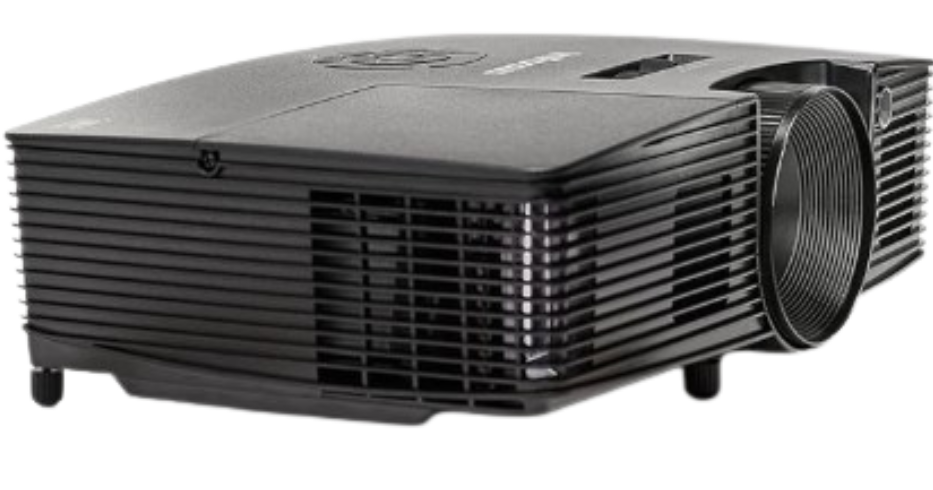
InFocus C250 XGA Portable Projector
Saftey Introduction
Your new digital projector provides computer and video inputs and delivers outstanding color using BrilliantColor ™ technology. The projector is easy to connect, easy to use, and easy to maintain. The C250 and C315 have XGA 1024×768 resolution, while the C250W has WXGA 1280×800 resolution.
Projector components and features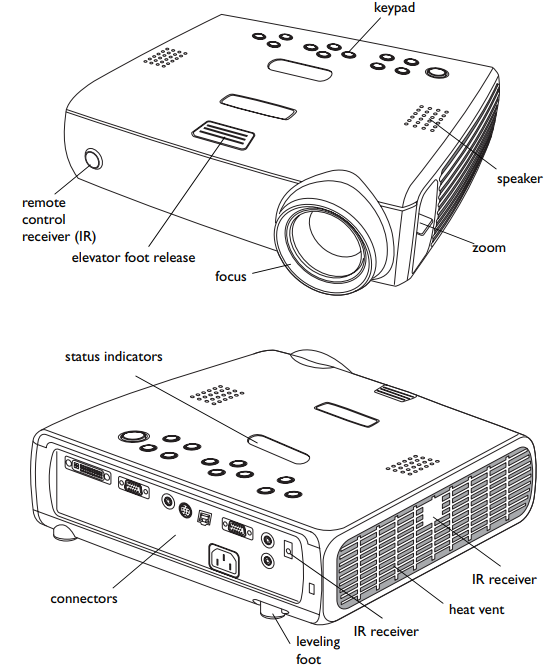
Connector Panel
The projector provides computer and video connectors:
- one M1-D/A (HD, DVI, and computer)
- one VESA (HD, HD component, and computer)
- one VESA (monitor out)
- one S-video
- one composite RCA video
- One audio in/one audio out. It also has an RJ-45 connector for serial control. The Command Line Interface (CLI) specifications and commands are on our website.
Connector panel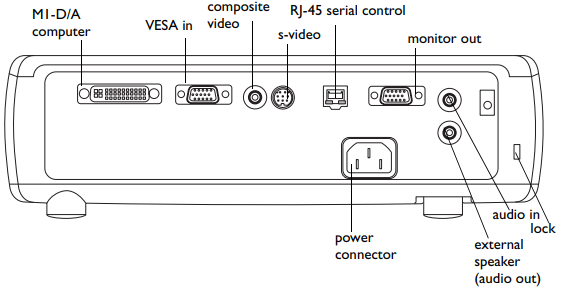
Connecting a Computer
Required computer connections
Connect the black end of the computer cable to the Computer 1 connector on the projector. Connect the blue end to the video port on your computer. If you are using a desktop computer, you first need to disconnect the monitor cable from the computer’s video port. Some Macintosh
- computers do not have a standard VESA-out video port. If the supplied computer cable will not connect to your computer, purchase the appropriate adapter from your Apple
- reseller. Connect the black power cable to the connector on the back of the projector and to your electrical outlet. The Power light on the Status Indicator Panel (page 12) turns amber.
Optional computer connections
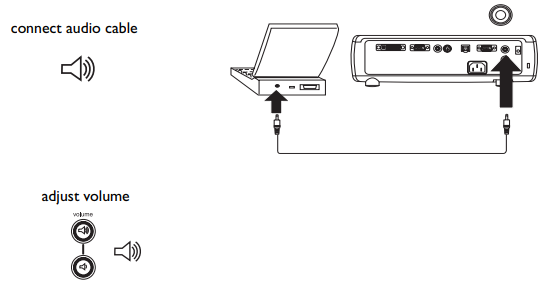
To advance slides in a PowerPoint™ presentation using the up and down arrow buttons on the remote, plug the USB connector on the computer cable into the USB mouse connector on your computer. To have sound with your presentation, connect an audio cable (sold separately) to your computer and to the Audio In connector on the projector.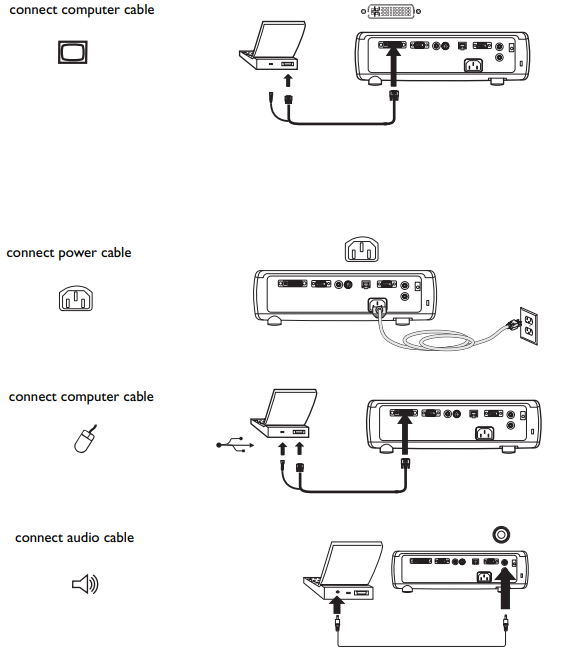
If you are using a desktop computer and want to see the image on your computer screen as well as on the projection screen, plug the monitor cable into the Monitor Out connector on the projector. If you prefer connecting your projector to your computer with an optional VESA cable, connect one end of the cable to the VESA port on your computer, and connect the other end of the cable to the blue Computer 2 connector on the projector. You can control the projector from an LCD control panel or computer by connecting an RS-232 cable to the projector’s Serial Control connector. Specific RS-232 commands can be found in the Service and Support section of our website. Displaying a computer image
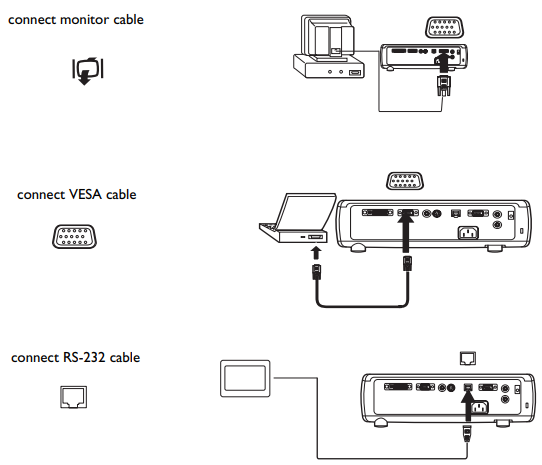
Press the Power button on the top of the projector or the remote. The Power light on the Status Indicator Panel (page 12) blinks green,n and the fans start to run. When the lamp comes on, the start-up screen displays, and the Power light is steady green. It can take a minute for the image to achieve full brightness. Turn on your computer. The computer’s image should appear on the projection screen. If it doesn’t, press the Source button on the projector’s keyboard.
Make sure your laptop’s external video port is active. Many laptops do not automatically turn on their external video port when a projector is connected. Usually,lly a key combination like FN + F8 or CRT/LCD key turns the external display on and off. Locate a function key labeled CRT/LCD or a function key with a monitor symbol. Press FN and the labeled function key simultaneously. Refer to your laptop’s documentation to learn your laptop’s key combination.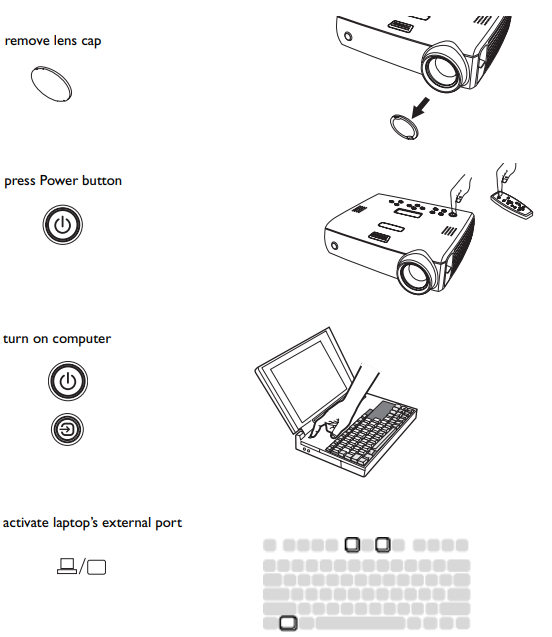
Adjusting the image
Adjust the height of the projector, if necessary, by pressing the release button to extend the elevator foot. Rotate the leveling foot (located at the bottom, back right corner), if necessary. Position the projector at the desired distance from the screen, so that the lens is perpendicular to the screen. See page 35 for a table listing screen sizes and distances.
Adjust the zoom or focus rings by rotating them until the desired image size and focus are produced. If the image is not square, adjust the vertical digital keystone by using the buttons on the keypad. Press the upper Keystone button to reduce the upper part of the image, and press the lower Keystone button to reduce the lower part. You can also adjust the keystone via the menus. See page 25. Adjust the Contrast or Brightness in the Picture menu. See page 24 for help with the menus.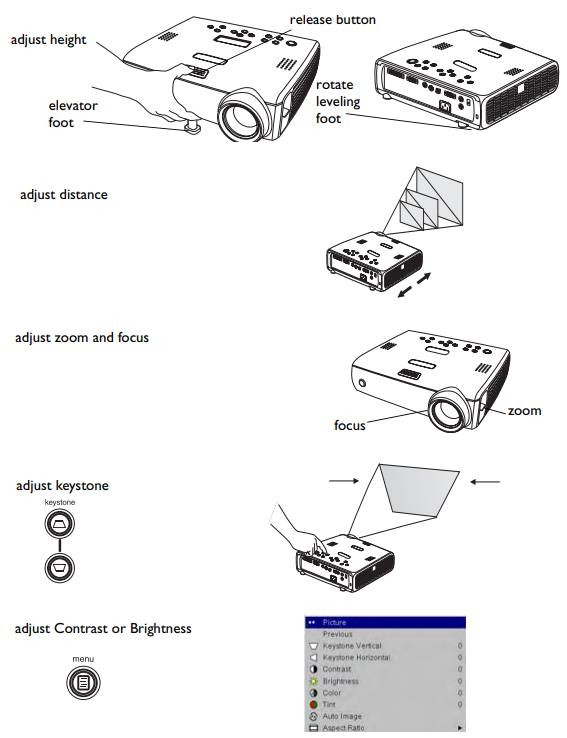
Connecting a video device
No video or audio cables are included with your projector. If the video device uses a round, four-prong S-video connector, plug an S-video cable into that connector on the video device and into the Video 2 connector on the projector. If the device uses a composite video connector, plug a composite video cable into that connector on the video device and into the Video 1 connector on the projector. For audio, plug a mini-plug audio Y-cable into the Audio in connector on the projector and into the video device’s left and right audio out connectors. Connect the black power cable to the connector on the back of the projector and to your electrical outlet.
Displaying a video image
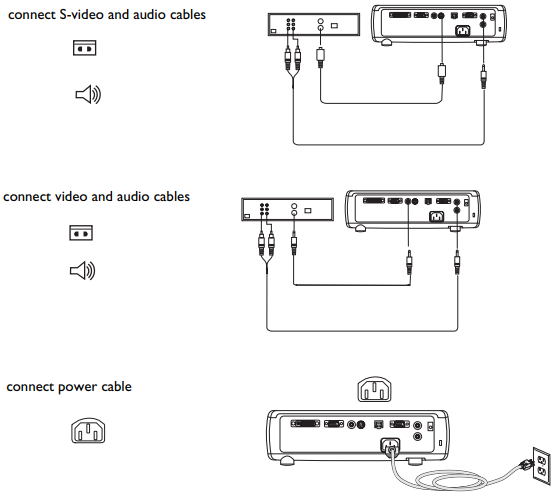
Remove the lens cap. Press the Power button on the top of the projector or the remote. The Power light on the Status Indicator Panel (page 12) blinks green, en and the fans start to run. When the lamp comes on, the start-up screen displays, and the Power light is steady green. Can it take a minute for the image to achieve full brightness? No startup screen? Get help on page 12.
Plug in and turn on the video device. The video device’s image should appear on the projection screen. If it doesn’t, press the Source button on the keypad. Adjust the height of the projector by pressing the release button to extend the elevator foot. Rotate the leveling foot, if necessary.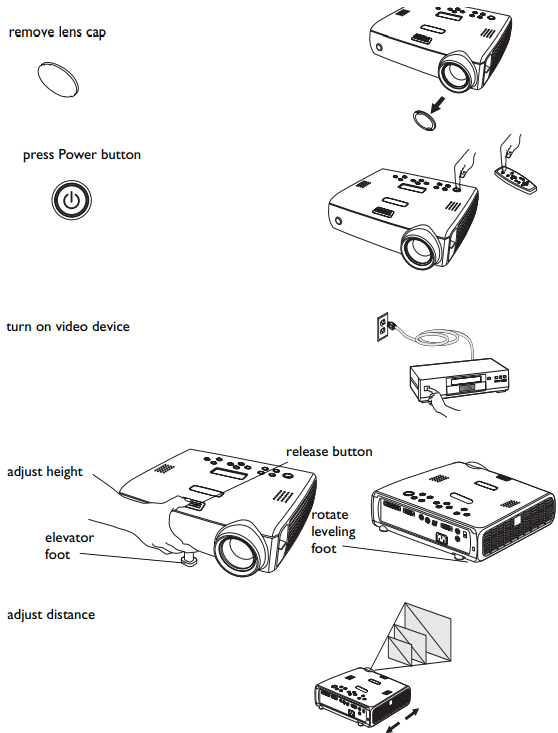
Adjust the zoom or focus rings by rotating them until the desired image size and focus are produced. If the image is not square, adjust the vertical keystone using the buttons on the keypad. Press the upper Keystone button to reduce the upper part of the image, and press the lower Keystone button to reduce the lower part. You can also adjust the keystone via the menus. See page 25. Adjust the volume on the keypad. Adjust the Contrast, Brightness, Color, or Tint in the Picture menu. See page 24 for help with the menus.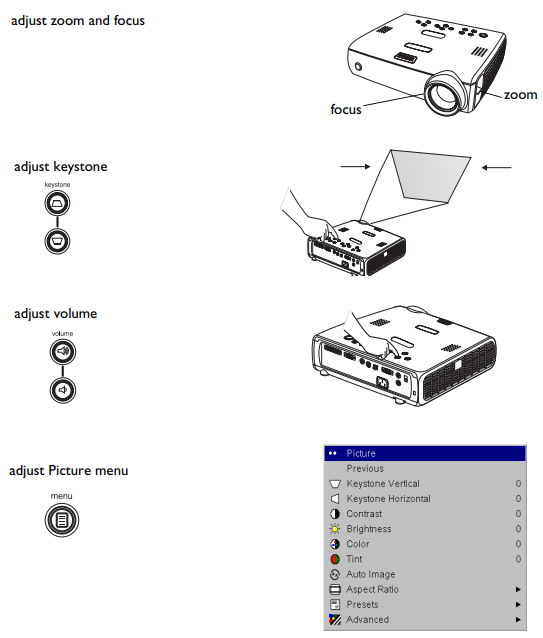
Shutting down the projector
Turning off the projector
To turn off the projector, press the Power button and verify that you want to turn the projector off by pressing the Power button again within 3 seconds. You can cancel the shutdown by not pressing the Power button a second time. The lamp turns off, and the LED blinks amber for 1 minute while the fans continue to run to cool the lamp. When the lamp has cooled, the LED lights amber and the fans stop. Unplug the power cable to completely power off the projector.
Power Save
The projector has a Power Save feature that automatically turns the lamp off after no signal is detected for 20 minutes. After 10 additional minutes with no signal, the projector powers down. If an active signal is received before the projector powers down, the image is displayed. You must press the Power button to display an image after 30 minutes have passed. When Power Save is enabled, Screen Save is disabled. See page 29.
Screen Save
You can make a blank screen appear five minutes after no signal is detected by turning on Screen Save in the Settings>System menu. See page 29. There are six time options for the Screen Save feature. They range from five minutes to 30 minutes with five-minute intervals.
Troubleshooting your setup
If your image appears correctly on the screen, skip to the next section (page 21). If it does not, troubleshoot the setup.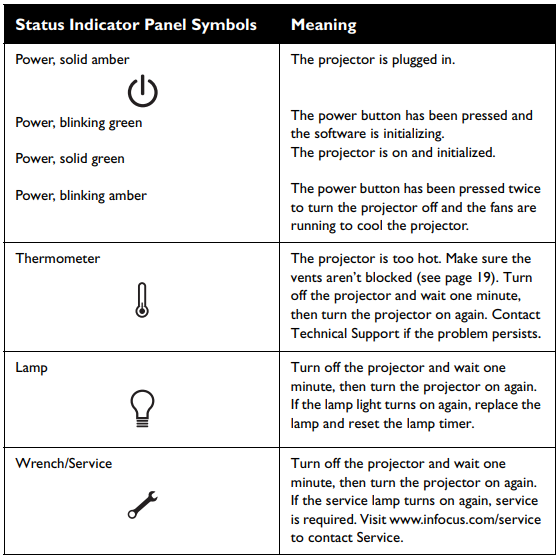
Still having problems
If you need assistance, visit the Service and Support section of our website or call us. This product is backed by a limited warranty. An extended warranty plan may be purchased from your dealer. When sending the projector in for repair, we recommend shipping the unit in its original packing material or having a professional packaging company pack the unit. Please ensure your shipment is for its full value.
Using the keypad buttons
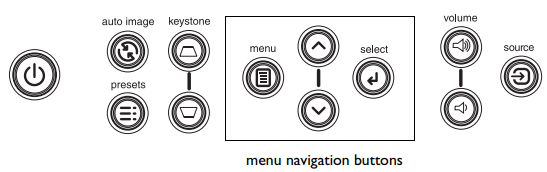
Most buttons are described in detail in other sections, but here is an overview of their functions.
- Power turns the projector on (page 7) and off (page 12).
- menu–opens the on-screen menus (page 24).
- select–confirms choices made in the menus (page 24).
- up/down arrows–navigate to and adjust settings in the menus (page 24).
- auto image–resets the projector to the source.
- presets–cycles through the available preset settings (page 26).
- Keystone adjusts the squareness of the image (page 8). You can also adjust the keystone via the menus. See page 25.
- volume–adjusts sound (page 22).
- source–changes the active source.

Remote control
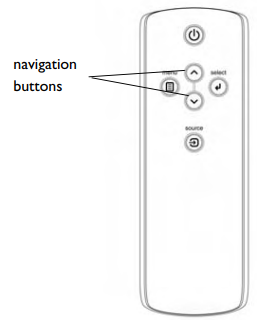
The remote uses two (2) provided AA batteries. They are easily installed by sliding the cover off the remote’s back, aligning the + and – ends of the batteries, sliding them into place, and then replacing the cover. Caution: When replacing the batteries, be aware that using batteries other than the type provided with the projector may risk severe damage to the remote. When disposing of the batteries, be sure to do so in an environmentally proper manner.
To operate, point the remote at the front of the projector (not at the computer). The range of optimum operation is about 15 feet (4.5m). Press the remote’s Power button to turn the projector on and off (see page 12 for shutdown info). Press the remote’s Menu button to open the projector’s menu system. Use the arrow buttons to navigate, and the Select button to select features and adjust values in the menus. See page 24 for more info on the menus.
The remote also has a Source button to switch between sources. If you connect the USB portion of the M1-DA computer cable (page 5), you can use the up and down arrow navigation buttons to advance slides in a PowerPoint presentation.
Troubleshooting The Remote
- Make sure the batteries are installed in the proper orientation and are not dead.
- Make sure you’re pointing the remote at the projector or the screen, not the computer, and are within the remote range of 15 feet (4.5m). For best results, point the remote at the projector.

Specifications
To read the latest specifications on your multimedia projector, be sure to visit our website at www.infocus.com, as specifications are subject to change.
Troubleshooting
If there is no sound, check the following:
- Make sure the audio cable is connected.
- Make sure mute isn’t active.
- Make sure the volume is turned up enough. Press the Volume button on the keypad.
- Adjust the audio source.
- If playing a video, make sure the playback has not been paused.

Connecting external speakers
The projector can be attached to external speakers that have their own power source by plugging a speaker cable into the projector’s Audio Out connector.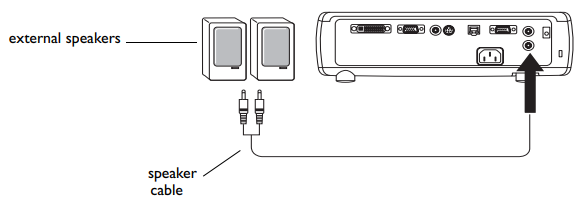
Optimizing computer images
After your computer is connected properly and the computer’s image is on
the screen, you can optimize the image using the onscreen menus. For general information on using the menus, see page 24.
- Adjust the Keystone, Contrast, or Brightness in the Picture menu.
- Change the Aspect Ratio. See page 25 for details.
- Adjust the Color Space, Temperature,e or Control in the Advanced menu. Adjust the Phase, Tracking, or Horizontal or Vertical position in the Advanced menu.
- Once you have optimized the image for a particular source, you can save the settings using Presets. This allows you to quickly recall these settings later. See page 26.
Presentation features
Several features are provided to make giving presentations easier. The following is an overview;w, details are found in the menu section on page 24.
- The Custom key, available on several optional remotes only, allows you to assign various features to the button. See page 30 for details.
- The Startup Logo menu option lets you change the default startup screen to a black, white, or blue screen. See page 29.
- Two menu options, Power Save and Screen Save, are provided to automatically shut down the projector after several minutes of inactivity or display a blank screen. This helps preserve lamp life. See page 29.
Optimizing video images
After the video device is connected properly and the image is on the screen, you can optimize the image using the onscreen menus. For general information on using the menus, see page 24.
- Adjust the Keystone, Contrast, Brightness, Color, or Tint in the Picture menu. See page 25.
- Change the Aspect ratio. Aspect ratio is the ratio of the image width to the image height. TV screens are usually 1.33:1, also known as 4:3. HDTV and most DVDs are 1.78:1, or 16:9. Choose the option that best fits your input source. See page 25.
- Select a Sharpness, Color Temperature, or Video Standard setting. See page 27.
- Adjust the Color Control or White Peaking settings. See page 27.
Customizing the projector
You can customize the projector for your specific setup and needs. See
pages 28 to 32 for details on these features.
- For rear projection, turn Rear mode on in the Settings>System menu.
- For ceiling-mounted projection, turn Ceiling mode on in the Settings>System menu.
- Specify which source the projector checks first for active video during power-up.
- Specify the function of the Custom Key on the optional remote.
- Turn the projector’s display messages on and off.
- Turn on power saving features.
- Specify blank screen colors and startup logos.
- Specify the menu language.
- Control your projector using RS-232 commands. See page 6.
Using the menus
To open the menus, press the Menu button on the keypad or remote. (The menus automatically close after 60 seconds if no buttons are pressed.) The Main menu appears. Use the arrow buttons to move up and down to highlight the desired submenu, then press the Select button. To change a menu setting, highlight it, press Select, then use the up and down arrow buttons to adjust the value, select an option using radio buttons, or turn the feature on or off using check boxes.
Press Select to confirm your changes. Use the arrows to navigate to another setting. When your adjustments are complete, navigate to Exit, then press Select to go to the previous menu; press the Menu button at any time to close the menus. Dots appear before the menu name. The number of dots indicates the menu’s level, ranging from one (the Main menu) to four (the most nested menus).
The menus are grouped by usage.
- The Picture menu provides image adjustments.
- The Settings menu provides setup type adjustments that are not often changed.
- The Source Info menu provides a read-only display of information about the projector and source.
Certain items will be grayed out or hidden until a particular source is connected. For example, Color is only available for video sources and will be hidden when a computer source is active. Other menu items may be grayed out when they are not available. For example, Brightness is grayed out until an image is active.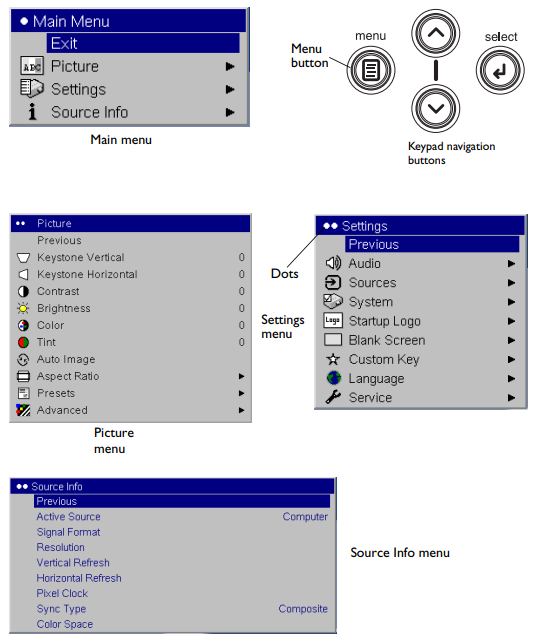
Picture menu
To adjust the following six settings, highlight the setting, press Select, use the up and down arrows to adjust the values, then press Select to confirm the changes. Keystone Vertical: adjusts the image vertically and makes a square image. You can also adjust the keystone from the keypad. Keystone Horizontal: adjusts the image horizontally and makes a square image.
Contrast: controls the degree of difference between the lightest and darkest parts of the picture and changes the amount of black and white in the image. Brightness: changes the intensity of the image. Color: (video and component sources only) adjusts a video image from black and white to fully saturated color. Tint: (NTSC video sources only) adjusts the red-green color balance in the image. Auto Image: resets the projector to the source.Aspect Ratio: Aspect ratio is the ratio of the image width to image height. TV screens are usually 1.33:1, also known as 4:3. HDTV and most DVDs are 1.78:1, or 16:9. The default is 4:3, which displays the input resized up or down to fill the display area. The 15:9 option is only available on the WXGA version. The aspect ratio selection is saved for each source.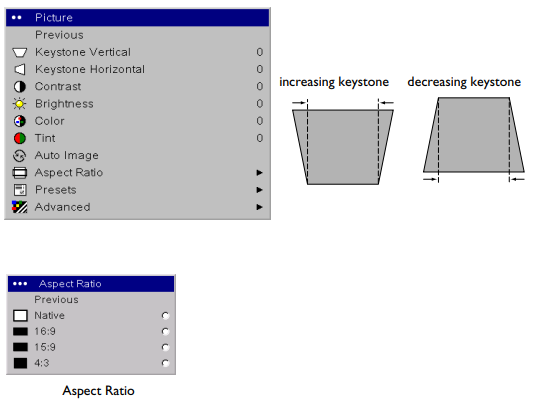
Presets: Presets are provided that optimize the projector for displaying computer presentations and video images in different lighting conditions and on different backgrounds. There are also user-definable presets. To set a preset for the current source, adjust the image, select Save Settings in the Presets menu, then select Save User 1 (or 2 or 3). You can recall these settings in the future by selecting the User 1 preset. If you make any adjustments to the image, Presets Off will automatically be selected in the Preset menu to indicate changes have been made. To restore the factory default settings, choose Factory Reset in the Settings>Service menu.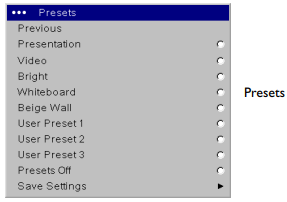
Advanced Settings
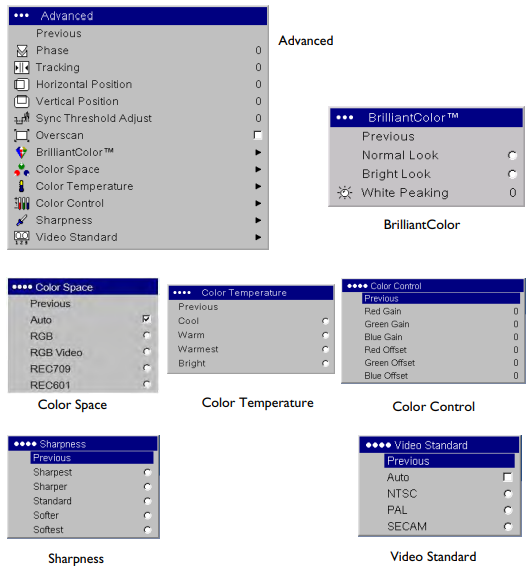
The following 4 options are for computer and component sources only. Phase: adjusts the horizontal phase of a computer source. Tracking: adjusts the vertical scan of a computer source. Horizontal/Vertical Position: adjusts the position of a computer source. Sync Threshold Adjust: (enhanced and high definition sources only) If a hardware device, such as a DVD player, is not syncing properly with the projector, select this option to help it sync.
Overscan: removes noise around the video image. BrilliantColor™: produces an expanded on-screen color spectrum that delivers enhanced color saturation for bright, true-to-life images. Choose Normal Look for most video sources and Bright Look for most computer sources. White Peaking: adjusts the white level processed in the image. It increases the brightness of whites that are near 100%. Color Space: This option applies to computer sources. It allows you to select a color space that has been specifically tuned for the video input. When Auto is selected, the projector automatically determines the standard. To choose a different setting, turn off Auto, then choose RGB for computer sources, and choose either REC709 or REC601 for component sources.
 Settings menu
Audio: allows adjustments to the volume and balance, and turns the projector’s startup Chime on and off. Sources: allows you to assign a particular input to a specific source key when using an optional remote. Also allows selection of a default Power-up Source and enables or disables Autosource. Sources>Power-up Source: this determines which source the projector checks first for active video during power-up.
To display another source, you must manually select one by pressing the Source button on the remote or keypad. This cycles through all the sources that are selected in the Source Enable menu. System>OSD Offset: allows you to change the position of the On Screen Display items.
Rear: reverses the image so you can project from behind a translucent screen. Ceiling: turns the image upside down for ceiling-mounted projection. Low Power: Turn this on to lower the light output of the lamp. This also lowers the fan speed, making the projector quieter. This allows control of ceiling-mounted projectors with a wall power switch.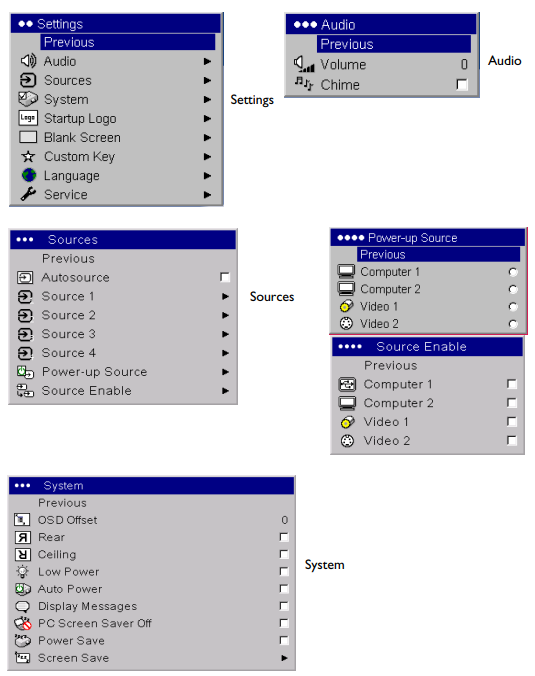
PC Screen Saver Off: prevents your computer from going into Screen Saver mode. Power Save: automatically turns the lamp off after no signals are detected for 20 minutes. After 10 additional minutes with no signal, the projector powers down.
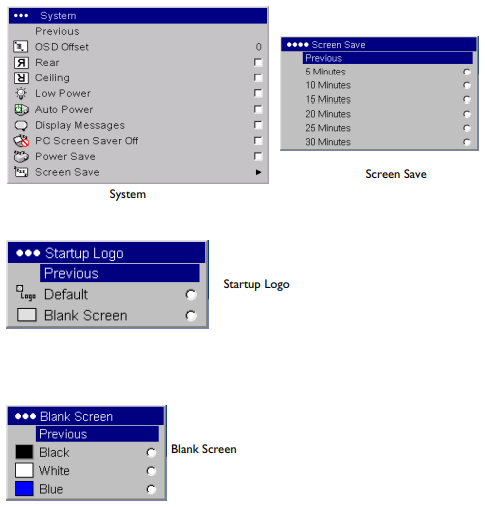
Custom Key
(for use with optional remote only): allows you to assign a different function to the Custom button on the remote to quickly and easily use the effect. Only one effect can be enabled at a time. Highlight an effect and press Select to choose a different one. The default effect is About.
- Blank: displays an empty screen.
- Mute: turns off all sound.
- Aspect Ratio: toggles among 4:3, 16:9, and Native (see page 25).
- Source: cycles through available sources.
- Auto Image: resets the projector to the source (page 20).
- Freeze: pauses the projected image.
- Source Info: the default effect. It opens a window with a projector and source information.
- Source 4: selects Source 4.
- Service Info: opens a window with the projector and source information.
- Language: allows you to select a language for the onscreen display of menus and messages.
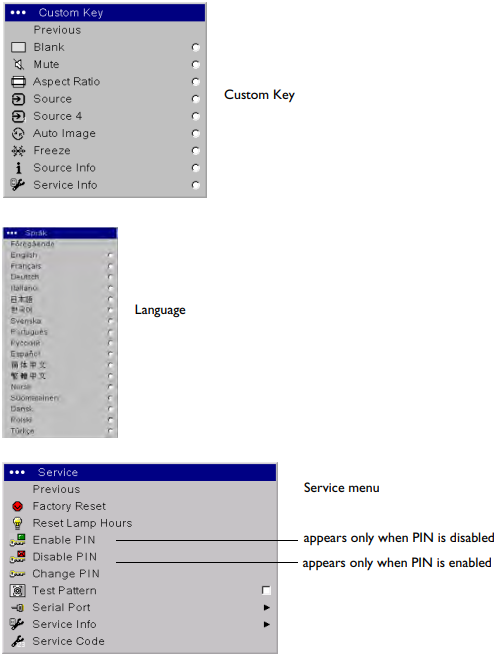
Service: to use these features, highlight them and press Select. Factory Reset: restores all settings (except Lamp Hours) to their default after displaying a confirmation dialog box. Reset Lamp Hours: resets the lamp hours counter in the Service Info menu to zero. Do this only after changing the lamp. It displays a confirmation dialog box.
PIN feature
The PIN (personal identification number) feature allows you to password-protect your projector. Once you enable the PIN feature, you must enter the PIN before you can project an image. To use this feature, you must register your projector at www.infocus.com/ register and follow the instructions there to get a default PIN. The PIN consists of a sequence of 5 navigation button presses.
The navigation buttons are menu, select, up arrow, and down arrow. Once you have this PIN, select Enable PIN in the Service menu. The Enter PIN dialog box appears. Use the navigation buttons on the remote or keypad to enter the correct button press sequence.
To enter the PIN at projector startup
Power up the projector. The “Enter PIN” dialog box appears after the startup screen. Enter the PIN. Use the navigation buttons on the remote or keypad to enter the correct button press sequence. See the description above for instructions. If you lose or forget your PIN, go to www.infocus.com/pin.
To change the PIN
Select “Change PIN” in the Service menu. Enter the existing PIN. Enter the new PIN. You can navigate between OK and Cancel by pressing the up and down buttons on the keypad. Select OK or Cancel by pressing the Select button. Verify the new PIN.
To reset the PIN back to the default
Power up the projector. After the “Enter PIN” dialog box appears, press and hold the Select button down for 10 seconds. Enter the default PIN to use the projector. If you lose or forget your default PIN, go to www.infocus.com/pin.
Maintenance
Cleaning the lens
- Apply a non-abrasive camera lens cleaner to a soft, dry cloth. Avoid using an excessive amount of cleaner, and don’t apply the cleaner directly to the lens. Abrasive cleaners, solvents, or other harsh chemicals might scratch the lens.
- Lightly wipe the cleaning cloth over the lens in a circular motion. If you don’t intend to use the projector immediately, replace the lens cap.
Using the security lock
The projector has a security lock for use with a cable lock system. Refer to the information that came with the lock for instructions on how to use it.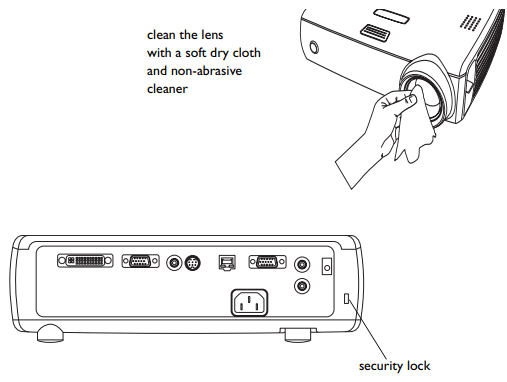
Replacing the projection lamp
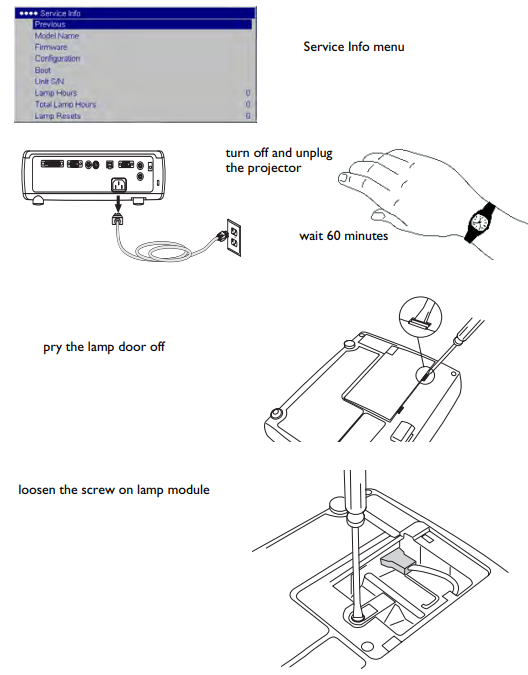
The lamp hour timer in the Service Info menu counts the number of hours the lamp has been in use. Twenty hours before the specified end of the lamp’s life, the message “Replace lamp” briefly appears on the screen at each startup.
- Turn off the projector and unplug the power cable.
- Wait 60 minutes to allow the projector to cool thoroughly.
- Turn the projector upside down and remove the lamp door by placing a flat-blade screwdriver into the space between the lamp door and the projector and gently prying the door off.
- Loosen the captive screw on the lamp module.
-
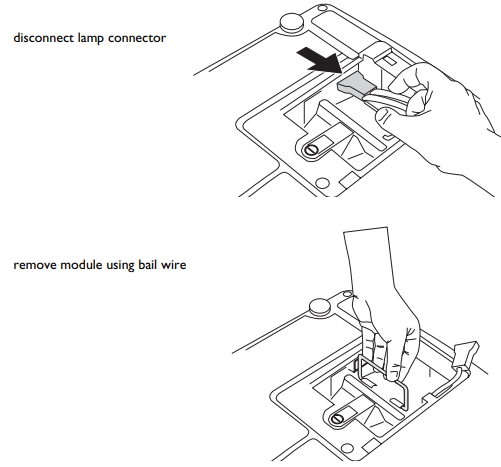
- Carefully remove the lamp module by grasping and lifting the metal bail wire. Dispose of the lamp in an environmentally proper manner.
- Install the new lamp module, making sure that it is properly seated. Be careful not to touch the interior components of the projector.
- Snap the bail wire back into its flat position against the lamp module.
- Re-attach the lamp connector to the projector. Make sure the connector is fully inserted.
- Tighten the screw on the lamp module.
- Replace the lamp door.
- Plug in the power cable, then press the Power button to turn the projector back on, and then reset the lamp hour timer.
Customer Support
- Website:https://infocus.com/