

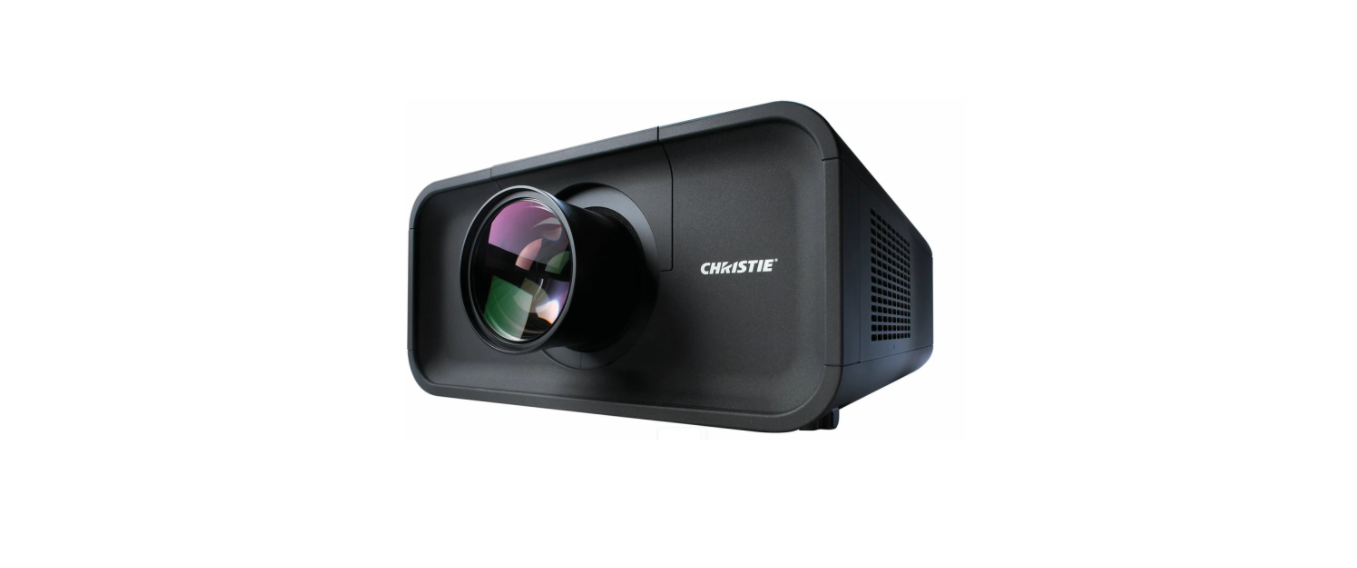

CHRISTIE LHD700 3LCD Full HD Digital Projector
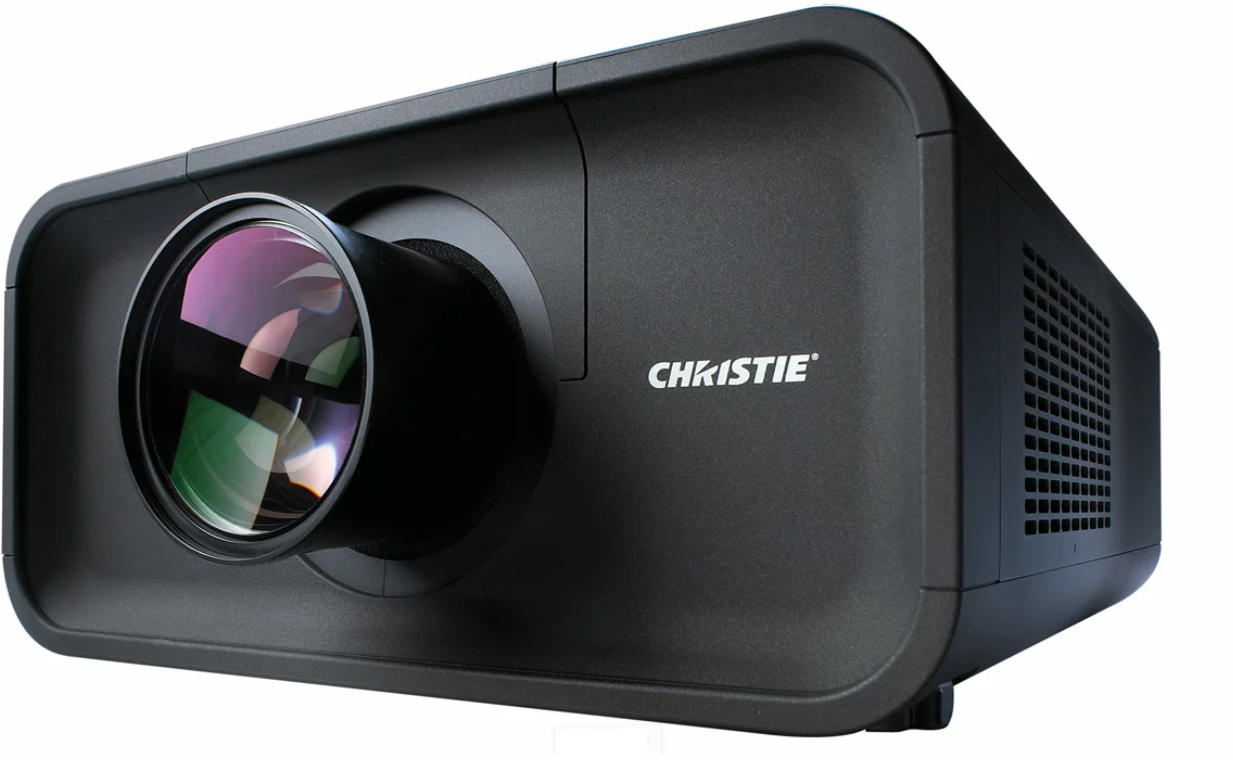
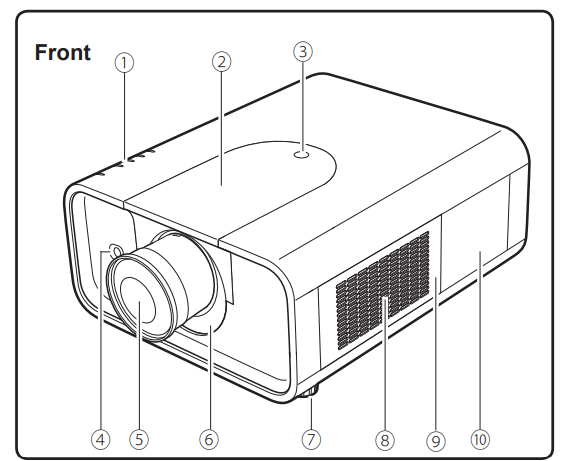
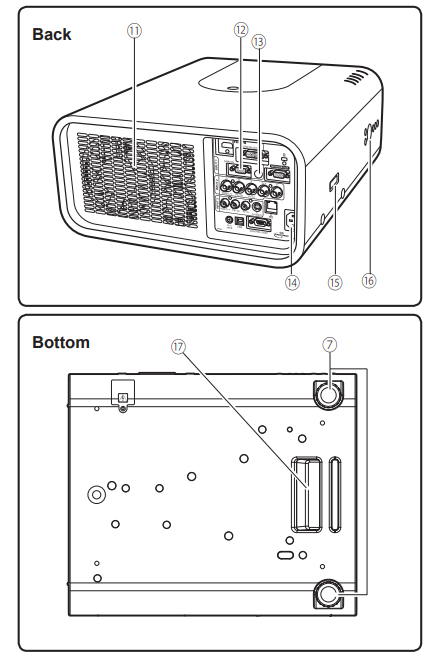
Part Names and Functions
- Indicators
- Top Cover
- Top Cover Release Button
- Infrared Remote Receiver (Front)
- Projection Lens (optional)
- Light-Block Sheet
- Adjustable Feet
- Air Intake Vent
- Filter Cover
- Lamp Cover

- Exhaust Vent
- Terminals and Connectors
- Infrared Remote Receiver (Back)
- Power Cord Connector
- Optional Parts Attachment
- Side Controls
- Hand Grip

Rear Terminal
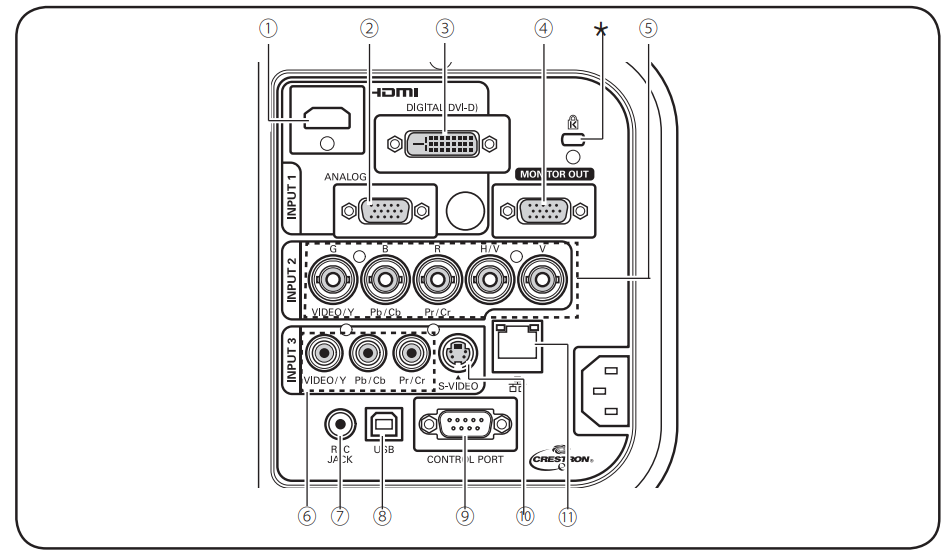
- Hdmi Terminal Connect the Hdmi Signal from Video Equipment or the Dvi Signal from the Computer to
- This Terminal (Pp.20, 21). HDI is a Registered Trademark of HDMI Licensing, LLCc.
- Computer Input Terminal (Analog) Connect the Computer (or RGB Scart) Output Signal to This
- Terminal (Pp.20, 21).
- Computer Input Terminal (Digital) Connect the Computer Output Digital Signal to This Terminal. the Hdtv (Hdcp Compatible) Signal Can Also Be Connected (Pp.20, 21).
- Monitor Out Terminal. This Terminal Can Be Used to Output the Incoming AnalogRGBb Signal from the Put 1-3 Terminals to the Other Monitor (Pp.20, 21).
BNC Input Jacks Connect the Component or Composite Video Output Signal from Video Equipment to - Video/y, Pb/cb, and Pr/cr Jacks or Connect the Computer Output Signal (5 Bnc Type [Green, Blue, Red, Horiz. Sync, and Vert. Sync.]) to G, B, R, H/v, and V Jacks (Pp.20, 21).
- Video Input Jack: Connect the Component or the Composite Video Output Signal from Video Equipment to These Jacks (P.21).
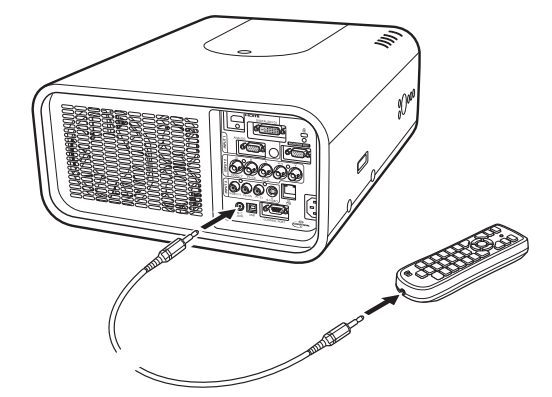
R/c Jack When Using the Wired Remote Control, Connect the Wired Remote Control to This Jack with a - Remote Control Cable (Not Supplied) (P.15).USBb Connector (Series B) Use This Connector When Controlling a Computer with the Remote Control of the Projector. Connect the Usb Terminal of Your Computer to This Connector with a Usb Cable (P.20).
- Control Port Connector When Controlling the Projector with RS-232C, Connect the Control Equipment to This Connector with the Serial Control Cable (P.20).
- S-Video Input Jack Connect the S-Video Output Signal from Video Equipment to This Jack (P.21). I Lan
- Connection Terminal: Connect the LAN cable (Refer to the User Manual of “Network Set-Up and Operation”).
Remote Control
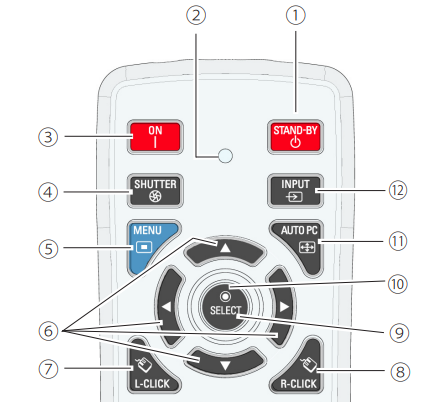
- STAND-BY button:: Turn the projector off (p.24).
- SIGNAL EMISSION indicator: Light red while a signal is being sent from the remote control to the projector.
- ON button Turn the projector on (p.23).
- SHUTTER button: Close and open up the built-in shutter (pp.27, 28).
- MENU button: Open or close the On-Screen Menu (p.25).
- POINT A V 4> buttons
- Select an item or adjust the value in the On-Screen Menu (p.25).
- Pan the image in Digital zoom + mode (p.44).The The The
- L-CLICK button acts as the left mouse button for wireless mouse operation (p.31).
- R-CLICK buttoactssct as the right mouse button for wireless mouse operation (p.31).
- SELECT button – Execute the selected item (p.25). – Expand or compress the image in the Digital zoom mode (p.44).
- MOUSE POINTER button Move the pointer of the projector or the pointer for wireless mouse operation (p.31).
- AUTO PC button:: Automatically adjust the computer image to its optimum setting (pp.28, 36).

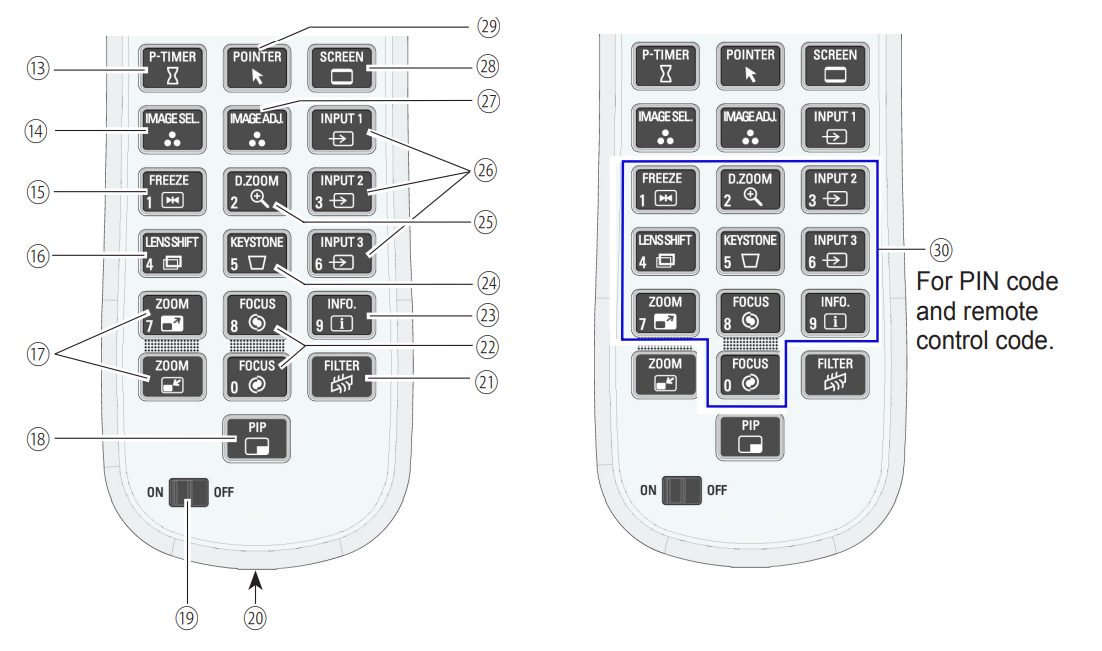
Remote Control Battery Installation
- Open the battery compartment lid.
- Install new batteries in the compartment.
- Replace the samnormont lin

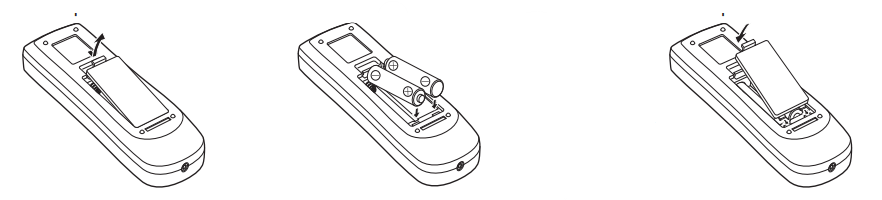
Remote Control
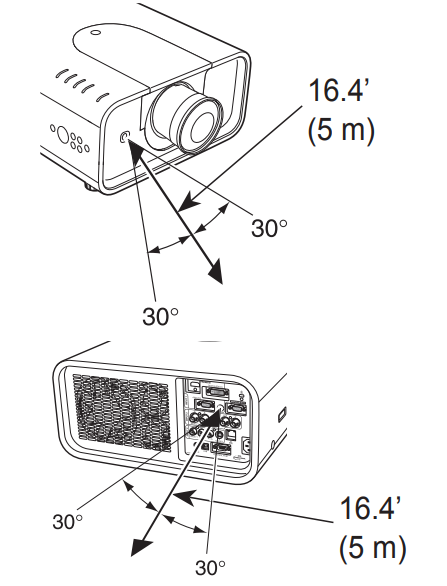
Point the remote control toward the projector (to the Infrared Remote Receivers) when pressing the buttons. The maximum operating range for the remote control is about 16.4’ (5 m) and 60 degrees in front, back, and top of the projector.
Infrared Remote Receivers are provided in front, back, and top of the projector. You can conveniently use all of the receivers (pp. 10, 11, 62)
Press and hold the MENU and a number button (1-8) for more than five seconds to switch among the codes. To reset the remote control code, press and hold the MENU and the number button 0 for more than five seconds.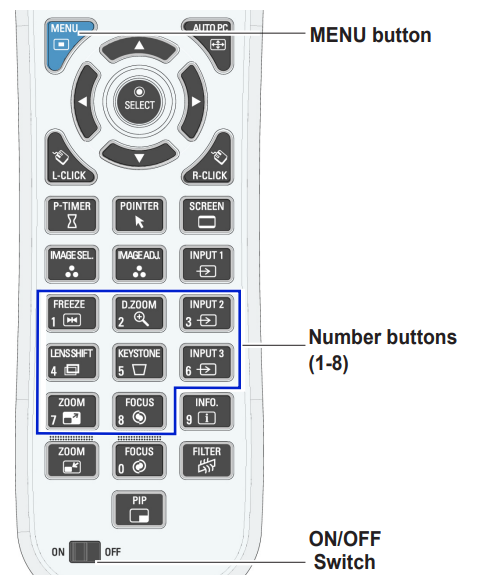
Press and hold the MENU and a number button (1-8) that corresponds to the remote control code for more than five seconds to switch among the codes
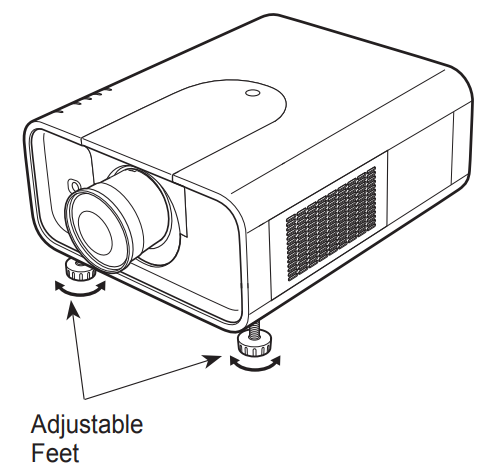
Adjustable Feet
The projection angle can be adjusted up to 6.5 degrees with the adjustable feet. Rotate the adjustable feet and tilt the projector to the proper height; to raise the projector, rotate both feet clockwise. To lower the projector or to retract the adjustable feet, rotate both feet counterclockwise. To correct keystone distortion, press the KEYSTONE button on the remote control or select Keystone from the menu (see pages 14, 30, 45, 52).
Installation
When replacing the lens or using an optional lens, install the lens by following the instructions below. Ask the sales dealer for detailed information on the optional lens specifications.
Removing the lens
- Shift the lens to the center position by using the Lens shift function (p. 27).
- Turn off the projector and unplug the AC power cord.
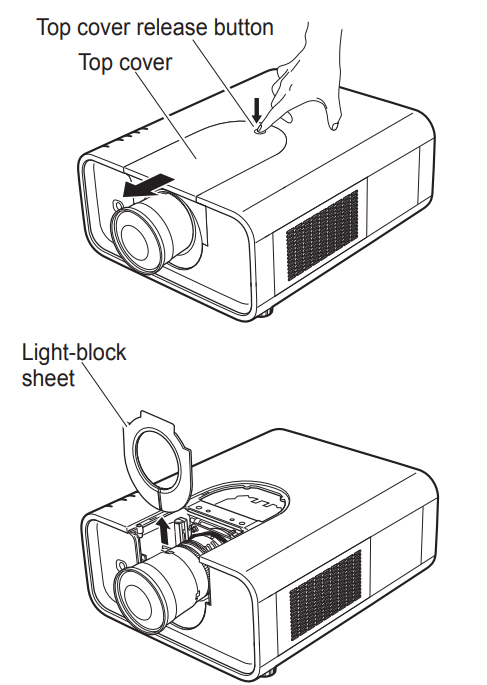
- While pressing the top cover release button on the top cover, slide the top cover toward the front to remove it.
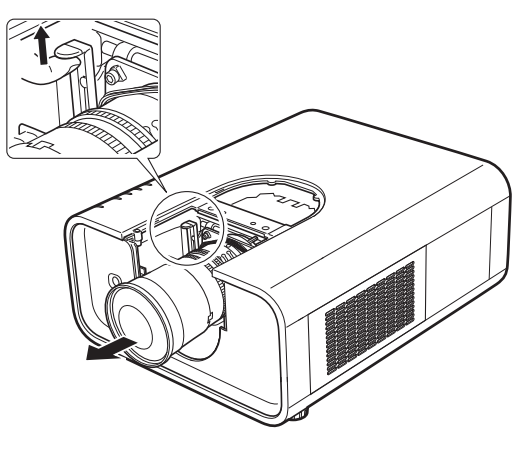
- Hold the lens with one hand and pull the Lens Lock Lever upward with the other hand. Remove the lens from the projector. *Do not touch the glass part of the lens with your hand
Attaching the lens to the projector
- Turn off the projector and unplug the AC power cord.
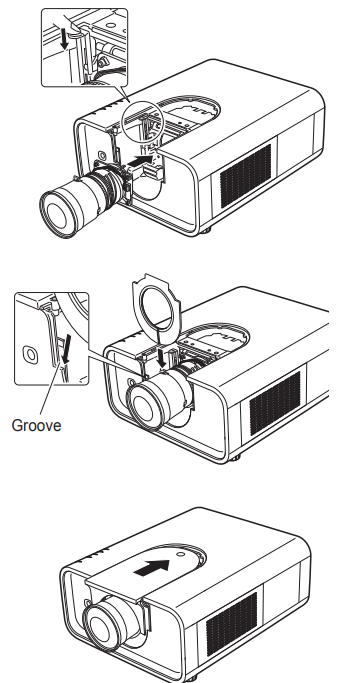
- Fit the lens to the projector. Make sure that the lens is fully inserted into the projector.
- Push the Lens Lock Lever downward. Make sure that the lens is properly locked.
- Slide the light-block sheet in the groove to mount.
- While pressing the top cover release button on the top cover, slide the top cover back to the projector.
Focus correction
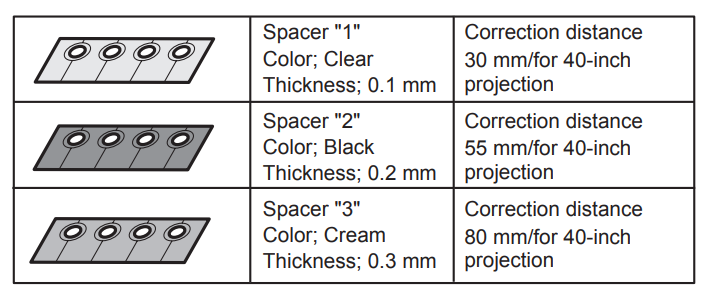
When the lens is attached to the projector and images are being projected onto the screen, the peripheral focus may be out of focus in some localized areas. If this happens, insert one of the three sizes of spacers between the Lens Attachment and the lens to adjust the focus. Inserting the Spacer corrects the distance on the Lens Adjustment and improves the diagonal focus. The corrected distance is determined by the thickness of the used spacers. As a guide, the distance is adjusted by approximately 30 mm for each 0.1 mm ofm thickness of the spacers. There are three types of spacers provided, and there are four of each spacer type. Use these spacers to correct the distance as required.
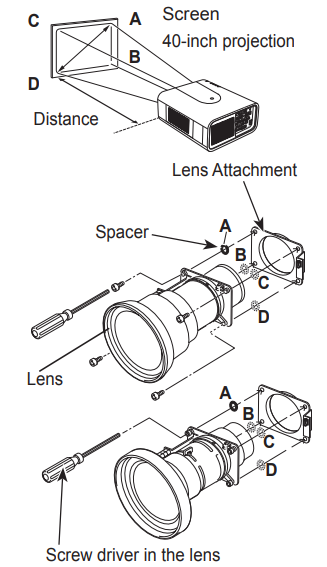
Focus adjustment
103-140106-01
Set up the projector and project the image on the screen.
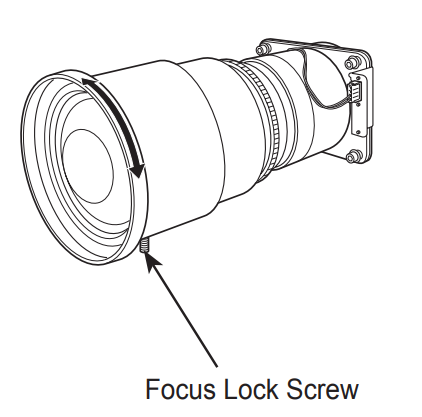
- Adjust the focus to make the center area sharpest by using the focus adjustment of the projector. When the peripheral focus is out of focus in some localized areas, proceed to the following adjustments.
- Loosen the Focus Lock Screw of the lens. (Turn the Focus Lock Screw counterclockwise.)
- Rotate the lens to obtain proper focus on the outer area of the screen.
- Lock the Focus Lock Screw securely. (Turn the Focus Lock Screw counterclockwise.) If proper focus is not observed on the entire screen, repeat the above adjustment 1~ 4.
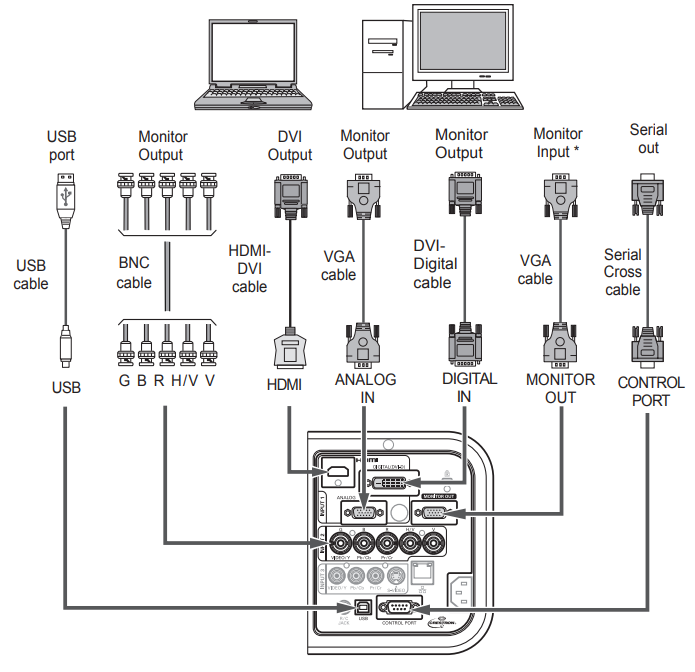
Connecting to a Computer (Digital and Analog RGB)
- VGA Cable
- DVI-Digital cable
- HDMI-DVI cable
- BNC cable
- Serial Cross cable
- USB cable
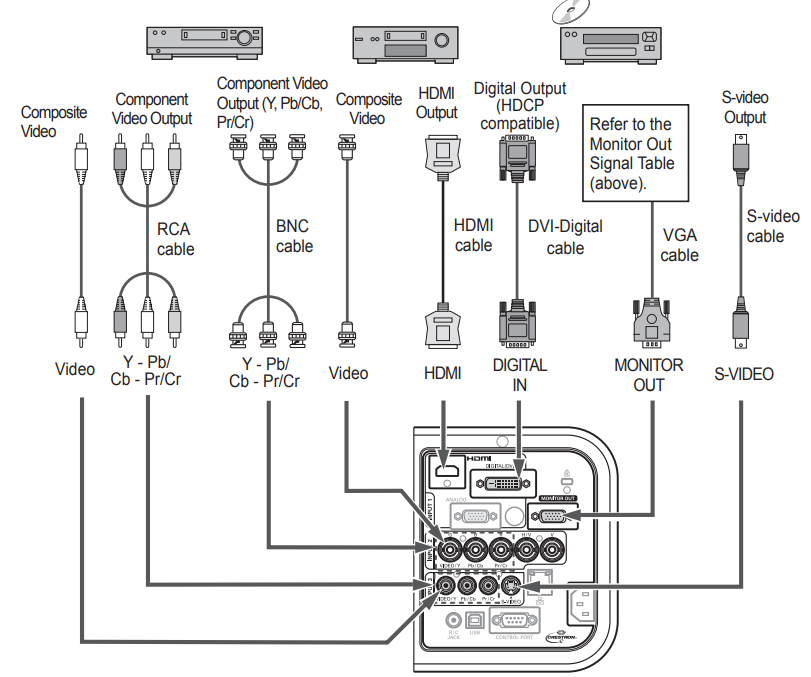
Connecting to Video Equipment (Video, S-video, HDMI)
Cables used for connection ( = Cables not supplied with this projector.)
- Video cable (RCA x 1 or RCA x 3)
- BNC cable (BNC x 1 or BNC x 3)
- S-video cable
- HDMI cable
- VGA Cable
- One cable is supplied.)
- DVI-Digital cable
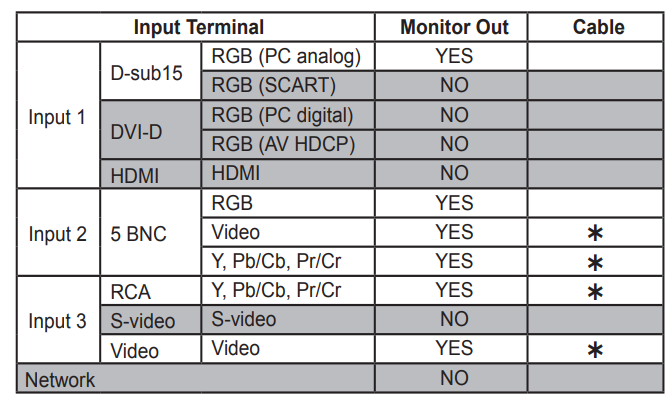
Monitor Out Signal Table
Connecting the AC Power Cord
This projector uses nominal input voltages of 100–240 V AC, and it automatically selects the correct input voltage. It is designed to work with single-phase power systems having a grounded neutral conductor. To reduce the risk of electrical shock, do not plug into any other type of power system.
If you are not sure of the type of power being supplied, consult your authorized dealer or service center. Connect the projector with all peripheral equipment before turning on the projector.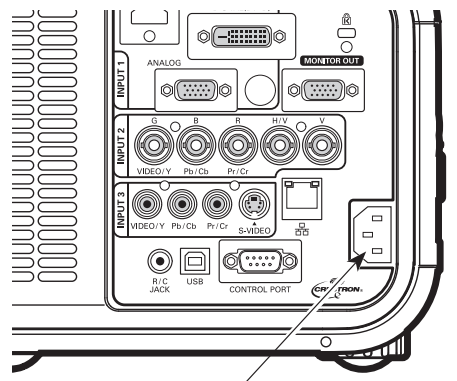
Basic Operation
Turning On the Projector
- Complete peripheral connections (with a computer, VCR, etc.) before turning on the projector.
- Connect the projector’s AC power cord to an AC outlet. The LAMP/SHUTTER indicator lights red, and the POWER indicator lights green.
- Press the ON/STAND-BY button on the side control or the ON button on the remote control. The LAMP/ SHUTTER indicator dims,s and the cooling fans start to operate. The preparation display appears on the screen, and the countdown starts.
- After the countdown, the input source that was selected the last time and the Lamp control status icon (see page 61) appear on the screen. If the projector is locked with a PIN code, the PIN code input dialog box will appear.
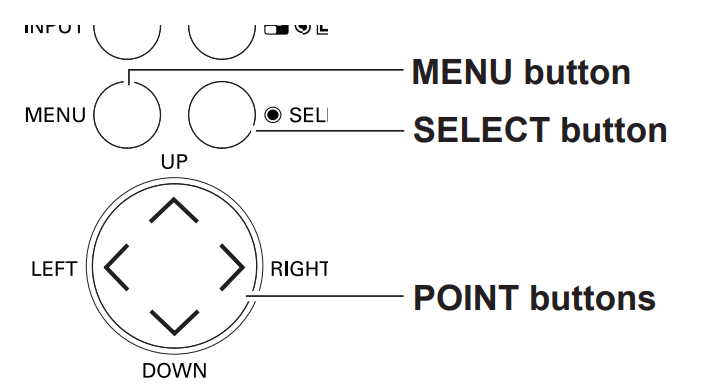
Side Control
Remote Control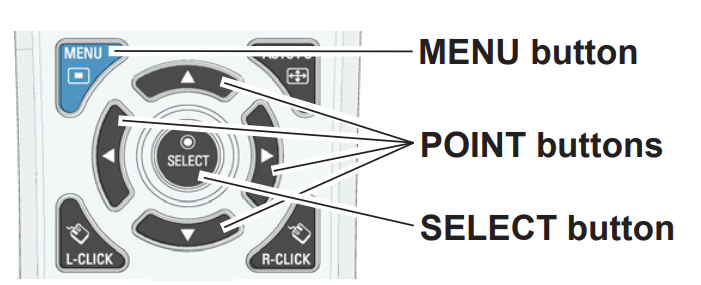
On-Screen Menu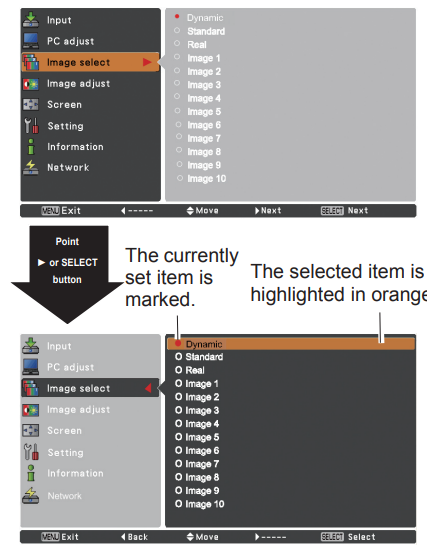
Main Menu
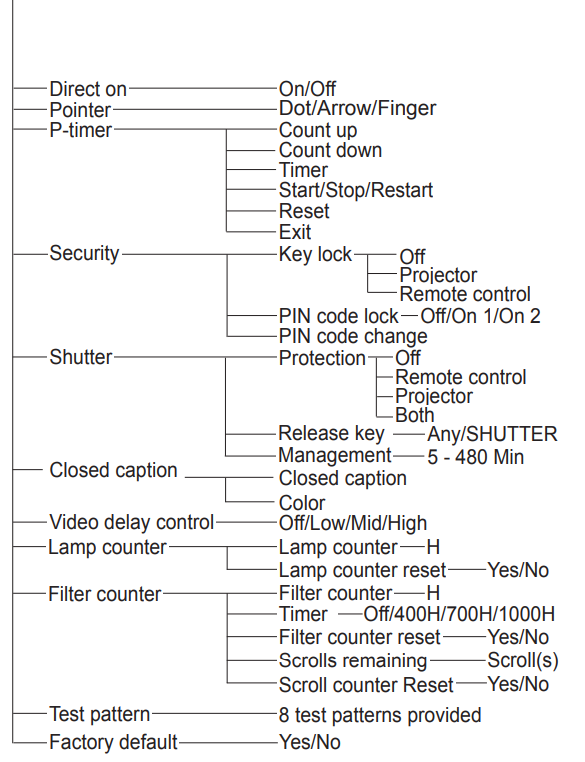
For detailed functions of each menu, see “Menu Tree” on pages 81-83.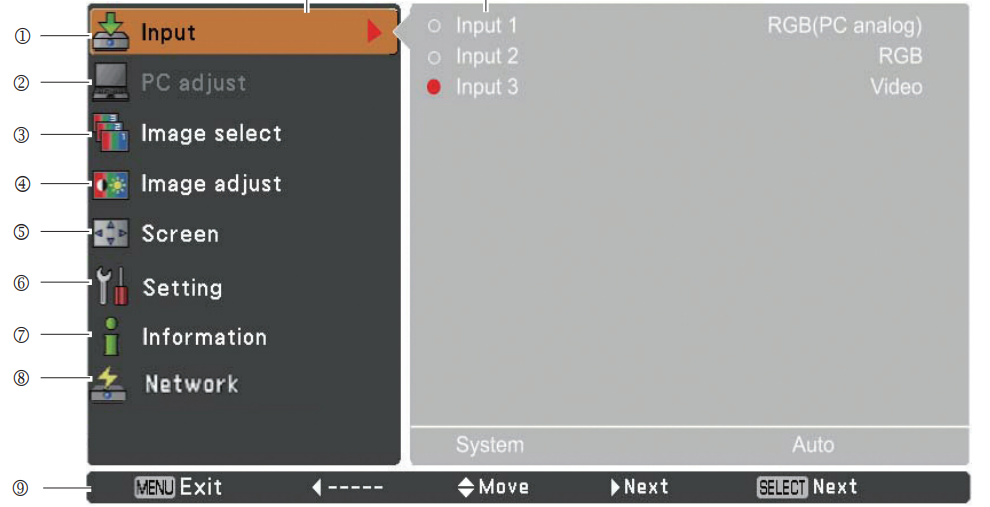
- Input Used to select an input source (Input 1, Input 2, Input 3, or Network) (p.32). Note: The network will not be displayed when the optional Network unit is not attached. @ PC adjust Used to adjust the parameters to match the input signal format (pp.36-38).
- Image select For computer source, used to select an image level among Dynamic, Standard, Real, and Image 1-10 (p.39). For Video source, used to select an image level among Dynamic, Standard, Natural, Cinema, and Image 1-10 (p.47).
- Image adjust for computer source, used to adjust the computer image. [Contrast/Brightness/Color management/Color temp./White balance (Red/Green/Blue)/Offset(Red/Green/Blue)/Auto picture control/ Advanced color/Sharpness/Gamma/Reset/Store] (pp.40-42). For a video or HDMI source, used to adjust the video image. [Contrast/Brightness/Color/Tint/Color management/Color temp./White balance (Red/Green/Blue)/Offset (Red/Green/Blue)/Auto picture control/Advanced color/Sharpness/Gamma/Noise Reduction/Progressive/Reset/Store] (pp.48-50).
- Screen for the computer source used to adjust the size of the image. [Normal/Full/Wide(16:9)/Zoom/True/ Custom/Custom adj./Digital zoom +/-/Keystone/Ceiling/Rear/Screen aspect/Reset) (pp.43-45). For a video or HDMi source, used to adjust the size of the image. [Normal/Full/Wide(16:9)/Zoom/Natural Wide/Custom/Custom adj./Keystone/Ceiling/Rear/Screen aspect/Reset] (pp. 51-52).
- Setting Used to set the projector’s operating configurations (pp.53-71).
- Information: Display the input source information: Input, System, H-sync freq., V-sync freq., Screen, Language, Lamp status, Lamp counter, Filter counter, Power management, Key lock, PIN code lock, Shutter management, Simple mode, Remote control, and SERIAL NO. (p.28).
- Network: See the user manual of “Network Set-up and Operation”.
Operating with Projector Control
Lens Operation
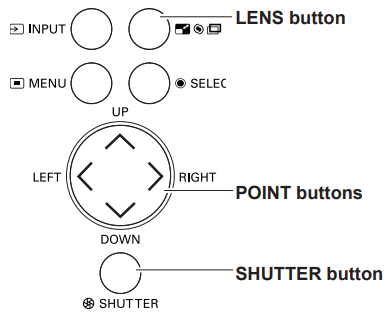
The following lens operation can be made with the LENS button on the side control. Press the LENS button to enter each lens operation mode. The selected adjustment display appears on the screen.
Side Control
Computer Input Source Selection
Menu Operation
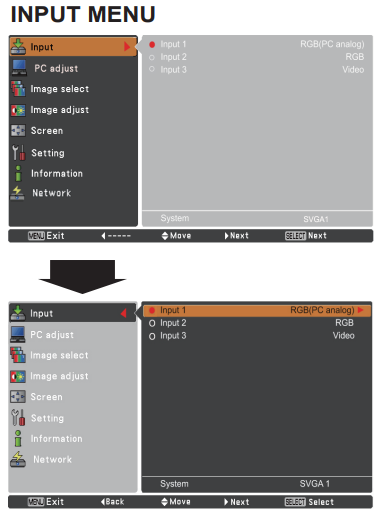
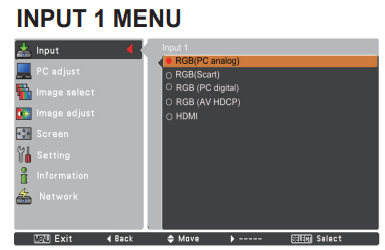
- Press the MENU button to display the On-Screen Menu. Use the Point ▲▼ buttons to select Input and then press the Point ► or the SELECT button.
- Use the Point ▲▼ buttons to select the desired input and then press the Point ► button to access the submenu items.
- Use the Point ▲▼ buttons to select the desired source and then press the SELECT button.

RGB(PC analog)
When your computer is connected to the INPUT 1 (ANALOG) terminal, select RGB (PC analog).
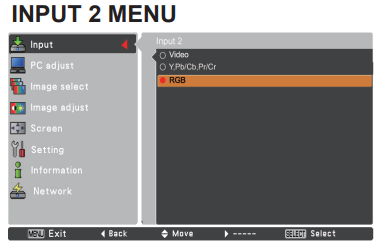
WHEN SELECTING INPUT 2
When connecting the computer output [5 BNC Type (Green, Blue, Red, Horiz. Sync, and Vert. Sync.)] from the computer to G, B, R, H/HV, and V jacks.
Video Input Source Selection
Menu Operation
- Press the MENU button to display the On-Screen Menu. Use the Point ▲▼ buttons to select Input and then press the Point ► or the SELECT button.
- Use the Point ▲▼ buttons to select the desired input and then press the Point ► button to access the submenu items.
- Use the Point ▲▼ buttons to select the desired source and then press the SELECT button.
RGB(Scart)
When SCART video equipment is connected to the INPUT 1 (ANALOG) terminal, select RGB (SCART).
HDMI
When the video signal is connected to the HDMI terminal, select HDMI.
Rgb(av Hdcp)
GB(AV HDCP) If the HDCP-compatible signal source is connected to the INPUT 1 (DIGITAL) terminal, select RGB (AV HDCP).
Video
When the video input signal is connected to the VIDEO jack, select Video. When the video input signal is connected to the Y-Pb/Cb-Pr/Cr jacks, select Y, Pb/ C b, P r/Cr.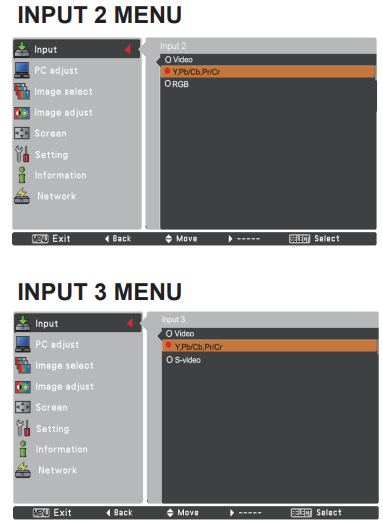
Computer System Selection
Automatic Multi-Scan System
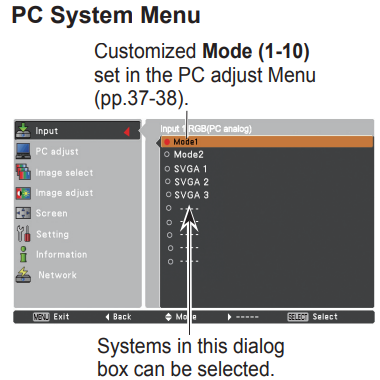
This projector automatically tunes to various types of computers with its Multi-scan system and Auto PC adjustment. If a computer is selected as a signal source, this projector automatically detects the signal format and tunes to project a proper image without any additional settings. (Signal formats provided in this projector are shown on pages 88-89)
- The preset system is manually adjusted in the PC adjust Menu. The adjusted data can be stored in Mode 1-10 (pp.37-38).
- PC Systems provided in this projector are chosen. The projector chooses a proper system provided in the projector and displays it.

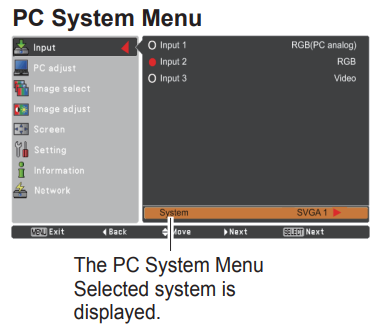
Selecting a Computer System ManuallyThe
PC system can also be selected manually.
- Press the MENU button to display the On-Screen Menu. Use the Point A V buttons to select Input and then press the Point • or the SELECT button.
- Use the Point A V buttons to select System and then press the Point • or the SELECT button.
- Use the Point A buttons to select the desired system and then press the SELECT button.

Auto PC Adjustment
Auto PC Adjustment function is provided to automatically adjust Fine sync, Total dots, Position H, and Position V to conform to your computer.
Direct Operation
The Auto PC adjustment function can be operated directly by pressing the AUTO PC button on the remote control.
Menu Operation
- Press the MENU button to display the On-Screen Menu. Use the Point A V buttons to select PC adjust and then press the Point • or the SELECT button.
- Use the Point A V buttons to select Auto PC adj. and then press the SELECT button.
To store the adjusted parameters
The adjusted parameters from the Auto PC Adjustment can be stored in the projector. Once the parameters are stored, the setting can be done just by selecting Mode in PC SYSTEM Menu (p.35). See “Manual PC Adjustment” on pages 37-38.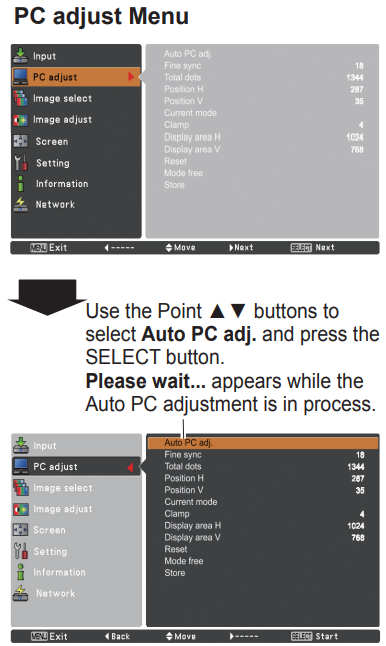 Manual PC Adjustment
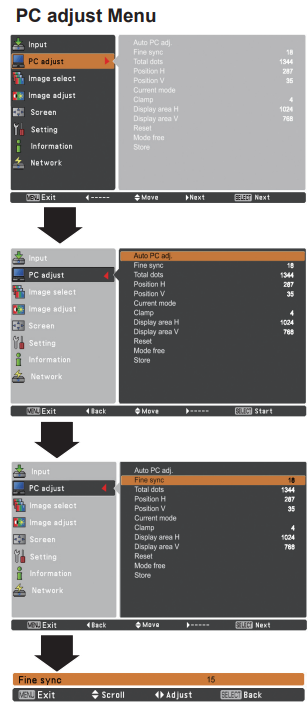
Some computers employ special signal formats that may not be tuned by the Multi-Scan system of this projector. Manual PC Adjustment enables you to precisely adjust several parameters to match those special signal formats. The projector has 10 independent memory areas to store those parameters manually adjusted. It allows you to recall the setting for a specific computer.
- Press the MENU button to display the On-Screen Menu. Use the Point ▲▼ buttons to select PC adjust and then press the Point ► or the SELECT button.
- Use the Point ▲▼ buttons to select the desired item and then press the SELECT button to display the adjustment dialog box. Use the Point ◄► buttons to adjust the setting value.

Reset
To reset the adjusted data, select Reset and press the SELECT button. A confirmation box appears, nd then select Yes. All adjustments will return to their previous figures.
Mode free
To clear the stored data, select Mode free and then press the Point ► or the SELECT button. Move the highlight to the Mode that you want to clear and then press the SELECT button.
Store
To store the adjusted data, select Store and then press the Point ► or the SELECT button. Move the highlight to one of the Modes 1 to 10 in which you want to store, and then press the SELECT button.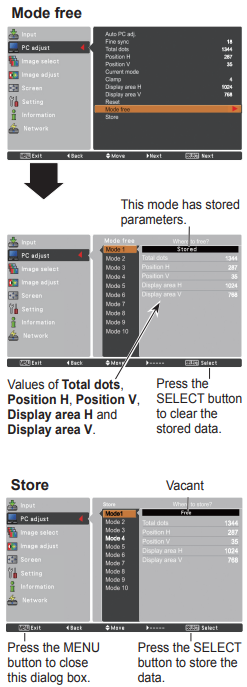
Image Level Selection
Direct Operation
The Image Selection function can be operated directly by pressing the IMAGE SEL. button on the remote control. The last stored image will be displayed on the screen for about 4 seconds.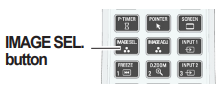
Menu Operation
- Normal picture level preset on the projector.
Picture level with improved halftone for graphics. - User preset picture adjustment in the Image Adjust menu. (pp.40-42) Image select Menu Press the MENU button to display the On-Screen Menu. Use the Point ▲▼ buttons to select Image select and then press the Point ► or the SELECT button. The factory default setting is Standard. Use the Point ▲▼ buttons to select the desired item and then press the SELECT button.
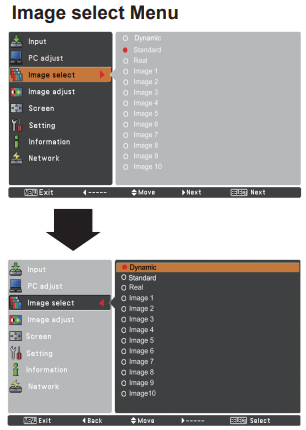
Image Adjustment
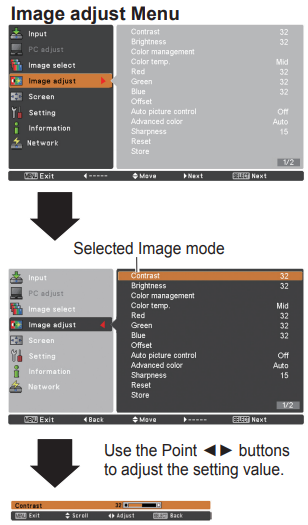
- Press the MENU button to display the On-Screen Menu. Use the Point A V buttons to select Image adjust and then press the Point • or the SELECT button.
- Use the Point A 7 buttons to select the desired item and then press the SELECT button to display the adjustment dialog box. Use the Point 4 > buttons to adjust the setting value.
Contrast
Press the Point ◄ button to decrease the contrast; press the Point ► button to increase the contrast (from 0 to 63).
Brightness
Press the Point ◄ button to decrease the brightness; press the Point ► button to increase the brightness (from 0 to 63).
Color management
The Color Management function can be used to adjust the LEVEL, PHASE, and GAMMA of the selected display colors (except for black, white, and gray) on the screen and replace these colors with other colors if required. You can store up to eight (8) color management data.
- Select and highlight Color Management by using the Point A V buttons and press the SELECT button. The projected image freezes, and the COLOR MANAGEMENT POINTER appears.
- Use the Point A V • buttons to move the pointer to the spot where you want to adjust the color and then press the SELECT button. The COLOR SELECTION window appears, and the color in the center of the pointer is selected, nd you can adjust the color.
- Use the Point A V 4> buttons to adjust the LEVEL and PHASE of the color, and then press the SELECT button to confirm the setting. Then use the Point A 7 buttons to adjust the GAMMA for the color and press the SELECT button to accept the setting. After adjusting, press the SELECT button to go to the COLOR MANAGEMENT LIST.
In the COLOR MANAGEMENT LIST, the adjusted color data are checkmarked. You can decide whether or not to apply the adjusted color data in the list to the projected image (see below).
Color Palette
Return to the COLOR SELECTION mode so that you can readjust the setting for the color in that line. (This option is not available if the check mark is cleared.)
Del
Select the DEL box if you want to delete the adjusted data. Press the SELECT button, and a confirmation box appears, and then select Yes.
All Del
Delete all the data in the list. Press the SELECT button, and a confirmation box appears, and then select Yes.
Munu
The same function as stated above.
Color M
The same function as stated above.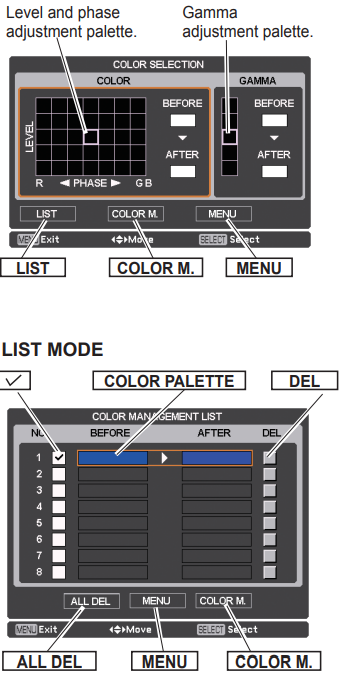
Offset (Red/Green/Blue))
Press the Point • button to lighten the red/green/blue tone of the black level of an image; press the Point • button to deepen the red/green/blue tone of the black level of an image.
Sharpness
Press the Point A button to decrease the sharpness of the image; press the Point • button to increase the sharpness of the image (from 0 to 31).
Gamma
Use the Point 4> buttons to adjust the gamma value to obtain a better balance of contrast (from 0 to 15).
Reset
To reset the adjusted data, select Reset and press the SELECT button. A confirmation box appears, and then select Yes. All adjustments will return to their previous figures.
Store
To store the adjusted data, select Store and press the Point • or the SELECT button. Use the Point A V buttons to select one from Image 1 to 10 and press the SELECT button. A confirmation box appears, and then select Yes. Stored data can be called up by selecting an Image (1-10) in the Image Level Selection on page 39.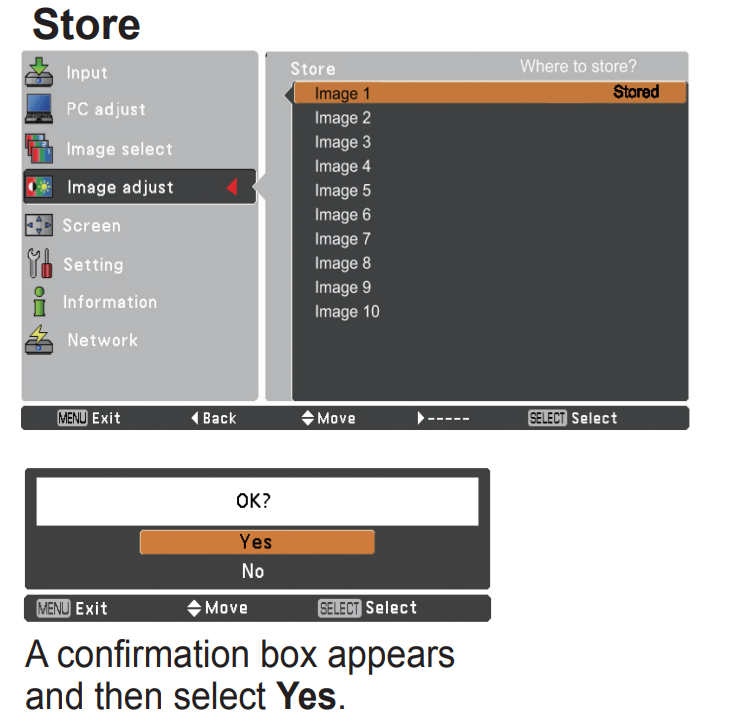
Screen Size Adjustment
Select the desired screen size that conforms to the input signal source.
- Press the MENU button to display the On-Screen Menu. Use the Point A V buttons to select Screen and then press the Point • or the SELECT button. See the Point A V butt,,ons select the desired item, and then press the SELECT button.
Normal
Provide the image within a screen size, keeping its original aspect ratio.
Full
Provide the image to fit the full screen size. Wide (16:9): Provide the image at the 16:9 wide screen ratio.
Zoom
Scale the image proportionally to fit the entire screen. Either side of the image may go over the screen.
True
Provide the image in its original size. When the original image size is larger than the screen size (1920 x 1080), the projector goes to the panning mode automatically. Use the Point A V 4• buttons to pan the image. When adjusted, the arrows will turn red. When reaching the correction limits, the arrows will disappear.
Custom
Provide the last stored aspect screen image.
Screen Menu
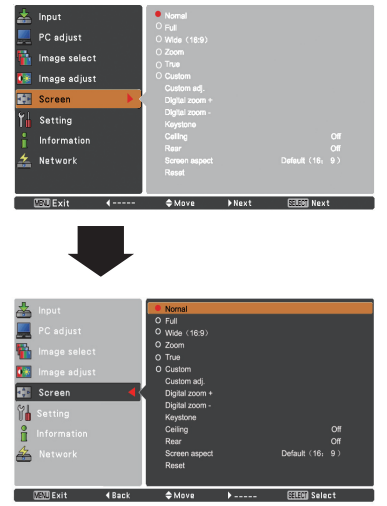
Computer Input
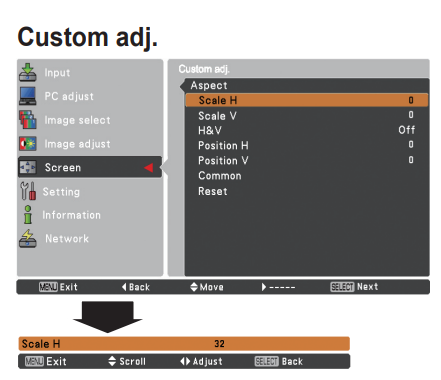
Custom adj.
Adjust the screen scale and position manually with this function. Press the Point • button or the SELECT button at Custom adj. and Custom adj. is displayed on the screen. You can use the Point A V buttons to choose the item you want to adjust.
- Scale H/V …….. Adjust the Horizontal/Vertical screen scale.
- H&V…. When set to On, the aspect ratio is fixed. Scale V appears dim and becomes unavailable. Adjust Scale H, and then the screen scale is automatically modified based on the aspect ratio.
- Position H/V … Adjust the Horizontal/Vertical screen position.
- Common……… Save the adjusted scale to all the inputs. Press the SELECT button on the Common to display a confirmation box. To save the scale, press the SELECT button at Yes. When Custom is selected, the saved scale is used.
- Reset…. Reset all the adjusted values. Press the SELECT button at Reset to display a confirmation box. To reset, press the SELECT button at Yes.
Digital zoom +
Select Digital zoom +. The On-Screen Menu disappears, and D. zoom + appears. Press the SELECT button to expand the image size. Use the Point A V 4 > buttons to pan the image. The Panning function can work only when the image is larger than the screen size. You can also enter the Digital zoom + mode by pressing the D.ZOOM button on the remote control.
Digital zoom
Select Digital zoom – The On-Screen Menu disappears, nd D. zoom appears. Press the SELECT button to compress image size. The projected image can also be compressed by pressing the D.ZOOM button on the remote control. You can also enter the Digital zoom mode by pressing the D.ZOOM button on the remote control. To return to the previous screen size, select a screen size from the Screen Size Adjustment Menu or select an input source from the Input Source Selection Menu (see pages 32-34) again, or adjust the screen size with the D.ZOOM button.
Keystone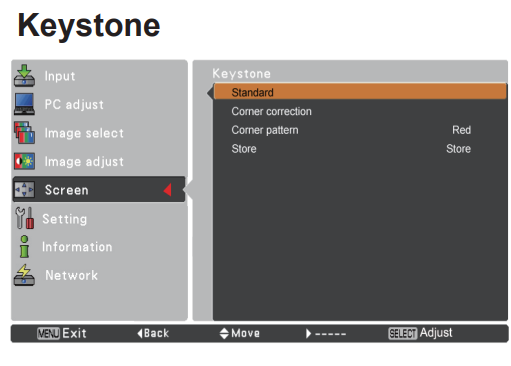
This function is used to adjust the keystone distortion of the projected image. Use the Point 4Y buttons to choose the item you want to adjust.
Standard
Adjust the Horizontal/Vertical keystone distortion of the\\ projected image.
Corner correction
Adjust the corner distortion of the projected image.
Corner pattern
Choose a Corner pattern mode among Red, White, Blue, and Off.
Store
Store …. Keep the keystone correction even when the AC power cord is unplugged.
Reset… Release the keystone correction when the AC power cord is unplugged. Press the KEYSTONE button on the remote control to switch the Standard (for Vertical/Horizontal) Corner correction adjustment. The Standard or Corner correction adjustment dialog box appears. Use the Point A V4buttons to correct the Standard or Comer distortion (p.30).
Ceiling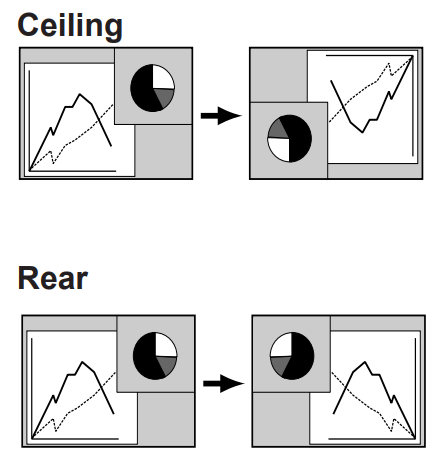
When this function is set to On, the picture will be top/ bottom and left/right reversed. This function projects the image from a ceiling-mounted projector. When this function is set to On, the picture will be left/right reversed. This function projects the image onto the rear of the screen.
Screen aspect
This function is used to project the image to a 4:3 or 16:10 projection screen. Default (16:9) ….16:9 is the aspect of the LCD panel. The original Screen Menu is available. 16:10 4:3 .. Set to a 16:10 projection screen. ..Set to a 4:3 projection screen.
Reset
This function returns all adjusted values to the factory default settings. Press the SELECT button at Reset to display a confirmation box. To reset, press the SELECT.
Video System Selection
- Press the MENU button to display the On-Screen Menu. Use the Point A V buttons to select Input and then press the Point or the SELECT button.
- Use the Point A V buttons to select System and then press the Point • or the SELECT button.
- Use the Point A buttons to select the desired system and then press the SELECT button.

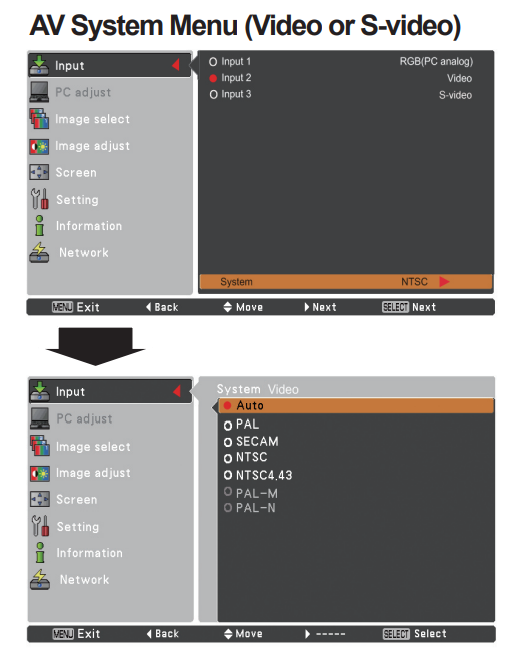
Video Jack or S-video Jack
Auto
The projector automatically detects an incoming video system and adjusts itself to optimize its performance. When the Vithe deo System is PAL-M or PAL-N, select the system manually.
Y, Pb/Cb, Pr/Cr Jacks
Auto
The projector automatically detects an incoming video signal and adjusts itself to optimize its performance. When the Video System is 1035i, 1080i or 1080p, select the system manually
Y, Pb/Cb, Pr/Cr SIGNAL FORMAT
If the projector cannot reproduce the proper video image, select a specific component video signal format from among 480i, 575i, 480p, 575p, 720p, 1035i, 1080i, and 1080p.
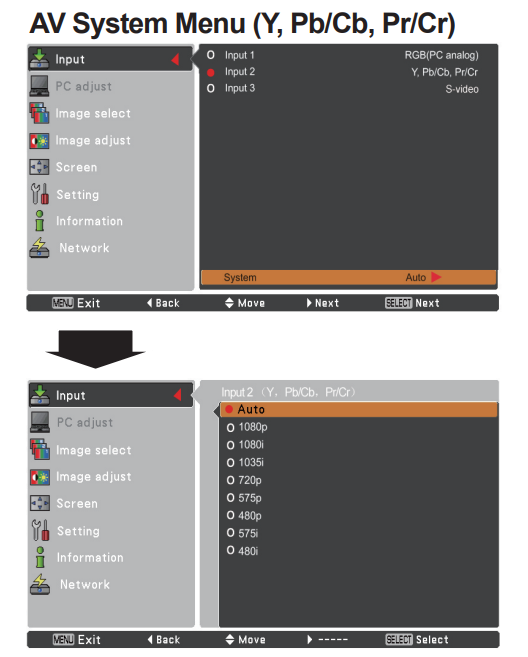
Image Level Selection
Direct Operation
The Image Selection function can be operated directly by pressing the IMAGE SEL. button on the remote control. The last stored image will be displayed on the screen for about 4 seconds.
Menu Operation
- Press the MENU button to display the On-Screen Menu. Use the Point ▲▼ buttons to select Image select and then press the Point ► or the SELECT button.
- Use the Point ▲▼ buttons to select the desired item and then press the SELECT button.
Dynamic
For viewing pictures in a bright room.
Standard
Normal picture level preset on the projector.
Natural
Natural picture level preset on the projector.
Cinema
Picture level adjusted with fine tone.
Image 1-10
User preset picture adjustment in the Image Adjust menu.
(p.48-50)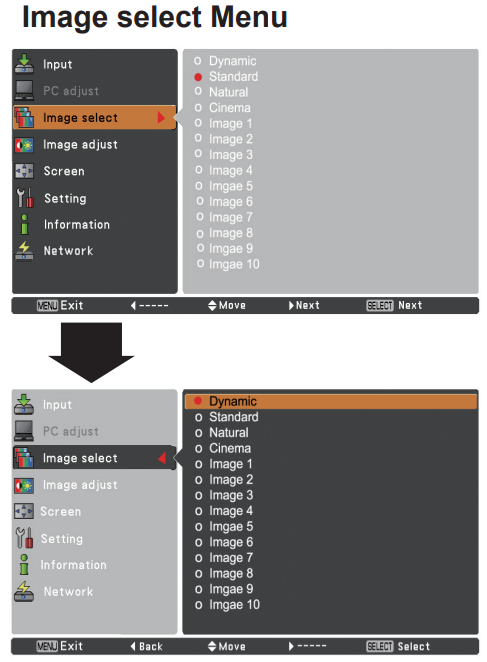
Image Adjustment
- Press the MENU button to display the On-Screen Menu. Use the Point buttons to select Image adjust and then press the Point ► or the SELECT button.
- Use the Point ▲▼ buttons to select the desired item and then press the SELECT button to display the adjustment dialog box. Use the Point ◄► buttons to adjust the setting value.
Contrast
Press the Point 4 button to decrease the contrast; press the Point • button to increase the contrast (from 0 to 63).
Brightness
Press the Point 4 button to decrease the brightness; press the Point button to increase the brightness.
Colo (from 0 to 63).
Press the Point 4 button to decrease the intensity of the color; press the Point button to increase the intensity of the color (from 0 to 63).
Tint
Press the Point 4• buttons to adjust the tint value to get a proper color balance (from 0 to 63). Color management
Refer to pages 40 and 41.
Color temp.
Use the Point 4 buttons to select the desired Color temp. level (High, Mid, Low, or XLow).
White balance (Red)
Press the Point 4 button to lighten red tone; press the Point • button to deepen red tone (from 0 to 63).
White balance (Green)
Press the Point 4 button to lighten the green tone; press the Point button to deepen the green tone (from 0 to 63).
White balance (Blue)
Press the Point 4 button to lighten the blue tone; press the Point • button to deepen the blue tone (from 0 to 63).
Display
This function decides whether to display On-Screen Displays.
Show all the On-Screen displays. Use this function when you want to project images after the lamp becomes bright enough. The factory default setting is in this option. Countdown Off: Show the input image instead of the countdown when turning on the projector. Use this function when you want to project the image as early as possible, even when the lamp is not bright enough. Off Hide the On-Screen Displays except:
- On-Screen Menu
- Power off? (p.24)
- No signal for Power management. (p.62)
- Please wait …
- White Arrows for panning mode (p.44)
- P-timer
- Simple mode
- Video delay control
- Picture in Picture
- Corner pattern
Background
Select the background screen for when no input signal is detected. Press the Point ▲▼ buttons to switch among the options.
Blue……Project a blue background.
User……Project an image captured in the Logo setting. It is invalid when there is no image.
Black……Project a black background.
Logo (Logo and Logo PIN code lock settings)
This function allows you to customize the screen logo with Logo select, capture, Logo PIN code lock, and Logo PIN code change functions.
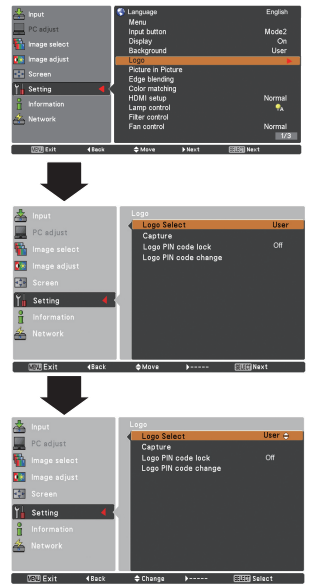
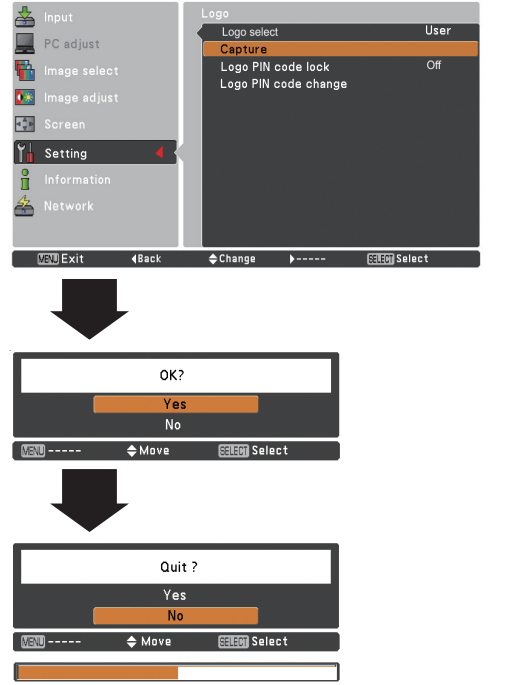
Capture
This function enables you to capture an image being projected to use it for a startup display or an interval of presentations. Select Capture and press the SELECT button. A confirmation box appears, and select Yes to capture the projected image. After capturing the projected image, go to the Logo select function and set it to User. Then the captured image will be displayed the next time you turn on the projector. To cancel the capture function, select Yes in the “Quit?” confirmation box.
Logo PIN code lock
This function prevents an unauthorized person from changing the screen logo.
On the screen, the logo cannot be changed without a Logo PIN code.
The off-screen logo can be changed freely from the
Logo Menu (p.54).
If you want to change the Logo PIN code lock setting, press the SELECT button, and the Logo PIN code dialog box appears. Enter a Logo PIN code by following the steps below. The initial Logo PIN code is set to “4321” at the factory.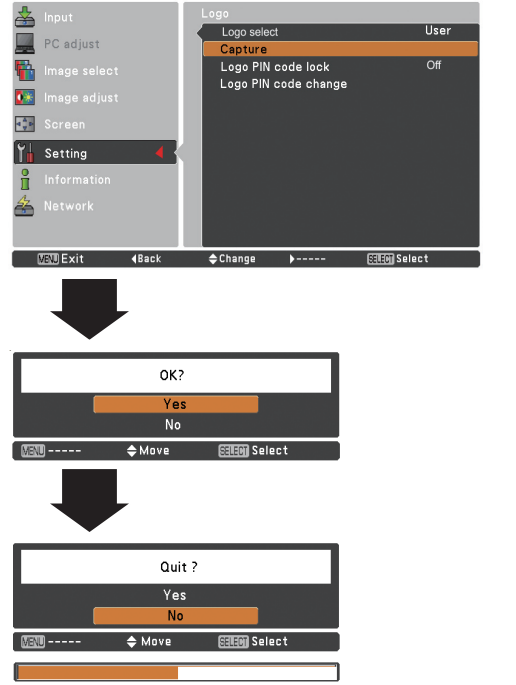
Enter a Logo PIN co.de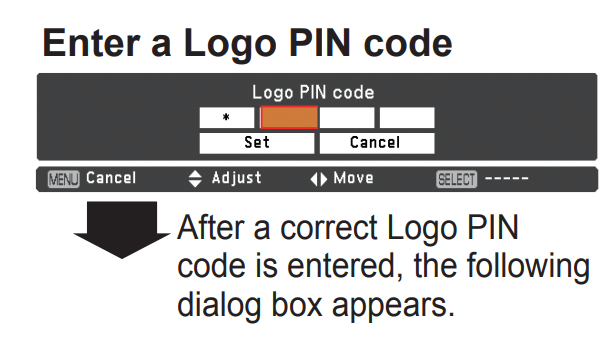
Use the Point A V buttons on the side control or the Number buttons on the remote control to enter a number.
When using side control
Use the Point A V buttons on the side control to select a number. Press the Point button to fix the number and move the red frame pointer to the next box. The number changes to *. If you fix an incorrect number, use the Point 4 button to move the pointer to the number you want to correct, and then enter the correct number. Repeat this step to complete entering a four-digit number. After entering the four-digit number, move the pointer to “Set”. Press the SELECT button so that you can start to operate the projector.
When using remote.control
Press the Number buttons on the remote control to enter a number (p.14). When you complete entering a four-digit number, the pointer moves to “Set”. Press the SELECT button so that you can start to operate the projector. If you enter an incorrect Logo PIN code, the Logo PIN code and the number (****) will turn red for a moment. Enter the correct Logo PIN code all over again.
Change the Logo PIN codo lock sotting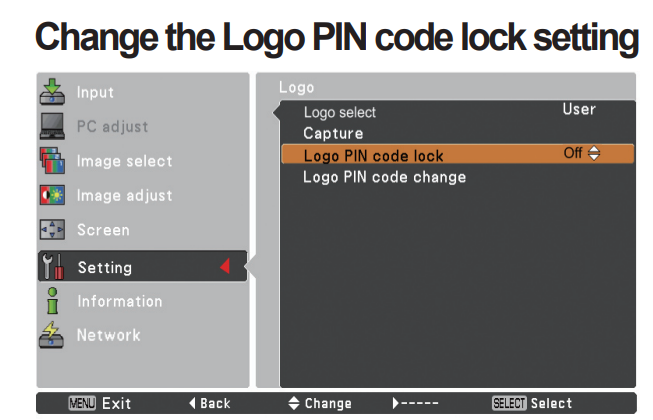
Use the Point A V buttons to switch On or Off, and then press the SELECT button to close the dialog box.
Logo PIN code change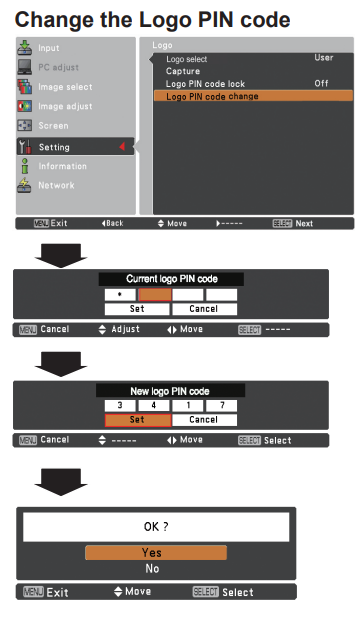
The logo PIN code can be changed to your desired four-digit number. Press the SELECT button to select Logo PIN code change. The current logo PIN code dialog box appears; use the Point A Y buttons to enter the correct code. The New Logo PIN code input dialog box appears. Set a new Logo PIN code, the confirmation box appears; choose Yes to set the new Logo PIN code. Be sure to note the new Logo PIN code and keep it on hand. If you lost the number, you could no longer change the Logo PIN code setting.
Picture in Picture
This function is used to project two images simultaneously by placing a separate small sub-screen within or next to the main screen. Use the Point buttons to select Picture in Picture and then press the SELECT button to display a dialog box. You can also display the dialog box by pressing and holding the PIP button on the remote control for more than 3 seconds. ( In P in P, the larger picture is the main picture, and the smaller one is the sub picture; in P by P, the left picture is the main picture, and the right one is the sub picture.
user setting
Show the selected mode (Off/User 1-5) and its status (Stored /Free/ Adj.). User 1 and User 2 have stored default values. See page 29 for details. P in P/P by P P in P: Provide the images of the main picture and the sub picture at the ratio of the screen aspect in the Screen P by P: Provide the images of the main picture and the sub picture at the ratio of 4:3.
Main picture / Sub picture Input……Select an input from Input 1-3. Source… Select an input source. The display varies depending on the selected input. Size… .. Select the display size. The main picture can be changed between 10 and 100%, and the sub picture can be changed between 10 to 50% in increments of 10%. When P by P is selected in Mode, the projection size is fixed to 50%. Position… Press the SELECT button at Position, and the display position setting screen appears.
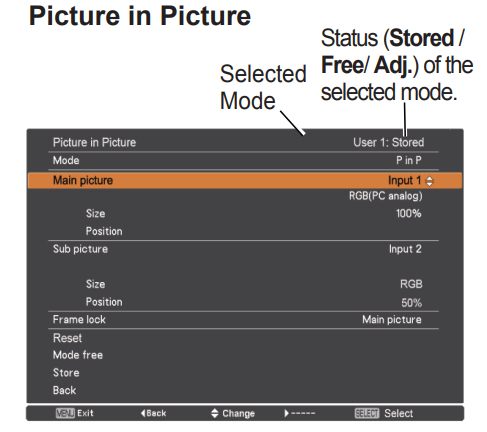
Main picture / Sub picture
Input……Select an input from Input 1-3.
Source… Select an input source. The display varies depending on the selected input.
Size……… Select the display size. The main picture can be changed between 10 and 100%, and the sub picture can be changed between 10 to 50% in increments of 10%. When P by P is selected in Mode, the projection size is fixed to 50%. Position… Press the SELECT button at Position, nd the display position setting screen appears.
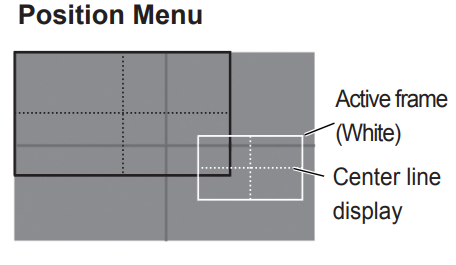
Use the Point buttons to adjust the display position of the active frame indicated in white. The frame will disappear after 10 seconds or when the SELECT button is pressed.
Selecting the Main picture or the sub picture
During Picture in Picture mode, and being undisplayed On Screen Menu, press the SELECT button to select the Main or Sub picture. (A red frame will be displayed on the selected picture.)
Switching Input and Source
When selecting the main picture or Sub picture, input and source can be set by pressing the INPUT button on the side control or the input 1/2/3 button on the remote control. Operation on the On-Screen Menu is not necessary.
Frame lock
Set the Frame Lock to Main picture or Sub picture.
Reset
Press the SELECT button at Reset to display a confirmation box. To reset, press the SELECT button at Yes.
Mode free
Delete the data stored in the Mode and return to Free. Use the Point A V buttons to select Mode free and press the SELECT button to show the Where to free? dialog box. Move the highlight to one of the modules 1 – 5thatch you want to delete and press the SELECT button. Then the confirmation box appears. To delete, select Yes.
Store
Store the adjusted data in the User 1-5. Use the Point • V buttons to select Store and press the SELECT button to show the Where to store? dialog box. Move the highlight to one of the modes(User 1 – that you want to store and press the SELECT button. Then the confirmation box appears. To store adjusted data, select Yes.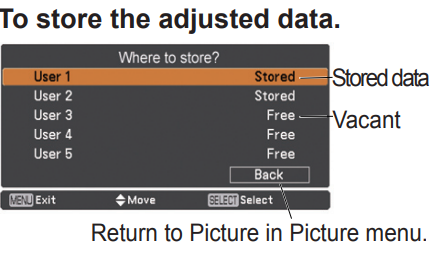
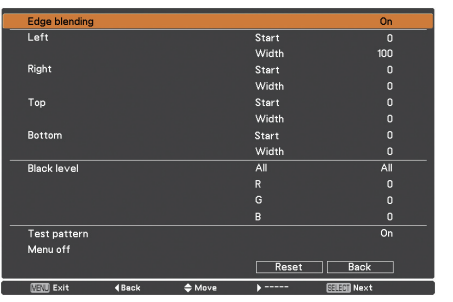
Edge blending
This function allows multiple projector images to be seamlessly overlapped.
Use the Point \buttons to select Edge blending and then press the SELECT button to display a dialog box. Use the Point buttons to adjust the setting value.
- On/Off ………. Set to On to activate the Edge blending function.
- Start .………… The point at which edge blending starts. The edges of a green frame around an image shift in accordance with the values specified here. Specify a value in the 0 – 960 range for Left and Right, ht, and a value in the 0 – 540 range for Top and Bottom.
- Width………… Adjusts the width of correction. Right/Left: Set the width. (from 0 to 960). Top/Bottom: Set the width. (from 0 to 540). Black level… Adjusts the black level of the projected image. All: The values of R, G, and B will be changed simultaneously. R/G/B: Adjusts the value (up to ± 127). Test pattern. Select On to display a suitable pattern (white: 50%).
- Menu off……. Closes the menu and hides all edge lines (in green, red, and gray) temporarily.
- Reset………… Select Reset and press the SELECT button. Then return to the factory default of Edge Blending? The message appears. To reset, press the SELECT button at Yes.
- Back.………… Hides the Edge blending setting menu and returns to the Setting menu
Color matching
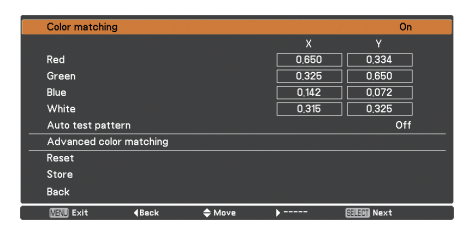
When displaying multiple screens, it eliminates the difference in color between the images that are projected from the projectors. When multiple sets are used simultaneously, this projector allows the user to correct the color differences among the sets. Use the Point ▲▼ buttons to select Color matching and then press the SELECT button to display a dialog box. Use the Point ▲▼◄► buttons to adjust the setting value.
- Color matching ….. Set to Onbutton button to activate the color-matching function. When the color matching is set to Off, all items except for Advanced color matching and Back are displayed in grayout and cannot be adjusted. Color adjustment.. Adjusts the color setting of Red/ Green/Blue/White. The chromatic coordinate (X, Y) of Red, Green, Blue, and White can be adjusted respectively. The adjustable range is from 0.000 to 1.000. Auto test pattern… Select On to display a suitable pattern when setting items. Advanced
- color matching…… Select Advanced color matching and press the SELECT button for more detailed settings. Another setting screen will appear.
- Reset…………………. Select Reset and press the SELECT button. Then the confirmation message appears. Press the SELECT button at Yes to reset to the previously stored values.
- Store …………………. Select Store and press the SELECT button to display the Confirmation box. To store adjusted data, select Yes.
Advanced color matching
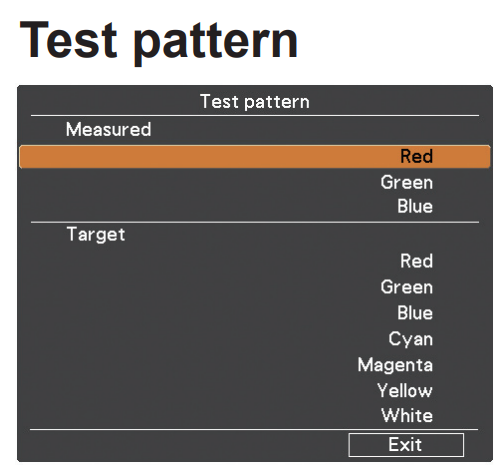
- Measured Information …. When selecting Measured Information, the window shownon the on the right appears. Current image level is shown. To go back to the Advanced color matting window, press any key. Advanced color matching …. Press the POINT buttons to switch between On and Off. Selecting On displays the values that link to the Color Match values.
- Measured ………….. Displays the measured values of Red, Green, and Blue.
- Target ……………….. Adjusts the chromatic coordinate (X, Y) and the gain value (g) of Red, Green, Blue, Cyan, Magenta, Yellow, and White. Use the Point buttons to move the red frame pointer to an item that you want to adjust the value of, and then press the SELECT button. Use the Point buttons to adjust the value. To move to the next digit, use the Point buttons. Press the SELECT button to set the value.
- Auto test pattern …. Select On to display a suitable pattern when setting items.
- Menu off…………….. Close the menu temporarily.
- Factory default…… Select Factory default and press the SELECT button. Then return to the factory default of Color matching? The message appears. To reset the selected Measured value and Target value, select Yes. Then, the confirmation box appears. Press the SELECT button at Yes again.
- Reset.………………… Select Reset and press the SELECT button. Then the confirmation message appears. Press the SELECT button at Yesto reset to the previously stored values.
- Store …………………. Select Store and press the SELECT button. Then the Confirmation box appears. To store adjusted data, select Yes.
- Test pattern ……….. Displays the Test pattern menu.
- Back………………….. Cancels the Advanced color matching menu display
Lamp control
This function allows you to change the brightness of the screen.
Auto Brightness according to the input signal. Normal Normal brightness. Eco 1::Lower brightness and decrease of fan speed. Lower brightness reduces the lamp’s power consumption and extends the lamp’s life. Eco 2: Lower brightness and an increase in fan speed. Lower brightness reduces the lamp’s power consumption and extends the lamp’s life. It is recommended to use Eco 2 when using the projector continuously over a long period of time. The fan noise becomes louder in Eco 2 than in Eco 1. Select the suitable mode for the operating environment.
Filter control
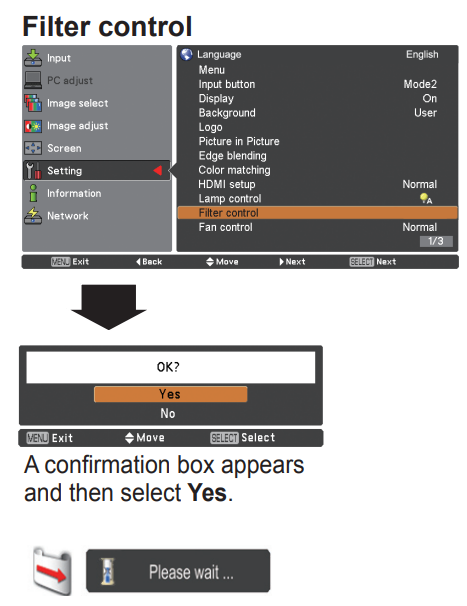
You can replace the filter with this function. Press the Select button on the filter control to display a confirmation box. To replace, press the SELECT button at Yes, and the electrically operated filter starts to scroll.
This function decides whether to activate the simple mode. The Simple mode function is off. Only the simple mode buttons are active.
Remote control
The eight different remote control codes (Code 1- Code 8) are assigned to the projector; the factory-set, initial code (Code 1) and the other seven codes (Code 2 to Code 8). The same code should be set on both the projector and the remote control. For example, operating the projector in Code 7, the remote control code also must be switched to Code 7.
To change the code for the projector: Select a remote control code in this Setting Menu. To change the code for the remote control: Press and hold the MENU button and a number button (1-8) on the remote control for more than five seconds to switch among the codes. See “Remote Control Code” on page 16.
RC sensor 62
Select the location of the infrared remote receiver of the remote control. See “Remote Control Receivers and Operating Range” on page 15 for details. Activate both the front and back receivers. Front Activate only the front receiver. Back: Activate only the back receiver.
Simple mode buttons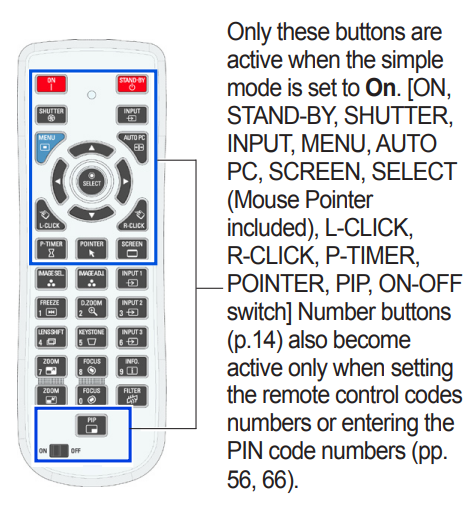
Power management
For reducing power consumption as well as maintaining the lamp life, the Power management function turns off the projection lamp when the projector is not operated for a certain period. Select one of the following options: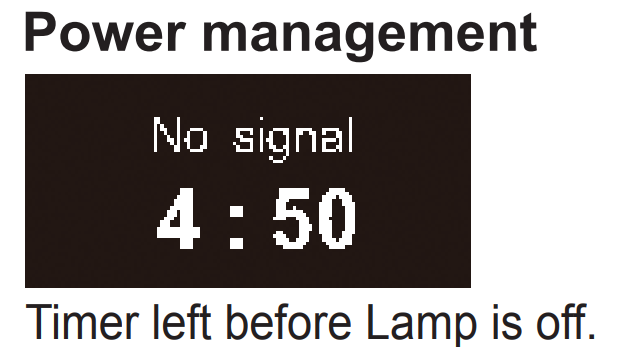
Ready 1 When the lamp has been fully cooled down, the POWER indicator changes to green blinking. In this condition, the projection lamp will be turned on if the input signal is reconnected or any button on the side control or remote control is pressed.
Ready 2 When 3 hours have elapsed since power management has been carried out, the lamp will turn off, and the power will switch off. The operations during the initial 3 hours are the same as for Ready 1. Shutdownnw.n When the lamp has been fully cooled down, the power will be turned off. The off Power management function is of f.T::imer. If the input signal is interrupted and no button is pressed for more than 30seconds, the timer display with No signal appears. It starts the countdown until the lamp is turned off. Use the Point ▲▼ buttons to set the Timer (1~30 Min).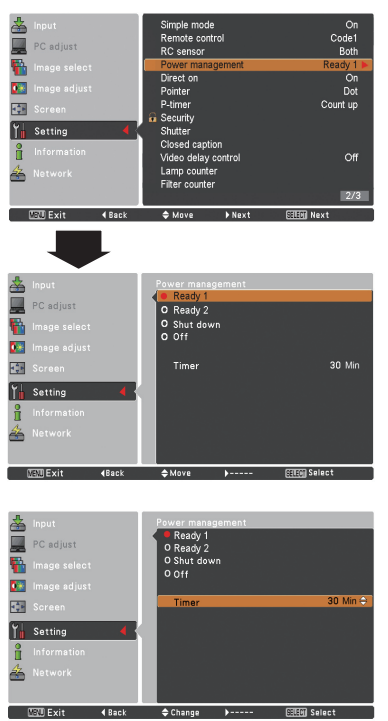
Pointer
You can emphasize a part of the projected image with this function. Use the Point ▲▼ buttons to select a pattern of the Pointer (Dot, Arrow, or Finger). (p.31)
P-timer
This function allows you to change the presentation of the P-timer and eitecute i
Select one of the following options. Count up. The P-timer display 000:00 appears on the screen, and the count starts (000:0.0– 180:00). Count down. The time set in the Timer setting appears on the screen, and the countdown starts. Timer Use the Point buttons to set the Timer (1–180 Min). Only set the timer down. Timer is active.
The factory default value is 10 Min. Start: It executes the count-up or count-down function. Press the SELECT button at Start; Start changes to Stop in the Screen Menu. At that time, press the SELECT button at Stop to stop Count up or Count down, and Stop changes to Restart in the Screen Menu. Press the SELECT button at Restart to resume Count up or Count down. Reset the P-timer values. Press the SELECT button at Reset to return to the following value: Count up …”000:00″ Count down Timer that you set Exit: To exit the P-timer operation.
Stop or Cancel the P-timer via Remote Control
To stop the P-timer, press the P-TIMER button. To cancel the P-timer, press and hold the P-TIMER button for a few seconds.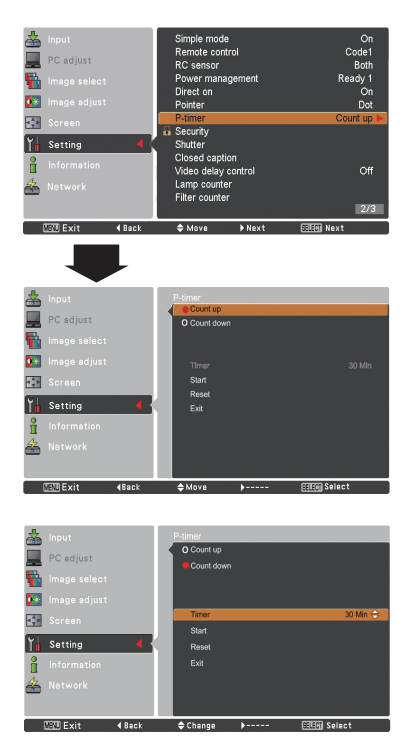
Security (Key lock and PIN code lock)
This function allows you to use the Key lock and PIN code lock functions to set the security for the projector’s operation.
Key lock
This function allows you to use the Key lock and PIN code lock function to set the security for the projector’s operation
…Unlocked. …Lock the operation of the side control. To unlock, use the remote control. …Lock the operation of the remote control. To unlock, use the s
If the side control accidentally becomes locked and you do not have the remote control nearby, or if there is something wrong with your remote control, contact the dealer where you purchased the projector or the service center.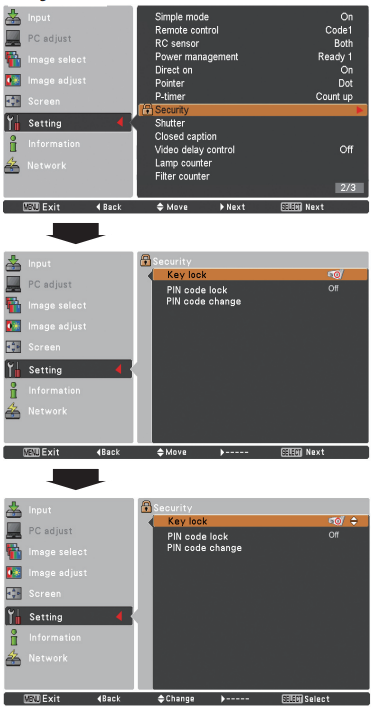
Enter a PIN code
Use the Point A buttons on the side control or the Number
buttons on the remote control to enter a number.
When using side control
Use the Point A V buttons on the side control to select a number. Press the Point button to fix the number and move the red frame pointer to the next box. The number changes to *. If you fix an incorrect number, use the Point button to move the pointer to the number you want to correct, and then enter the correct number. Repeat this step to complete entering a four-digit number. After entering the four-digit number, move the pointer to Set. Press the SELECT button so that you can start to operate the projector.
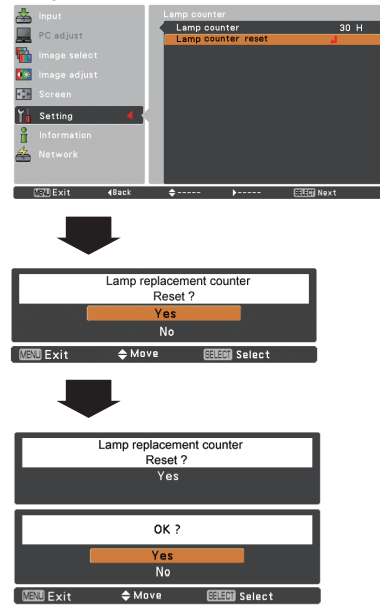
Lamp counter
Be sure to reset the Lamp replacement counter after the lamp is replaced. (p. 65) Press the Point ▲▼ buttons to choose the Lamp counter function and then press the Point ► or the SELECT button to access the submenu items. Lamp counter: This item shows the total accumulated time of tamp usage.
Lamp counter rese. Press the SELECT button to choose Lamp counter reset. et Select Yes in the confirmation box if you want to reset the lamp counter, and then choose Yes in the second confirmation box to reset the lamp counter.
Filter counter
This function is used to set a frequency for the filter replacement. Use the Point ▲▼ buttons to select Filter counter and then press the Point ► or the SELECT button to access the submenu items.
Filter counter……Show the total accumulated time of the filter use timer setting. Timer…………… To set a timer, when the projector reaches the time, the Filter replacement icon (Fig.1) appears on the screen, and the total accumulated time turns red, indicating that the filter replacement is necessary. If the filter is out of scroll and the projector reaches a time set in the timer setting, Fig.2 appears on the screen, indicating that the filter cartridge replacement is necessary. Filter counter reset…When replacing the Filter cartridge, reset the Filter counter and the Scroll remaining (p.73).
Scrolls remaining…When the filter scroll is counted down to the scroll roll remaining on the screen, showing 0 scroll(s), then the last scroll icon (Fig.3) appears on the screen. When the filter scroll is counted down to 0, the Filter cartridge replacement icon (Fig.4) appears on the screen, and the WARNING FILTER indicator lights orange, indicating that the filter cartridge replacement is necessary. Scroll counter Reset…When replacing the Filter cartridge, reset the Filter counter and the Scroll remaining (p.73).
Test pattern
Various test patterns are available for use when setting up the projector: Color, Gradation1-4, All white, A black, and Cross.
Factory default
This function returns all setting values except for User logo, PIN code lock, Logo PIN code lock, k, and Filter counter to the factory default settings.
- Fig.1. The filter replacement icon appears on the screen at a set time.
- Fig.3 The last scroll icon appears on the screen when the filter is down to the last scroll.
- Fig. The filter cartridge replacement icon appears on the screen when the filter scroll is counted down to
Maintenance and Care
The filter prevents dust from accumulating on the optical elements inside the projector. Should the filter become clogged with dust particles, it will reduce the cooling fans’ effectiveness and may result in internal heat buildup and adversely affect the life of the projector. This projector has an electrically operated filter, which helps you to replace the filter easily. The projector monitors the condition of the filter at all times and replaces the filter with
a new one automatically when it detects clogging. If the projector reaches a time set in the timer setting (p.70), a Filter replacement icon (Fig.1) appears on the screen, and the WARNING FILTER indicator on the top panel lights up (p.87). When you see this icon, replace the filter as soon as possible (pp.29, 61). If the filter is out of scroll and the projector reaches a time set in the timer setting, Fig. 2 appears on the screen, indicating that the filter cartridge replacement is necessary.
When the filter scroll is counted down to 0, the Last scroll icon (Fig.3) appears on the screen, indicating that there is one scroll left in the filter cartridge (p.70). If the projector detects that the filter is clogged and no scroll is left in the filter cartridge, a Filter cartridge replacement icon (Fig. 4) appears on the screen,n and the WARNING FILTER indicator on the top panel lights up (p.87). When you see this icon, replace the filter cartridge (p.72) and reset the Filter counter (p.73) and the Scroll counter (p.73).
When the filter is being scrolled using the remote control (p.29) or the Filter control function in the setting menu (p.61), a Filter replacement icon and Please wait… message (Fig.5) appear onscreen scre, en and the WARNING FILTER indicator blinks slowly (approx. 2 seconds ON, 2 seconds OFF) (p.85).
The WARNING FILTER indicator blinks fast when the projector detects an abnormal condition, the filter cartridge is not installed properly, or the filter scroll is not working properly (p.87). The filter counter and the scroll counter do not recognize the correct number of remaining scrolls of the used filter cartridge, and the reset function cannot work properly. It may cause a breakdown.
- Make sure that the projection lamp is turned off when you are replacing the filter cartridge. If you replace the filter cartridge when the projection lamp is turned on, the projector will shut down automatically for safety purposes.
- Do not forget to reset the filter counter and the scroll counter in the settings menu after replacing the filter cartridge. If you forget to reset the filter counter and the scroll counter, the projector cannot recognize the correct number of remaining scrolls and may cause a breakdown.
- If you continue to use the projector without replacing the air filter cartridge and resetting the filter counter after the filter cartridge replacement icon is displayed, the power will switch off automatically approximately 10 hours after projection starts to protect the optical parts. After this, the power will switch off automatically 3 minutes after it is turned back on, and the projection starts.
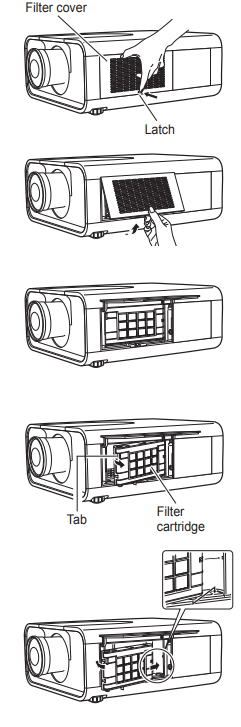
Replacing the Filter Cartridge
- Turn off the projector, and unplug the AC power cord from the AC outlet.
- First, clean up the dust on the projector and around the air vents.
- Press A on the filter cover to release the latch and open the filter cover.
- Pull out the filter cartridge. When taking out the filter cartridge, put your finger on the filter cartridge’s tab and then pull.
- Put the new one back into the position and close the filter cover. Make sure that the filter cartridge is properly and fully inserted.
- Connect the AC power cord to the projector and turn on the projector.
- Reset the filter counter and the scroll counter (p.73).

RECOMMENDATION
We recommend avoiding dusty/smoky environments when operating the projector. Use in these environments may result in poor image quality. When using the projector under dusty or smoky conditions, dust may accumulate on the lens, liquid crystal panels, or optical elements inside the projector. Such a condition may degrade the quality of the projected image. When the symptoms above are noticed, contact your authorized dealer or service center for proper cleaning.
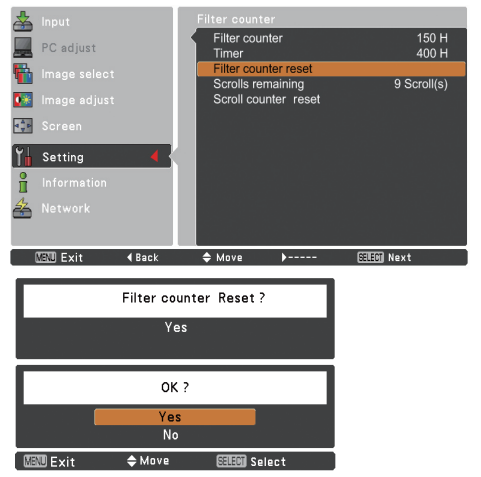
Resetting the Filter Counter
Be sure to reset the Filter counter after replacing the filter cartridge.
- Press the MENU button to display the On-Screen Menu. Use the Point A buttons to select Setting and then press the Point • or the SELECT button.
- Use the Point A V buttons to select Filter counter and then press the SELECT button. Use the Point A V buttons to select “Filter counter reset,” then press the SELECT button. Filter counter Reset? appears. Select Yes to continue.
- Another confirmation dialog box appears; select Yes to reset the Filter counter.
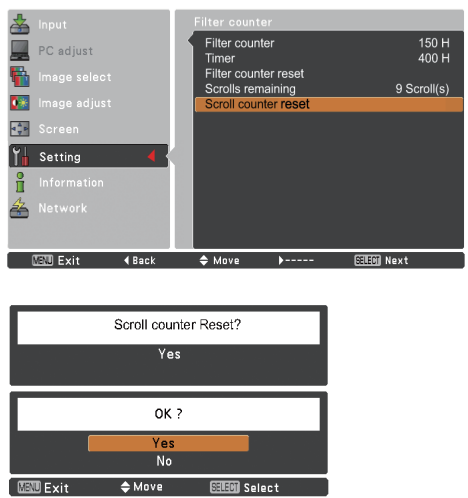
Resetting the Scroll Counter
Be sure to reset the Scroll counter after replacing the filter cartridge.
- Press the MENU button to display the On-Screen Menu. Use the Point A V buttons to select Setting and then press the Point • or the SELECT button.
- Use the Point A V buttons to select Filter counter and then press the SELECT button. Use the Point A V buttons to select Scroll counter reset and then press the SELECT button. Scroll counter Reset? appears. Select Yes to continue.
- Another confirmation dialog box appears; select Yes to reset the Scroll counter.
Lamp Replacement
When the projection lamp of the projector reaches its end of life, the Lamp replacement icon appears on the screen, and the LAMP REPLACE indicator lights orange. Replace the lamp with a new one promptly. The timing when the LAMP REPLACE indicator should light depends on the lamp mode.
Top Panel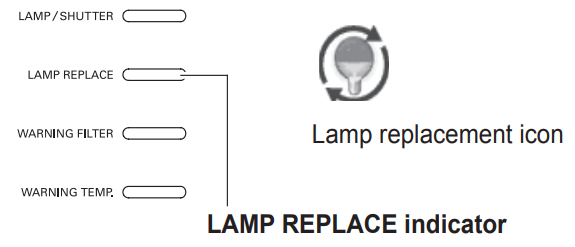
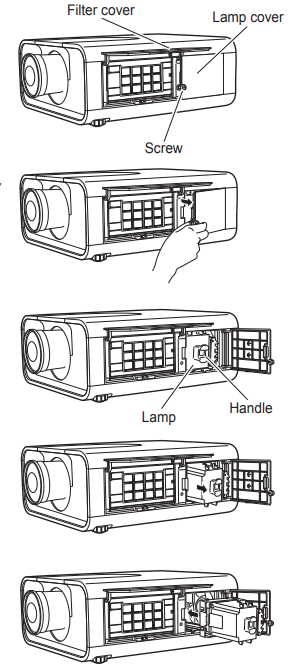
- Turn off the projector and unplug the AC power cord. Let the projector cool for at least 45 minutes.
- Open the filter cover (p.72).
- Loosen the screw and open the lamp cover. Pull out the lamp by using the built-in handle.
- Replace the lamp with a new one. Make sure that the lamp is properly and fully inserted.
- Close the lamp cover and secure the screw.
- Close the filter cover.
- Connect the AC power cord to the projector and turn on the projector.
- Reset the Lamp counter (p.69).

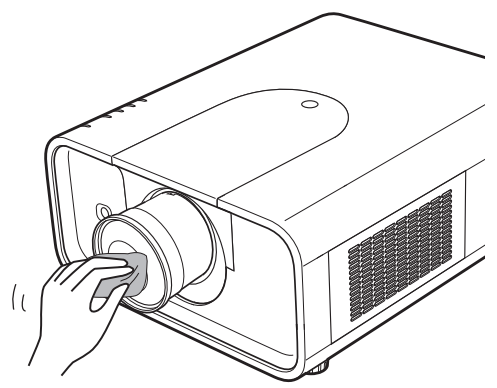
Cleaning the Projection Lens
Unplug the AC power cord before cleaning. Gently wipe the projection lens with a cleaning cloth that contains a small amount of non-abrasive camera lens cleaner, or use a lens cleaning paper or commercially available air blower to clean the lens. Avoid using an excessive amount of cleaner. Abrasive cleaners, solvents, or other harsh chemicals might scratch the surface of the lens.
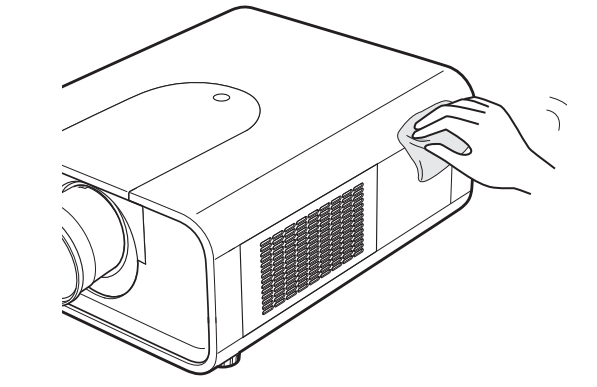
Cleaning the Projector Cabinet
Unplug the AC power cord before cleaning. Gently wipe the projector body with a soft dry cleaning cloth. When the cabinet is heavily soiled, use a small amount of mild detergent and finish with a soft dry cleaning cloth. Avoid using an excessive amount of cleaner. Abrasive cleaners, solvents, or other harsh chemicals might scratch the surface of the cabinet. When the projector is not in use, put it in an appropriate carrying case to protect it from dust and scratches.
Troubleshooting
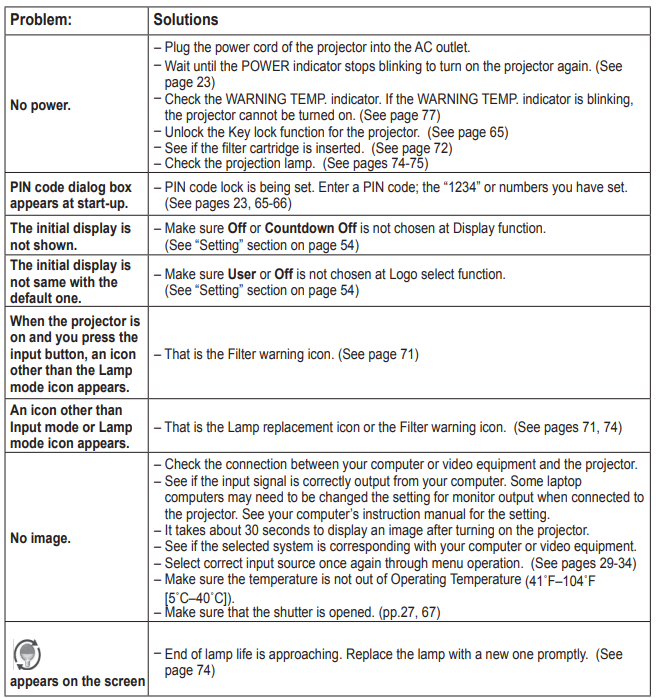
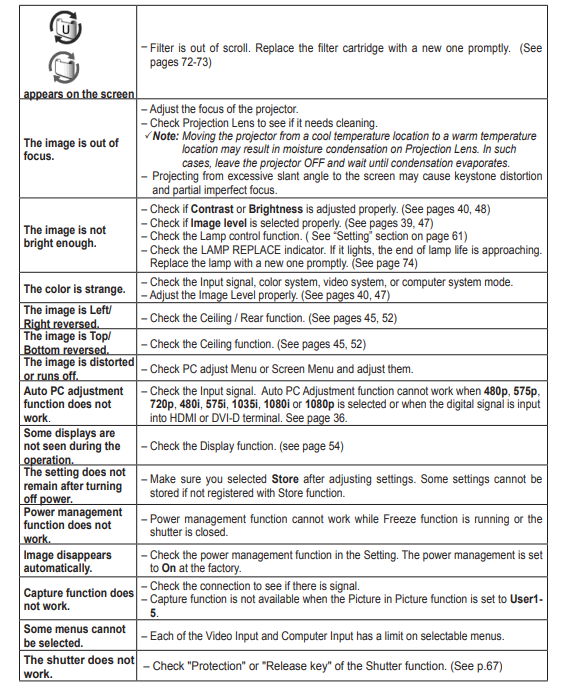
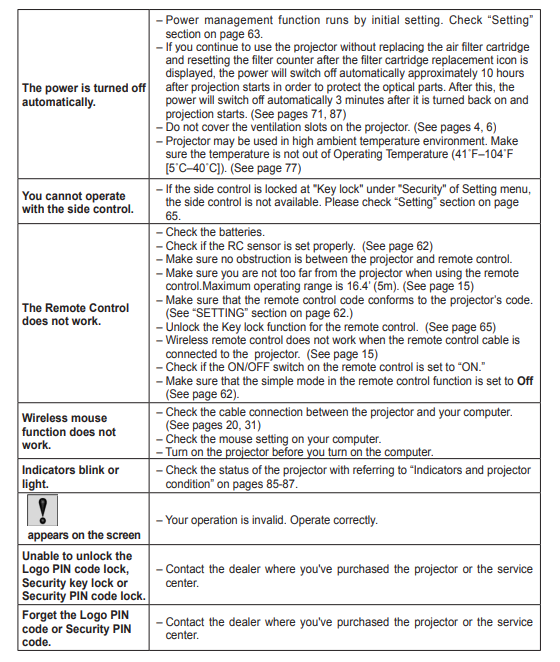
Before calling your dealer or service center for assistance, check the items below once again.
- Make sure you have properly connected the projector to peripheral equipment as described on pages 20-21-21.
- Check the cable connection. Make sure that all computers, video equipment, and power cords are properly connected.
- Make sure that all power is switched on.
- If the projector still does not produce an image, restart your computer.
- If an image still does not appear, disconnect the projector from your computer and check your computer monitor’s display. A problem may be noticed with your graphics controller rather than with the projector. (When you reconnect the projector, be sure to turn the computer and monitor off before you turn on the projector. Turn on the equipment in the order of the projector and computer.)
- If a problem persists, check the following solutions.
Computer Input/HDMI Input/Video Input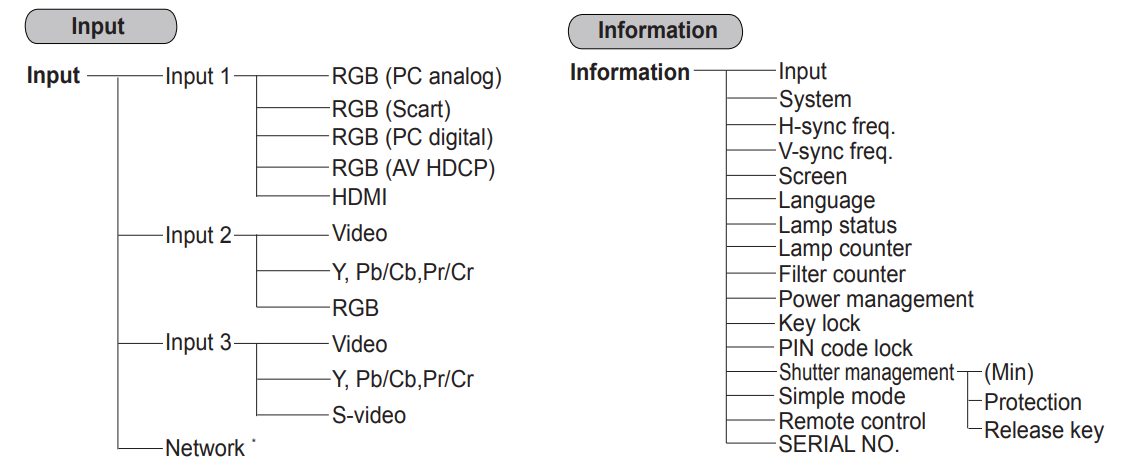
HDMI Input/Video Input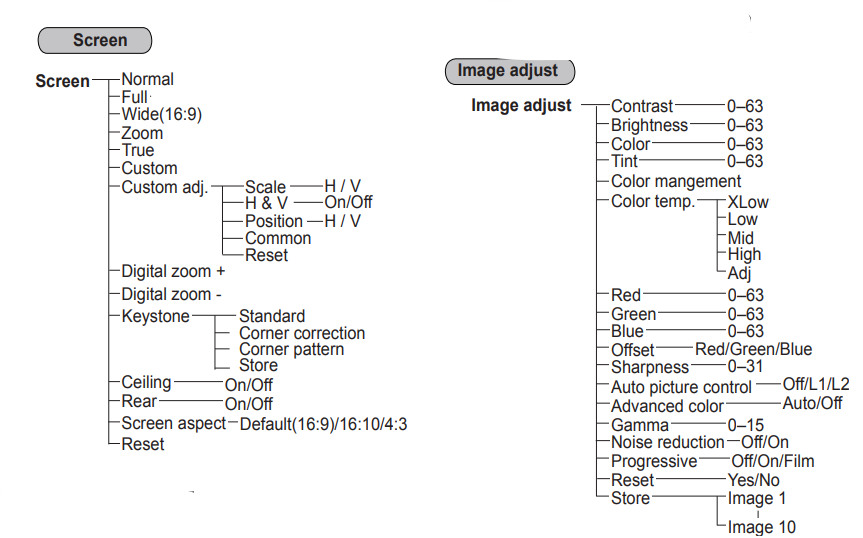
Video Input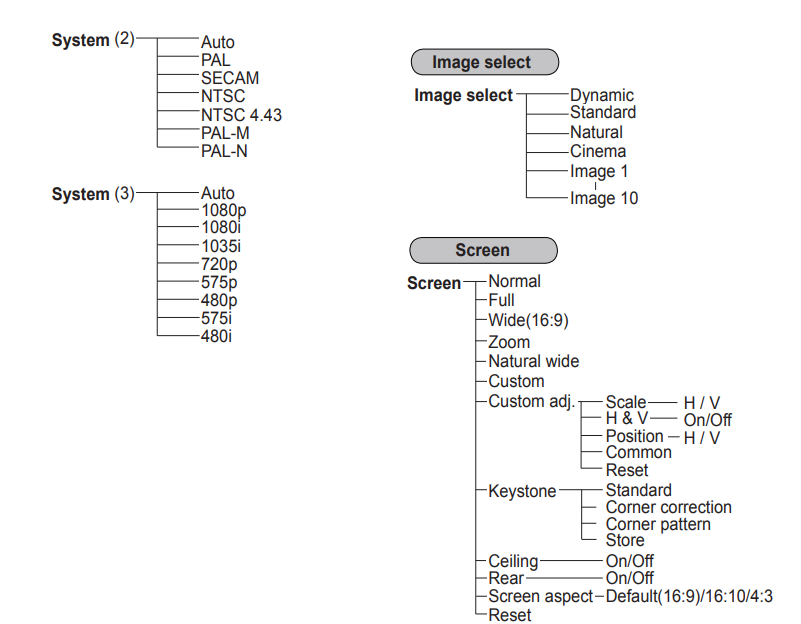
Computer Input/HDMI Input/Video Input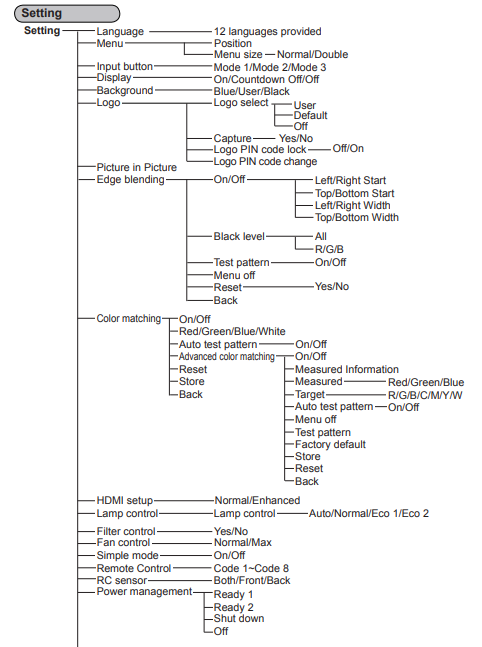
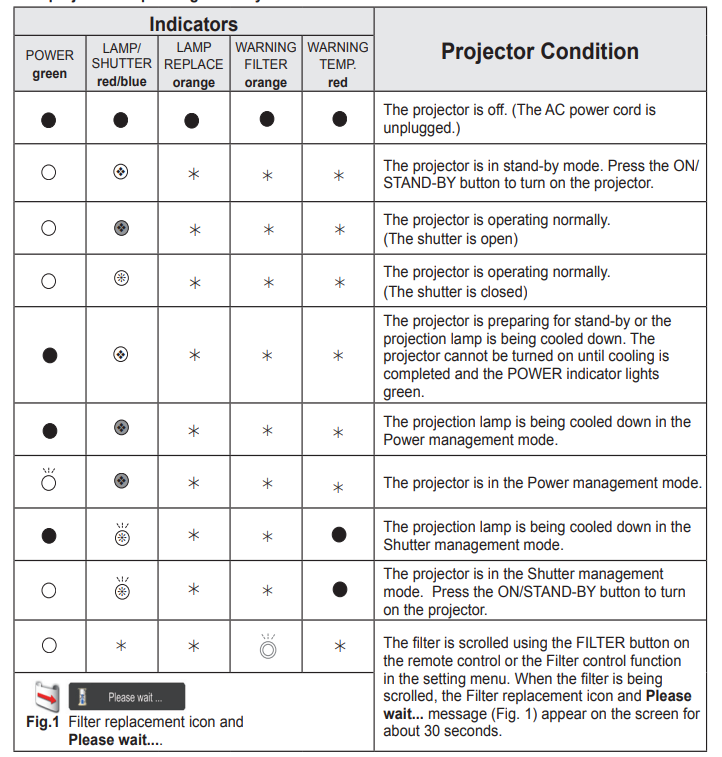
Indicators and Projector Condition
Check the indicators for the projector condition.
The projector is operating normally.
The projector is detecting an abnormal condition.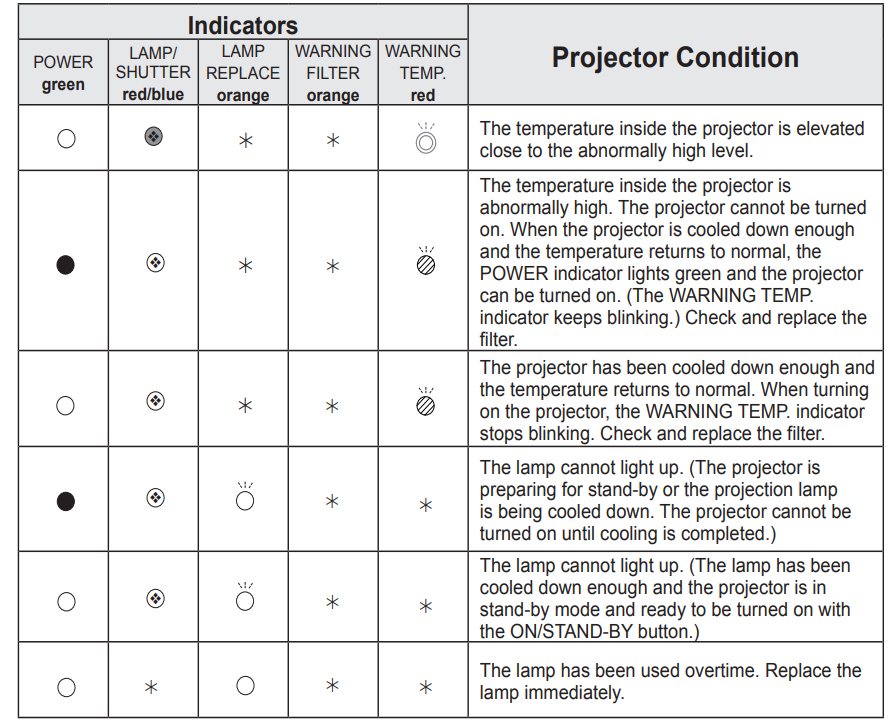
The projector is detecting an abnormal condition.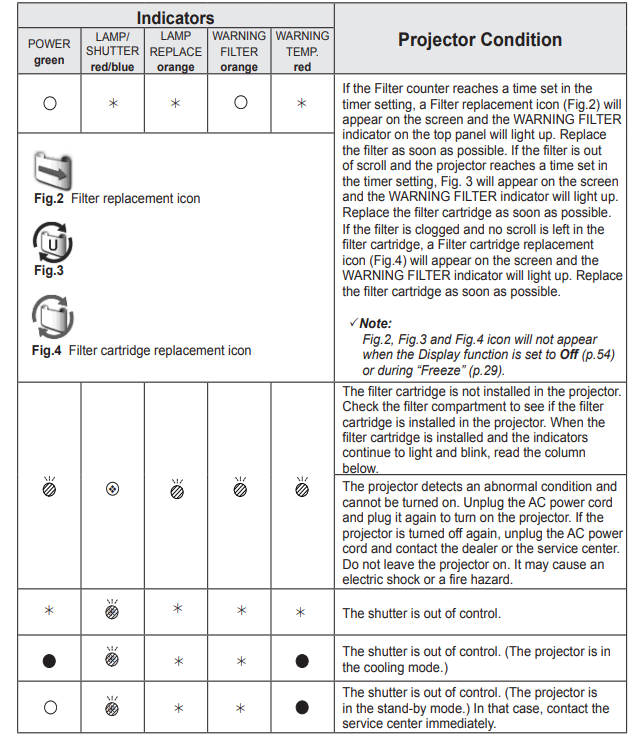
Compatible Computer Specifications
Basically, this projector can accept the signal from all computers with the V- and H-Frequencies mentioned below and less than 162 MHz of Dot Clock. When the input signal is Analog, refer to the chart below.
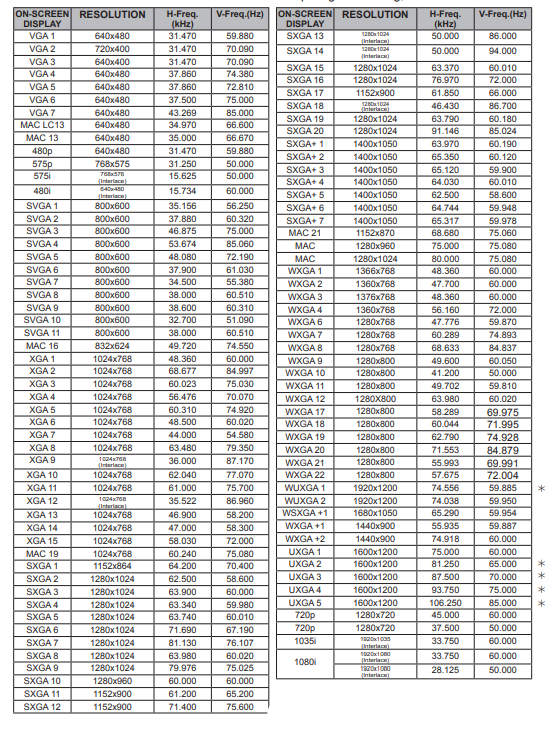
When the input signal is digital from the HDMI/DVI-D terminal, refer to the chart below.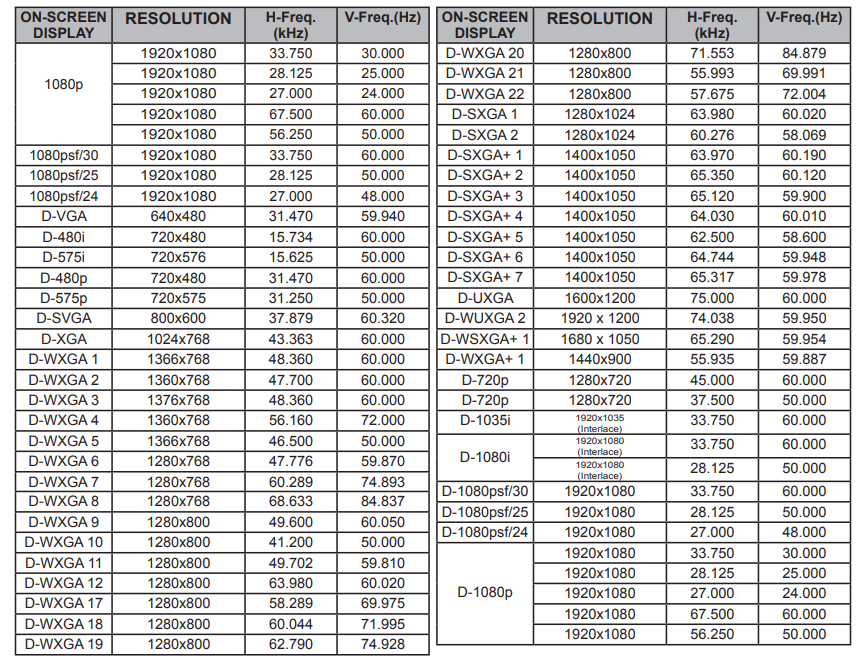
Technical Specifications
Mechanical Information
| Projector Type | Multi-media Projector | ||
| Dimensions (W x H x D) | 14.56” x 7.36” x 17.32” (370.0 mm x 187.0 mm x 439.9 mm) | ||
| Net Weight | 25.6 lbs (11.6 kg) | ||
| Feet Adjustment
Panel Resolution |
0˚ to 6.5˚ | ||
| LCD Panel System | 1.2” TFT Active Matrix type, 3 panels | ||
| Panel Resolution | 1,920 x 1,080 dots | ||
| Number of Pixels
Signal Compatibility |
6,220,800 (1,920 x 1,080 x 3 panels) | ||
| Color System | PAL, SECAM, NTSC, NTSC4.43, PAL-M, and PAL-N | ||
| SD/HD TV Signal | 480i, 480p, 575i, 575p, 720p, 1035i, 1080i and 1080p | ||
| Input Scanning Frequency
Optical Information |
H-sync. 15 kHz–120 kHz, V-sync. 48 Hz–100 Hz | ||
| Projection Lamp
Interface |
380 W lamp | ||
| Input 1 | DVI [RGB(PC digital), RGB(AV HDCP)] / HDMI (1.3 with Deepcolor) / Mini D-sub15pin | ||
| [RGB, RGB (Scart)] | |||
| Input 2 | BNC Type x 5 (G or Video/Y, B or Pb-Cb, R or Pr-Cr, H/HV and V) | ||
| Input 3 | RCA Type x 3 (Video/Y, Pb/Cb,Pr/Cr), Mini DIN 4 pin x 1 (S-video) | ||
| Monitor Out | Analog RGB (Mini D-sub 15 pin) Terminal x 1 | ||
| R/C Jack | Mini jack (Wired Remote) x 1 | ||
| Control Port | D-sub 9 pin x 1 | ||
| USB Connector | USB Series B x 1 | ||
| Option | Network unit Terminal x 1 | ||
| LAN Connection Terminal
Power |
RJ-45 | ||
| Voltage and Power Consumption
Operating Environment |
AC 100-120 V (5.9A Max.), 50/60 Hz (The U.S.A and Canada) AC 100-240 V (5.9-2.4A Max.), 50/60Hz (For other countries) | ||
| Operating Temperature | 41˚F–104˚F (5˚C–40˚C) | ||
| Storage Temperature
Remote Control |
14˚F–140˚F (-10˚C–60˚C) | ||
| Battery | AAA or LR03 Type x 2 | ||
| Operating Range | 16.4′ (5 m/±30˚) | ||
| Dimensions | 1.9” (W) x 1.1” (H) x 5.7” (D) (48 mm x 27 mm x 145 mm) | ||
| Net Weight
Accessories |
3.6 oz (102 g) (including batteries) | ||
| User manual (CD-ROM) | Lens Attachment (For option lens) | ||
| Network Application (CD-ROM) | Light-block sheet (For option lens) | ||
| Quick Reference Guide | Spacer (For option lens) | ||
| AC Power Cord | VGA Cable | ||
Optional Parts
The parts listed below are optionally available. When ordering those parts, specify the item name and
Model No. to the sales dealer.
- Standard Zoom Len: 103-142108-01
- Long Zoom Lens: 103-143109-01
- Ultra Long Zoom Lens 38-809068-51, 103-123107-01
- Short Zoom Lens 103-141107-01
- Short Fixed Lens 103-140106-01
- Network option: 03-115108-02
Lens Replacement
The lens of this projector can be replaced with another lens. This feature enables you to use the
projector for a wide variety of uses. For installation and replacement of the lens, always contact the sales dealer. The projector lens must be installed or replaced by well-trained sales or service engineers. Do not attempt to install and replace the lens by yourself, as it may cause injury
Configurations of Terminals
ANALOG/ ANALOG OUT (Mini D-sub 15 pin)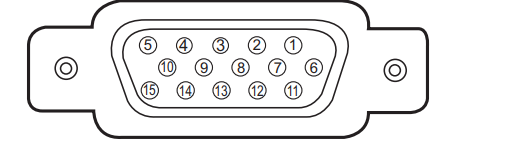
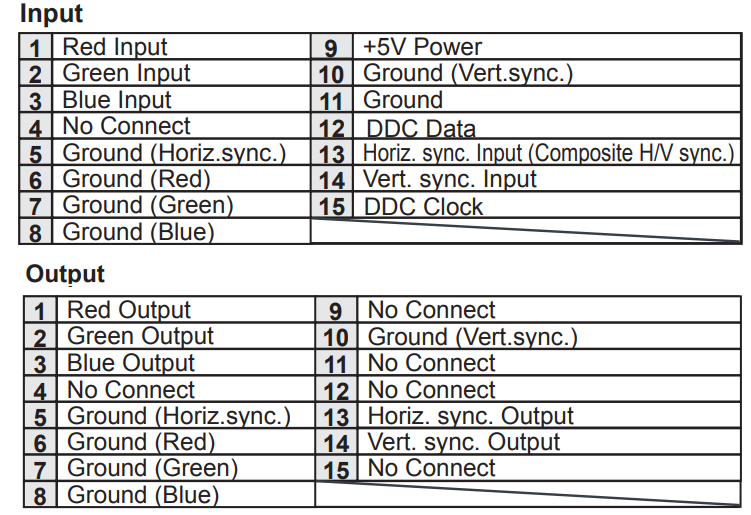
DIGITAL DVI-D (DVI 24 PIN)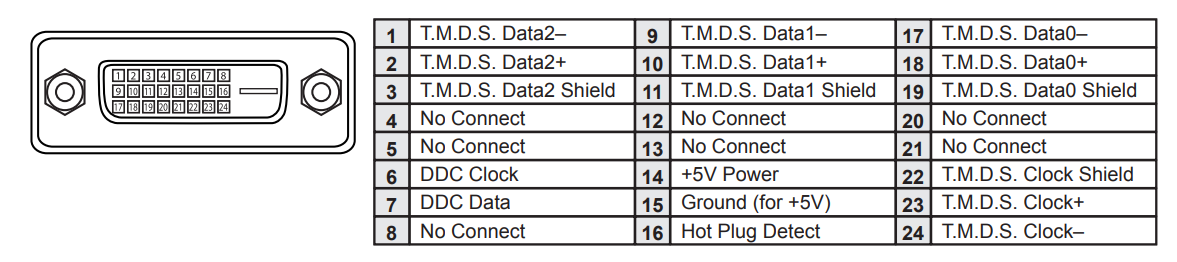
HDMI (19 Pin Type A)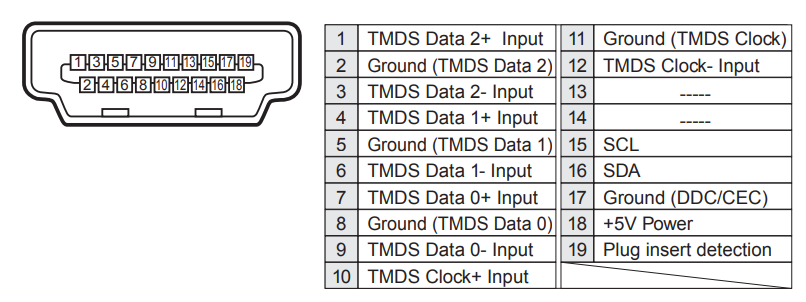
USB CONNECTOR (Series B)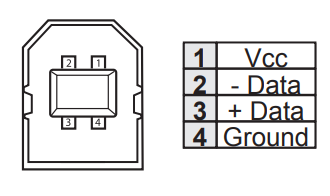 CONTROL PORT CONNECTOR (D-sub 9 pin)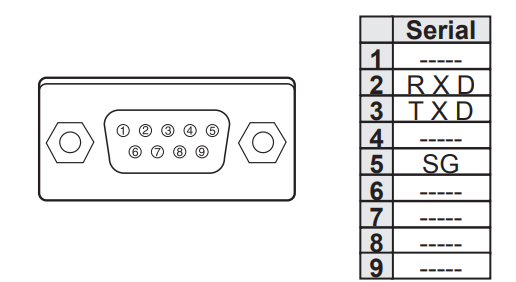
LAN TERMINAL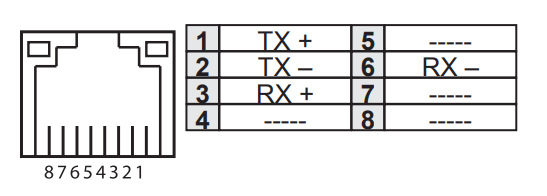 PIN Code Number Memo
Write down the PIN code number in the column below and keep it with this manual securely. If you forgot or lost the number and are unable to operate the projector, contact the service center.
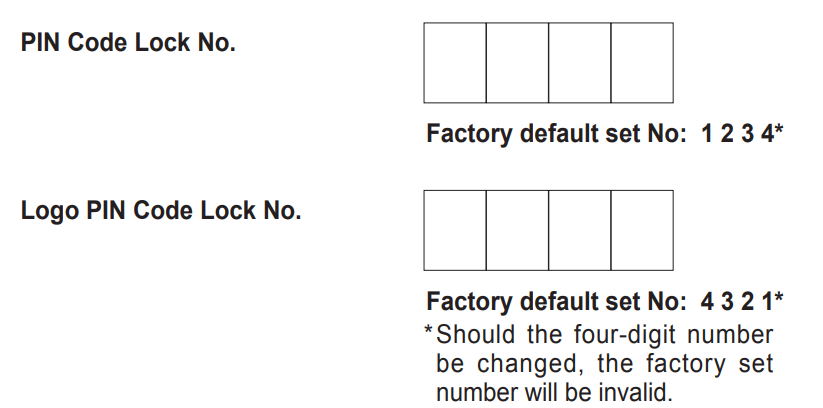
While the projector is locked with the PIN code…
Put the label below (supplied) in a prominent place on the projector’s body while it is locked with a PIN code.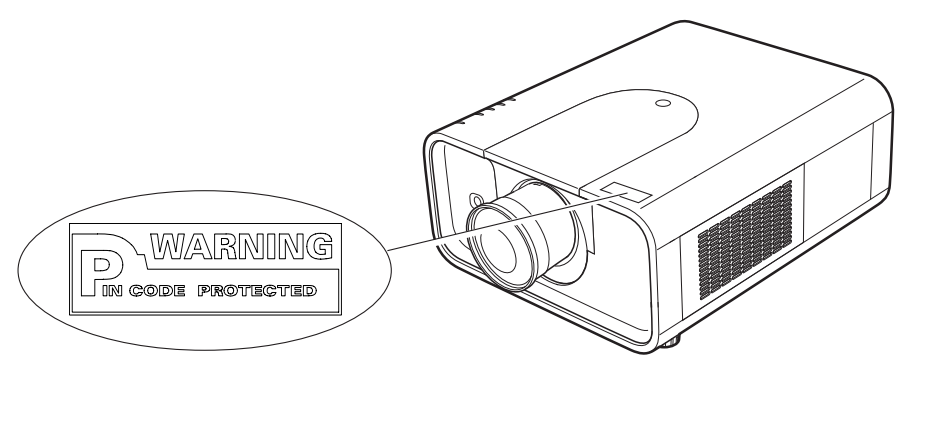
Dimensions
Unit: inch (mm) Screw Holes for Ceiling Mount Screw: M6Depth: 0.393 (10.0)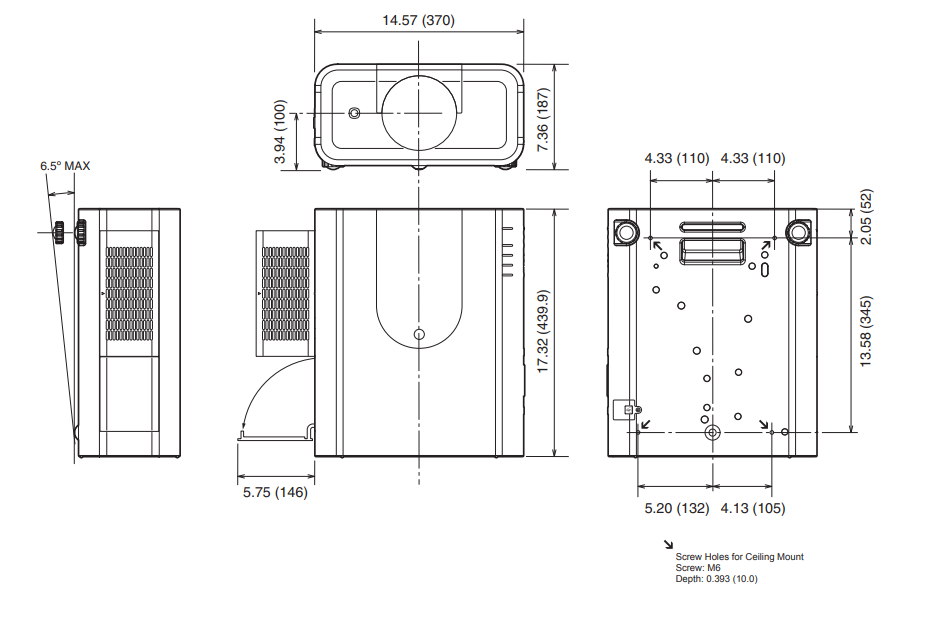
List of Picture in Picture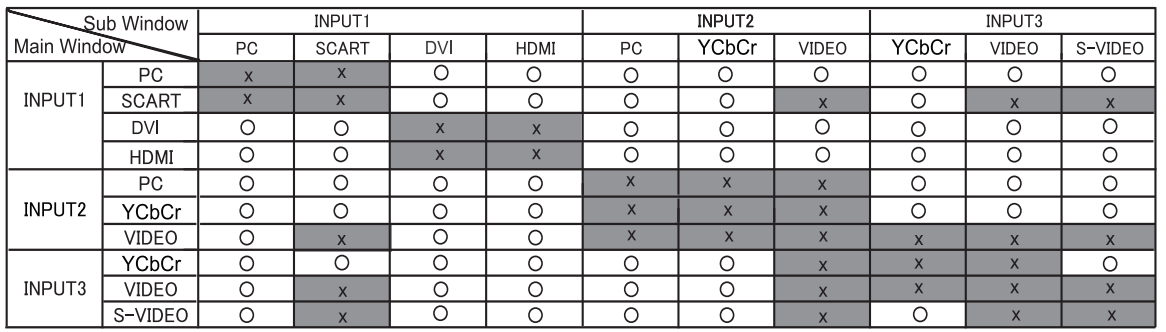
- o: Picture in Picture combinations are enabled.
- x Picture in Pictu
Serial Control Interface
This projector provides a function to control and monitor the projector’s operations by using the RS-232C
serial port.
Operation
- Connect the annS-232C serial cross cable to the CONTROL PORT on the projector and the serial port on the PC. (See p. 19)
- Launch the communication software provided with the PC and set up the communication condition as follows:

- Type the command for controlling the projector and then press the “Enter” key.
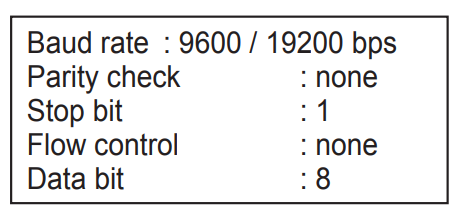
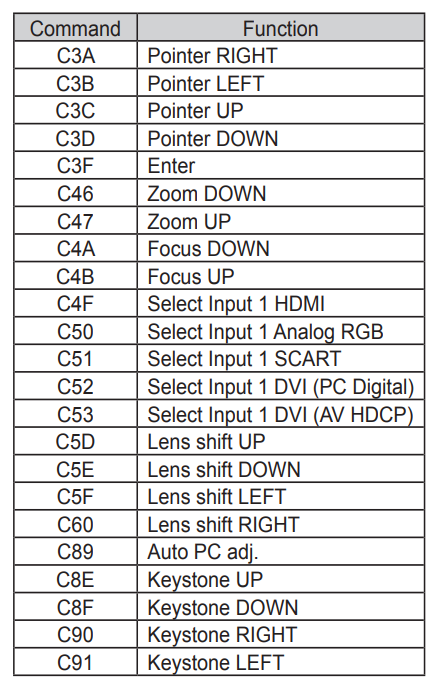
Functional Execution Command
Format
The command is sent from PC to the projector with the format below: ‘C’ [Command] ‘CR’ Command: two characters (refer to the command table below. -The projector decodes the command and returns the ‘ACK’ with the format below: ‘ACK’ ‘CR’ -When the projector can not decode the command, it returns with the format below. ‘?’ ‘CR’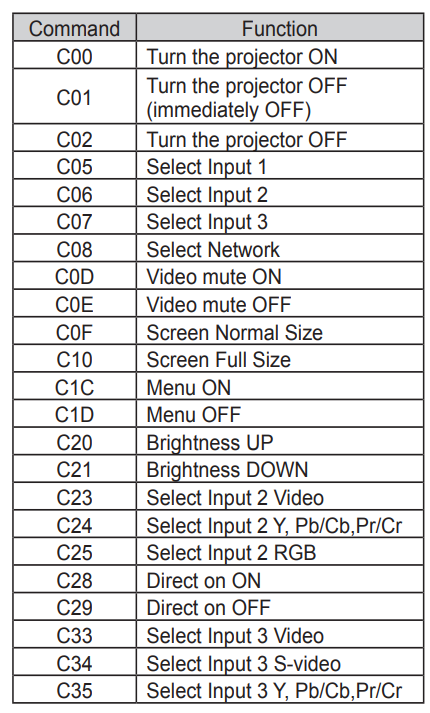
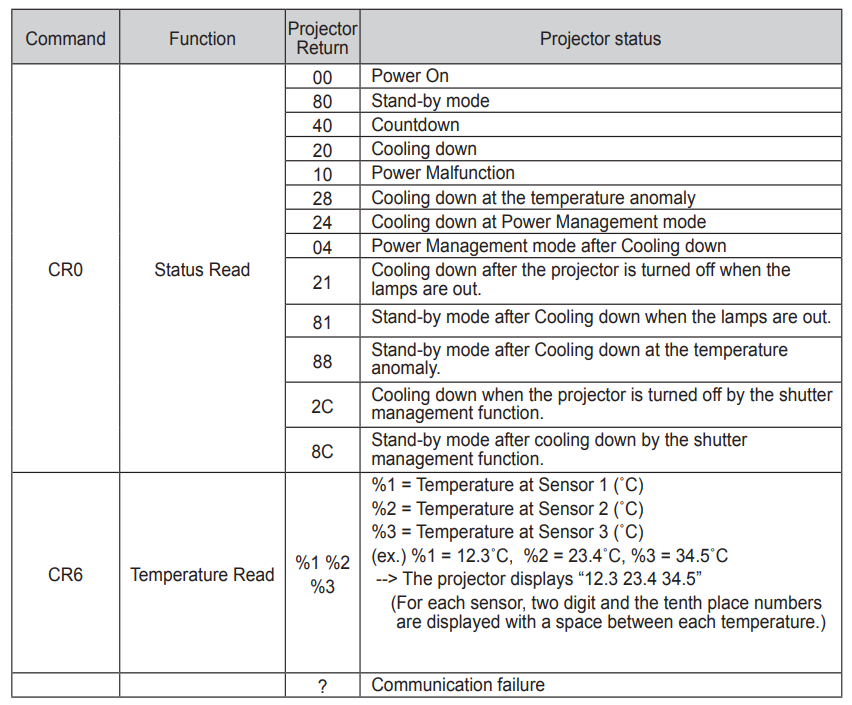
Status Read Command
Format
The command is sent from the PC to the projector with the format below: ‘CR’ [Command] ‘CR’ Command: one character (refer to the command table below. The projector decodes the command and returns the ‘Character string’ with the format below;
Customer Support
- 10550 Camden Drive,, Cypre,,ss CA 90630
- PH: 714-236-8610
- FX: 714-503-3375
- Customer Service: 1-866-880-4462
- sales-us@christiedigital.com