

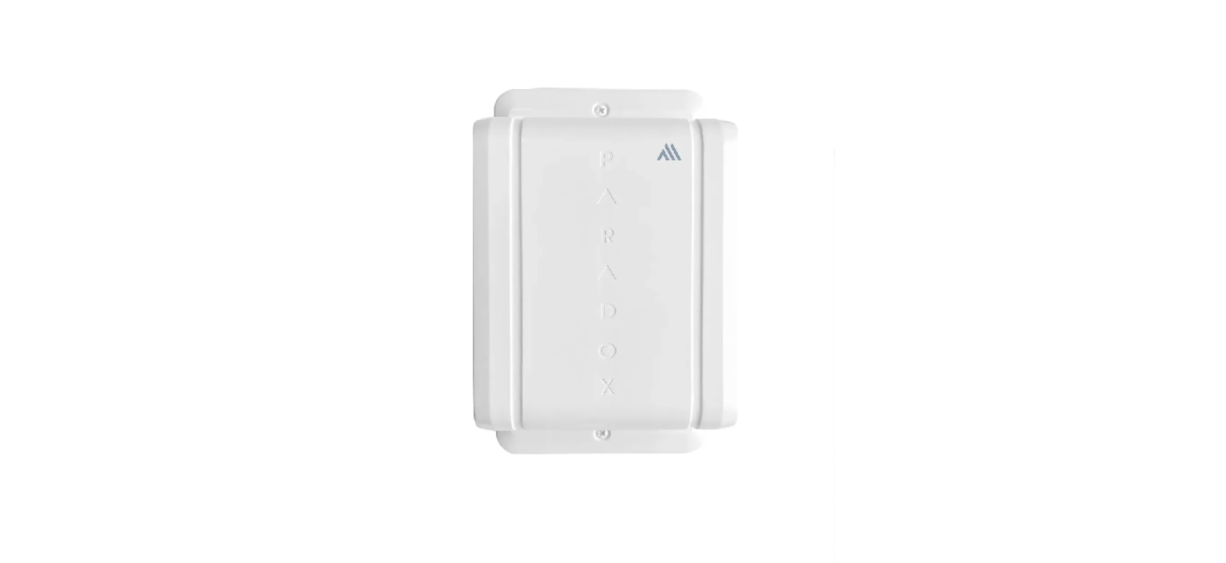

Paradox PMD780M Dual-Side View Motion Detector
Introduction
The Paradox PMD780M Dual-Side View Motion Detector is an outdoor, wireless Passive Infrared (PIR) motion detector designed for advanced security. The Paradox PMD780M Dual-Side View Motion Detector communicates seamlessly with Paradox M systems using 2-way wireless communication, featuring the latest Gaussian Frequency Shift Keying (GFSK) technology with frequency and encryption hopping.
This ensures superior wireless range, enhanced encryption, supervision, reliability, and extended battery life. The PMD780M detector is configurable to report as a single unit (two side detectors reporting to a single zone output) or as dual units (each side reporting to a separate zone).
Quick Installation – Experienced Installers
To install the Paradox PMD780M Dual-Side View Motion Detector:
- Open the detector, remove the battery holder, and the PCB.
- Fix the backplate.
- Insert the battery holder and the PCB. Close the detector.
- Slide up or down the white tab on the lens frame to adjust the detection range.
- Push in or pull out the lens tray to set the angle to 0 or 30 with the wall.
- Pair PMD780M with the console (Using the BlueEye application)
- Go to: Hardware > Tap + on the top-right of the page >Auto learn devices.
- Configure PMD780M (Using the BlueEye application)
- Go to: Hardware > Tap PMD780M from the device list > Enter the necessary details > Save.
- Built-in status indications of PMD780M
- Green (3 seconds) – Detection and transmission occurred (maximum twice within 3 minutes)
- Green Blinking – Two detections within 3 minutes, and goes to cool-down mode.
- Green Blinking (50 seconds) – PIR stabilization is in progress (after power-up).
Components of PMD780M
The following figure displays the components of PMD780M.

Detection Field
The Paradox PMD780M Dual-Side View Motion Detector must be installed at a height of 2 meters (6.5 feet) above the floor level. It creates a narrow detection beam pattern from 3m (10 ft) up to 12m (40 ft) on each side, protecting windows, doors, and walls. The detection range can be adjusted by changing the viewing angle of the bottom-facing beams (moving them up and down).

Pet Immunity
The PMD780M detector offers pet immunity for animals weighing up to 40 Kg (90 lbs). When an animal of this size moves close to the ground, it cannot cross enough beams at once to trigger an alarm. This minimizes false alarms caused by pets while maintaining accurate detection of human intrusions.
Physical Mounting
To mount the Paradox PMD780M Dual-Side View Motion Detector:
- Release the screws from the bottom and top of the PMD780M detector.
- Remove the front cover, and then remove the main unit from the backplate.
- Fix the backplate on the wall.
- Reattach the main unit to the backplate.
- Remove the battery tab (present only if the battery is included with the product) from the battery holder. Ensure that the three AA Lithium batteries in the compartment are installed with the correct polarity.
- Connect Battery Connector. The PMD780M is powered on.
- To adjust the detection range:

- Inside the front cover, slide the white tab next to the lower lens up or down on the side you wish to adjust, based on the detection range given below:
- 00 – 12m
- 50 – 10.5m
- 100 – 7.5m
- 150 – 5.25m
- 200 – 3m to 5m
- After adjusting the white tab, lock it into the nearest slot.
- Inside the front cover, slide the white tab next to the lower lens up or down on the side you wish to adjust, based on the detection range given below:
- To adjust the horizontal beams with respect to the wall:
- For the beams parallel to the wall (0 with the wall), slide the lens tray until it aligns with the top edge of the lens holder.
- For the beams at a 3 angle from the wall, slide the lens tray until it aligns with the bottom edge of the lens holder.
- Reattach the front cover and tighten it using the screw at the bottom.
Power-up Sequence
During the power-up sequence, the LED will flash five times red if the device is not paired to the console or five times green if paired to the console. The PMD780M waits between 0-10 seconds before connecting/pairing with the console. If the cover of the device is open, green and red LEDs will flash quickly.
To expand your security system and connect additional devices, you can integrate the PMD780M with modules such as the Paradox RTX3 Wireless Expansion Module, which allows seamless wireless expansion for your Paradox M system.
Pairing PMD780M with the Wireless M Console
The pairing and configuration settings of PMD780M are managed through the BlueEye application.
Prerequisites
Ensure that:
- The PMD780M is within the range of the console.
- The BlueEye application is installed on your mobile and connected to the site.
- The M console is powered on (Paradox logo color – white, red, or green).
Pairing PMD780M
To pair the PMD780M with the wireless console by an installer:
- In BluEye, when in the Hardware tab, tap + on the top-right of the page, and then tap Auto learn wireless devices.
The wireless console searches for new devices, and a rotating radar icon is displayed. All unpaired devices pair within 6 minutes and appear at the top of the device list with a new tag and voice announcements. You can open the front cover of the detector and press the Learn button momentarily, or open the tamper or a zone for immediate pairing. 
To identify the device that you want to pair, you can either open or close the zone, or trigger the device tamper, and then check the device’s screen in the BlueEye application to see the corresponding display.
When you open or close the zone, an eye icon displayed beside the device name shows opening and closing. When you trigger the device tamper, a T symbol appears on the device name in the BlueEye application.
Pairing Previously Used Devices
You can pair used devices, including the Paradox PMD780M Dual-Side View Motion Detector, under the following conditions:
- When the previously used device is not online with another wireless console, start auto-learn. Open the device or press the Learn button momentarily for immediate pairing, or wait up to 6 minutes for automatic pairing.
- When the previously used device is online with another wireless console, Press and hold the Learn button for 8 seconds to reset the device to its default settings. Reset is indicated by the LED flashing red three times. Once the reset is complete, initiate auto-learn.
Configuring PMD780M
To configure the PMD780M settings:
- When in the Hardware tab, tap PMD780M from the device list if the device is already paired. If the device is not paired, see the Pairing PMD780M section in this manual and pair the device.
- On the page that opens, enter the necessary details for the parameters and then tap Save. For details about each parameter displayed on the page, see Table 1.

Parameter List
The following table lists the parameters displayed for configuring the PMD780M, along with their descriptions.
| Parameter | Description | |
| LED | Determines whether the LED indications for the device are enabled or disabled. | |
| Sensitivity | There are two sensitivity levels, High (default) and Low. | |
| Single/Left-Right Zones | • Single (Default) – The detector reports as a single unit without separating the left and right sides. Any motion detected across the whole field of view will trigger an alarm.
• Left/Right – The detector divides its field of view into two separate zones – one on the left and the other on the right. |
|
| Zone Programming | Zone# and Area | Assign a zone and area number. |
| Zone Type and Zone Activity | Select the type of zone – Instant, Delay, or 24 hours when the device is active in the Arm, Stay, or Sleep modes. The following are the different zone types: Instant – When in any armed status, an immediate alarm occurs. 24 hours – Always armed. The system remains in alarm as long as this zone is open. |
|
| Follow Delay Zone | This zone is instant and becomes a delay zone if a delay zone is opened first. | |
| About | This tab displays details such as the installation date, production date, last programming date, battery replacements, battery history, and upgrade history. | |
| Suspend Device | Disables monitoring of the device in the system. | |
| Suspend Tamper | Disables tamper monitoring for the device. | |
| Reset to Default | This will reset the device to the factory default settings. | |
| Delete Device | This option deletes the device from the system completely. After deletion, the system generates a push notification only if the owner registration is complete, not during installation. | |
LED Indications
After configuring PMD780M, the device displays various LED indications based on specific events. The following table lists the LED indications and their corresponding event.
| LED Indication | Event |
| Red Blinking 3 times | Not connected to the console (new or unpaired). |
| Red (3 seconds) | Not connected to the console, but the device is paired. |
| Green (3 seconds) | Detection and transmission occurred (maximum twice within 3 minutes) |
| Green Blinking | Two detections within 3 minutes and goes to Cool Down mode. |
| Red/Green | After a tamper is detected, the device blinks red and green alternately for 3 seconds. After the tamper is |
| Resolved and the device is closed, the device blinks green for 3 seconds. | |
| Green Blinking (50 seconds) | PIR Stabilization is in progress (after power-up). |
Resetting
Press and hold the Learn button for 8 seconds to reset the device to its default settings. Reset is indicated by the LED flashing red three times.
Upgrading Firmware
To upgrade the firmware:
- In the Hardware tab, tap on the device > Check for Upgrade.
- If an upgrade is available, tap Upgrade when prompted.
- The process may take a few minutes.
- Keep track of the progress in the BlueEye application to ensure that the upgrade is completed successfully. Both the Installers and owners can perform the upgrade.
Signal Strength and Transmit Power Monitoring
The BlueEye application provides insights into each device’s received signal strength and transmission power to optimize performance. To view the RSSI and transmit power range.
- When in the Hardware tab, tap the icon next to the Wireless tab. A pop-up window with the RSSI and transmit power range is displayed.
- Maximum power transmitted by PMD780M:
- 868 MHz: +14 dBm
- 914 MHz: +22 dBm

Tap on any listed device to view signal strength and additional device metrics. The following parameters are displayed for each device:
- P – Received signal strength at the panel
- N – Received signal strength at the device
- Transmit power of the device.
- Current temperature reading of the device.
- Battery level of the device
A higher P and N value indicates stronger and clearer communication between the console and the device.
- If P is low, the console struggles to receive signals from the device.
- If N is low, the device struggles to receive signals from the console.
Power transmission impacts only P
- When power transmission increases, the P value at the console generally improves, as a stronger signal is sent.
- If the P value is good, the device can reduce its transmission power to save battery life.
Walk Test
After powering on the detector or opening/closing the cover (if already powered on), the detector enters a walk-test mode for 15 minutes. Perform the following walk test to ensure the motion detector detects movement in the intended area.
Steps:
- Walk across the detection field, moving in and out of the detector’s range.
- Observe LED Indications.
- If the motion detector doesn’t pick up movement as expected, adjust its height or location and re-test.
With Sensitivity set to High and Detection Energy set to Fast, then crossing two beams is detected as a movement. With the Sensitivity set to Low, the amount of movement required to generate detection is doubled. The detector exits the walk-test mode after 15 minutes. To reactivate it, open the cover of the device to trigger the tamper switch, and then close the cover.
Cool-Down Mode
The PMD780M motion detector indicates detection with a 3-second green LED display (or 3-second red if the detector is not paired or connected to the console). After two detections within 3 minutes, the PMD780M enters a cool-down mode to conserve battery life.
Dual Tamper Protection

Technical Specifications
| Specification | Description |
| Wireless Type | GFSK two-way with frequency and encryption hopping |
| Sensor Type | 4 x dual low-noise rectangular elements |
| Coverage | 3m (9.8ft) – 12m (39.37ft) on each side |
| Detection Speed | 0.2m / sec.– 4m/sec. (0.6 ft/sec.– 13.1 ft /sec.) |
| RF Frequency | 868 (865.05 – 867.95) MHz or 914 (902.25 – 927.55) MHz. Other countries might change |
| RF power | 868 MHz up to +14 dBm radiated, 914 MHz up to +22 dBm in permitted countries. |
| Transmission Time | Less than 20 ms |
| Supervision Time | 20 minutes, 10 minutes (Default), and 3 minutes |
| Status Indicators | Battery, temperature, TX/RX values |
| Battery Lithium | 3 x 1.5 VDC AA, up to 5 years of battery life |
| Installation Environment | Outdoor |
| Firmware Upgrade | Remotely over the air, via BlueEye |
| IP Rating | IPX4 |
| Operating Temperature (with lithium batteries) | -20°C to +40°C (-4°F to 104°F) |
| Auto Learn | Yes |
| Colors | White |
| Dimensions | 11W x 21H x 7D cm (4.3W x 8.2H x 2.7D in.) |
| Weight | 0.45 kg |
| Certification | CE, EN 50131-2-2, EN 50131-6, EN 50131-5-3, FCC 15.247 |
FCC Statements
This equipment generates, uses, and can radiate radio frequency energy and, if not installed and used in accordance with the instructions, may cause harmful interference to radio communications. However, there is no guarantee that interference will not occur in a particular installation.
- Reorient or relocate the receiving antenna.
- Increase the separation between the equipment and the receiver.
- Consult the dealer or an experienced radio/TV technician for help.
- Changes or modifications to this equipment not expressly approved by the party responsible for compliance (Paradox Security Systems Ltd.) could void the user’s authority to operate the equipment.
Customer Support
- Website: www.paradox.com
- Tel: (954) 933-2156
US, Canadian, and international patents may apply. Paradox IPC10 IP to CMS Converter is a trademark or registered trademark of Paradox Security Systems (Bahamas) Ltd. © 2024 Paradox Security Systems (Bahamas) Ltd. All rights reserved.