

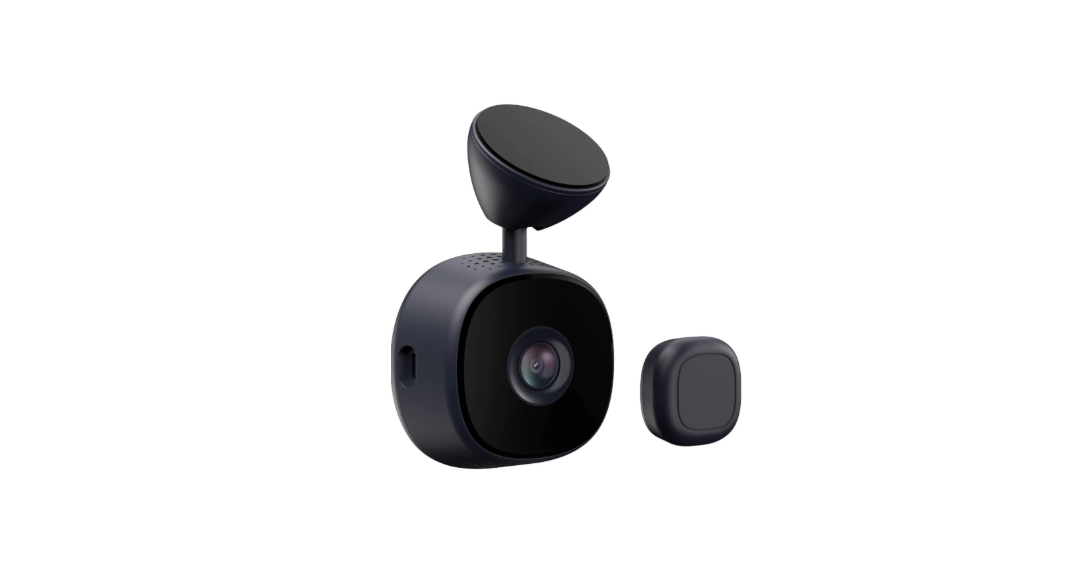

iottie Aivo View Smart Dash Cam

Getting Started
Open the iOttie Connect App and select the connected device, Aivo View. The Aivo View Dash Cam connects to your phone via Wi-Fi. Please make sure Wi-Fi is turned on.

Connecting to Wi-Fi navigates out of the iOttie Connect App and launches your phone’s
Wi-Fi Settings. Wi-Fi Name: Aivo View-XXXX Password: 12345678 Once connected, return to the iOttie Connect App to manage the Aivo View Dash Cam.

- For AndroidTM devices, your Internet and cellular connection will not work until you open the iOttie Connect App after connecting to the Dash Cam Wi-Fi.
- If your car supports wireless Apple CarPlay, you may not be able to stay connected to your Aivo View in the iOttie Connect App.
Live View
From here, you can:
- See a Live View in full-screen
- Mute audio recording
- Take a photo
- Record a video
- Manage settings
- Access photo/video albums

Recording Videos
- From the App
Tap on the video icon in the app’s home screen (Live View) to record a user video from the App. - Via Bluetooth Remote
Hold the Bluetooth Remote Button for 2 seconds to record a user video. - Via Alexa
Ask Alexa to have Dash Cam record a video.
Taking Photos
- From the App
Tap on the camera icon in the app’s home screen (Live View) to take a photo from the App. - Via Bluetooth Remote
Click the Bluetooth Remote Button to take a photo. - Via Alexa
Ask Alexa to have Dash Cam take a photo.
Album
- Loop Videos
The Aivo View records on a continuous loop whenever it is powered on. - User Videos & Photos
To access pictures and videos taken by the user, tap the album icon at the bottom of the screen. Then click the User tab. - Emergency Videos
The recordings are originally saved to the SD Card and can be downloaded to your smartphone. - Downloaded Videos & Photos
Without connecting to the iottie Aivo View Smart Dash Cam Aivo View Wi-Fi Network, downloaded videos and photos appear in the Downloaded album. - Favourite Videos & Photos
Photos and videos can be marked as your favourites.
Device Settings
In the top right corner of the Dash Cam home screen (Live View) in the iOttie Connect App, you will find the Settings icon( ) where you can make changes and adjustments to the Device Settings.
- Changing the Dash Cam Name
You can rename the Dash Cam by selecting Dash Cam Name from the Device Settings. - Changing the Wi-Fi Name & Password
To change the Wi-Fi name or password, tap on the listed name to edit. - Speed Unit
Your video recordings are geotagged. - Volume
Adjust the external volume of the Aivo View - Dash Cam
Driving Mode Collision Sensitivity: The Dash Cam’s G-sensor can detect a sudden force, such as when a collision occurs.
Parking Mode
The Aivo View Dash Cam requires an external battery source to use Parking Mode.
- Parking Mode Collision iottie Aivo View Smart Dash Cam Sensitivity Adjust the Parking Mode Collision Sensitivity of the G-sensor or turn it off completely.
Video Settings
In the top right corner of the Dash Cam home screen (Live View), you will find the Settings icon, where you can make adjustments or changes to the Video Settings.
- Resolution
To adjust the resolution, select Resolution from the Video Settings menu and tap on your desired value. (1080p/60fps is recommended). - Loop Recording Duration
The Dash Cam automatically records on a continuous loop once it is powered on. You can adjust the overall length of each loop video recording. - WDR
Wide Dynamic Range (WDR) ensures clear recordings by improving the image quality in both bright and dark conditions. Turn on/off the Wide Dynamic Range (WDR). - Record Audio
Audio is recorded with the Dash Cam video by default. - Record GPS
Turn GPS tracking on or off via a toggle within the settings. - Exposure
To adjust the exposure, select Exposure from the Video Settings menu and slide the button to your desired value. - Video Watermark Label
To use a watermark label, select Video Watermark Label from the Video Settings menu and toggle to “on” to show dates and/or geographic coordinates.
Storage
To check storage, click on the Dash Cam settings icon and tap Storage. If space is below 10% in any category, a warning will appear. Delete any unused files to save storage space.
Firmware Update
To navigate to the manual firmware update, click on the Dash Cam settings icon. Tap Firmware Update. Check to see if the firmware is up-to-date. If not, hit the Update Firmware button.
Declaration of Conformity (FCC)
This equipment generates, uses, and can radiate radio frequency energy and, if not installed and usedbyh the instructions, may cause harmful interference to radio communications. However, there is no guarantee that interference will not occur in a particular installation.
- Reorient or relocate the receiving antenna.
- Increase the separation between the equipment and the receiver.
- Consult the dealer or an experienced radio/TV technician for help. CAUTION: Changes or modifications not expressly approved by the party responsible for compliance could void the user’s authority to operate the product.
This equipment complies with FCC radiation exposure limits set forth for an uncontrolled environment.
Customer Service
- Website: cs@iottie.com
- Tel: (201) 580-2688