

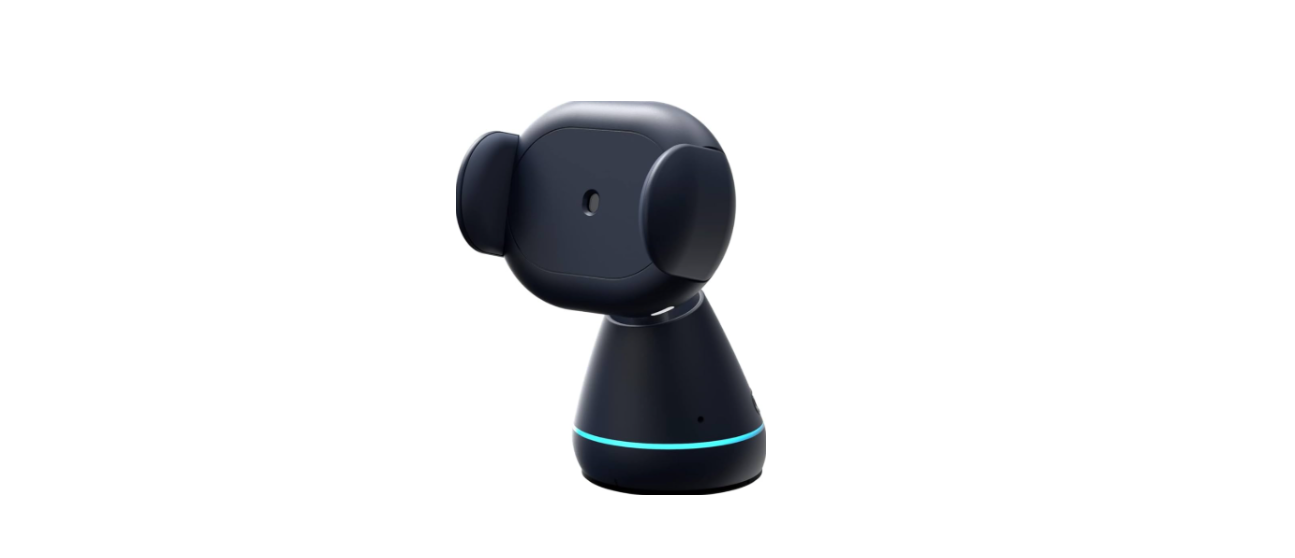

iOttie B08HQVMZWW Aivo Connect Car Mount

Introduction
Please follow these steps in the order below to set up your device properly!
- Download iOttie Connect & Amazon Alexa apps
- Product Information: Device Compatibility Critical Information What’s in the Box? Product Specifications Safety Information
- Product Setup: Assembly & Installation Using the Automatic Mounting System Qi Alignment Guide
- Alexa User Experience: Welcome to Alexa Pairing & Connecting a Device App Settings & Management Using Alexa Alexa Settings & Preferences Things to Try with Alexa
Product Information
For an optimal charging experience, please follow the detailed instructions in this manual when using the Aivo Connect.
- Device Compatibility
Please make sure your device is Qi-Wireless compatible. Compatible devices include: - Apple
iPhone 12, 12 Mini, 12 Pro, 12 Pro Max, 11, 11 Pro, 11 Pro Max, X, XS, XS Max, XR, 8, and 8 Plus. - Samsung
Galaxy S21, S21+, S21 Ultra, S20, S20+, Note20, Note20 Ultra, Z Flip, Z Fold, Note10, Note10+, S10e, S10 S10+, Note9, S9, S9+, Note8, S8, and S8 Plus. Google Pixel 5, 4, and 3.
Please only use the included cable and power adapter! Third-party components may negatively impact wireless charging performance.
Critical Information

Mounting at a perpendicular angle to the mount works best within the proximity sensor.

If mounting at an angle, the phone will need to be closer to the sensor for the arms to open.
Overview

Product Setup
Assembly & Installation
- 1. Select the desired mounting location on the dashboard and clean the surface before installation.

- Remove the adhesive cover from the bottom of the twist-locking base. With the arrow facing the driver, place it at the desired mounting area. *Press and hold firmly for 30 seconds to securely adhere.

- Connect the Aivo Connect to the wistlocking base, with a 1/4 clockwise turn to lock into place.

- Connect the power cord to the back of the Aivo Connect and plug the charger into the car’s power source.

Having Trouble mounting on the dashboard?
If your car features a leather or curved dashboard, we recommend installing the Aivo Connect to your windshield to ensure our adhesive twist-locking base is at its most secure.
Using the Automatic Mounting System
Mounting and Charging

- Side arms on the mount automatically open via a silent step motor when the phone is detected in front of the Proximity Sensor on the mount.

- Once the phone is placed in the mount, the arms will automatically close after one second. Qi wireless charging will start immediately.
Releasing Device

Buttons behind the cradle arms on both sides of the device can open the arms. One or both buttons can be pressed.
- The Aivo Connect is powered via a USB-C cable and a coin cell battery.
- There is no on/off switch on the device.
- Once plugged in, the device will remain on unless the vehicle shuts off power when in parking mode.
- Backup battery will continue to operate the Aivo Connect cradle arms (open & close) after power has been disconnected or turned off.
Qi Alignment Guide
The Qi Receiver Coil is generally located in the center area of the phone. Check with your phone’s manufacturer for the specific Qi coil location. Below are some examples of commonly used phones. The Qi coil on the mount is located in the center, in between the arms and around the Infrared Proximity Sensor.

 User Experience
You can talk to Alexa on your Aivo Connect mount. With Alexa, you can ask to get directions, play music, place calls, listen to audiobooks, hear the news, check the weather, control smart home devices, and much more–all while you keep your hands on the wheel and eyes on the road. The Aivo Connect mount supports access to tens of thousands of Alexa skills from within your vehicle. For an optimal experience, please follow the detailed instructions for Alexa setup found in the manual or the iOttie Connect app.
- Some Alexa Skills may require an Amazon Prime membership.
- Make sure your phone’s Bluetooth is on and connected to your car’s Bluetooth.
- The Aivo Connect with Built-in Alexa uses your cellular data when not connected to WiFi. A clear network connection is required for Alexa to work properly; otherwise, there may be delays or interruptions. iOttie is not liable for data usage.
- Alexa streams from the cloud. Please note that this may use data. Data charges may apply.
- Alexa streams media instead of local files. Please note that this may use data. iOttie is not liable for data usage.
- For voice messaging, please allow iOttie B08HQVMZWW Aivo Connect Car Mount permission settings by going to Contacts > Profile and Settings > Permission.

LED Indicators

Qi Wireless LED Indicators

Pairing & Connecting a Device
- After Aivo Connect powers on, hold the Invoke Alexa Button for 5 seconds to initiate Setup Mode. The LED Ring will pulse orange as Alexa directs you to the Alexa App to add a new device.

- In the Alexa App, navigate to Add Device > Auto Accessory, then select from available devices: iOttie Aivo Connect (####) and pair the device. Allow location access and make sure Bluetooth is discoverable and turned on.
- Once the device is paired and connected, the iOttie B08HQVMZWW Aivo Connect Car Mount LED Ring will flash blue three times before turning off. Alexa is now ready to use.

-
- The device will now connect automatically when it is powered on, and your smartphone is in close range.
- To unpair the device, hold the Invoke Alexa button for 5 seconds until it flashes orange, and select “Forget Device” from the phone’s Bluetooth settings.
Updating Firmware
For an optimal user experience, make sure you have the most up-to-date device firmware installed from the iOttie Connect app. Follow instructions for updating device firmware in the app.
Using Alexa
- A Wake Word can be used to ask Alexa anything. The wake word is simply “Alexa.”
- The Invoke Alexa Button on the back of the mount base can also be used instead of the wake word.
- The Mute/Unmute Button, also on the back of the mount base, can be used to turn Al.
There will be no visual cue on your smartphone that announces the connection, except that the color of Avio Connect’s LED light should be blue.
The Alexa App must be running in the backgr,ound iOttie B08HQVMZWW Aivo Connect Car Mount of your phone for the device to work. When the app is reopened, it will reconnect automatically.
Alexa Settings & Preferences
Navigation Setting Alexa will use your default maps app. To use a specific map (i.e, Waze or Google Maps), the default must be changed within the Alexa app.
- Go to the menu and select “Settings.”
- Select “Traffic”
- Select “Default Navigation App”
Music Setting
When playing music, Alexa will default to Amazon Music. If using another service, the default must be changed within the Alexa app.
- Go to the menu and select “Settings.”
- Select “Music & Podcasts”
- Select “Def
Call and Text Message Setting
To enable Voice Messaging and Calling features, please enable Alexa access to your contacts for seamless communication. *Alexa App menu names are subject to change at any time.
Things to Try with Alexa
With Alexa, users can ask for directions, play music, make hands-free calls, control smart home devices, and much more. Just ask!
Navigation
Alexa, navigate to Prospect Park. Take me to the nearest gas station. Directions to home.

Music
Turn up the volume. Alexa, play rock music. Alexa, rewind 15 seconds.
 Communication
Call Home. Alexa, text “Hello” to John. Alexa, call Hannah.

Miscellaneous
To find a nearby gas station. Alexa, what’s the weather? Alexa, tell me a story.

Product Specifications
Aivo Connect Mount

Car Charger Specifications

Declaration of Conformity (FCC)
This equipment generates, uses, and can radiate radio frequency energy and, if not installed and usedbyh the instructions, may cause harmful interference to radio communications. However, there is no guarantee that interference will not occur in a particular installation.
- Reorient or relocate the receiving antenna.
- Increase the separation between the equipment and the receiver.
- Consult the dealer or an experienced radio/TV technician for help. CAUTION: Changes or modifications not expressly approved by the party responsible for compliance could void the user’s authority to operate the product.
This equipment complies with FCC radiation exposure limits set forth for an uncontrolled environment.
Customer Service
- Website: cs@iottie.com
- Tel: (201) 580-2688.