



Sharkoon SGK1 ILLMINATED Gaming Keyboard

Package Contents
- SKILLER MECH GK1
- Manual
Properties
- Mechanical gaming keyboard with white LED illumination
- Aluminium alloy reinforced top cover
- Six pre-programmed lighting effects
- Five individually programmable lighting profiles
- Six brightness levels
- Professional Kailh switches
- N-key rollover
- Anti-ghosting keys
- Gaming mode with disabled Windows key
- Arrow keys functions are interchangeable with the WASD section
- Function keys with preset multimedia actions
- Integrated palm rest
- Gold-plated USB plug
Overview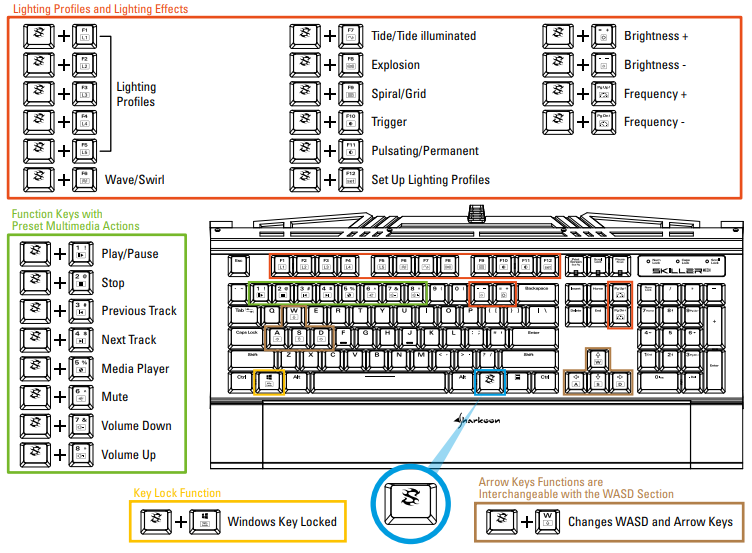
Function Key
Some keys on the SKILLER MECH SGK1 keyboard are preset with additional functions. To activate these functions, press the SKILLER Function key.
Set Brightness
The SKILLER Function key + decreases the illumination brightness, while the SKILLER Function key + increases the brightness. This applies to all effects, as well. Brightness levels of 20 %, 40 %, 60 %, 80 %, 100 %, plus turning the brightness off, are all Sharkoon SGK1 ILLUMINATED possible. Once the lowest level is reached, the Scroll Lock LED will blink to indicate that a lower level is not possible. The same will happen once the highest level is reached.
Select Lighting Effect
Switch between the six total lighting effects by pressing the SKILLER Function key + F6-F11. The F6, F7, and F9 keys offer two lighting variations. Press the respective key combination twice to cycle through the variations.
Example: To launch the “Wave” effect, press the SKILLER Function key + F6 once. To launch the“Swirl” variation, press the SKILLER Function key + F6 twice.
- FN + F6: Wave – The keys light in the form of a wave from left to right, or right to left. Use the SKILLER
Function key + sideways arrow keys to change the direction of the wave. - FN + F6 (twice): Swirl – The lighting rotates around the center of the keyboard. Use the SKILLER Function key + sideways arrow keys to change the direction of the vortex.
- FN + F7: Tide – Waves run over the keyboard.
- FN + F7 (twice): Tide illuminated – The same effect as Tide, but with an activated background illumination.
- FN + F8: Explosion – Starting from the pressed key, the lighting spreads out in a circular pattern across the keyboard.
- FN + F9: Spiral – Starting from top-right, the keys will light up and run clockwise from outside to inside.
- FN + F9 (twice): Grid – Starting from top-right, the keys will light up and run from right to left, then on the second row from left to right, and then on the third row from right to left, etc.
- FN + F10: Trigger – Every pressed key illuminates and slowly fades.
- FN + F11: Pulsating – All keys will slowly light and dim repeatedly.
- FN + F11 (twice): Permanent – All keys continuously illuminate.
Set Frequency
All lighting effect speeds can be increased or decreased. Press the SKILLER Function key + Page Up to increase the effect speed or the SKILLER Function key + Page Down to slow down the effect speed.
Note: Once the lowest level is reached, Sharkoon SGK1 ILLUMINATED the Scroll Lock LED will blink to indicate that a lower level is not possible. The same will happen once the highest level is reached.
Lighting Profiles
Your SKILLER MECH SGK1 already includes five preset lighting profiles, each can be individually customizable. Within each profile, every key can illuminate,, except the SKILLER Function key. To customize a profile, proceed as follows:
- Press the SKILLER Function key + F12. The profile key will start to blink.
- Select the desired profile key (F1 – F5). The lighting will cease.
- Press all keys that should illuminate during this profile. The selected keys will stay illuminated.
- To save the profile, press the SKILLER Function key + F12 again.
The profile is now saved under the selected Function key. To launch the profile, press the SKILLER Function
key and the defined profile key (F1–F5). To stop the profile, simply select another profile or lighting effect.
Gaming Mode
If you want to lock the Windows key, press the Windows key + the Function key. To unlock the Windows
key, press this combination again.
Arrow Keys Functions Are Interchangeable with the WASD Section
To swap the functions of the arrows and WASD keys, press the SKILLER Function key + the W-key. To undoThiss this function swaps. Press this combination again.
Function Keys with Preset Multimedia Actions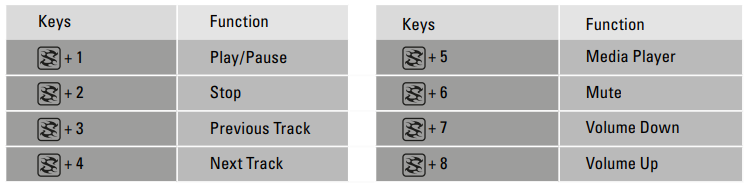 The 1 – 8 keys are preset with multimedia actions and quick access to the media player.
Reset
To reset the keyboard, press and hold for three seconds the key combination SKILLER Function key + Pause.
Afterwards, the keyboard lighting is set to 100% brightness, and Wave mode is enabled. The lighting profiles
also reset to factory settings.
Connecting to the PC
Connect the USB plug on SKILLER MECH SGK1 to an available USB port on your PC. The operating system will automatically recognize the SKILLER MECH SGK1.
Legal Disclaimer
For potential loss of data, especially due to inappropriate handling, SHARKOON assumes no liability. As a continuing policy of product improvement at SHARKOON, the design and specifications are subject to change without prior notice.
National product specifications may vary. The legal rights of the enclosed software belong to the respective owner. Please observe the license terms of the manufacturer before using the software. All rights reserved, especially (also in extracts) for translation, reprinting, reproduction by copying or other technical means. Infringements will lead to compensation. All rights Sharkoon SGK1 ILLUMINATED reserved, especially in case of assignment of a patent or utility patent. Means of delivery and technical modifications reserved.
Disposal of Your Old Product
Please act according to your local rules and do not dispose of your old products with your normal household waste. The correct disposal of your old product will help prevent potential negative consequences to the environment and human health.
Customer Support
Website: info @sharkoon.com/www.sharkoon.com