Close Menu
onyxguides.comonyxguides.com

    Subscribe to Updates

    Get the latest creative news from FooBar about art, design and business.

    What's Hot

    NEC NP-02HD DLP Cinema Projector Instruction Manual

    April 3, 2026

    Best Wireless Mouse and Keyboard Guide 2026: Features, Fixes & Top Picks

    April 2, 2026

    QYSEA FIFISH E-GO Black Underwater Drone User Manual

    April 2, 2026
    Facebook X (Twitter) Instagram
    onyxguides.comonyxguides.com
    Facebook X (Twitter) Instagram Pinterest
    • Home
    • About us
    • Terms & Conditions
    • Privacy Policy
    • FAQs
    • Contact us
    onyxguides.comonyxguides.com
    Home » Sharkoon SGK50 S3 Wood Barebone Instruction Manual
    Sharkoon

    Sharkoon SGK50 S3 Wood Barebone Instruction Manual

    By Gabriel SmithAugust 4, 2025Updated:December 22, 2025No Comments6 Mins Read
    Facebook Twitter Pinterest LinkedIn Tumblr WhatsApp Telegram Email
    Sharkoon-SGK50-S3-Wood-Barebone-featured
    Share
    Facebook Twitter LinkedIn Pinterest Email

    sharkoon-logo

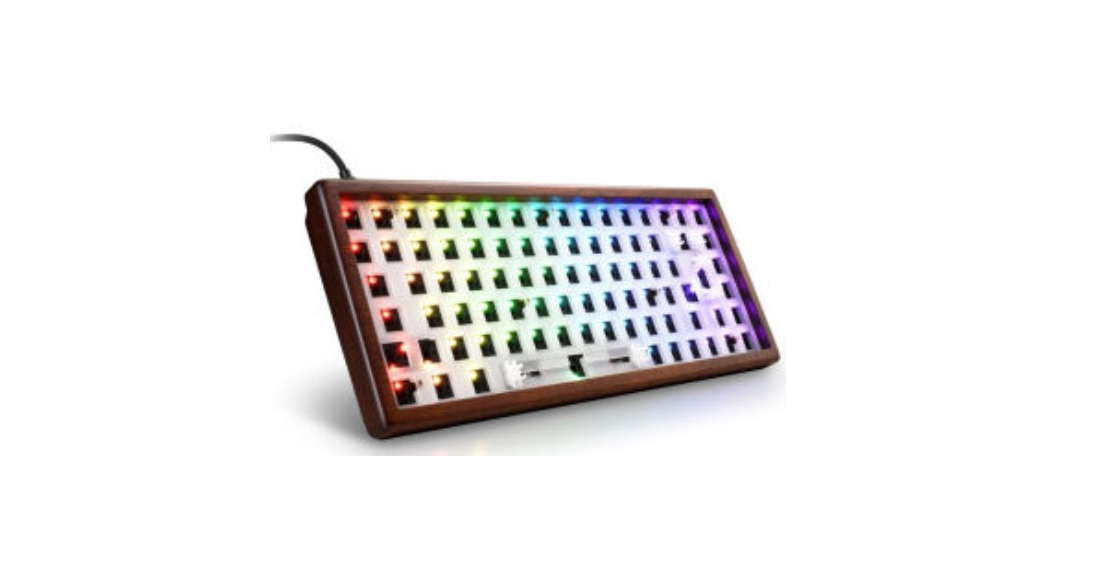
    Sharkoon SGK50 S3 Wood Barebone

    Sharkoon-SGK50-S3-Wood-Barebone-product

    Safety Instructions

    • Only use the device indoors in areas with normal humidity.
    • Ensure that the device does not come into contact with moisture or liquids.
    • Only clean the device with a dry cloth.
    • Connect this device only with compatible, intended cables and only to other compatible, intended devices.
    • The device does not contain any components that require maintenance. Opening the keyboard housing will result in the loss of the guarantee.

    Install SwitchesSharkoon-SGK50-S3-Wood-Barebone-figure-1

    • To install the switches, position the switch so that one tab is at the front and the other tab is at the back.
    • Each pin on the underside of the switch should be pointing exactly to its relevant contact in the keyboard socket.
    • Make sure that the switch is led vertically into the socket opening (at a 90-degree angle to the socket).
    • Installing the switch incorrectly can lead to damage or malfunction of the switch.
    • After you have placed the switch in its socket, push very gently on the switch to secure it in place.
    • Make sure that you do not use too much force, as this can damage or destroy fragile components.
    Remove Switches

    Sharkoon-SGK50-S3-Wood-Barebone-figure-2

    • Position the switch puller tool correctly on the tabs of the switch. These are positioned at the front and the back of the switch.
    • Before pulling out the switch, make sure that both tabs are securely pressed with the switch puller tool and that the switch can be removed from the socket without resistance.
    • If necessary, remove the adjacent keycaps to allow the switch puller tool sufficient freedom of movement.
    • Press both tabs of the switch with the switch puller tool and then slowly pull the switch out of the socket.
    • Be sure to always pull vertically from the socket in a straight, upward direction.
    • Avoid pulling in a slanted direction, as this can result in damage.

    Install KeycapsSharkoon-SGK50-S3-Wood-Barebone-figure-3

    • To install a keycap, first place it over the installed switch. Make sure that the keycap’s symbol or character is positioned the right way round.
    • Now, carefully press the keycap onto the switch until the keycap locks into place.
    • Do not use excessive force, as this can damage the keycap and the switch.
    • After the correct installation, the switch and keycap should behave as when used for normal typing.
    Remove KeycapsSharkoon-SGK50-S3-Wood-Barebone-figure-4
    • To remove a keycap, place the arms of the keycap puller tool either to the left and right or to the top and bottom of the keycap, and then pull the keycap upwards with careful but constant pressure.
    • Whenever possible, avoid pulling the keycaps from the switch directly with your fingers, as this may damage the switch.


    Multimedia KeysSharkoon-SGK50-S3-Wood-Barebone-figure-5Sharkoon-SGK50-S3-Wood-Barebone-figure-6

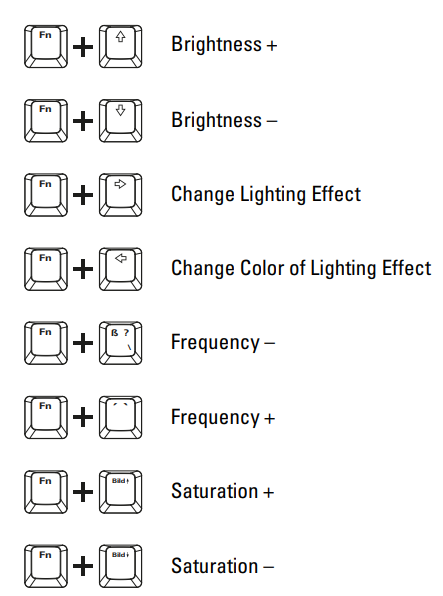
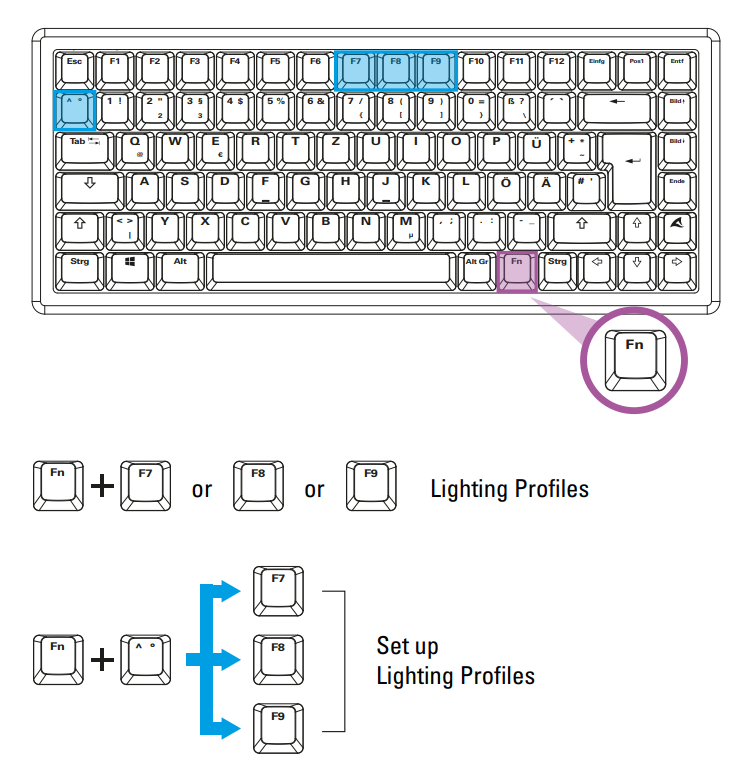
    Lighting EffectsSharkoon-SGK50-S3-Wood-Barebone-figure-7Sharkoon-SGK50-S3-Wood-Barebone-figure-8Lighting ProfilesSharkoon-SGK50-S3-Wood-Barebone-figure-9

    Set up Lighting Profiles

    To set up or modify lighting profiles, first press and hold down the function key, and then also press the caret (^) key. Up to three lighting profiles Sharkoon SGK50 S3 Wood Barebone can be accessed separately via the F7, F8, or F9 key. These keys begin to flash. To choose one of these three profiles, press and hold down the function key again and then also choose and press one of the keys that are now flashing.

    You can then select and press any keys that you wish to be illuminated. When you have finished with the selection of keys, press and hold down the function key again and then press the caret (^) key once more to save the personalized illumination. This can now be accessed via the previously chosen F7–F9 key.

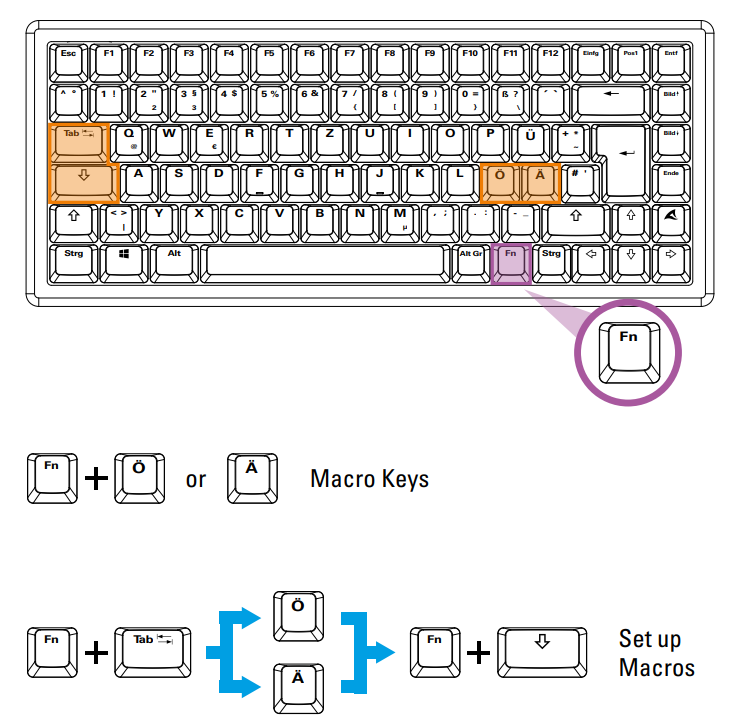
    Macro KeysSharkoon-SGK50-S3-Wood-Barebone-figure-10
    Record Macros

    To record macros, first press and hold down the function key and then press the Tab key. Once you have done this, the macro keys Ö and Ä will start flashing. Press and hold down the function key and press one of these two macro keys to select it for macro recording. In the next step, first press and hold down the function key, and then press the Caps Lock key. The macro key you selected will now start to light up continuously.
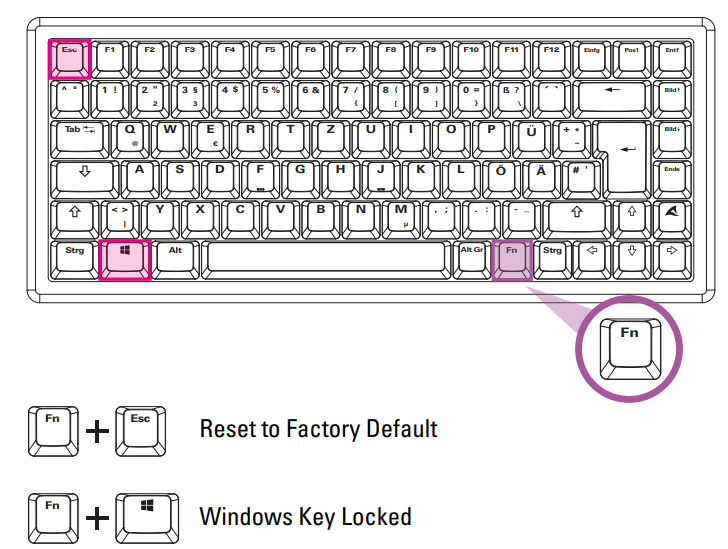
    Additional FunctionsSharkoon-SGK50-S3-Wood-Barebone-figure-11

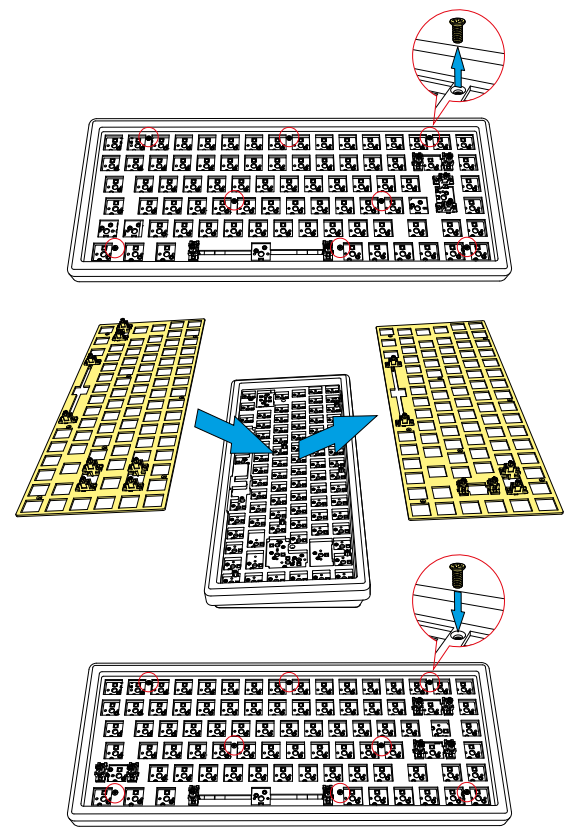
    Choose ISO or ANSI Positioning PlateSharkoon-SGK50-S3-Wood-Barebone-figure-12

    Legal Notices

    Legal Disclaimer

    • For potential loss of data, especially due to inappropriate handling, Sharkoon assumes no liability.
    • As a continuing policy of product improvement at Sharkoon, the design and specifications are subject to change without prior notice.
    • National product specifications may vary. All rights reserved, especially (also in extracts) for translation, reprinting, reproduction by copying or other Sharkoon SGK50 S3 Wood Barebone technical means.
    • Infringements will lead to compensation. All rights reserved, especially in case of assignment of a patent or utility patent. Means of delivery and technical modifications reserved.
    • Please act according to your local rules and do not dispose of your old products with your normal household waste.
    • The correct disposal of your old product will help prevent potential negative consequences to the environment and human health.

    Customer Support

    Website: https://usevia.app

    FAQs

    Q: What is included in the SGK50 S3 Wood Barebone package?

    Ans: A detachable USB-C cable, a keycap puller, a hot-swappable PCB, pre-installed stabilisers, a hardwood SGK50 S3 keyboard chassis, and a quick start guide are all included in the package. There are no keycaps or switches supplied.

    Q: What switch types are compatible with the SGK50 S3?

    Ans: Three-pin and five-pin MX-style mechanical switches are compatible with the SGK50 S3. This comprises the most well-known switch brands, including Akko, Gateron, Kailh, and Cherry MX.

    Q: Is the wood casing real or a veneer?

    Ans: Because of natural grain differences, every unit is different. For information on a particular type of wood, please consult the product listing or packaging.

    Q: How do I install switches and keycaps?

    Ans: Make sure the keyboard is disconnected. Press firmly until the switch pins click into place after aligning them with the PCB sockets. To install keycaps carefully, use a keycap puller. For a detailed instruction manual, consult the handbook.

    Q: Is the keyboard hot-swappable?

    Ans: Yes, hot-swapping is supported by the SGK50 S3 Wood Barebone. If the switches are compatible with MX-style switches, you can swap them out without soldering.

    Q: Is software required to configure the keyboard?

    Ans: Basic use does not require software. However, you can download the Sharkoon Control Software from our official website for more sophisticated customisation, such as macros, RGB control, or key remapping.

    Q: Does the SGK50 S3 support VIA or QMK firmware?

    Ans: VIA and QMK are not supported by the SGK50 S3 Wood Barebone at this time. Only Sharkoon’s proprietary software allows such customisation.

    Barebone PC Case Guide How to Build PC with Sharkoon SGK50 SGK50 S3 Instructions Sharkoon Barebone Manual Sharkoon PC Case Setup Sharkoon SGK50 Features Sharkoon SGK50 S3 Wood Barebone PC Case
    Share. Facebook Twitter Pinterest LinkedIn Tumblr Email
    Gabriel Smith

      Related Posts

      Sharkoon VK3 RGB ATX PC Tower Case Instruction Guide

      October 27, 2025

      Sharkoon SKILLER SGK50 S3 Gaming keyboard User Guide

      August 14, 2025

      Sharkoon Skiller SGK4 Gaming Keyboard Instructions Guide

      August 14, 2025

      Sharkoon SGK1 ILLMINATED Gaming Keyboard Instruction Guide

      August 4, 2025

      Sharkoon PureWriter W65 Wireless keyboard Instruction Guide

      August 4, 2025

      Sharkoon SGK50 S4 GEN2 PB Barebone Instruction Manual

      August 4, 2025
      Add A Comment

      Comments are closed.

      Don't Miss
      Other

      NEC NP-02HD DLP Cinema Projector Instruction Manual

      April 3, 2026

      NEC NP-02HD DLP Cinema Projector Safety Instructions This product is classified as Class 1 of…

      Best Wireless Mouse and Keyboard Guide 2026: Features, Fixes & Top Picks

      April 2, 2026

      QYSEA FIFISH E-GO Black Underwater Drone User Manual

      April 2, 2026

      QYSEA FIFISH PRO OPSS Onshore Power Supply System User Manual

      April 1, 2026
      Stay In Touch
      • Facebook
      • Twitter
      • Pinterest
      • Instagram
      • YouTube
      • Vimeo

      Subscribe to Updates

      Subscribe to Updates

      Follow us

      Facebook X-twitter Instagram Pinterest

      © 2025 All rights reserved Onyx Guide.