Close Menu
onyxguides.comonyxguides.com

    Subscribe to Updates

    Get the latest creative news from FooBar about art, design and business.

    What's Hot

    NEC NP-02HD DLP Cinema Projector Instruction Manual

    April 3, 2026

    Best Wireless Mouse and Keyboard Guide 2026: Features, Fixes & Top Picks

    April 2, 2026

    QYSEA FIFISH E-GO Black Underwater Drone User Manual

    April 2, 2026
    Facebook X (Twitter) Instagram
    onyxguides.comonyxguides.com
    Facebook X (Twitter) Instagram Pinterest
    • Home
    • About us
    • Terms & Conditions
    • Privacy Policy
    • FAQs
    • Contact us
    onyxguides.comonyxguides.com
    Home » Sharkoon PureWriter W65 Wireless keyboard Instruction Guide
    Sharkoon

    Sharkoon PureWriter W65 Wireless keyboard Instruction Guide

    By Gabriel SmithAugust 4, 2025Updated:December 22, 2025No Comments6 Mins Read
    Facebook Twitter Pinterest LinkedIn Tumblr WhatsApp Telegram Email
    Sharkoon-PureWriter-W65-Wireless-keyboard- featured
    Share
    Facebook Twitter LinkedIn Pinterest Email

    sharkoon-logo

    Sharkoon PureWriter W65 Wireless keyboard

    Sharkoon-PureWriter-W65-Wireless-keyboard- product

    Safety Information

    • Read these instructions before using the product.
    • The product is to be used as a keyboard.
    • It is intended for household use and is not intended for commercial use.
    • Use the product only with the accessories approved by the manufacturer, a nd do not modify the product without the manufacturer’s consent.
    • Do not use the product in extreme environments.
    • If the product is damaged due to improper use or non-compliance with the safety guidelines and instructions below, the manufacturer’s guarantee will be void.
    Product Safety
    • Charge the product only with the supplied USB charging/data cable and a USB Type-A port on your computer.
    • Use and store the product only in environments with controlled temperatures. Otherwise, damage to the product may occur!
    • Clean this product only with a dry cloth. Moisture can cause damage to the product!
    • Unplug the product via its USB cable when the product is not being used for a long period of time or during critical events such as power outages or electrical storms. Damage to the product or personal injury may occur!
    • Contact Sharkoon if the product and/or included accessories have been damaged and/or are not working properly.
    • Avoid overheating of the device! Do not use or store the product near heat sources or in direct sunlight. Overheating of the device can cause damage!
    • Do not use the product near liquids or allow the product to come into contact with liquids. Immediately unplug the USB cable if the product comes into contact with liquids. Irreparable damage may occur!
    • Do not place the product on or near power cables or other electrical devices.
    • Do not insert foreign objects into any openings of the product. This can cause damage to the device.
    Battery Safety Guidelines
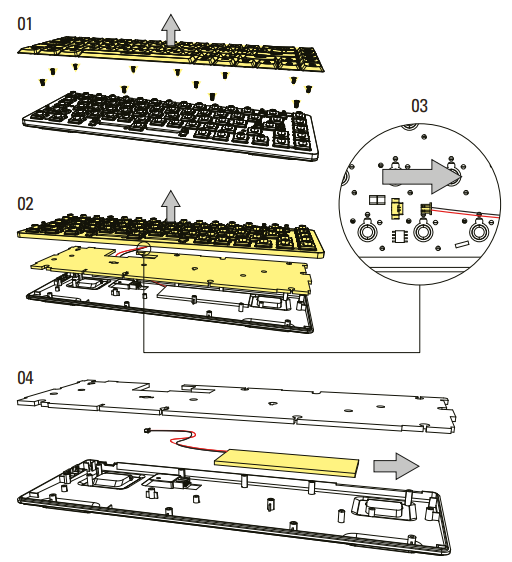
    • This product contains a lithium-ion or lithium-polymer battery. The battery cannot be
      serviced or repaired by the user. Any attempt by the user to replace the battery will
      automatically void the guarantee.
    • Do not remove the battery! Do not replace the battery with another one! Should any problems occur with the product, contact Sharkoon customer support at
    • Never dispose of this product in the general waste! Please ensure the proper recycling of used electronic hardware and rechargeable batteries following local laws and regulations.
      Failure to follow the above safety guidelines could result in damage to the product, fire, explosion, and/or electric shock.

    Select ModeSharkoon-PureWriter-W65-Wireless-keyboard-fig-1

    See Battery StatusSharkoon-PureWriter-W65-Wireless-keyboard-fig-2

    The Fn key flashes white repeatedly when the keyboard battery is low. The Fn key glows red when the keyboard is charging.

    Connect via Cable and Charge the KeyboardSharkoon-PureWriter-W65-Wireless-keyboard-fig-3

    Press Fn + Tab to switch to wired mode. The illumination will flash red three times to indicate that the wired mode is active.

    Connect via USB Nano ReceiverSharkoon-PureWriter-W65-Wireless-keyboard-fig-4

    Turn on the wireless connection via the switch on the side of the keyboard. Press Fn + R for five seconds.
    The R key flashes rapidly and repeatedly to indicate that the 2.4 GHz wireless connection is active. Connect the USB nano receiver to the USB port of your device. Make sure the keyboard is not too far from the receiver. Once the keyboard connects to the device, the R key will stop flashing to indicate the 2.4 GHz wireless connection was successful.

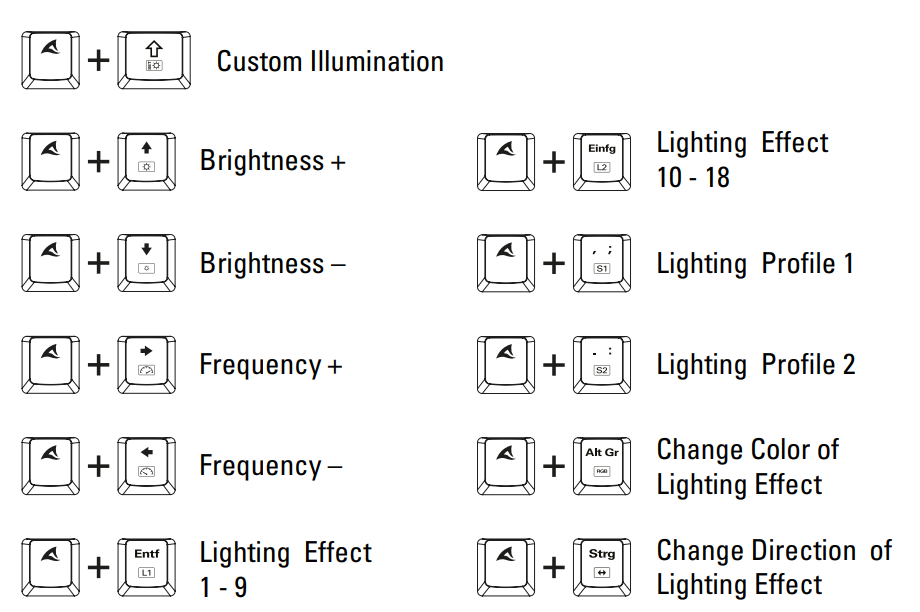
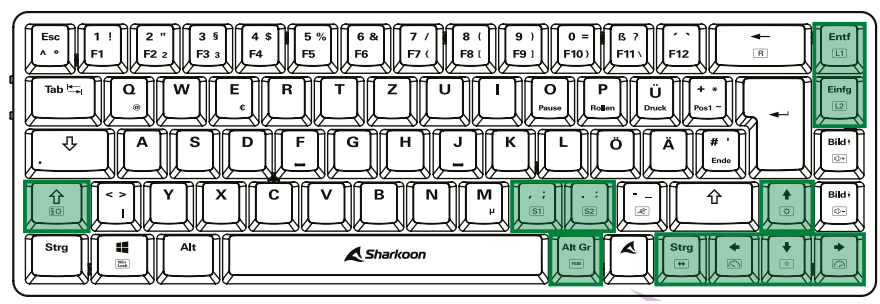
    Lighting Effects
    Sharkoon-PureWriter-W65-Wireless-keyboard-fig-5

    Sharkoon-PureWriter-W65-Wireless-keyboard-fig-6

    Setting up Personalized Lighting Profiles:

    • Press the Fn + Lighting Profile 1 or Lighting Profile 2. Each of the two keys can save a lighting profile.
    • Press Fn + L_Shift. The L_Shift LED will flash Sharkoon PureWriter W65  white to indicate that the lighting profile is ready to be set up.
    • Press all the keys that are to be illuminated. Press a key more than once to change its illumination color.
    • Finally, press Fn + L_Shift again to save your personalized key illumination.

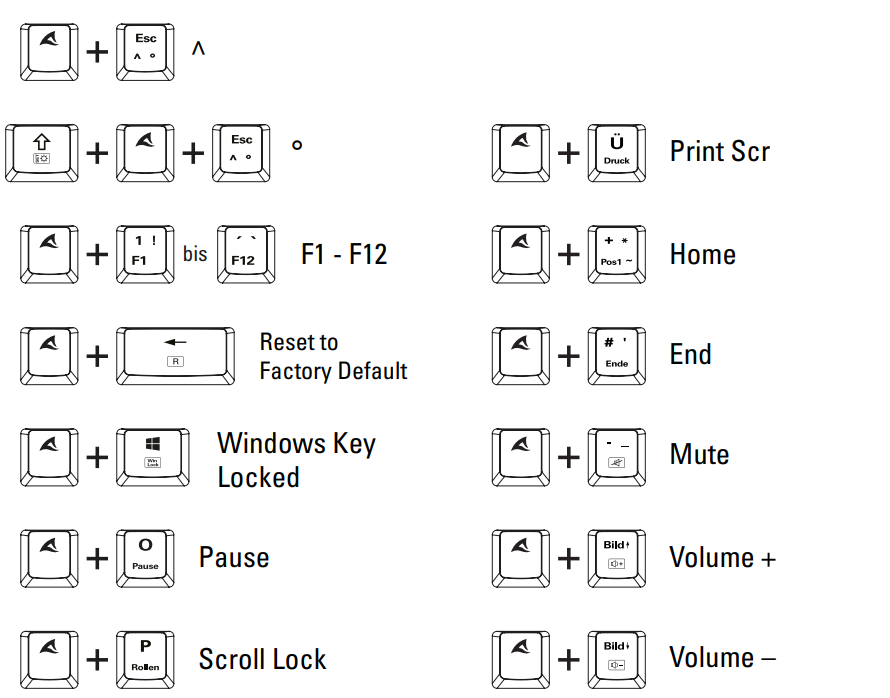
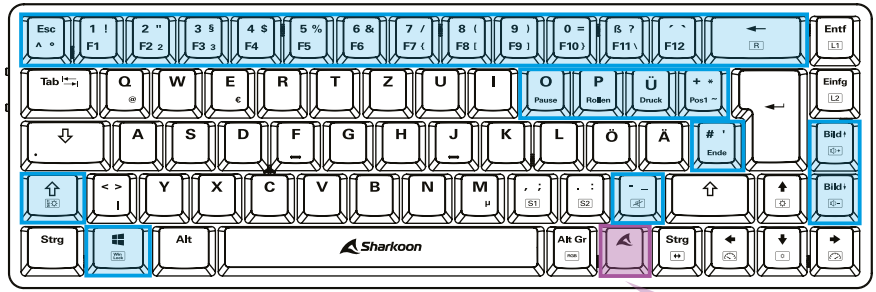
    Additional Functions
    Sharkoon-PureWriter-W65-Wireless-keyboard-fig-7

    Sharkoon-PureWriter-W65-Wireless-keyboard-fig-8

    Enabling F Keys for macOS

    To be able to use the special functions of the function keys with macOS, open the system settings of your macOS device and select “Keyboard.”Now, put a check mark in the box “Use F1, F2, etc. keys as standard function keys.

    Sharkoon-PureWriter-W65-Wireless-keyboard-fig-9

    Sharkoon-PureWriter-W65-Wireless-keyboard-fig-10

    EU Declaration of Conformity
    • Sharkoon Technologies GmbH hereby declares that this device complies with the RoHS (2011/65/EU) and R.E.D.D (2014/53/EU) directives. National product specifications may vary.
    • All rights reserved, especially (also in extracts) for translation, reprinting, reproduction by copyingorr other Sharkoon PureWriter W65 technical means.
    • Infringements will lead to compensation.
    • All rightsreservedd, especially in case of assignment of patent or utility patent.
    • Means of delivery and technical modifications reserved.

    Customer support

    • at support@sharkoon.com

    FAQs

    Q: What kind of switches does the keyboard use?

    Ans: Using low-profile mechanical switches from Kailh (either red or blue, depending on the model you choose), the PureWriter W65 offers a smaller profile and faster actuation than conventional mechanical switches.

    Q: How do I switch between Bluetooth devices?

    Ans: To switch between saved Bluetooth devices, press and hold FN + Q/W/E. One of the three device profiles is associated with each key.

    Q: How do I use the 2.4 GHz wireless mode?

    Ans: Use the function key shortcut (FN + R or as directed by the handbook) to switch the keyboard to 2.4G mode after plugging the included USB dongle into your PC or laptop. It is plug-and-play and does not require drivers.

    Q: How do I charge the keyboard?

    Ans: To charge the keyboard, use the USB-C to USB-A cable that comes with it. Based on your charging source, a full charge usually takes two to three hours.

    Q: How long does the battery last?

    Ans: Backlight settings and usage affect battery life. You should be able to use it for 80–100 hours with the illumination off. If RGB is turned on, allow 20 to 30 hours.

    Q: Can I use the keyboard while it’s charging?

    Ans: Indeed. While charging, the PureWriter W65 continues to operate as a wired keyboard, ensuring uninterrupted use.

    Q: What layout and size is the W65?

    Ans: The PureWriter W65 has a 65% layout, which leaves out the function row and numpad but keeps the arrow keys and a few navigation keys. It’s small, lightweight, and perfect for work and play.

    Best Wireless Keyboards 2025 How to Use Sharkoon PureWriter W65 Sharkoon Keyboard Manual Sharkoon PureWriter W65 Sharkoon W65 Keyboard Instructions Wireless Keyboard Guide Wireless Keyboard Installation Wireless Keyboard Setup
    Share. Facebook Twitter Pinterest LinkedIn Tumblr Email
    Gabriel Smith

      Related Posts

      Sharkoon VK3 RGB ATX PC Tower Case Instruction Guide

      October 27, 2025

      Sharkoon SKILLER SGK50 S3 Gaming keyboard User Guide

      August 14, 2025

      Sharkoon Skiller SGK4 Gaming Keyboard Instructions Guide

      August 14, 2025

      Sharkoon SGK1 ILLMINATED Gaming Keyboard Instruction Guide

      August 4, 2025

      Sharkoon SGK50 S4 GEN2 PB Barebone Instruction Manual

      August 4, 2025

      Sharkoon SGK50 S3 Wood Barebone Instruction Manual

      August 4, 2025
      Add A Comment

      Comments are closed.

      Don't Miss
      Other

      NEC NP-02HD DLP Cinema Projector Instruction Manual

      April 3, 2026

      NEC NP-02HD DLP Cinema Projector Safety Instructions This product is classified as Class 1 of…

      Best Wireless Mouse and Keyboard Guide 2026: Features, Fixes & Top Picks

      April 2, 2026

      QYSEA FIFISH E-GO Black Underwater Drone User Manual

      April 2, 2026

      QYSEA FIFISH PRO OPSS Onshore Power Supply System User Manual

      April 1, 2026
      Stay In Touch
      • Facebook
      • Twitter
      • Pinterest
      • Instagram
      • YouTube
      • Vimeo

      Subscribe to Updates

      Subscribe to Updates

      Follow us

      Facebook X-twitter Instagram Pinterest

      © 2025 All rights reserved Onyx Guide.