



Sharkoon SGK50 S4 GEN2 PB Barebone

Safety Instructions
- This device is intended as a keyboard for use with a PC. For your safety, be sure to read the instructions below before using the device.
- If the product is damaged due to improper use or non-compliance with the safety instructions, the manufacturer’s guarantee will be void.
- Ensure that the device is not damaged before use.
- Only use the device indoors in areas with normal humidity.
- Ensure that the device does not come into contact with moisture or liquids.
- Only clean the device with a dry cloth.
- Connect this device only with compatible, intended cables and only to other compatible, intended devices.
- The device does not contain any components that require maintenance. Opening the keyboard housing will result in the loss of the guarantee.
Multimedia Keys

Lighting Effects

Macro Keys

Record Macros
- Set up Macros To record macros, first press and hold down the function key, and then press the Tab key. Once you have done this, the macro keys B and N will start flashing.
- Press and hold down the function key and press one of these two macro keys to select it for macro recording.
- In the next step, first press and hold down the function key, and then press the Caps Lock key.
- The macro key you selected will now start to light up continuously.
- You can now start entering your macro actions. You can enter up to 16 individual actions. When you have reached the maximum number of actions, the selected macro key starts to flash, and the recording is automatically ended.
- However, if you would like to end the recording before all 16 available macro actions have been entered, first press and hold down the function key and then press the Caps Lock key to end the recording.
Additional Functions
Remove Keycaps
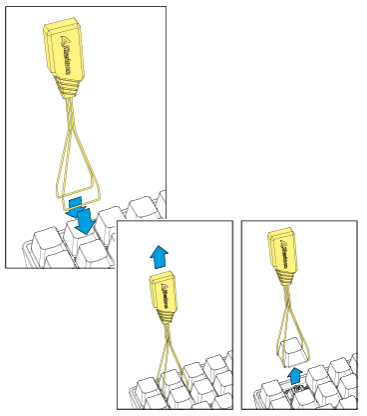
- Before removing a switch, first remove the keycap.
- To do this, place the arms of the keycap puller tool either to the left or right or to the top or bottom of the keycap, and then pull the keycap upwards with careful but constant pressure.
- Whenever possible, avoid pulling the keycaps from the switch directly with your fingers, as this may damage the switch.
Remove Switches
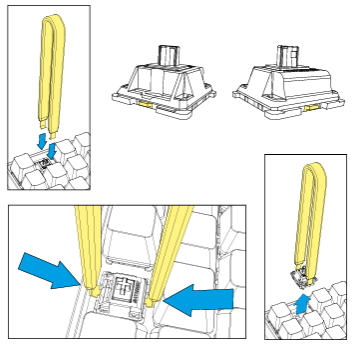
- Once you have removed the keycap from the switch, position the switch puller tool correctly on the tabs of the switch.
- These are positioned at the front and the back of the switch.
- Before pulling out the switch, make sure that both tabs are securely Sharkoon SGK50 S4 GEN2 PB Barebone pressed with the switch puller tool and that the switch can be removed from the socket without resistance.
- If necessary, remove the adjacent keycaps to allow the switch puller tool sufficient freedom of movement.
- After you have removed the keycap, press both tabs of the switch with the switch puller tool and then slowly pull the switch out of the socket.
- Be sure to always pull vertically from the socket in a straight, upward direction. Avoid pulling in a slanted direction, as this can result in damage.
Install Switches
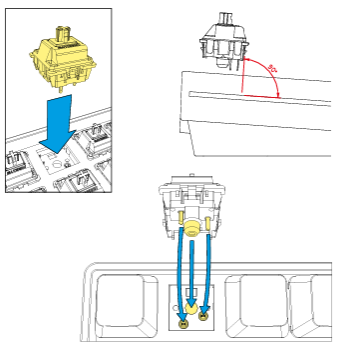
- To install the switches, position the switch so that one tab is at the front and the other tab is at the back.
- Each pin on the underside of the switch should be pointing exactly to its relevant contact in the keyboard socket.
- Make sure that the switch is led vertically into the socket opening (at a 90-degree angle to the socket). Installing the switch incorrectly can lead to damage or malfunction of the switch.
- After you have placed the switch in its socket, push very gently on the switch to secure it in place.
- Make sure that you do not use too much force, as this can damage or destroy fragile components.
Legal Disclaimer
For potential loss of data, especially due to inappropriate handling, Sharkoon assumes no liability. All named products and descriptions are trademarks and/or registered trademarks of the respective manufacturers and are accepted as protected. As a continuing policy of product improvement at Sharkoon, the design and specifications are subject to change without prior notice.
National product specifications may vary. All rights reserved, especially (also in extracts) for translation, reprinting, reproduction by copying or other technical means. Infringements will lead to compensation. All rights reserved, especially in case of assignment of a patent or utility patent. Means of delivery and technical modifications reserved.