



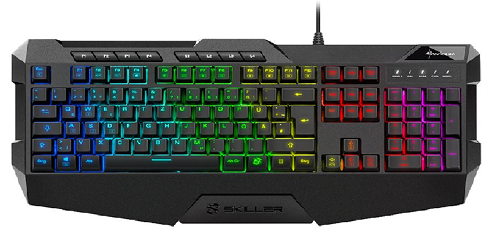
Sharkoon Skiller SGK4 Gaming Keyboard
Overview
Software Overview
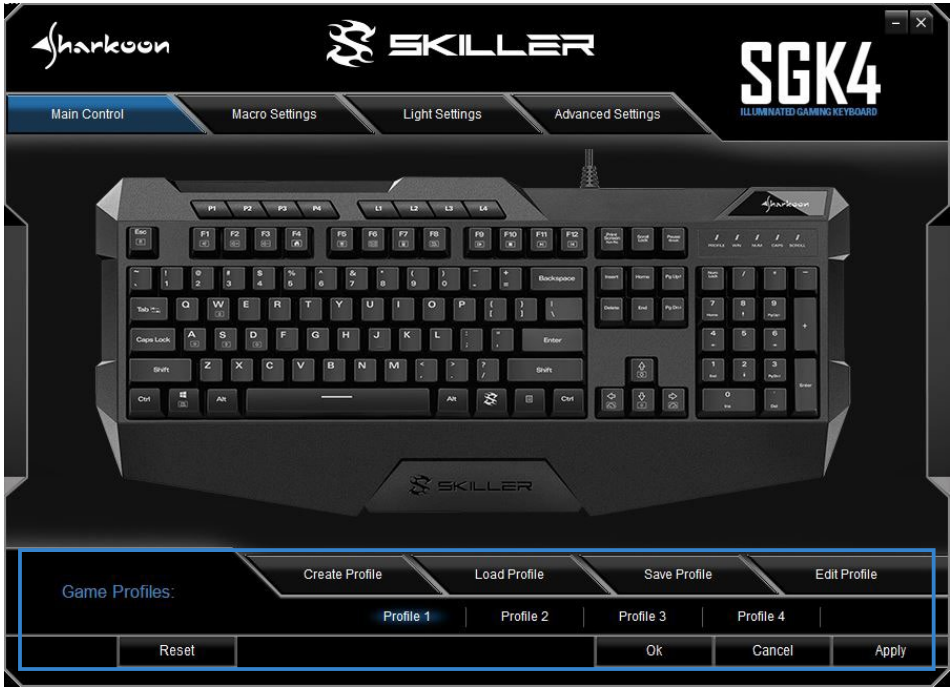
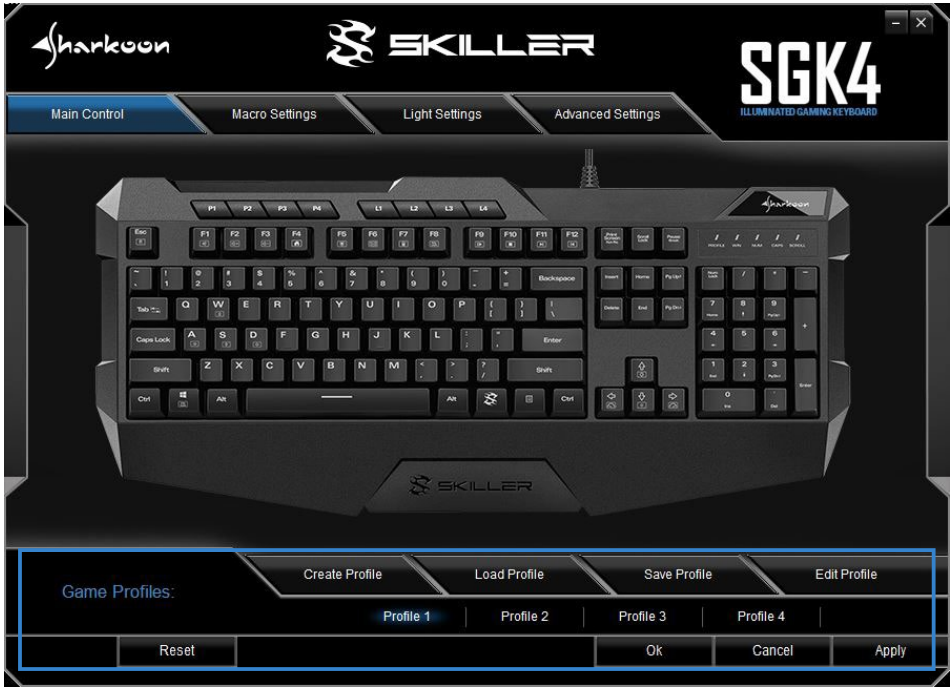
- Game Profiles: In this menu, which is visible and available throughout the software, game profiles can be created, saved, nd modified. Changes must be confirmed with a click on the “Apply“ button.
- Main Control: The Main Control allows individual keys to be reassigned. It is also possible to assign keys with macros or multimedia functions. Also h, here, changes must be confirmed by clicking the “Apply“ button.
- Advanced Settings: This menu has settings for the polling rate, the key response time, and the status of the Windows key.
- Reset: This resets the keyboard to the factory default settings. Macros, which have previously been created, will not be affected by the reset.
Installation
Profile Keys
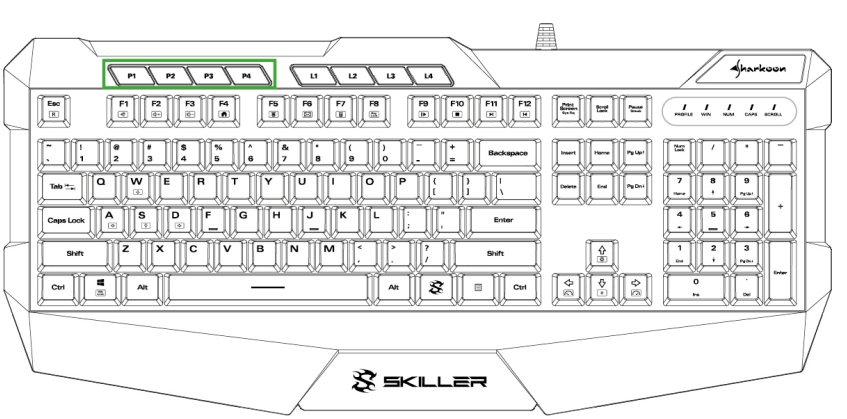
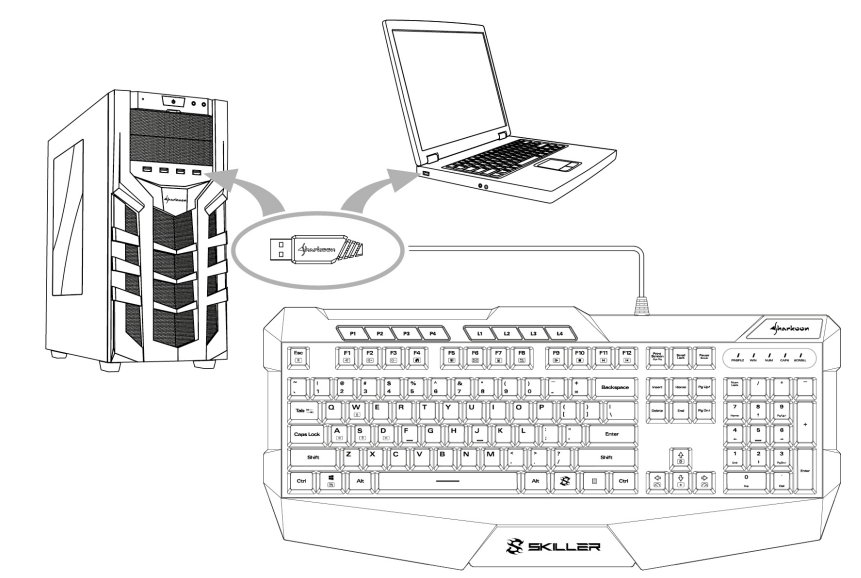
Game profiles can be activated with the keys P1 to P4. Game profiles contain all the settings of the game
software. These include reassignments of keys, illumination settings, the chosen behavior of the Windows key, as well as the preferred polling rate and the key response time. The profile LED above the number block indicates which game profile is active. When profile P1 is active, the profile LED is lit in white. P2 is blue. P3 is green. P4 is red.
After the gaming software has been installed, the game profile that has been activated will be briefly indicated in the bottom right corner of the screen when switching profiles via the profile keys. Initially, all the game profiles have the same default keyboard settings. The profiles can then be customized as desired using the gaming software. For more information about setting and managing the profiles, see the section “Game Profiles”.
Illumination Keys
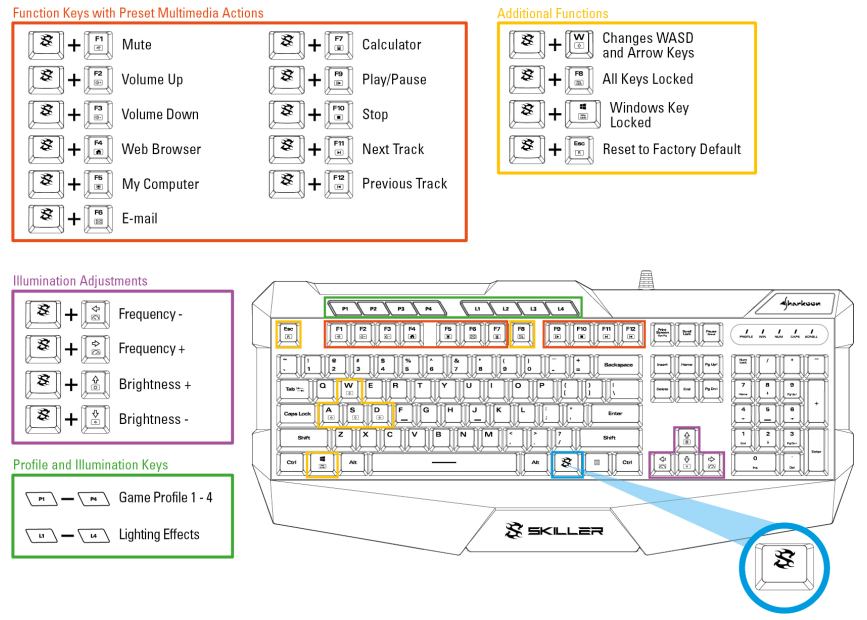
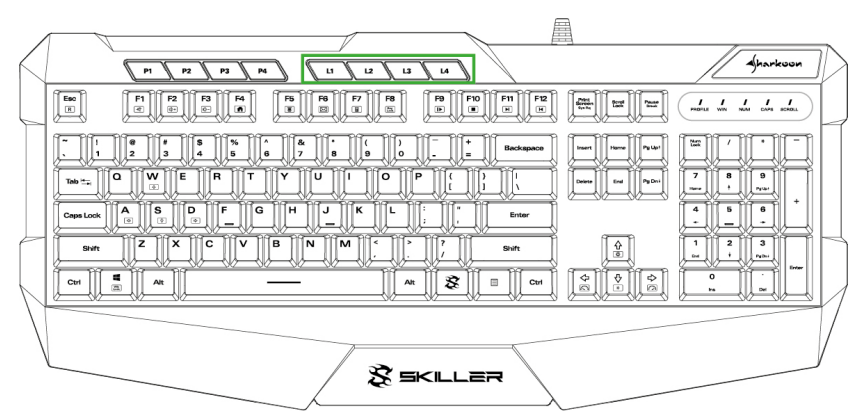
The preset lighting effects of the keyboard can be activated with keys L1 to L4. Press L1 once to start the “wave“ lighting effect. Press L1 again to start the “color marquee“ effect. Another press of the key returns to the “wave“ effect. L2 starts the “color change“ effect. Pressing L3 starts the “permanent“ lighting effect. Each additional keystroke changes the color of this lighting effect. The first color is red, followed by green, blue, yellow, pink, turquoise, white, and then returning to red. Colors can also be changed using the gaming software. Press L4 to start the “pulsating RGB cycle“ effect.
Reset
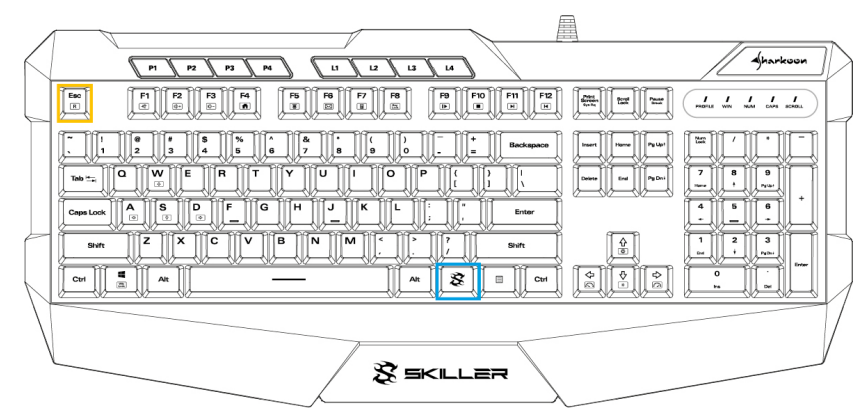
To reset the keyboard to factory default settings, simultaneously press the SKILLER key and the Esc key for
several seconds. After a successful reset, the profile LED above the number block will flash several times.
Software Installation
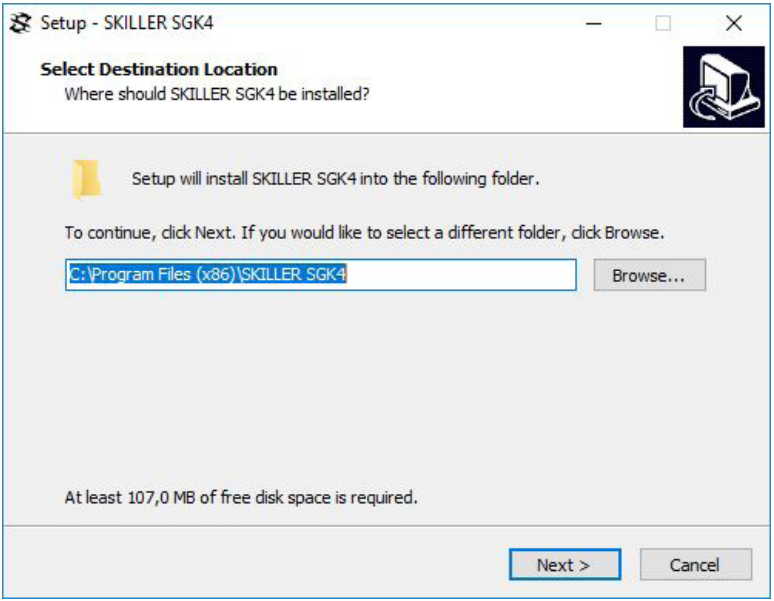
Download the software for the SKILLER SGK4 from the Sharkoon website at www.sharkoon.com. Unzip the ZIP file in a folder of your choice and then double-click the file “SKILLER SGK4 Setup.exe“ to launch the installation. Follow the instructions of the setup wizard and then click on “Finish“ to complete the installation. The SGK4 symbol will then appear in the taskbar. The software has now been successfully installed. To start the gaming software, double-click on the SGK4 symbol in the taskbar.
Game Profiles
The menu for selecting, creating, loading, saving, and editing game profiles is visible and available throughout the software. To select a game profile, click on one of the four game profiles within the “Game Profiles“ menu, and confirm this selection by clicking on “Apply“.
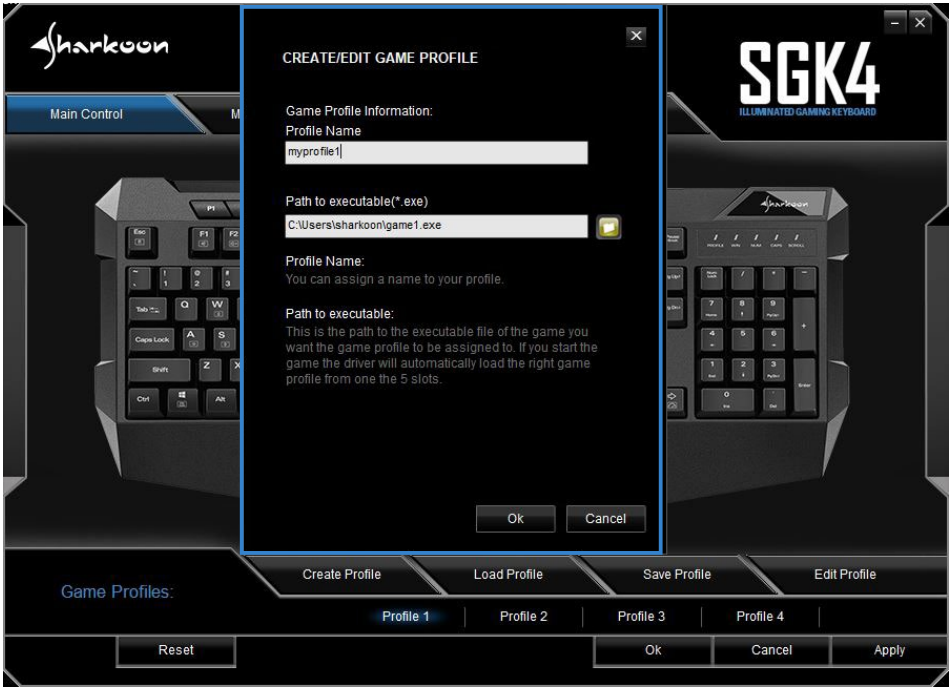
To create a game profile, click on “Create Profile“. You can now give the profile a name and link the profile with a game or other application. To save a game profile, first make sure that the desired game profile is active.
Main Control
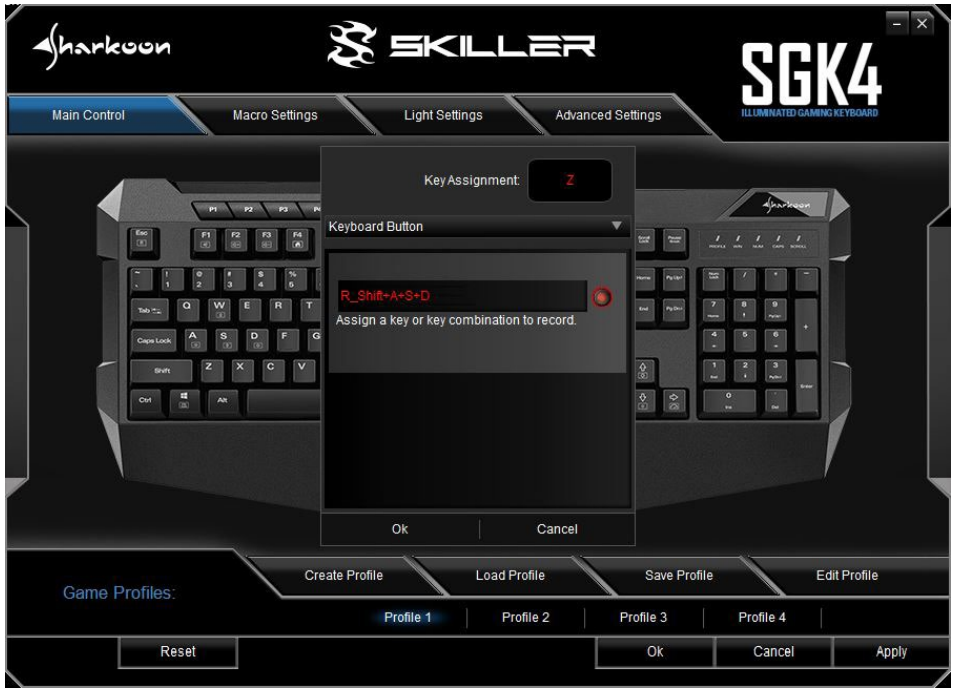
To process a key, click this key on the illustrated keyboard of the gaming software. In the window that then
appears, the key can be assigned a new function via the dropdown menu.
Key Assignments
To reassign a key, click under “Keyboard Button“ on the red record button or in the adjacent field and type in the desired character or command.
Macro Settings
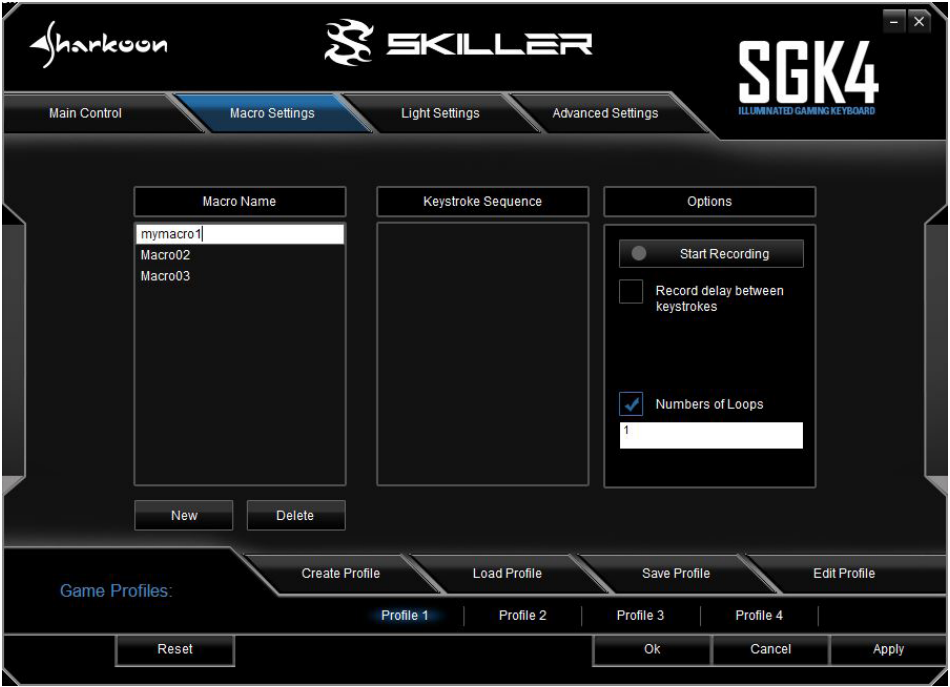
To create macros, first click the “New“ button. Double-click on the default name to change this, and enter a name of your choice.

Select the macro, and under “Options, “ click on “Start Recording“ to record a sequence of up to 50 key
commands. Keys are correctly registered while recording macros. If you wish to also record delays between key commands, click “Record delay between keystrokes. The sequence of the entered key commands is displayed in the field “Keystroke Sequence. Click “Stop Recording“ to finish the recording of the macro. If you wish to replace the recorded sequence with a new one, click again on “Start Recording“. To completely delete the macro, click “Delete.

Light Settings

To change the lighting effect of the keyboard for the chosen game profile, select the desired effect in the “Lighting Effect“ dropdown menu. You have the choice of: Wave, Color Marquee, Color Change, Permanent, Pulsating RGB Cycle, or Pulsating Profiles. You can select whether the effect begins from the left or the right of the keyboard. It is also possible to adjust the brightness and the frequency of all the effects using the relevant slider bars.

The “Permanent“ and “Pulsating Profiles“ lighting effects Sharkoon Skiller SGK4 allow customized illumination along the keyboard‘s lighting zones.
Advanced Settings

Under “Advanced Settings, “ you can adjust the polling rate: the frequency at which the keyboard reports to the PC. The higher the Hz value, the shorter the time between reports. 125 Hz corresponds to 8 ms, 250 Hz 4 ms, 500 Hz 2 ms, and 1000 Hz 1 ms. You can also determine the behaviour of the Windows key. The key response time refers to the debouncing time for single keystrokes.
If a single keystroke is unintentionally producing outputs of several characters, an increase in the key response time can remedy this. Select the desired reaction time from the dropdown menu. You have the option of 2 ms, 4 ms, 8 ms, and 16 ms.
Reset

The reset button is visible and available throughout the software.
Specifications
General
- Type Gaming Keyboard
- Switch Technology Rubber Dome
- Illumination RGB, 6 Zones
- Max. Polling Rate 1,000 Hz
- Block:3-Block Layout
- Weight incl. Cable 955 g
- Dimensions (L x W x H) 472 x 212 x 43 mm
- Supported Operating Systems: Windows 7/8/10
Legal Disclaimer
For potential loss of data, especially due to inappropriate handling, SHARKOON assumes no liability.
As a continuing policy of product improvement at SHARKOON, the design and specifications are subject to change without prior notice. National product specifications may vary. The legal rights of the enclosed software belong to the respective owner. Please observe the license terms of the manufacturer before using the software.
All rights reserved, especially (also in extracts) for translation, reprinting, reproduction by copying or other technical means. Infringements will lead to compensation. All rights reserved, especially in case of assignment of a patent or utility patent. Means of delivery and technical modifications reserved.
Disposal of your old product
Sharkoon Skiller SGK4. Please act according to your local rules and do not dispose of your old products with your normal household waste. The correct disposal of your old product will help prevent potential negative consequences to the environment and human health. Sharkoon Technologies GmbH Grüninger Weg 48 35415 Pohlheim Germany© Sharkoon Technologies 2020
Customer Support
- Phone: +886 2 2999 5888
- Fax: +886 2 2999 1188
- Website: https://en.sharkoon.com