

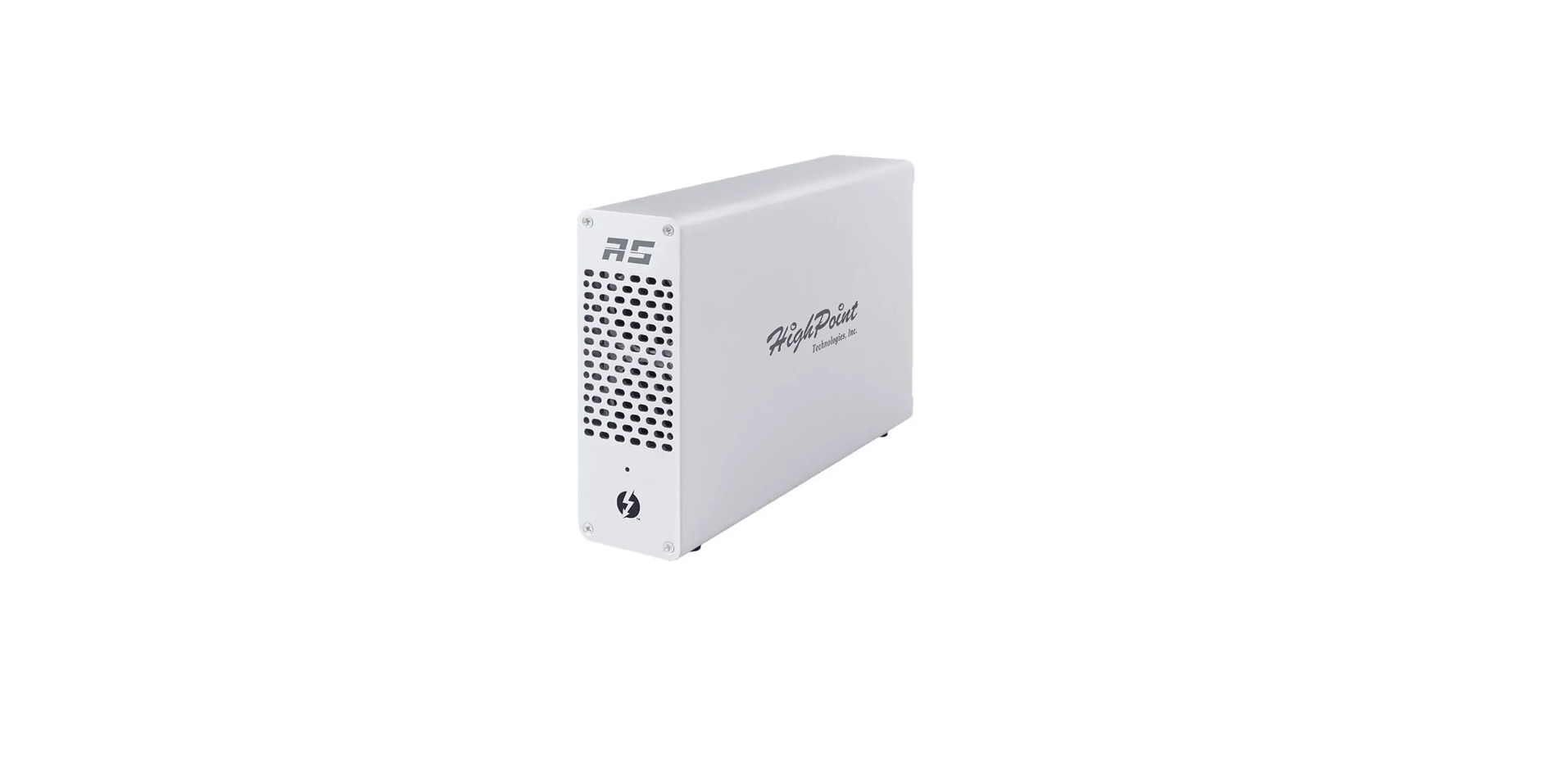

HIGHPOINT RS6661A-NVMe RAID Adapter

Introduction
The RocketStor 6661A-NVMe allows you to quickly add an NVMe RAID controller to your Thunderbolt™ 3 capable computing platform. The ultra slim, lightweight design is ideal for compact form-factor workstations and portable computers, and is fully compatible with Mac platforms.
Features
- Rugged, Ultra-Slim, Aluminum Enclosure
- Dual Thunderbolt™ 3 Ports
- Dual Ultra-Quiet, High-Efficiency Cooling Fans
- External 60W Power Supply
- Easy Plug and Play design
- Daisy-chain up to six Thunderbolt™ devices
- Independent, Stand-Alone NVMe SSD Solution
Kit Contents
- RocketStor 6661A-NVMe enclosure
- Quick Installation Guide
- Power Adapter
- Thunderbolt™ 3 Cable
System Requirements
- Windows 10 or later
- macOS 10.12 or later
For the SSD compatibility list, please refer to the link below: SSD7100 Compatibility List.
Hardware Instructions

Front View

Installation
- Unscrew the two thumbscrews in the back of the RS6661A
- Take out the SSD7101A-1 of the RS6661A
- On the rear of the SSD7101A-1, remove the six screws that secure the unit’s front panel to the PCB.

- After removing the screws, carefully remove the front panel from the SSD7101A-1.

- To begin, remove the top screw

- Gently insert the SSD into the slot

- Refasten the screw to secure the SSD.

- Replace the front panel after installing all SSDs

- Plug the SSD7101A-1 into the RS6661A slot and close the unit with the two thumb screws.
- Connect the Power Adapter to the RocketStor 6661A-NVMe.

- Connect the RocketStor 6661A-NVMe to the host system using a Thunderbolt™ cable.

- Setting up the RS6661A-NVMe for a Windows operating system
Verifying Installation
- After booting Windows, open Device Manager, and expand Disk drives. The installed NVMe Samsung SSD 960 should be displayed:

- Once downloaded, locate the folder you downloaded the driver to. Extract the driver package and double-click the setup.exe file to start the Driver Setup Wizard.

- Follow the wizard and reboot the system to complete the driver installation.

- Rebooting. A RocketNVMe RAID Controller entry should be displayed under Storage Controllers:

Manager software
The HighPoint NVMe Manager is used to configure and monitor the SSD7101A-1. Download the HighPoint NVMe Manager Software package from the HighPoint website.
- Extract the package and double-click the setup.exe program to install the software.
- The HighPoint NVMe RAID Manager will configure the SSD7101A-1 NVMe drive automatically after installation is complete.
- Open Windows Disk Management and check to make sure the SSD drive is configured.
- Create and format the partition using Disk Management to start using the SSD7101A-1 drive.

Setting
Using the HighPoint NVMe Manager
- Starting the HighPoint NVMe Manager: Double-click the Desktop ICON to start the Web browser. It will automatically log in to the HighPoint NVMe Manager using the default password.
- The password can be set after the first login. To change the password, select SettingsSecurity from the menu bar (see page 15 for more information).

Verify the SSD7101A-1 Status
- The Manage Tab will display the status of the installed SSD7101A-1. The Virtual Disk is listed under Logic Device Information. The individual M.2 SSDs are listed under Physical Device Information.

Manage the RAID disk.
- The SSD7101A-1 only supports one RAID disk, and NVMe Manager will automatically configure this RAID disk after the software has been installed.
- If you need to add another M.2 SSD, you must first delete the existing RAID disk and then re-create a new RAID disk using all of the M.2 SSDs.
To delete an existing RAID disk
- Under Logical Device Information, click the Maintenance link located to the right of the Status column. Click the Delete button in the pop-up Array Information Window:

Rename a RAID disk
- The NVMe Manager will automatically name a RAID disk as RAID_NVME. It will display the disk name under the system device list.
- You may rename the RAID disk at any time by clicking Maintenance and accessing the Array Information window.
To create a new RAID disk
- Click the Create Array link from the Manage page:

- Review the array settings and confirm RAID creation. The SSD7101A-1 supports variable RAID Block Sizes from 16K to 1024K.
- You may adjust the RAID Block size from the Create Array page. Click the Create Button to create the RAID disk.

Information and Settings

Product Information
- This section reports the SSD7101A-1’s PCI Bus information and PCIe Link status.
Email Notification
- This feature allows you to configure email notifications. You can instruct NVMe Manager to send all or specific Event Log notifications to an Email address of your choice.
Security
- This option allows you to set the NVMe Manager’s Lloginport number and Password.
Event log
- All NVMe Manager operations and disk HIGHPOINT RS6661A-NVMe RAID Adapter status updates will be recorded to the Event log.

- The Cleatton can be used to delete all entries and reset the event log.
SHI Storage Health Inspector
- The SHI page will display S.M.A.R.T. data for the equal SSD. Click the Detail link to the right of each SSD to view the corresponding S.M.A.R.T. attributes.
- The SSD’s TBW (Total Bytes Written) information may help you review and track the SSD’s life cycle.

Customer Support
If you encounter any problems while utilizing the HIGHPOINT RS6661A-NVMe RAID Adapter RS6661A-NVMe or have any questions about this or any other HighPoint Technologies, Inc. product, feel free to contact our Customer Support Department.
-
- Website: http://highpoint-tech.com
- Web Support: http://www.highpoint-tech.com/websupport/
FAQs
Q: What interface does it use to connect to the computer?
Ans: With a maximum transfer speed of 40Gbps, the RS6661A-NVMe connects via ThunderboltTM 3 (Type-C), making it perfect for data-intensive tasks like processing huge datasets and video editing.
Q: Is it compatible with macOS and Windows?
Ans: Indeed. Although it supports Apple M-series HIGHPOINT RS6661A-NVMe RAID Adapter CPUs and Windows 10/11 and macOS 10.13 and later, some RAID administration functions could differ slightly between operating systems.
Q: Is the RAID adapter plug-and-play?
Ans: Indeed, the device is primarily plug-and-play in JBOD or non-RAID configurations. You must create and maintain RAID arrays using the HighPoint WebGUI or CLI for RAID settings.
Q: Can I boot from a RAID array created by this adapter?
Ans: No, Thunderbolt does not support booting from RAID arrays.
Q: Does the adapter support hot-swapping SSDs?
Ans: No, hot-swapping is not supported by the RS6661A.
Q: Is active cooling included?
Ans: Yes. The adapter includes an active cooling system with a built-in fan to prevent thermal throttling during high-performance operations.
Q: What are the power requirements?
Ans: An additional power adapter of 90W or more is usually included with the machine to power the cooling system and SSDs. It uses more than just Thunderbolt power.