

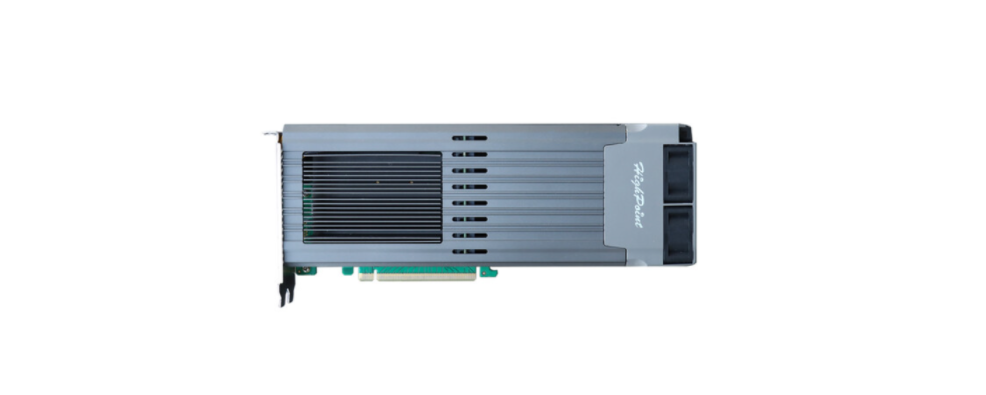

HIGHPOINT SSD7749E 8x E1.S Port RAID Controller

System Requirements
PC Requirements
- PC platform with a free physical PCIe 4.0 (3.0 or 5.0) x16slot
- Form factor: Full-Height, Full-Length, Dual-Width
Operating System
- Windows 11, 10 / Server 2022, 2019, 2016 / Microsoft Hyper-V
- RHEL/ Debian/ Ubuntu/ Fedora/ Proxmox/ RockyLinux(Linux kernel 3.10 and later)
Kit Content
- 1x SSD7749M2
- 1x Quick Installation Guide
- 16x M.2 rubbers
Hardware
Front View

NVMe SSD Tray – Front View

NVMe SSD Tray – Rear View

Hardware Installation
- Use a wired ESD wrist strap that is properly grounded.
- Unpack and remove the SSD7749M2 HIGHPOINT SSD7749E 8x E1.S Port RAID Controller and check it for damage. If it appears damaged, please get in touch with HighPoint Technical Support.
- Apply pressure at the mark to release the lock, and turn it counterclockwise.


- Gently remove the NVMe SSD Tray from the SSD7749M2.

- Confirm the direction of the rubber (pointing to the right).

- Gently insert the NVMe SSD into the M.2 port of the NVMe SSD Tray.

- Press the right side of the rubber to align it and insert it into the retention hole on the end of the NVMe SSD.

- Rotate the direction of the rubber so that it points to the left to secure the NVMe SSD better.

- After installing all NVMe SSDs, carefully insert the NVMe Trays into the slots.


- Align the fan module and press down to secure.

- Shut down the system and disconnect the AC power cord
- Connect the SSD external power supply.

- Insert the SSD7749M2 into the system’s openPCIe3.0/4.0/5.0 x16 slot.

- When finished, turn on the power to the system.
Resources
Various manuals, guides, and FAQs are available for the SSD7749M2NVMe RAID AIC. In addition, we recommend visiting the Software Downloads webpage for the latest drivers and RAID Management software.
- For Software Downloads, Documentation, and more product information
- Visit: https://www.highpoint-tech.com/nvme-individual/ssd7749m2
- FAQ & Troubleshooting
- Visit: http://helpjuice.com
Customer Support
If you encounter any problems while utilizing the SSD7749M2 or have questions about this or any other HighPoint Technologies, Inc. product, feel free to contact our Customer Support Department.
Web Support: https://www.highpoint-tech.com/support-and-services HighPoint Technologies, Inc.
websites: https://www.highpoint-tech.com
FAQs
Q: Can I use the SSD7749E for Ceph, GlusterFS, or other distributed filesystems?
Of course. Assign the drives to your storage orchestrator (such as Ceph OSD nodes) and configure them as raw JBODs. Then, let your cluster-level logic take care of failure tolerance and replication.
Q: What type of SSDs does the SSD7749E support?
The only drives supported are PCIe Gen3/Gen4 E1.S. M.2, and SATA drives are incompatible.
Q: Can I switch between WebGUI, CLI, and UEFI without losing configuration?
Indeed, the identical firmware and RAID metadata are used by all three programs. Any combination of interfaces can be used without causing arrays to reset.
Q: Can I access the WebGUI remotely over the network?
Yes, a browser can be used to view the WebGUI, even though it is hosted locally.
Verify that secure credentials and appropriate firewall settings are in place.
Q: Is login authentication required for all interfaces?
Indeed. To change arrays, all tools need administrator-level credentials. After initial setup, the default credentials ought to be modified.
Q: Do CLI tools require separate installation?
Yes, the HighPoint driver package requires manual installation of the CLI tools. They are compatible with scripting environments, Linux, and Windows.
Q: Can I monitor drive temperatures or SMART info with CLI?
Yes, logging, SMART queries, and health monitoring are supported by the CLI. Ideal for integrating with Zabbix or Nagios monitoring systems.
Q: What happens if I misconfigure a RAID array via one tool?
Modifications are immediately implemented at the firmware level. Before confirming activities in any interface, always check the settings one last time.