

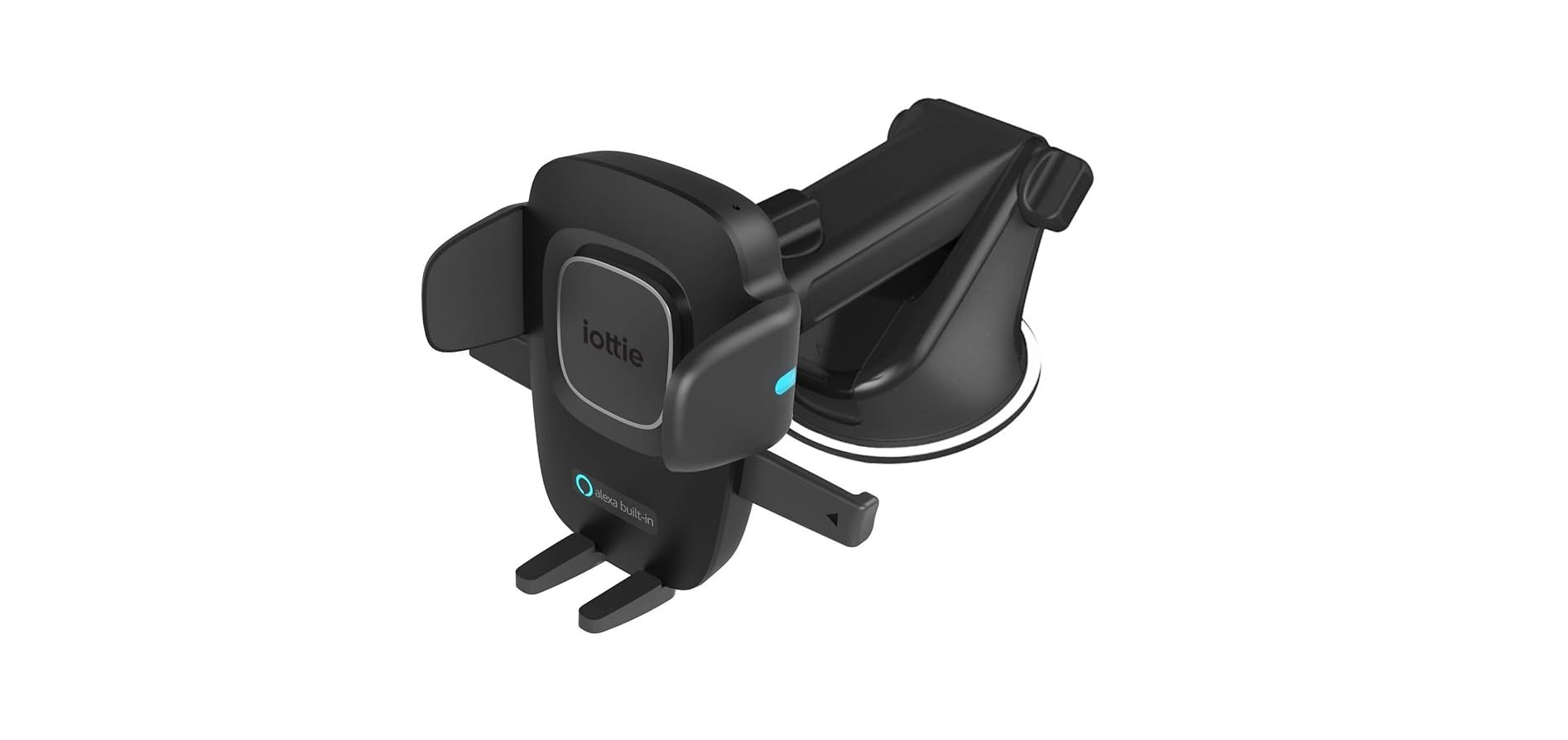

iOttie Alexa Built-in Dash & Windshield Mount

Description
- Cradle
- Suction Base
- Dual Car Charger with Micro USB
- Cable
- Dashboard Pad
- User Manual
- Quick Start Guide
Overview

Product Specifications
 Car Charger Specifications
Product Setup
Assembly & Installation
- Assembling the Mount

- Connect the Mount Cradle with the Ball Joint.

- Tighten the Cradle Knob
- Selecting a Location
Option A
Dashboard or Flat Surface Installation: Choose a mount location before peeling off any films, and make sure it is flat and free from any dust or debris.
- Peel off the protective film on the Dashboard Pad and stick the pad on the desired location.

- Remove the plastic cover on the Suction Cup and press the Mount firmly onto the Dashboard Pad.

- Push the Locking Lever down to engage the suction.

B Option
Windshield or Curved Glass Installation: Choose a mount location before peeling off any films, and make 1.
- Remove the plastic cover from the Suction Cup and press the Mount firmly onto the windshield.

- Push the Locking Lever down to engage the suction. Sure, it is free from any dust or debris

Connecting Power
The Easy One Touch Connect Pro is powered via a micro-USB cable. There is no off/on switch on the device. Once it is plugged in, the device will remain on unless the vehicle shuts off power when in parking mode.
- Plug the micro-USB cable into the USB port on the back of the Mounting Head.

- Insert the Car Charger into your vehicle’s power port.

Using The Easy One-Touch Mechanism
The Easy One Touch lock and release mechanism makes it simple to mount & retrieve smartphones in seconds.
Mounting
- Press the Release Bars in. Step.
- Press your device against the Easy One Touch trigger button. The mount’s Locking Side Arms will automatically close on contact and hold the device during the driving journey.
Releasing
Press the Release Bars in one hand to simultaneously retrieve the device.
Adjusting the Mount
- Cradle Knob: Loosen to rotate Cradle into landscape mode. Tighten to lock in the desired position.

- Telescopic Knob: Located on top of the Telescopic Arm, loosen to extend the arm, and tighten to secure the distance.

- Foot Knob: Located on the lower back of the Cradle. Loosen to re-position the mount’s foot. Foot can be adjusted up and down or side-to-side.

- Pivot Knob: On the side of the Mount Base, turning allows you to pivot telescopic arm. The right to secure a position.
User Experience
Welcome to Alexa
You can talk to Alexa on your Easy One Touch Connect Pro. With Alexa, you can ask to get directions, play music, place calls, listen to audiobooks, hear the weather, control smart home devices, and
more—all while you keep your hands on the wheel and eyes on the road. The Easy One Touch Connect Pro supports access to tens of thousands of Alexa skills right from your vehicle.
- Some Alexa Skills may require an Amazon Prime membership.
- Make sure your phone’s Bluetooth is on and connected to your car’s Bluetooth. The Easy One Touch Connect Pro with Built-In Alexa uses your data when not connected to WiFi. A clear network connection is needed for Alexa to work; otherwise, there may be delays or interruptions. iOttie is not liable for data usage.
- Alexa streams from the cloud. Please note that this may use data. Data charges may apply.
- Alexa streams media instead of local files. Please note that this may use data. iOttie is not liable for data usage.

LED Indicators
Alexa Settings & Preferences
Navigation Setting Alexa will use your default maps app. To use a specific map (i.e, Waze or Google Maps), the default must be changed within the Alexa app.
- Go to the menu and select “Settings.”
- Select “Traffic”
- Select “Default Navigation App”
Music Setting
When playing music, Alexa will default to Amazon Music. If using another service, the default must be changed within the Alexa app.
- Go to the menu and select “Settings.”
- Select “Music & Podcasts”
- Select “Def
Call and Text Message Setting
To enable Voice Messaging and Calling features, please enable Alexa access to your contacts for seamless communication. *Alexa App menu names are subject to change at any time.
Things to Try with Alexa
With Alexa, users can ask for directions, play music, make hands-free calls, control smart home devices, and much more. Just ask!
Navigation
Alexa, navigate to Prospect Park. Take me to the nearest gas station. Directions to home.

Music
Turn up the volume. Alexa, play rock music. Alexa, rewind 15 seconds.
 Communication
Call Home. Alexa, text “Hello” to John. Alexa, call Hannah.

Miscellaneous
To find a nearby gas station. Alexa, what’s the weather? Alexa, tell me a story.

Declaration of Conformity (FCC)
This equipment generates, uses, and can radiate radio frequency energy and, if not installed and usedbyh the instructions, may cause harmful interference to radio communications. However, there is no guarantee that interference will not occur in a particular installation.
- Reorient or relocate the receiving antenna.
- Increase the separation between the equipment and the receiver.
- Consult the dealer or an experienced radio/TV technician for help. CAUTION: Changes or modifications not expressly approved by the party responsible for compliance could void the user’s authority to operate the product.
This equipment complies with FCC radiation exposure limits set forth for an uncontrolled environment.
Customer Service
- Website: cs@iottie.com
- Tel: (201) 580-2688