

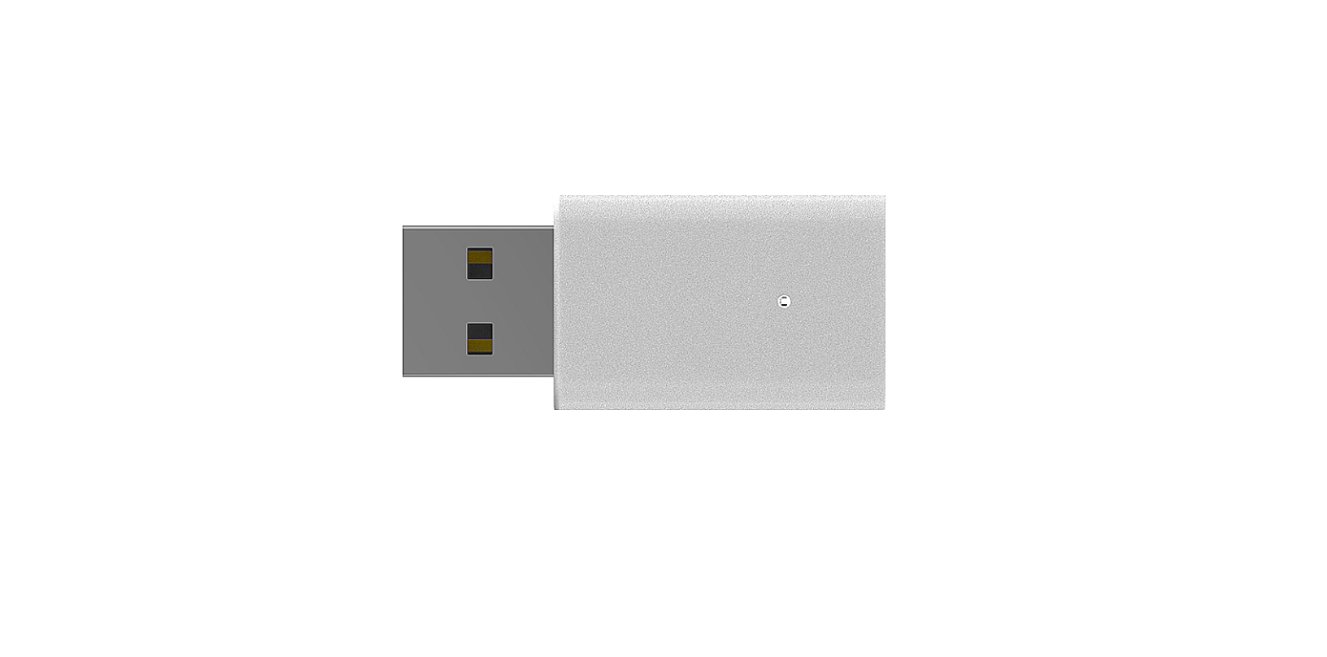

D-Link AX9U AX900 Wi-Fi 6 USB Adapter

Introduction
The AX900 Wi-Fi 6 USB Adapter (AX9U) delivers powerful wireless AX technology to your desktop or notebook computer. Simply plug the adapter into an available USB port and connect to a wireless network to access a secure, high-speed internet connection – 900 Mbps*. And with integrated dual-band technology, it works in harmony with our home Wi-Fi series to maximize throughput.
Interference-Free Bandwidth
The AX900 Wi-Fi 6 USB Adapter (AX9U) operates in both 2.4 GHz and 5GHz bands for a better overall user experience with the intelligent, interference-free bandwidth. Check your email and surf the Internet on the 2.4 GHz band. Play games and join virtual conferences and stream HD movies to multiple devices using the cleaner, interference-free 5 GHz band.
Elevate the Existing Wi-Fi Capability to Transform Your Digital Home
Equip your home with our home Wi-Fi series and pair them with our Wi-Fi USB adapters to enjoy the benefits of the Wi-Fi 6 standard: greater capacity to accommodate more devices, wider coverage, and more efficient bandwidth delivery. Furthermore, our contemporary and sophisticated design complements your modern home. WiFi 6 introduces breakthrough features such as OFDMA, uplink MU-MIMO, TWT, BSand S coloring to improve transmission range, speed, and reliability in dense environments.
Features
- IEEE 802.11ax, 802.11ac, 802.11n and 802.11g/b/a compliant
- Dual-band technology for use in 2.4 GHz or 5 GHz networks
- Wireless AX technology for superior wireless performance
- Access secure networks using WPA3 or WPA2.
Hardware Overview

| 1 | USB Connector | Used to connect the AX9U to your computer. |
| 2 | LED | Solid white: The device is connected to a Wi-Fi network. Blinking white: The device is not connected to a Wi-Fi network. Off: The device is disabled or not recognized in the system. |
Installation
This section will walk you through the installation process. If you have a built-in wireless adapter, please disable it in the device manager before installing your D-Link adapter. Also, if you have previously installed another wireless adapter, please make sure any software is uninstalled.
Getting Started
Before installing your new D-Link wireless adapter, please verify the following:
- Remove any previous installations of wireless adapters
- Disable any built-in wireless adapters
- Verify the settings, such as the SSID and security settings of the network(s) you want to connect to
Remove Existing Installations
If you’ve installed a different manufacturer’s adapter or a different model D-Link adapter, make sure the software is uninstalled before installing the new software. Some utilities may cause a conflict with the new software. If you plan to use multiple adapters at different times, make sure the utilities are not set to load when your computer boots up.
Windows 11 / 10 users:
- Type Control Panel in the search box on the taskbar, then select it.
- Select Programs > Programs and Features.
- Remove the selected program by selecting Uninstall or Uninstall/Change.
Disable Other Wireless Adapters
Most newer laptops may include a built-in wireless adapter. To prevent any conflicts with the D-Link wireless adapter, it is recommended to disable the wireless adapter (as well as any unused Ethernet adapters).
In the search box on the taskbar, type Device Manager, then select Device Manager to open it. Scroll down the list and select the arrow next to Network Adapters.

Select the adapter you would like to disable, then select the Action tab at the top of the window. Select Disable device or Enable device, and then confirm.

Click Yes to disable the adapter.

When the adapter is disabled, a down arrow will be displayed. Disabling the adapter will not remove the drivers.
Wireless Installation Considerations
- Keep the number of walls and ceilings between the D-Link adapter and other network devices to a minimum – each wall or ceiling can reduce your adapter’s range from 3-90 feet (1-30 meters.)
- Position your devices so that the number of walls or ceilings is minimized.
- Be aware of the direct line between network devices. A wall that is 1.5 feet thick (.5 meters), at a 45-degree angle, appears to be almost 3 feet (1 meter) thick. At a 2-degree angle, it looks over 42 feet (14 meters) thick! Position devices so that the signal will travel straight through a wall or ceiling (instead of at an angle) for better reception.
- Building materials make a difference. A solid metal door or aluminum studs mahurton range. Try to position access points, wireless routers, and computers so that the signal passes through drywall or open doorways. Materials and objects such as glass, steel, metal, walls with insulation, water (fish tanks), mirrors, file cabinets, brick, and concrete will degrade your wireless signal.
- Keep your product away (at least 3-6 feet or 1-2 meters) from electrical devices or appliances that generate RF noise.
- If you are using 2.4 GHz cordless phones or X-10 (wireless products such as ceiling fans, lights, and home security systems), your wireless connection may degrade dramatically or drop completely. Make sure your 2.4 GHz phone base is as far away from your wireless devices as possible. The base transmits a signal even if the phone is not in use.
Connect to a Wireless Network
To connect to a wireless network on Windows 11/ 10, you will need to know the wireless network name (SSID) and Wi-Fi password (security key) of the device you are connecting to.
- To join an existing network, locate the wireless network icon in the taskbar, next to the time display, and click on it.

- Clicking on the network icon will display a list of wireless networks that are within range of your computer. Select the desired network by clicking on its SSID.

- To connect to the SSID, click Connect. To automatically connect with the router when your device next detects the SSID, click the Connect automatically check box.

- You will then be prompted to enter the Wi-Fi password (network security key) for the wireless network. Enter the password into the box and click Next to connect to the network.

Troubleshooting
This chapter provides solutions to problems that can occur during the installation and operation of the AX9U. Read the following descriptions if you are having problems.
- How do I know if my adapter is installed properly?
In the search box on the taskbar, type Device Manager, then select Device Manager to open it.
Click Device Manager.
Select the arrow next to Network Adapters. Right-click D-Link AX9U, then select Properties to check that the drivers are installed properly.
Look under Device Status to check that the device is working properly. Click OK to close the screen.
The computer does not recognize the adapter. Make sure that the AX9U is properly seated in the computer’s USB port. If Windows does not detect the hardware upon insertion of the adapter, make sure to completely remove drivers that were previously loaded.
Wireless Basics
A wireless local area network (WLAN) is a cellular computer network that transmits and receives data with radio signals instead of wires. Wireless LANs are used increasingly in both home and office environments, and public areas such as airports, coffee shops, and universities. Innovative ways to utilize WLAN technology are helping people to work and communicate more efficiently. Increased mobility and the absence of cabling and other fixed infrastructure have proven to be beneficial for many users.
Technical Advancements of Wi-Fi 6
Wireless or Wi-Fi technology is another way of connecting your computer to the network without using wires. Wi-Fi uses radio frequency to connect wirelessly, so you have the freedom to connect computers anywhere in your home or office network. Over these years, Wi-Fi, a collection of wireless networking protocols based on the IEEE802.11 standard, has improved continually.
The adapter supports Wi-Fi 6 and features the following improvements over the previous wireless generations:
- MU-MIMO (Multi-User Multiple-Input Multiple-Output): Allows multiple devices to receive data simultaneously with multiple data streams.- UL and DL Orthogonal Frequency Division Multiple Access (OFDMA): channels are divided into subcarriers to allow for simultaneous transmission among multiple devices.
- Higher throughput than Wi-Fi 5 (the theoretical maximum is more than double)
- Overlapping Basic Service Sets (OBSS): Reduces interference by coloring traffic inside a channel.
- Target Wake Time (TWT): Battery-powered devices can efficiently communicate awake and sleep time.
How does wireless work?
Wireless works similarly to how cordless phones work, through radio signals to transmit data from point A to point B. But wireless technology has restrictions as to how you can access the network. You must be within the wireless network range to be able to connect your computer. There are two different types of wireless networks: Wireless Local Area Network (WLAN) and Wireless Personal Area Network (WPAN).
Wireless Local Area Network (WLAN)
In a wireless local area network, a device called an Access Point (AP) connects computers to the network. The access point has a small antenna attached to it, which allows it to transmit data back and forth over radio signals. With an indoor access point as seen in the picture, the signal can travel up to 300 feet. With an outdoor access point, the signal can reach up to 30 miles to serve places like manufacturing plants, industrial locations, college and high school campuses, airports, golf courses, and many other outdoor venues.
Wireless Personal Area Network (WPAN)
Bluetooth is the industry-standard wireless technology used for WPAN. Bluetooth devices in WPAN operate in a range of up to 30 feet. Compared to WLAN, the speed and wireless operation range are both less than WLAN, but in return, it doesn’t use nearly as much power, which makes it ideal for personal devices, such as mobile phones, PDAs, headphones, laptops, speakers, and other devices that operate on batteries.
Who uses wireless?
Wireless technology has become so popular in recent years that almost everyone is using it, whether it’s for home, office, or business. D-Link has a wireless solution for it.
Home
- Gives everyone at home broadband access
- Surf the web, check email, instant message, etc.
- Upload data from wearable devices to the cloud
- Gets rid of the cables around the house
- Simple and easy to use
Small Office and Home Office
- Stay on top of everything at home as you would at the office
- Remotely access your office network from home
- Share the Internet connection and printer with multiple computers
- No need to dedicate office space
Where is wireless used?
Wireless technology is expanding everywhere, not just at home or the office. People like the freedom of mobility, and it’s becoming so popular that more and more public facilities now provide wireless access to attract people.
Using a D-Link USB adapter with your laptop, you can access the hotspot to connect to the Internet from remote locations like airports, hotels, coffee shops, libraries, restaurants, and convention centers.
A wireless network is easy to set up, but if you’re installing it for the first time, it could be quite a task knowing where to start. That’s why we’ve put together a few setup steps and tips to help you through the process of setting up a wireless network.
Centralize your router or access point.
Make sure you place the router/access point in a centralized location within your network for the best performance. If you have a two-story home, you may need a repeater to boost the signal to extend the range.
Eliminate Interference
If you experience any of the following, you might have Wi-Fi interference conditions in your wireless network:
- Connection is slow or interrupted intermittently.
- The Wi-Fi signal strength is low.
Place home appliances such as cordless telephones, Nanowaves, and televisions as far away as possible from the router/access point. This would significantly reduce any interference that the appliances might cause since they operate on the same frequency.
Another way to reduce wireless resource contention is to separate the use of radio frequency and channels by allocating devices accordingly. The D-Link routers supporting dual-band offer Smart Connect, which manages band selection automatically when connecting to devices. The same principle applies to channel selection. D-Link routers offer the Auto channel option to let the system select the cleanest channel for your network. Furthermore, our AI-powered series adopts the mesh beamforming technology combined with the MU-MIMO (Multi-User) to achieve the highest transmission efficiency and throughput in an environment with many users.
Security
Don’t let your next-door neighbors or intruders connect to your wireless network. Secure your wireless network by turning on the most advanced and secure WPA encryption available on the router. Turning off security by choosing Wi-Fi mode, such as None or Open, causes security concerns. It will allow anyone (without authentication) to join your network and access the shared resources and even obtain data transmitted over your network.
Appendix B – Networking Basics
Networking Basics
Check your IP address
Click on Start and type cmd in the Search box.
At the prompt, type ipconfig and press Enter.
This will display the IP address, subnet mask, and the default gateway of your adapter.
If the address is 0.0.0.0 or 169.254.x.x, check your adapter installation, security settings, and the settings on your router. If you’re not using static IP addresses on your network, then enable DHCP on your router.
Refer to the next page on IP assignment.
Appendix B – Networking Basics
Statically Assign an IP address
If you are not using a DHCP-capable gateway/router, or you need to assign a static IP address, please follow the steps below:
Windows® 10/11 Start> Settings > Network & Internet.
Select Wi-Fi > Manage known networks. Choose the network you want to modify, right-click on it, and then select. Under IP assignment, select Edit. Under this connection, use the following items: select Internet Protocol Version 4 (TCP/IPv4) or Internet Protocol Version 6 (TCP/IPv6). Then select Use the Following IP Address.
Example: Enter x.x.x.x for IPv4 addressing scheme (where x is between 0 and 255) and xxxx:xxxx:xxxx:xxxx:xxxx:xxxx:xxxx:xxxx for IPv6 addressing scheme (where x is a hexadecimal digit). Set Preferred DNS to the same as the LAN IP address of your router. The Alternate DNS is only optional, or you may enter a DNS server from your ISP. Under Edit network IP settings or Edit IP settings, select Manual. If IPv4 is selected, type the IP address settings in IP address, Subnet prefix length (subnet mask), and Gateway. Ay If IPv6 is selected, type the IP address settings in IP address, Subnet prefix length, and Gateway. The prefix length in IPv6 has the same function as the subnet mask in IPv4: to determine the subnetwork. 
Technical Specifications
Standards
- IEEE 802.11ax*
- IEEE 802.11ac*
- IEEE 802.11n*
- IEEE 802.11g/b/a*
Interface
- USB 2.0
Security
- Wi-Fi Protected Access (WPA2™ & WPA3™)
Power Consumption
- Standby mode: TBD mA
- Operating mode: TBD mA
Operating Voltage
- 5.0 VDC +/- 10%
Operating Temperature
- 0 °C to 40 °C (32 °F to 104 °F )
Storage Temperature
- -20 °C to 75 °C (-4 °F to 167 °F )
Operating Humidity
- 10% to 90% maximum (non-condensing)
Storage Humidity
- 5% to 95% maximum (non-condensing)
Dimensions
- 38.65 x 17.7 x 9.7 mm
Weight
- TBD
Certifications
- CE
- FCC Class B
- IC
Warranty
Limited Warranty: D-Link warrants that the hardware portion of the D-Link product described below (“Hardware”) will be free from material defects in workmanship and materials under normal use from the date of original retail purchase of the product, for the period set forth below (“Warranty Period”), except as otherwise stated herein.
- Hardware (excluding power supplies and fans): One (1) year
- Power supplies and fans: One (1) year
- Spare parts and spare kits: Ninety (90) days
The replacement hardware need not be new or have an identical make, model, or part. D-Link may, at its option, replace the defective hardware or any part thereof with any reconditioned product that D-Link reasonably determines is substantially equivalent (or superior)in all material respects to the defective Hardware.
FCC Interference Statement
This equipment generates, uses, and can radiate radio frequency energy and, if not installed and used according to the instructions, may cause harmful interference to radio communications. However, there is no guarantee that interference will not occur in a particular installation.
- Reorient or relocate the receiving antenna.
- Increase the separation between the equipment and receiver.
- Consult the dealer or an experienced radio/TV technician for help.
This device complies with Part 15 of the FCC Rules. Operation is subject to the following two conditions:
- This device may not cause harmful interference, and
- This device must accept any interference received, including interference that may cause undesired operation.
FCC Caution: Any D-Link battery motion sensor changes or modifications not expressly approved by the party responsible for compliance could void the user’s authority to operate this equipment.
Customer Support
- Website: https://www.dlink.com/
- Ph: UAE: +971-4-8809033, Pakistan: +9221-34548310
FAQs
Q: What is the D-Link AX9U AX900 USB Adapter designed for?
Your computer can connect to Wi-Fi 6 (802.11ax) networks with the AX9U Wi-Fi 6 USB adapter, which offers faster speeds, reduced latency, and enhanced performance in congested network conditions.
Q: Do I need to install drivers manually?
Indeed. Installing the most recent D-Link drivers from the official website guarantees complete Wi-Fi 6 operation and stability, even though some operating systems might identify the adapter automatically.
Q: Can I use this adapter for gaming or video streaming?
Wi-Fi 6 technology is appropriate for online gaming, video streaming, and video conferencing since it lowers latency and increases throughput. Pair with a Wi-Fi 6 router for optimal performance.
Q: Can I connect to 5 GHz networks?
You can select the less crowded 5 GHz network for quicker speeds and less interference because the AX900 supports both 2.4 GHz and 5 GHz bands.
Q: Is the adapter compatible with Wi-Fi security protocols?
For safe wireless connections, the AX900 supports WPA3, WPA2, WPA, and WEP security protocols.
Q: Can multiple devices connect simultaneously?
The adapter is a single-client device in and of itself. However, Wi-Fi 6 technology maximises network efficiency in multi-device settings, and your router can manage several connected devices.