

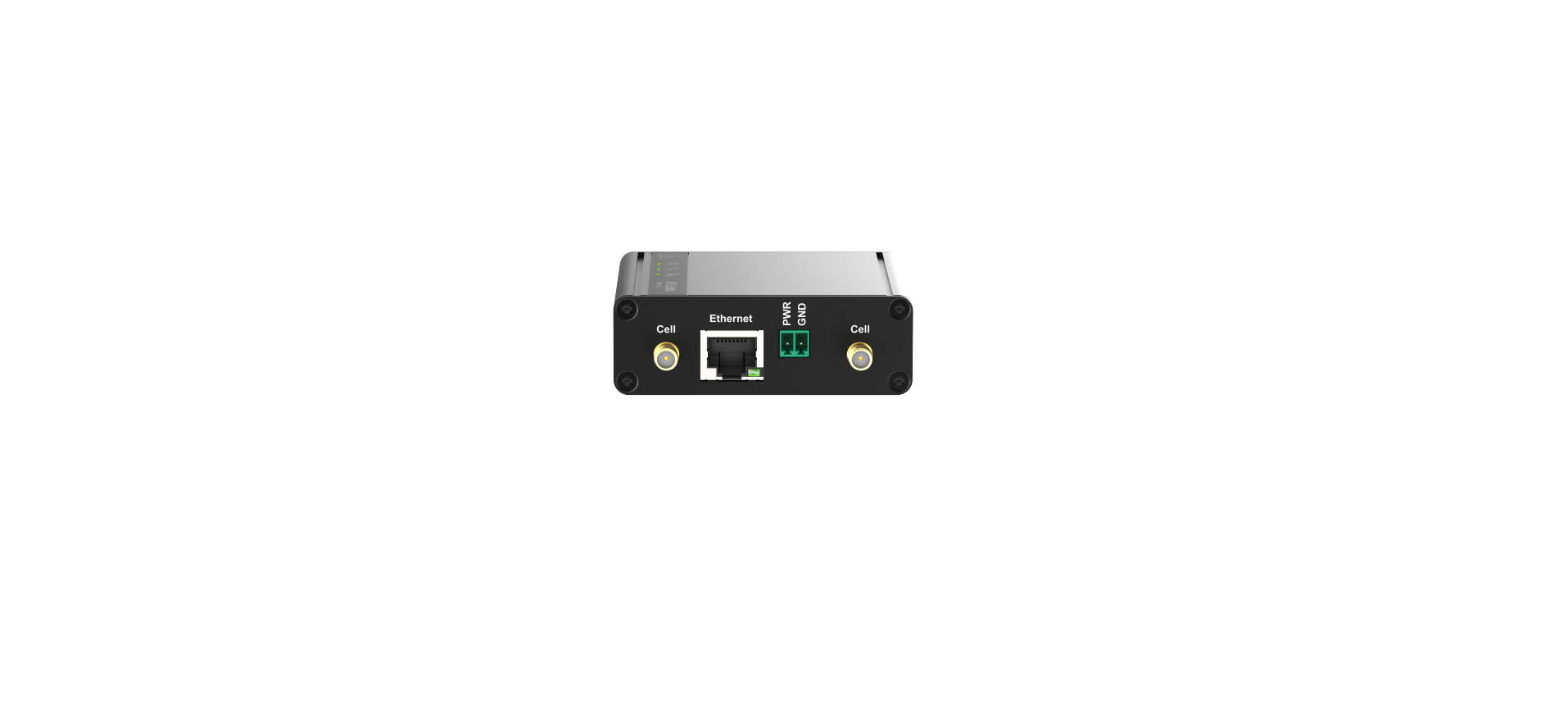

D-Link DWM-1311-G 5G M2M VPN Modem

Introduction
Congratulations on your purchase of D-Link’s 5G M2M modem. With this 5G M2M modem, you have made a great first step in the world of connected Internet of Things (IOT) by simply inserting a SIM card from the local mobile carrier into this device to get things connected. This section gives you all the information you need to set up your device.
Main Features
- Provide a 5G WAN connection that is back compatible with 3G/4G.
- Provide one 2.5 Gigabit Ethernet port for the LAN connection.
- The Instinctive Web GUI is used for basic settings and checking the cellular status.
- Designed an easy-to-mount metal body for business and M2M environments to work with a variety of M2M (Machine-to-Machine) applications.
Contents List
Standard Package

Optional Package

Hardware Configuration
Right View
RightView
Reset Button The
- RESET button provides the user a quick and easy way to reset the default settings. Press the RESET button continuously for more than 8 seconds when the Cell/PDP LED (blue and red) flashes alternately for 3~4 seconds, and then release it. The device will restore to factory default settings.
LED Indication


Installation & Maintenance
SYSTEM REQUIREMENTS
| Network Requirements | • AEthernet RJ45cable
• 4G/5G cellular service subscription • 100/1000M Ethernet adapter on PC |
| Web-based Configuration Utility Requirements | Computer with the following
• Windows®, Macintosh, or Linux-based operating system • An installed Ethernet adapter Browser Requirements: • Internet Explorer 8.0 or higher • Chrome 2.0 or higher • Firefox 3.0 or higher • Safari 3.0 or higher |
Frequency Band & Maximum Power
| Band Number | Frequency Band | Max. Output Power |
| WCDMA Band 1 | 1920 ~ 1980 MHz | 23 dBm |
| WCDMA Band 5 | 824 ~ 849 MHz | 23 dBm |
| WCDMA Band 8 | 880 ~ 915 MHz | 23 dBm |
| LTE Band 1 | 1920 ~ 1980 MHz | 23 dBm |
| LTE Band 3 | 1710 ~ 1785 MHz | 23 dBm |
| LTE Band 5 | 824 ~ 849 MHz | 23 dBm |
| LTE Band 7 | 2500 ~ 2570 MHz | 23 dBm |
| LTE Band 8 | 880 ~ 915 MHz | 23 dBm |
| LTE Band 20 | 832 ~ 862 MHz | 23 dBm |
| LTE Band 28 | 703 ~ 748 MHz | 23 dBm |
| LTE Band 38 | 2570 ~ 2620 MHz | 26 dBm |
| LTE Band 40 | 2300 ~ 2400 MHz | 23 dBm |
| LTE Band 41 | 2496 ~ 2690 MHz | 26 dBm |
| LTE Band 42 | 3400 ~ 3600 MHz | 26 dBm |
| LTE Band 43 | 3600 ~ 3800 MHz | 26 dBm |
| 5G NR Band n1 | 1920 ~ 1980 MHz | 23 dBm |
| 5G NR Band n3 | 1710 ~ 1785 MHz | 23 dBm |
| 5G NR Band n5 | 824 ~ 849 MHz | 23 dBm |
| 5G NR Band n7 | 2500 ~ 2570 MHz | 23 dBm |
| 5G NR Band n8 | 880 ~ 915 MHz | 23 dBm |
| 5G NR Band n20 | 832 ~ 862 MHz | 23 dBm |
| 5G NR Band n28 | 703 ~ 748 MHz | 23 dBm |
| 5G NR Band n38 | 2570 ~ 2620 MHz | 26 dBm |
| 5G NR Band n40 | 2300 ~ 2400 MHz | 23 dBm |
| 5G NR Band n40 | 2300 ~ 2400 MHz | 23 dBm |
| 5G NR Band n41 | 2496 ~ 2690 MHz | 26 dBm |
| 5G NR Band n77 | 3300 ~ 4200 MHz | 26 dBm |
Hardware Installation
This chapter describes how to install and configure the hardware
Mount the Unit
The device can be placed on a desktop or used with an extender to place on a DIN-Rail bracket or mounted on the wall.
Insert the SIM Card
SIM card slot is located in the middle area of the device. You need to remove the outer SIM card cover before installing or removing an inserted SIM card. Please follow the instructions below to install or remove a SIM card. After the SIM card is well installed or removed, put back the outer SIM card cover.
- Remove the SIM cover.
Remove the SIM cover from the left side.
- Insert a SIM
Push the SIM card into the SIM slot.
- Put back the SIM cover
Put back the SIM cover
Connecting to the Network or a Host
The DWM-311-G provides one RJ45 port to connect to 10/100/1000/2500Mbps Ethernet. It can auto-detect the transmission speed on the network and configure itself automatically. Connect one Ethernet cable to the RJ45 port (LAN) of the device and plug the other end of the Ethernet cable into your computer’s network port to connect this device to the host PC for device configuration.
Set up by Configuring the WEB UI
You can browse the web UI to configure the device. Type in the IP Address (http://192.168.0.1)2

When you see the login page, enter the user name and password, and then click the ‘Login’ button.

The default setting for both username and password is ‘admin.
- The default LAN IP address of this gateway is 192.168.0.1. If you change it, you need to log in using the new IP address.
- For security concerns, the login process will force users to change their default password the first time.
Setup
The DWM-311-G connects to a machine via the Ethernet interface for 3G/4G/5G network connection, and also provides another function with a NAT router. It can make the network application more flexible.
Network

| Network Page Item | Description |
| Device Mode | Set the unit operating mode |
| Cellular | Set the parameter for the cellular network. |
| Ethernet | Set the IP of the Ethernet and the DHCP service |
| Port Forwarding | Enable the specified port or protocol for service on the connected device. |
| DDNS | Register a dynamic host name for the unit. |
Device Mode

| Device Mode | ||
| Item | Value setting | Description |
| Device Mode | 1. A must-filled setting 2. By default, NAT is selected | NAT
The unit will provide a NAT service and provide a simple firewall for the connected device. Modem The unit will pass the cellular IPtoo the connected device via Ethernet. |
Cellular

Static IP Configuration

| Static IP Configuration
Item Value setting |
Description | |||||
| IP | 1. IPv4 format.
2. A must-filled setting |
The Static IP Address setting of this unit. | ||||
| Subnet Mask | 255.255.255.0 (/24) is set by default | The Subnet Mask of this configured static IP. | ||||
| Default Gateway | 1. IPv4 format.
2. An Optional setting |
The gateway setting of this configured static IP. | ||||
| Primary DNS | 1. IPv4 format. | Assigned the DNS server for this configured static IP. | ||||
| 2. An Optional setting | ||||||
| Secondary DNS | 1. IPv4 format.
2. An Optional setting |
Assigned the DNS server of this configured static IP. | ||||
Ethernet

| Ethernet IP Item | Value setting | Description |
| IP | 1. IPv4 format.
2. A must-filled setting |
The LAN IP Address of this unit. |
| Netmask | 255.255.255.0 (/24) is set by default | The Subnet Mask of this unit. |
| DHCP Server | The box is checked by default. | Click the Enable box to activate the DHCP Server. |
| DHCP Setting | N/A | Click the DHCP Config button to pop up the DHCP Settings page. |
DHCP Setting

| DHCP Setting Item | Value setting | Description |
| IP Pool Start | 1. Numeric string format.
2. A must-filled setting |
The IP Pool of this DHCP Server. Its starting address is entered in this field. |
| IP Pool End | 1. Numeric string format.
2. A must-filled setting |
The IP Pool of this DHCP Server. Its ending address is entered in this field. |
| Lease Time | 1. Numeric string format.
2. A must-filled setting |
The Lease Time of this DHCP Server.
Value Range: 300 ~ 604800 seconds. |
Port Forwarding

| Virtual Server | ||
| Item | Value setting | Description |
| Virtual Server | The box is unchecked by default | Check the Enable box to activate this port forwarding function. Clicking Add will pop up the Virtual Server Rule Configuration page. |
Virtual Server Rule Configuration


| Virtual Server – Rule Name
Item Value setting |
Description | |
| Rule name | N/AClick | Click the “Edit” button to pop up the Virtual Server Rule Configuration page to edit the rule.
Click the “Delete” button to delete this rule |
DDNS

| DDNS
Item |
Value setting | Description |
| DDNS | The box is unchecked by default | Check the Enable box to activate this function. |
| Provider | DynDNS.org is set by default | Select your DDNS provider for Dynamic DNS. It can be DynDNS.org, NOIP.com,TZO.com etc… |
| Host Name | 1. String format can be any text
2. A must-filled setting |
Your registered host name of the DDNS Service. Value Range:0 ~ 63 characters. |
| User Name / E-Mail | 1. String format can be any text
2. A must-filled setting |
Enter your User name or E-mail address of the DDNS Service. |
| Password / Key | 1. String format can be any text
2. A must-filled setting |
Enter your Password or Key of DDNS Service. |
System

| Device Mode Item | Value setting | Description |
| Current Time | N/A | Show the current time of the unit. |
| Sync Time | 1. A Must-filled item.
2. Auto is selected by default. |
When selecting Auto, the unit will sync the time via cellular, and then try to use NTP if the cellular signal doesn’t provide time information.
When selecting NTP, the unit will sync time via ntp service. |
| Time Zone | 1. A Must-filled item. 2. GMT+00:00 is selected by default. | Select a time zone where this device is located. |
| NTP Server | 1. A Must-filled item. | Indicate which NTP server will be used for time synchronisation. |
| Daylight Saving | 1. It is an optional item. 2. Unchecked by default | Check the Enable button to activate the daylight saving function. When the user enables this function, the user has to specify the Start Date and End Date for the daylight saving time duration. |
| Start Date | N/A | Start time for Daylight Saving. |
| End Date | N/A | End Time of Daylight Saving. |
| Action | N/A | Click the Action to sync time immediately |
Language

| Language | ||
| Item | Value setting | Description |
| Language List | 1. A Must-filled item.
2. English is selected by default. |
Language setting of the WebGUI. |
System Information

| System Information
Item Value setting |
Description |
| Model Name DWM-311-G | Show the model name of the device |
Scheduling

| Scheduling | ||
| Item | Value setting | Description |
| Time Schedule | N/A | Press Add to create a schedule rule for the system. |

| Time Schedule Configuration
Item Value Setting |
Description |
| Rule Name String: any text | Set rule name |
| Rule Policy Default Inactivate | Inactivate/activate the function applied in the period below |
| Period Definition
Item Value Setting |
Description | |
| Week Day | Select from the menu | Select every day or one of the weekdays |
| Start Time | Time format (hh: mm) | Start time on a selected weekday |
| End Time | Time format (hhmm) | End time on the selected weekday |
Administrator Manager
- FW Upgrade

| Firmware Information
Item Value setting |
Description |
| FW Version N/A | It displays the firmware version of the product |
| FW Date N/A | It displays the build time of the firmware |
| Firmware Upgrade Item | Value setting | Description |
| FW Path | N/A | Select the firmware file to be upgraded |
| Upgrade Action | N/A | Click the Upgrade button to start the upgrade process with the selected FW |
| Backup Configuration Settings | |
| Item Value setting | Description |
| Backup Configuration
N/A Settings |
Select “Download” to back up the current configuration to a file. Select “Upload” to restore the configuration from the selected file. |
Password & MMI

| Username Item | Value setting | Description |
| Username | 1. The default username is ‘admin’. | Display the current username for the administrator |
| New Username | String: any text | Enter the new username |
| Save | N/A | Click the Save button to save the settings |
Reboot & Reset

| Device Mode | ||
| Item | Value setting | Description |
| Reboot | N/A | Click the Reboot button to reboot the unit immediately |
| Reset to Default | N/A | Click the Reset button to reset the device configuration to its default value. |
SSH
| SSH | ||
| Item | Value setting | Description |
| SSH | 1. The default value disables such a service
1. By default Service Port is 22. |
Check the Enable box to activate the SSH Telnet function for connecting from LAN or WAN interfaces.
You can set the number of Service Ports you want to provide for the corresponding service. Value Range: 1 ~65535. |

Remote Administrator

| Remote Administrator Host Definition | |
| Item Value setting | Description |
| Remote Administrator N/A
Host Definition |
Press “Add” to set a remote administrator rule |

Status
Cellular

Network
| Network Page | |
| Item | Description |
| Mode | Network type NAT |
| Link Status | Display the cellular network status, connected or disconnected. |
| Ip address | Base station distribution network IP |
| Netmask | Display cellular network netmask |
| Gateway | Display cellular network gateway |
Modem

| Modern Information Page
Item Description |
|||
| IMEI Display modem IMEI information | |||
| FW version: Display modem fw version | |||
| Advanced Information | Click the “advanced” button to show Advanced Information | ||
Signal

| Cellular Signal Page
Item Description |
|||
| Service type Cellular service type LTE /5G | |||
| Operator Operator name | |||
| RSSI Display Received Signal | |||
| Advanced Information | Clickthe “advanced” button to show Advanced Information.n | ||
Security

VPN

OpenVPN client name Page
| Item | Description |
| OpenVPN client #1 | Click the “advanced” button to show Advanced Information |

| Advanced Information Page
Item DescriptionOpenVPN |
| A client name Vpn Client name |
| Remote IP/FQDN Vpn server IP or FQDN |
| Remote subnet Vpn server remote subnet |
| Virtual ip Vpn virtual IP |
| Conn. time: Display connected time |
| Conn. status: Display connected or disconnected |
Warranty
Limited Warranty: D-Link warrants that the hardware portion of the D-Link product described below (“Hardware”) will be free from material defects in workmanship and materials under normal use from the date of original retail purchase of the product, for the period set forth below (“Warranty Period”), except as otherwise stated herein.
- Hardware (excluding power supplies and fans): One (1) year
- Power supplies and fans: One (1) year
- Spare parts and spare kits: Ninety (90) days
The replacement hardware need not be new or have an identical make, model, or part. D-Link may, at its option, replace the defective hardware or any part thereof with any reconditioned product that D-Link reasonably determines is substantially equivalent (or superior)in all material respects to the defective Hardware.
FCC Interference Statement
This equipment generates, uses, and can radiate radio frequency energy and, if not installed and used according to the instructions, may cause harmful interference to radio communications. However, there is no guarantee that interference will not occur in a particular installation.
- Reorient or relocate the receiving antenna.
- Increase the separation between the equipment and receiver.
- Consult the dealer or an experienced radio/TV technician for help.
This device complies with Part 15 of the FCC Rules. Operation is subject to the following two conditions:
- This device may not cause harmful interference, and
- This device must accept any interference received, including interference that may cause undesired operation.
FCC Caution: Any D-Link battery motion sensor changes or modifications not expressly approved by the party responsible for compliance could void the user’s authority to operate this equipment.
Customer Support
- Website: https://www.dlink.com/
- Ph: UAE: +971-4-8809033, Pakistan: +9221-34548310