

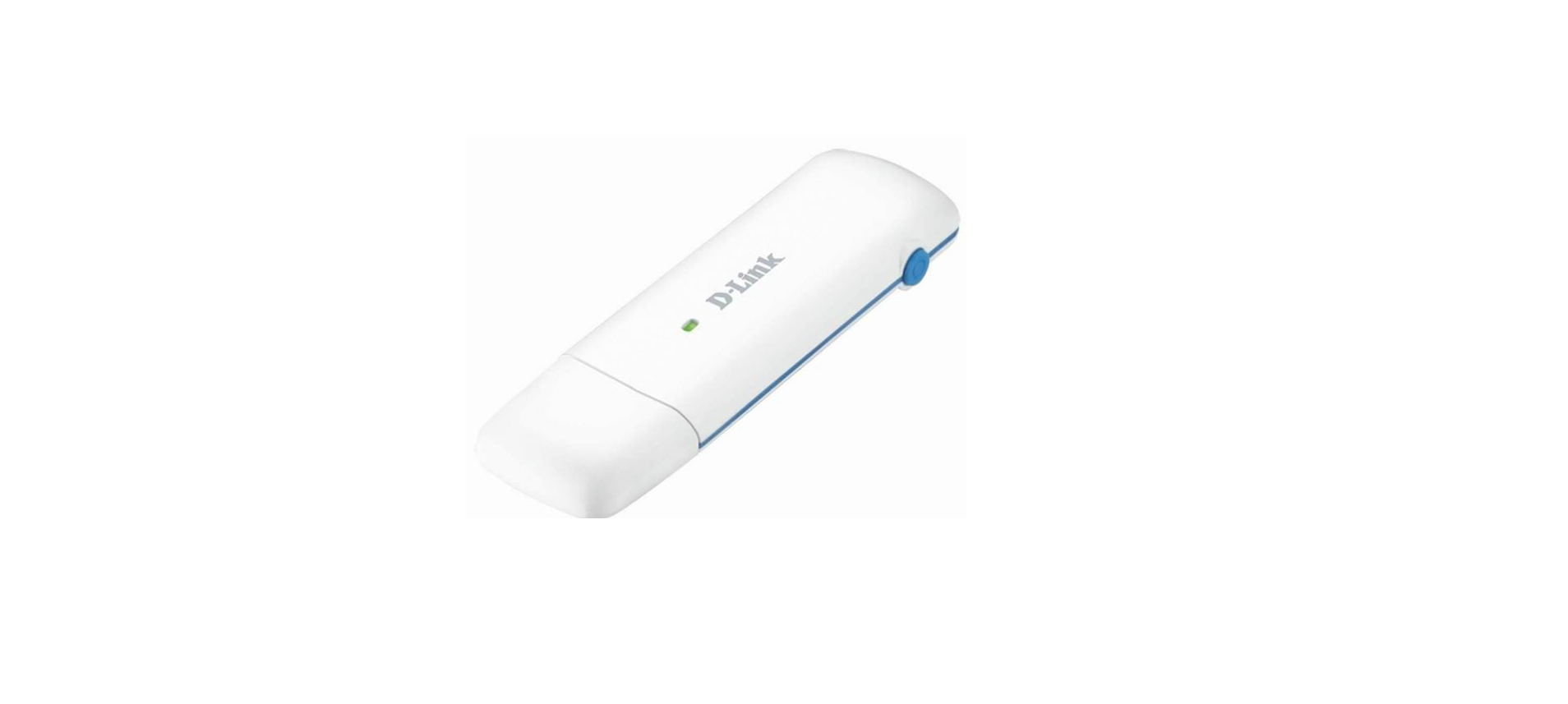

D-Link DWM-222W 4G LTE AX300 WiFi 6 USB Adapter

Introduction
The DWM-222W is designed for reliable and convenient Internet connectivity. Its compact and lightweight design makes it easy to carry anywhere. With built-in Wi-Fi functionality, it can connect to eight devices to a 4G network, ensuring seamlessInternet access on the go. It also pairs with the AX3000 Wi-Fi 6 Travel Router (DBR-330) to create a 4G hotspot, allowing multiple users to share the connection. As a cost-effective alternative to expensive roaming, it’s an ideal solution for travellers.
Safety Instructions
- Read these precautions carefully before using the device to ensure proper use. When handling storage areas, chemical items, or explosive items, please follow laws, regulations, and relevant signs.
- Please place the device where children cannot reach it, as children may consider it a toy and cause personal injury. For possible impact, please consult the device manufacturers’ publication.
- Please do not place the device in high temperatures, high humidity, or dusty areas, as this may cause Equipment failure. While the device is in use, please do not touch the built-in antenna, as this will affect the device’s performance.
Use the Device
- You can only use the included accessories or accessories from the approved list.
- Avoid using the device near metal structures or devices that emit electromagnetic waves.
- Using the device in these situations may affect signal reception.
- Avoid exposing the device to moisture, water, or other liquids, as this may cause a short circuit.
Hardware Installation
Install a SIM Card
Slide the cover in the direction indicated by the arrow on the back of the device to open it. Next, follow the arrow on the cover to open the SIM card holder and release it. Then, insert the Nano SIM card (4FF) and close the card holder.
Insert the DWM-222W
The DWM-222W provides Internet connectivity wherever there is 3G/4G mobile reception. You can transfer files and stream multimedia content through 4G mobile Internet by simply inserting the adapter into your laptop. Wait for about 5 to 8 seconds until the LED flashes green, then you can access the Internet.
LED Indicators
| Status LED Behaviour | Description |
| Red | Not connected to an LTE network. |
| Green | Connected to an LTE network successfully. |
Web Admin Interface
- Wired Connection
This device supports a wired connection via the USB port. Refer to the above. Insert the DWM-222W section. - Wireless Connection
You can connect to the device via Wi-Fi. The default SSID and password are printed on the device label. - Web Admin Login
- Open a web browser and enter https://192.168.125.1 in the address bar of your browser.
- When your browser displays a security warning stating, “Your connection isn’t private.”
- You will also see Not Secure in the address bar, along with HTTPS crossed out with red lines.
- This is because the device’s default management URL is not an actual Internet website with valid certificates.

- You can proceed by clicking the “Advanced” button and then clicking “Continue to 192.168.125.1. ” The following login screen appears.

- Enter the username: admin and password: admin, then click Sign In to enter the Web Admin page.
Using the Quick Setup
The Quick Setup is designed to guide you through a step-by-step process to configure your new DWM-222W for Internet connection.
User Settings
The User Settings screen of the Quick Setup displays the current username and password of the device. Enter a new password for admin. You are required to change the admin password for better security. Please follow the instructions to set a new password that meets the required security strength; failure to do so will affect the device’s functionality. Click Next to continue with the setup process.
Internet Connection
Configure the following Internet connection settings:
| My Internet Connection is | Select Cellular to use 4G/3G service. |
| Network Mode | Select 4G/3G for both mobile standards or select 4G only or 3G only. |
| Preferred LTE Type | Choose the LTE type used in your 4G network: LTE FDD preferred or TD-LTE Preferred. |
| Connection Mode | Select Auto and whether automatic dial-up should be disabled when roaming is active. |
Then click Next to continue with the setup process.
Wireless Settings
Configure the following Wi-Fi settings:
| Network Name (SSID) | Enter a name for your wireless network. |
| Network Visibility Status | The default setting is Visible. Select Invisible if you do not want to broadcast the SSID of your wireless network. |
| Wireless Security | Select WPA2 Pre-shared key, WPA-WPA2 Mixed (mixed mode of WPA and WPA2 Pre-shared key), WPA3-SAE, or WPA2-WPA3 (mixed mode of WPA2 Pre-shared key and WPA3 Simultaneous Authentication of Equals). |
| Password | Enter the Wi-Fi password. Please adhere to the on-screen password strength requirements. |
Then click Next to continue with the setup process.
Device Placement Guidelines
The guidelines give recommendations for placing your device for the best signal strength. Click Finish to exit the setup process.
Access the Web Admin Interface
Dashboard
When you enter the Web Admin Interface, the device’s Dashboard will be presented to display information such as cellular connection parameters and status, home Wi-Fi settings, and device status.

For each of the above configured settings, click on it to go to its configuration page.
Internet
The Internet page allows you to configure cellular connection parameters.

To configure your Internet Connection
- Check Cellular to enable cellular function.
- Select the mobile standard used for Network Mode.
- Select Preferred LTE Type: LTE FDD preferred, or TD-LTE preferred.
- Select the Connection Mode and whether automatic dial-up should be restricted when roaming is active.e
Traffic Statistics
The Traffic Statistics page displays data packets sent and received through the device. The table lists the data packets sent through the following interfaces, respectively: WAN, USB Connection and Wireless interface.
PIN Management
The PIN Management allows you to enable or disable PIN and change PIN for SIM card security. The following can be configured: PIN/PUK Attempts: This section displays the number of remaining PIN and PUK attempts. By default, you have 3 PIN attempts and 10 PUK attempts.
- If you exceed 3 incorrect PIN attempts, you must enter the PUK code to unlock the SIM card.
- If you exceed 10 incorrect PUK attempts, the SIM card will be permanently disabled.
- Enable/Disable PIN
- Enable PIN
Enter the correct PIN and click the Enable PIN button. Once enabled, the button will change to Disable PIN. - Disable PIN
Enter the correct PIN and click the Disable PIN button. Once disabled, the button will change to Enable PIN. - Change PIN
To change your PIN- Enter the current PIN.
- Enter a new PIN.
- Click Save.
- Enable PIN
The PIN will be updated successful.ly
Traffic Setting
The Traffic Setting page allows you to control the amount of cellular data passing through the device.To set a limit on the traffic:
- Enable the traffic control and select a desired mode: Unlimited Period (without time period setting), Per Month, or Per Period (within the specified length of time).
- Select the corresponding action when the traffic has reached the set maximum: No Action or Disconnect.
- Unlimited/Monthly/Per Period Used Traffic: Click Calibration to specify the amount of traffic that has been used for the desired duration.
- Period/Monthly/Per Period Available Traffic: Click Change to specify the amount of traffic that is available for the desired duration.
- Period/Monthly/Per Period Limit Traffic: Change to specify the maximum amount of traffic allowed for the desired duration.
- If Per Period is chosen for the Control Mode, specify the range of time in YYYY/mm/dd format, for example, 2025/03/10.
USSD
Unstructured Supplementary Service Data (USSD) allows ISP-specific applications to be activated with an SMS message. Enter a predefined code or symbols and click Dial.
APN Settings
To configure APN manually:
- Enable the APN Manual Setting.
- Enter the Access Point Name (APN), which sets up a network connection to enable Internet access through cellular communication.
- Select IPv4, IPv6 or both for the IP addressing mechanism.
- Check Enable QoS to enter QIC QoS Class Identifier (QCI) level. A lower number indicates a higher priority.
- Select the Authentication Type: None, CHAP, or PAP. For PAP and CHAP, enter the Username and Password.
Band Selection
The Band Selection allows you to configure the cellular band and frequencies. First, select the network mode, then select the corresponding bands for the desired mode.
Home Network
The Home Network page allows you to configure the device’s DHCP configuration, client connection logs, device information, and custom firewall rules.
 DHCP Settings
To enable the DHCP function for your local network:
- Enable the DHCP server.
- Specify the DHCP server IP assignment range: 192.168.125.x to 192.168.125.x.
- Enter the length of time for the IP address lease in seconds.
- Enable or disable DNS configuration for DHCP.
- If DNS is enabled, enter the DNS1 andDNS22 IP addresses of the DHCP assignment.
- To let the DHCP server always assign the same IP address to a specified LAN host, click Add Static IP, and then enter the MAC address and static IPv4 address.
- For the DHCPv6 setting, choose either Stateful or Stateless Server. A Stateful DHCPv6 server provides an IPv6 address as well as other related information, such as DNS server address, whereas a Stateless DHCPv6 server only provides other related information.
Connected Devices
The Connected Devices page displays the client information of the connected device. It includes information such as device name, status, IP and MAC address, connection method, and duration.
Device Traffic
The Devices Traffic page shows the connection statistics for all connected devices. Click a client’s
name to view detailed connection information, including the last access time, total connectio timen
duration, monthly data usage (sent and received), and overall data usage during the entire
connection period. To prevent a device from accessing the home network, click Block under the
Action column.
Network Activity
The Network Activity screen displays a list of dialer logs and Wi-Fi clients’ connection logs. The dialer logs contain router IP addresses and the time when the connection starts and ends. The Wi-Fi client connection logs contain MAC addresses and the time when the Wi-Fi connection starts and ends.
Custom Firewall Rules
The Custom Firewall Rules page allows you to block specific types of network traffic using source IP addresses, source ports, destination IP addresses, destination ports, or any combination of these parameters. To define a rule:
- Click Add Rule to display the configuration screen.
- Enter a name for the rule.
- Enable or disable the defined rule.
- Enter the Source IP Address in CIDR notation and Port Range for the rule. You can enter a single port or a range of ports.
- Enter the Destination IP Address in CIDR notation and Port Range for the rule. You can enter a single port or a range of ports.
- Select the appropriate protocol to apply for the rule: TCP, UDP or Both.
Port Forwarding
The Port Forwarding enables certain applications to connect through the device. To define a rule:
- Enable Port Forwarding.
- Click Add Rule to display the configuration screen.
- Enter a name for the rule.
- Enter the IP address of the computer on your local network to which you want to direct the incoming service.
- Enter the start and endportst that the rule will apply to. You can enter a single port or a range of ports.
- Select the appropriate protocol to apply for the rule: TCP, UDP or Both.
SMS
The SMS page allows you to manage SMS messages received on the SIM card and device.

SMS Settings
The following can be configured:
| SMS Save Location | Select either the SIM card or the device to save SMS messages. |
| SMS Over Mode | Select the method for sending SMS messages: SMS over PS, SMS over CS, SMS over PS Prefer, or SMS over CS Prefer. |
| Validity | Select a valid period for SMS: 12 Hours, 1 Day, 1 Week, or the maximum period allowed. |
| Center Number | Set or change the SMS service centre number used for message forwarding on your SIM card. |
Device Inbox
The Device Inbox screen displays a list of received messages on the device. You can create a new message, delete a message from the list, and copy or move a message to save to the SIM card.
Device Outbox
The Device Outbox screen displays a list of sent messages on the device. You can create a new message or delete a message from the list.
SIM SMS
The SIM SMS screen displays a list of received messages on the SIM card. You can create a new message, delete a message from the list, and copy or move a message to save it to the device.
Drafts
The Drafts screen displays a list of drafts. You can create a new draft message to be sent later or delete a draft message from the list.
Wireless
The Wireless page allows you to configure Wi-Fi connection parameters and manage the accessibility of the wireless network.

Wireless Settings
Configure the following to set up a wireless local network:
- Enable the wireless function.
- Select the wireless standard: 802.11ax or 802.11 n/g/b.
- Select the Primary and Secondary Channel for your wireless network.
- Enable or disable Band40 ACS Switch. To avoid conflict with LTE band40, Wi-Fi will only use channels 6, 7, 8, 9, and 10.
- Set the maximum number of allowed clients: 1 to 32.
Wireless Security Settings
Configure the following to set up the security method to protect your wireless network:
- . Enter a name (SSID) for the wireless network.
- Check Visible if you want to allow wireless clients to detect this wireless network when scanning for available networks. Check Invisible if you do not want the SSID to be seen in the scan list. Select WPA2 Pre-shared key, WPA-WPA2 Mixed (mixed mode of WPA and WPA2 Pre-shared key), WPA3-SAE, or WPA2-WPA3 (mixed mode of WPA2 Pre-shared key and WPA3 Simultaneous Authentication of Equals). It is recommended that you use the WPA3 as it isthestrongest encryption method among these.
- The WPS (Wi-Fi Protected Setup) is an easy method to connect wireless clients to the device. Click Add WPS Client to display the WPS configuration page. To use the Push Button method, click Push to start the WPS process. Please refer to the user manual forthe WPS process for the wireless clients you want to connect to. To use the PIN method, enter the PIN and then click Register.
- Enter a password for your wireless network. Please adhere to the on-screen password strength requirements.
Wireless MAC Filters
The wireless MAC filters screen allows or blocks specified clients from accessing the Internet through the device. To configure a MAC filter:
- . Enable MAC Filters.
- Select either Deny to block access or Allow to allow access. An Allow list will allow only specified devices in the filter to access the Internet, while all other devices will be blockedfrom accessing the Internet.
- Click Add to add MAC addresses to the filter list.
- Click Save.
Router
The Router page allows you to restart and reset the device, set the management password, and upgrade the system.

User Management
You can manage the Admin account to access the Web Admin Interface. Click on the username to modify its password.
Configuration Management
You can restore the device to its factory default settings. Note that all configurations will be erased.
Software Upgrade
The current software versio,n along with its release da,te is displayed. Click Browse to locate the software file to start upgrading the software.
Reboot
Click Reboot Router to restart the device.
Troubleshooting
Client cannot access the Internet:
- Make sure the SIM card is active and not suspended.
- Verify that the device is properly connected.
- Check the power status to ensure the device is functioning correctly.
- Check the signal strength and ensure the device is in an area covered by the cellular network.
- Verify that the network and connection moare is compatible with your mobile service provider. The default setting is automatic and should only be changed if necessary.
- When connecting to the Internet, enter the correct network configuration parameters, including the access point name, username, and password provided by your service provider.
- The network is considered active only when the main interface shows a connected status (green LED).
- If the issue persists, contact your service provider for assistance.
No SIM Card
-
- Confirm that the SIM card is installed correctly and check if the SIM card is working normally.
Slow Upload and Download Speeds
-
- Upload and download speeds depend on the signal strength of the operator’s network.
- Please place the device in a place with a strong signal.
Warranty
Limited Warranty: D-Link warrants that the hardware portion of the D-Link product described below (“Hardware”) will be free from material defects in workmanship and materials under normal use from the date of original retail purchase of the product, for the period set forth below (“Warranty Period”), except as otherwise stated herein.
- Hardware (excluding power supplies and fans): One (1) year
- Power supplies and fans: One (1) year
- Spare parts and spare kits: Ninety (90) days
The replacement hardware need not be new or have an identical make, model, or part. D-Link may, at its option, replace the defective hardware or any part thereof with any reconditioned product that D-Link reasonably determines is substantially equivalent (or superior)in all material respects to the defective Hardware.
FCC Interference Statement
This equipment generates, uses, and can radiate radio frequency energy and, if not installed and used according to the instructions, may cause harmful interference to radio communications. However, there is no guarantee that interference will not occur in a particular installation.
- Reorient or relocate the receiving antenna.
- Increase the separation between the equipment and receiver.
- Consult the dealer or an experienced radio/TV technician for help.
This device complies with Part 15 of the FCC Rules. Operation is subject to the following two conditions:
- This device may not cause harmful interference, and
- This device must accept any interference received, including interference that may cause undesired operation.
FCC Caution: Any D-Link battery motion sensor changes or modifications not expressly approved by the party responsible for compliance could void the user’s authority to operate this equipment.
Customer Support
- Website: https://www.dlink.com/
- Ph: UAE: +971-4-8809033, Pakistan: +9221-34548310
FAQs
Q: What is the D-Link DWM-222W used for?
With the DWM-222W, a 4G LTE USB modem and Wi-Fi 6 portable hotspot, laptops and mobile devices can connect directly by USB or use a SIM card to access high-speed internet.
Q: Does the adapter require a SIM card?
Insert a nano-SIM card with an active 4G LTE plan to utilise mobile data.
Q: Can it be used without a SIM card?
Indeed. It can function as a USB Wi-Fi 6 adapter when linked to a PC, enhancing older devices’ wireless capabilities.
Q: What mobile network standard does it support?
Depending on carrier and signal conditions, it can provide upload rates of up to 50 Mbps and download speeds of up to 150 Mbps for 4G LTE Category 4.
Q: Does the device support Wi-Fi 6?
Indeed. It broadcasts a Wi-Fi 6 (802.11ax) hotspot that enables wireless connections between numerous devices.
Q: Can this device be used as a personal hotspot?
Indeed. It can establish a portable Wi-Fi 6 hotspot, enabling many devices to connect to the 4G LTE network at once.
Q: Is it compatible with Windows and macOS?
Indeed. Both Windows and macOS are supported by the DWM-222W (see the documentation for specific supported versions).
Q: Does it require external power?
No, the USB port is used to power the adaptor directly.