

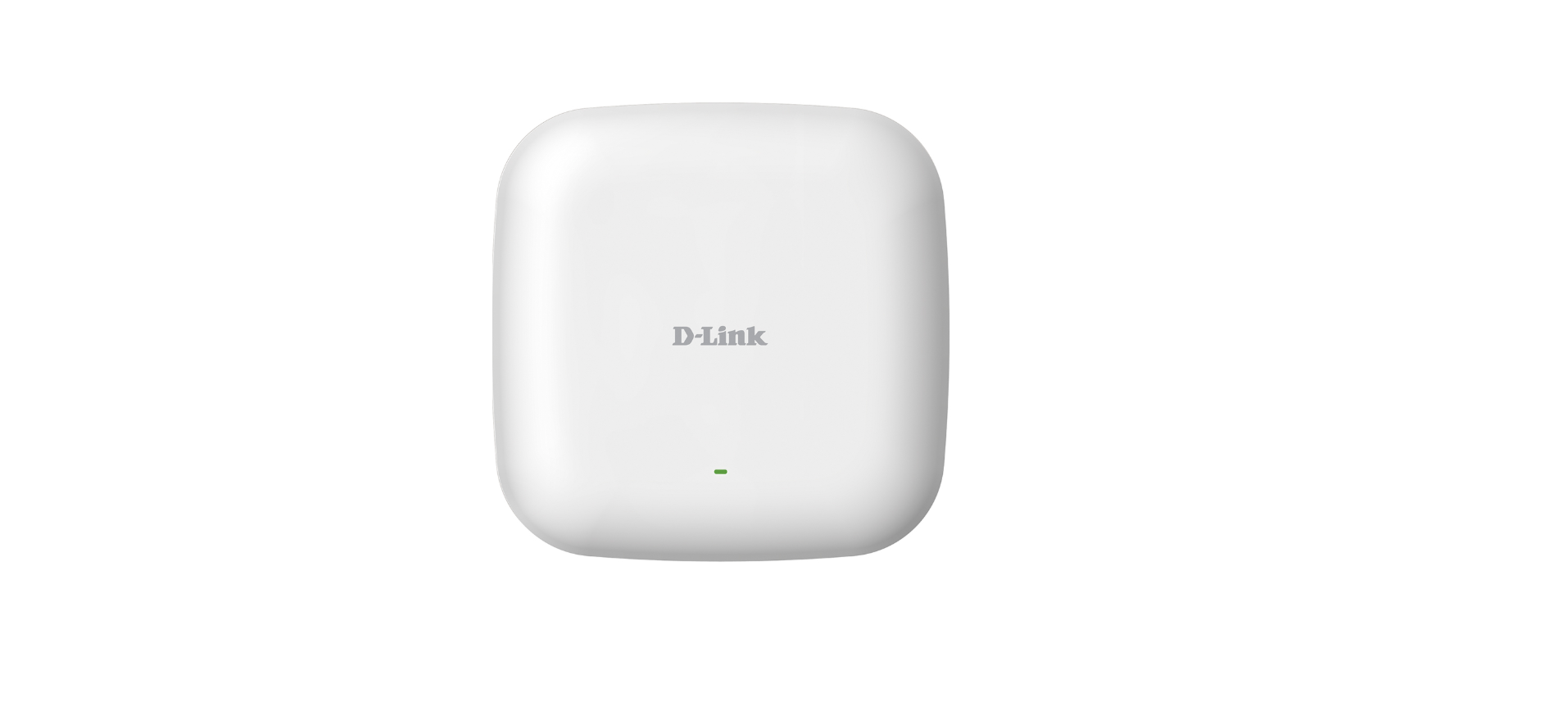

D-Link DBR-X3000-AP AXE5400 Access Point

Before You Begin
This installation guide provides instructions for installing the DBR-X3000-AP on your network. Additional documentation is also available on the D-Link support website.
DAP-X5480 User Manual
For additional information and instructions on how to configure the device using the web user interface.
Package Contents
This DBR-X3000-AP package includes the following items:
- DBR-X3000-AP Access Point
- Power Adapter
- Mounting Plate and Hardware
- Quick Start Guide
If any of the above items are damaged or missing, please contact your local D-Link reseller.
Note
- Using a power supply with a different voltage than the one recommended for the device will cause damage and void the warranty for this product.
- No power adapter is supplied with this product. To power the unit, use an 802.3at PoE Switch or an 802.3at PoE Injector.
System Requirements
- Computers with Windows®, Macintosh®, or Linux-based operating systems with an installed Ethernet Adapter
- Internet Explorer 11, Safari 7, Firefox 28, or Google Chrome 33 and above (for configuration)
Hardware Overview
LED Indicators

Interface Connectors
- Reset
Press and hold for 15 seconds to factory reset the device. - LAN (PoE) Port
1 Gbps Ethernet port for data and Power over Ethernet (PoE) power. - Power Input
Input for the power adapter; however, the device can also be powered over Ethernet.
Note:
An 802.3at PoE injector is not included in the package contents, but can be purchased separately.

Installation
The DBR-X3000-AP can be powered using one of the following two methods:
Using Power over Ethernet (PoE)
- Use a standard Ethernet cable to connect the LAN port on the DBR-X3000-AP to a PoE power source device such as an 802.3at PoE switch or 802.3at PoE injector.
Using a Power Adapter (Optional)
- Connect the power connector of the adapter to the power input on the DBRX3000-AP and plug the adapter into a nearby power outlet.
Configuration
Using DBR Business Router
The DBR-X3000-AP is designed to be managed through Nuclias Connect/Cloud. Refer to the DBR Business Router for detailed configuration instructions.
Manual Configuration
D-Link recommends manually configuring the device before mounting it. The management computer, DHCP server, and DBR-X3000-AP must be in the same subnet. Use one of the following methods to access the web user interface:
Connecting through Ethernet
- Manage the access point from a computer. Enter DBR-X3000-AP-xxxx.local in the address field of your browser.
- Log in to the administration user interface. The default login information can be found on the device label. (XXXX is the last 4 digits of the MAC address)
Connecting Wirelessly
- Connect the management computer to the default SSID of the DBR-X3000-AP, which can be found inthe device label.
- Manage the access point from a computer. Enter DBR-X3000-AP-xxxx.local in the address field of your browser.
- Log in to the administration user interface. The default login information can be found inthe the device label.
Mounting
Solid Wall or Ceiling
- Use the mounting plate to mark the location where to drill the holes in the wall or ceiling.
- Drill holes on the markings and place the included anchors into the drilled holes.
- Align and place the mounting plate on top of the anchors and use the included screws (4×25.4 mm) to secure the mounting plate to the surface.
- Plug the Ethernet cable into the LAN (PoE) port of the device. Note: If you are powering the device with a power adapter, plug the adapter into the Power Input port.

- Rotate the DBR-X3000-AP into the grooves on the mounting plate to secure it to the plate.
Ceiling Brackets
- Clip the two ceiling brackets onto a ceiling crossbar.

- Use the included screws (2*T3*8 mm) to secure the mounting plate to the ceiling brackets.
- Plug the Ethernet cable into the LAN (PoE) port of the device. Note: If you are powering the device with a power adapter, plug the adapter into the Power Input port.

- Rotate the DBR-X3000-AP into the grooves on the mounting plate to secure it to the plate.
Appendix – Statements
ErP Power Usage
Network Standby: 7.1942 Watt
Federal Communications Commission Interference Statement
This equipment generates, usess and can radiate radio frequency energy and, if not installed and used according to the instructions, may cause harmful interference to radio communications. However, there is no guarantee that interference will not occur in a particular installation. Reorient or relocate the receiving antenna.
- Increase the separation between the equipment and receiver.
- Consult the dealer or an experienced radio/TV technician for help.
Non-modifications Statement
Any changes or modifications not expressly approved by the party responsible for compliance could void the user’s authority to operate this equipment.
Caution
This device complies with Part 15 of the FCC Rules. Operation is subject to the following two conditions:
- This device may not cause harmful interference.
- This device must accept any interference received, including interference that may cause undesired operation.
Selection of other channels is not possible.
Note
The country code selection is for non-USA models only and is not available to all USA models.
RF Frequency Requirements
These radar stations can cause interference with and/or damage this device. This device will not operate on channels that overlap the 5600-5650 MHz band. It is restricted to indoor environments only.
- Innovation, Science and Economic Development Canada (ISED) Statement
This Class B digital apparatus complies with Canadian ICES-003.
- Innovation, Science and Economic Development Canada (ISED) Statement
This device complies with ISED licence-exempt RSS standard(s). Operation is subject to the following two
conditions:
- This device may not cause interference
- This device must accept any interference, including interference that may cause undesired operation of the device.
- The device for operation in the band 5150-5250 MHz is only for indoor use to reduce the potential for harmful interference to co-channel mobile satellite systems;.
- Operations in the 5.25-5.35 GHz band are restricted to indoor usage only.
Radiation Exposure Statement
This equipment complies with ISED radiation exposure limits set forth for an uncontrolled environment. Japan Voluntary Control Council for Interference Statement This is a Class B product based on the standard of the VCCI Council. Install and use the equipment according to the instruction manual.
FCC Warranty
Operations in the 5.15-5.25GHz band are restricted to indoor usage only.
Radiation Exposure Statement
This equipment complies with FCC radiation exposure limits set forth for an uncontrolled environment.
Customer Service
To find out more about D-Link Nuclias’ product or marketing information, please visit
The D-Link Limited Lifetime Warranty information is available at
FAQs
What is the D-Link DBR-X3000-AP used for?
A high-performance Wi-Fi 6E AXE5400 access point, the DBR-X3000-AP is intended to expand or construct wireless networks with tri-band functionality (2.4 GHz, 5 GHz, and 6 GHz).
Does this access point function as a router?
No. This gadget serves merely as an access point. To provide internet connectivity, a router or gateway is needed.
How do I power the access point?
Power over Ethernet (PoE) is supported by the access point, usually through a PoE+ (802.3at) injector or PoE-enabled network switch. A DC power option might be available in some models.
What type of Ethernet cable do I need?
For full 6 GHz capability, especially for high-throughput backhaul links, use Cat6 or higher.
Does the DBR-X3000-AP support cloud management?
Cloud or centralised controller management is supported by a large number of D-Link enterprise access points. Verify whether the firmware and product documentation for your model are compatible with D-Link or Nuclias centralised systems.
Can I disable specific Wi-Fi bands?
Indeed. Depending on how your network is configured, you can disable any band (2.4, 5, or 6 GHz) in the wireless settings.
Why is the 6 GHz band not visible to all devices?
The 6 GHz band can only be detected and connected to by Wi-Fi 6E compliant devices. Only 2.4 GHz and 5 GHz networks will be visible to older devices.
Can I use multiple units for mesh or roaming?
Indeed. Multiple APs can facilitate seamless roaming over 802.11k/v/r (if supported by the client device) when configured correctly with the same SSIDs and authentication parameters.