

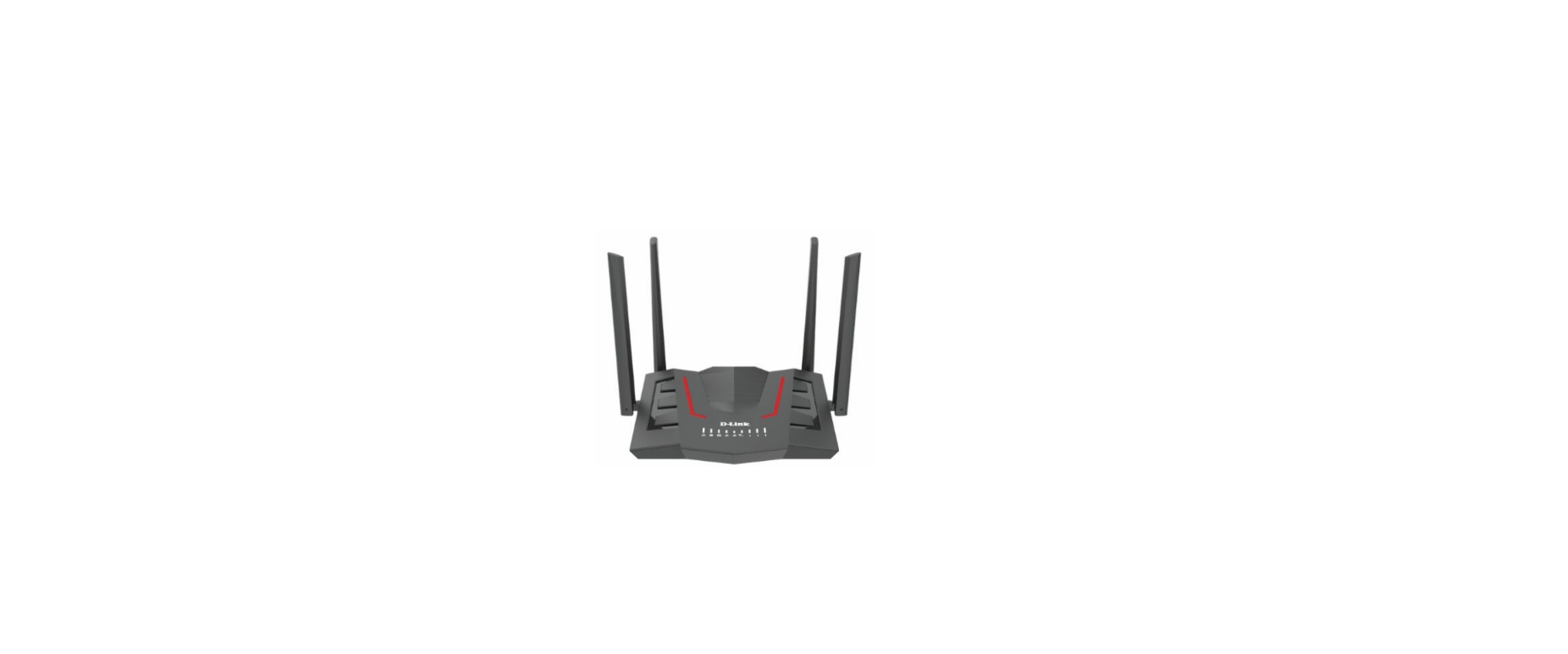

D-link DWR-M955X Wi-Fi 6 AX1500 Cat4 LTE Router
Package Contents
- Wireless Router (DWR-M955X)
- Power Adapter
- Ethernet Cable
- Quick Installation Guide
- Warranty Card
Connect Your Device
Wi-Fi
Connect your device to the Router’s Wi-Fi. The default Wi-Fi name and password are printed on the label at the back of the Router.
Connect via a Network Cable
Connect your PC to the Router’s LAN1, LAN2, or LAN3 port using a network cable.
ISP Connection Box
Using the included Ethernet cable, connect the Router’s WAN port to the Ethernet port on your NBN or UFB Connection Box.
MESH SETUP
To create a Wi-Fi mesh with multiple D-Link Routers, first select the required mode under “Easymesh” settings of each Router. The Router that connects to the Internet should be set as Controller. The Satellite Routers should be set as Agents.
Press the WPS button at the back of both Routers for 3 seconds. The 2.4GHz LED will flash he Device and the Routers will wirelessly sync with each other automatically.
Reset Factory Defaults
To revert the Router to factory settings including Admin password, Wi-Fi name and Wi-Fi
password, press the Reset (WPS) button for 10 seconds.
Technical Support
For configuration guides and the latest software updates, please visit support.dlink.com.au
You can contact our Technical Support Team:
- Via website: https://www.dlink.com.au/contactus
- Via Live Chat: https://support.dlink.com.au/
- Via phone (24×7): Australia: 1300 700 100 New Zealand: 0800 900 900
D-LINK WI-FI APP SETUP
- Step 1. Install the D-Link Wi-Fi Assist App. You can also use a Web browser on your computer or on your phone to set up the Router.
- Step 2. Connect your phone to your Router’s Wi-Fi. The Wi-Fi Name and password are printed on the label at the back of the Router.
- Step 3. Open the D-Link Wi-Fi Assist app. You will be prompted to enter the router’s admin password. The factory password is printed on the label at the back of the Router.
- Step 4. Tap the Settings icon in the top-right corner and then select Quick Setup.

Select your Internet Connection type and D-link DWR-M955X Wi-Fi 6 AX1500 Cat4 LTE Router enter the required details. 
Enter your desired Wi-Fi Name and assign a D-link DWR-M955X Wi-Fi 6 AX1500 Cat4 LTE Router secure password to your Wi-Fi.
After completing the Quick Setup, they will restart. Reconnect to your Router’s Wi-Fi using the new name and password.
Web Browser Setup
You can also use a Web browser on your computer or on your phone to set up the Router.
- Step 1. Connect your computer or phone to your Router’s Wi-Fi. The Wi-Fi Name and password are printed on the label at the back of the Router. Alternatively, you can connect your computer to one of the Router’s LAN ports using a network cable.
- Step 2. Open your Web browser and enter http://192.168.0.1 in the address bar.
- Step 3. The Setup Wizard will take you through the initial Router setup.

Select your Internet Connection type and enter the required details.
If required, you can change the Router’s IP address.
Assign a strong system password to protect your Router from unauthorised access.
Enter your desired Wi-Fi Name and assign a secure password to your Wi-Fi.
After completing the Setup Wizard, the Router will restart. Reconnect to your Router’s Wi-Fi using the new name and password.
Warranty
Limited Warranty: D-Link warrants that the hardware portion of the D-Link product described below (“Hardware”) will be free from material defects in workmanship and materials under normal use from the date of original retail purchase of the product, for the period set forth below (“Warranty Period”), except as otherwise stated herein.
- Hardware (excluding power supplies and fans): One (1) year
- Power supplies and fans: One (1) year
- Spare parts and spare kits: Ninety (90) days
The replacement hardware need not be new or have an identical make, model, or part. D-Link may, at its option, replace the defective hardware or any part thereof with any reconditioned product that D-Link reasonably determines is substantially equivalent (or superior)in all material respects to the defective Hardware.
FCC Interference Statement
This equipment generates, uses, and can radiate radio frequency energy and, if not installed and used according to the instructions, may cause harmful interference to radio communications. However, there is no guarantee that interference will not occur in a particular installation.
- Reorient or relocate the receiving antenna.
- Increase the separation between the equipment and receiver.
- Consult the dealer or an experienced radio/TV technician for help.
This device complies with Part 15 of the FCC Rules. Operation is subject to the following two conditions:
- This device may not cause harmful interference, and
- This device must accept any interference received, including interference that may cause undesired operation.
FCC Caution: Any D-Link battery motion sensor changes or modifications not expressly approved by the party responsible for compliance could void the user’s authority to operate this equipment.
Customer Support
- Website: https://www.dlink.com/
- Ph: UAE: +971-4-8809033, Pakistan: +9221-34548310
FAQs
Q: What is the DWR-M955X router used for?
The DWR-M955X is a dual-purpose Wi-Fi router and 4G LTE modem that offers high-speed Wi-Fi 6 wireless performance and enables users to access the internet via a wired Ethernet connection or mobile SIM card.
Q: Does the router support Wi-Fi 6?
It utilises Wi-Fi 6 (802.11ax) technology, which surpasses earlier Wi-Fi standards in terms of speed, coverage, and efficiency.
Q: Can I use a wired Internet connection instead of LTE?
Indeed. As an alternative to mobile data, you can connect to a conventional broadband modem or network source thanks to the router’s WAN/LAN ports.
Q: Does the DWR-M955X support dual-band Wi-Fi?
Indeed. For the best coverage and speed, the router transmits in both the 2.4 GHz and 5 GHz Wi-Fi bands.
Q: How many devices can connect at once?
The router can manage multiple devices simultaneously due to Wi-Fi 6, making it ideal for homes with smart TVs, phones, tablets, and Internet of Things (IoT) devices.
Q: What is OFDMA and why does it matter?
The router can serve several devices at once with reduced latency thanks to OFDMA (Orthogonal Frequency Division Multiple Access), which enhances performance in congested networks.
Q: Can I lock the router to a specific LTE band?
Certain versions provide LTE band selection via the advanced settings or web interface. Examine the manual’s “Mobile Network Settings” section.