

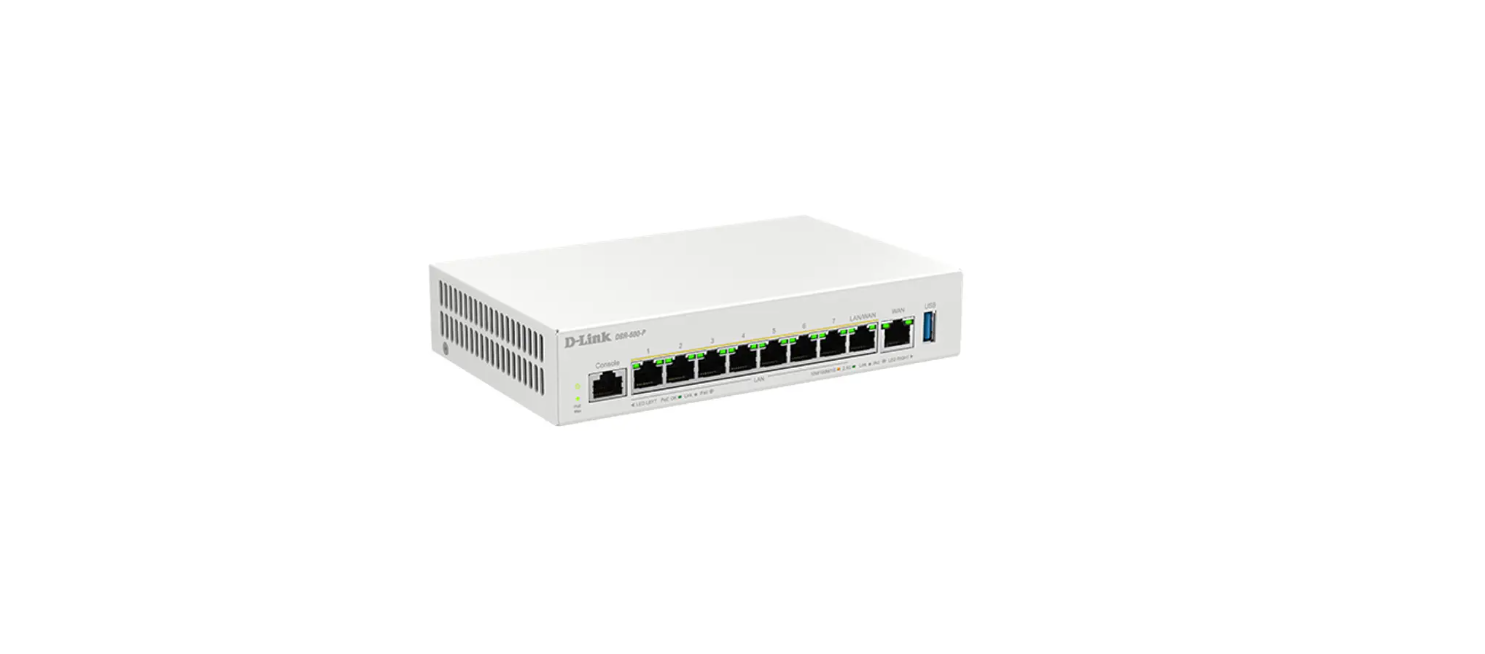

D-Link DBR-700 Business Router

Introduction
This guide gives step-by-step instructions for setting up the D-Link DBR-700 Business Router. Please note that the model you have purchased may appear slightly different from those shown in the illustrations.
Unpacking the Product
Open the shipping carton and carefully unpack its contents. Please consult the packing list located in the following information to make sure all items are present and undamaged. If any item is missing or damaged, please contact your local D-Link reseller for replacement.
- One (1) DBR-700 Business Router Appliance
- One (1) 12V/2A Power Adapter
- One (1) Ethernet (CAT5e) Cable
- One (1) Rack Bracket
Product Overview
This chapter provides detailed descriptions of the DBR-700 device and its components.
Front Panel


Device Status LEDs and Ethernet Port LEDs

The device LEDs show information about the current device status. When the device powers up, the POWER/STATUS LED will show blinking green during power on process. The startup takes one minute to complete, and the LED will change to solid green. If you want to turn the device off and on again, we recommend you wait a few seconds between shutting it down and powering it back on. The Ethernet LEDs show the status of each Ethernet port. Table 2 lists the name, colour, status and description of each device LED.

DBR-700 Default Interface Settings

Installing and Connecting the Device
This chapter describes how to connect cables and power to the device.
Before You Begin
Observe the following precautions to help prevent shutdowns, equipment failures and injuries.s
- Before installation, always check that the power supply is disconnected
- Ensure that the room in which you operate the device has adequate air circulation and that the room temperature does not exceed 40˚C (104˚F)
- Allow 3 inches of clear space to the front and back of the device.
- Do not place the device in an equipment rack frame that blocks the air vents on the sides of the chassis. Ensure that enclosed racks have fans andlouvredd sides.
- Correct these hazardous conditions before any installation: moist or wet floors, leaks, ungrounded or frayed power cables, or missing safety grounds.
Connecting Power and Turning the Device On/Off
The AC/DC Power Adapter shipped with the device connects the device to an earth grophone jackluggedinto an AC grounding-type power outlet. The device must be connected to earth ground during normal operation. To connect power to the device, plug the AC/DC power adapter into the DC power phonejackt on the back panel of the device. Note: We recommend using a surge protector for the power connection.
To power on the DBR-700 device, press the DC power switch on the rear panel to the on position. To power off the device, press the power switch to the off position.
Connecting the Device to a Network
This section provides basic information about physically connecting the DBR700 to a network. To connect the necessary cables as shown in Figure 3.
- Connect an RJ-45 cable from the port labelled WAN to the external router. The port WAN is pre-allocated to the WAN network segment.
- Connect an RJ-45 cable from the port labelled LAN (1-7) to a switch in the LAN network segment.

Initially, Configure the Device
The Business Router software is preinstalled on the DBR-700 device. When the device is powered on, it is ready to be configured. While the device has a default factory configuration that allows you to initially connect to the device, you must perform further configuration for your specific network requirements.
Using the Web UI
To use the WebUI, the workstation from which you are managing the device must initially be on the same subnetwork as the device.
To access the device with the WebUI
- Connect your workstation to the polabelled LAN (1-7), which is pre-allocated to the LAN.
- Ensure your workstation is DHCP Client enabled or configured with a static IP address in the 192.168.10.0/24 subnet.
- Log onto the Business Router Web Interface 192.168.10.1, the default login information is

Instruction and Cautionary Statement
The AC adapter plug of this product is detachable. If an abnormal force is applied to the AC adapter, such as by cable tripping, it may generate a gap between the AC plug and the AC adapter, or the plug may be separated from the adapter. In addition, if the AC plug is broken and you keep using it, there may be a risk of a spark, ignition or smoke. If the AC plug is not attached properly or broken as stated above, stop using the product immediately.

Warranty
Limited Warranty: D-Link warrants that the hardware portion of the D-Link product described below (“Hardware”) will be free from material defects in workmanship and materials under normal use from the date of original retail purchase of the product, for the period set forth below (“Warranty Period”), except as otherwise stated herein.
- Hardware (excluding power supplies and fans): One (1) year
- Power supplies and fans: One (1) year
- Spare parts and spare kits: Ninety (90) days
The replacement hardware need not be new or have an identical make, model, or part. D-Link may, at its option, replace the defective hardware or any part thereof with any reconditioned product that D-Link reasonably determines is substantially equivalent (or superior)in all material respects to the defective Hardware.
FCC Interference Statement
This equipment generates, uses, and can radiate radio frequency energy and, if not installed and used according to the instructions, may cause harmful interference to radio communications. However, there is no guarantee that interference will not occur in a particular installation.
- Reorient or relocate the receiving antenna.
- Increase the separation between the equipment and receiver.
- Consult the dealer or an experienced radio/TV technician for help.
This device complies with Part 15 of the FCC Rules. Operation is subject to the following two conditions:
- This device may not cause harmful interference, and
- This device must accept any interference received, including interference that may cause undesired operation.
FCC Caution: Any D-Link battery motion sensor changes or modifications not expressly approved by the party responsible for compliance could void the user’s authority to operate this equipment.
Customer Support
- Website: https://www.dlink.com/
- Ph: UAE: +971-4-8809033