

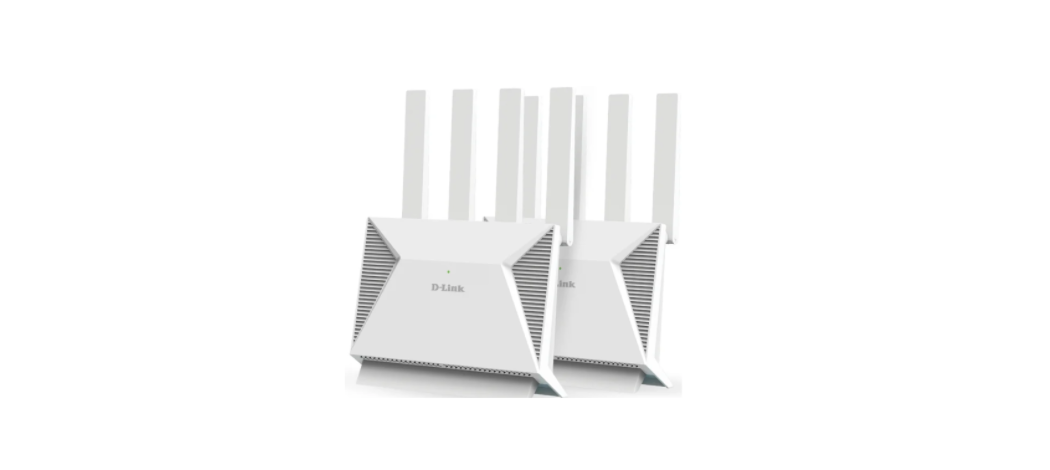

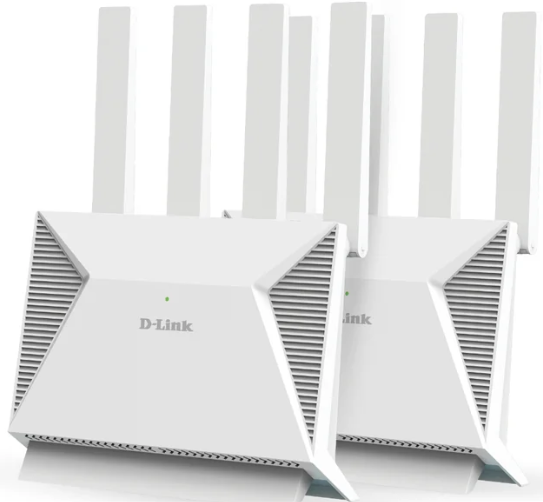
D-Link DIR-BE3602 WiFi 7 BE3600 Wireless Router
Connect Your Device
Connect your device to the Router’s Wi-Fi. The default Wi-Fi name and password are printed on the label on the bottom of the device.
Connect via a Network Cable
Connect your PC to the Router’s LAN1, LAN2, LAN3, or LAN4 port using a network cable.
Schematic Diagram Of Router Connection
Connect to the ISP Connection Box
Using the included Ethernet cable, connect the Router’s WAN port to the Ethernet port on your NBN or UFB Connection Box.
OPTION 1 – D-LINK WI-FI APP SETUP
- Step 1. Install the D-Link Wi-Fi Assist App.

- Step 2. Connect your phone to your D-Link DIR-BE3602 WiFi 7 BE3600 Wireless Router’s Wi-Fi. The Wi-Fi Name and password are printed on the label at the back of the Router.
- Step 3. Open the D-Link Wi-Fi Assist app and tap on the Router icon. Access the setup options by tapping on the Settings icon.
- Step 4. Tap on Quick Setup.

- Select your internet connection type and enter the required details.

- Enter your desired Wi-Fi Name and D-Link DIR-BE3602 WiFi 7 BE3600 Wireless Router, and assign a secure password to your Wi-Fi.

- After completing the Quick Setup, the Router will restart. Reconnect to your Router’s Wi-Fi using the new name and password.
Web Browser Setup
You can also use a Web browser on your computer or on your phone to set up the Router.
- Step 1. Connect your computer or phone to your Router’s Wi-Fi. The Wi-Fi Name and Password are printed on the label at the back of the Router. Alternatively, you can connect your computer to one of the Router’s LAN ports using a network cable.
- Step 2. Open your Web browser and enter http://192.168.0.1 in the address bar. You will be prompted to enter the Router’s admin password – the factory password is printed on the label at the back of the Router.

- Step 3. The Quick Setup Wizard will take you through the initial Router setup. Select your Internet Connection type and enter the required details.

- Enter your desired Wi-Fi Name and assign a secure password to your Wi-Fi.

- After completing the Quick Setup Wizard, the Router will restart. Reconnect to your Router’s Wi-Fi using the new name and password.
Warranty
Limited Warranty: D-Link warrants that the hardware portion of the D-Link product described below (“Hardware”) will be free from material defects in workmanship and materials under normal use from the date of original retail purchase of the product, for the period set forth below (“Warranty Period”), except as otherwise stated herein.
- Hardware (excluding power supplies and fans): One (1) year
- Power supplies and fans: One (1) year
- Spare parts and spare kits: Ninety (90) days
The replacement hardware need not be new or have an identical make, model, or part. D-Link may, at its option, replace the defective hardware or any part thereof with any reconditioned product that D-Link reasonably determines is substantially equivalent (or superior)in all material respects to the defective Hardware.
FCC Interference Statement
This equipment generates, uses, and can radiate radio frequency energy and, if not installed and used according to the instructions, may cause harmful interference to radio communications. However, there is no guarantee that interference will not occur in a particular installation.
- Reorient or relocate the receiving antenna.
- Increase the separation between the equipment and receiver.
- Consult the dealer or an experienced radio/TV technician for help.
This device complies with Part 15 of the FCC Rules. Operation is subject to the following two conditions:
- This device may not cause harmful interference, and
- This device must accept any interference received, including interference that may cause undesired operation.
FCC Caution: Any D-Link battery motion sensor changes or modifications not expressly approved by the party responsible for compliance could void the user’s authority to operate this equipment.
Customer Support
- Website: https://www.dlink.com/
- Ph: UAE: +971-4-8809033, Pakistan: +9221-34548310
FAQs
Q: What is the D-Link DIR-BE3602 WiFi 7 router?
For modern homes and smart devices, the DIR-BE3602 WiFi 7 (802.11be) dual-band router offers incredibly fast speeds, reduced latency, and improved wireless efficiency.
Q: Is this router backward compatible?
All of your current devices will still be able to connect because it supports previous WiFi standards like WiFi 6, WiFi 5, and WiFi 4.
Q: How do I change the WiFi name and password?
Enter the router interface, select Wireless Settings, change the SSID and password, save, and restart if necessary.
Q: Does this router support WPA3 security?
Indeed. For optimal wireless security, WPA3 is advised and supported.
Q: What is Multi-Link Operation (MLO)?
WiFi 7’s MLO function improves latency, speed, and reliability by enabling devices to send data over several bands simultaneously. Each client device has a different availability.
Q: Can the DIR-BE3602 be used as a mesh node?
EasyMesh or D-Link mesh technology may be supported by certain firmware versions. For information on mesh compatibility in your area, consult the handbook.
Q: How many devices can connect at once?
The router can manage dozens of devices at once without experiencing significant lag because of WiFi 7 efficiency.
Q: Can I create a Guest WiFi network?
Of course. To keep visitor traffic separate from your primary network, you can set up one or more guest SSIDs.